

Mozilla Firefox for Windows
Free, open-source browser with tracking protection enabled by default and an engine independent of Chromium.
Software Information
Mozilla Firefox Screenshots
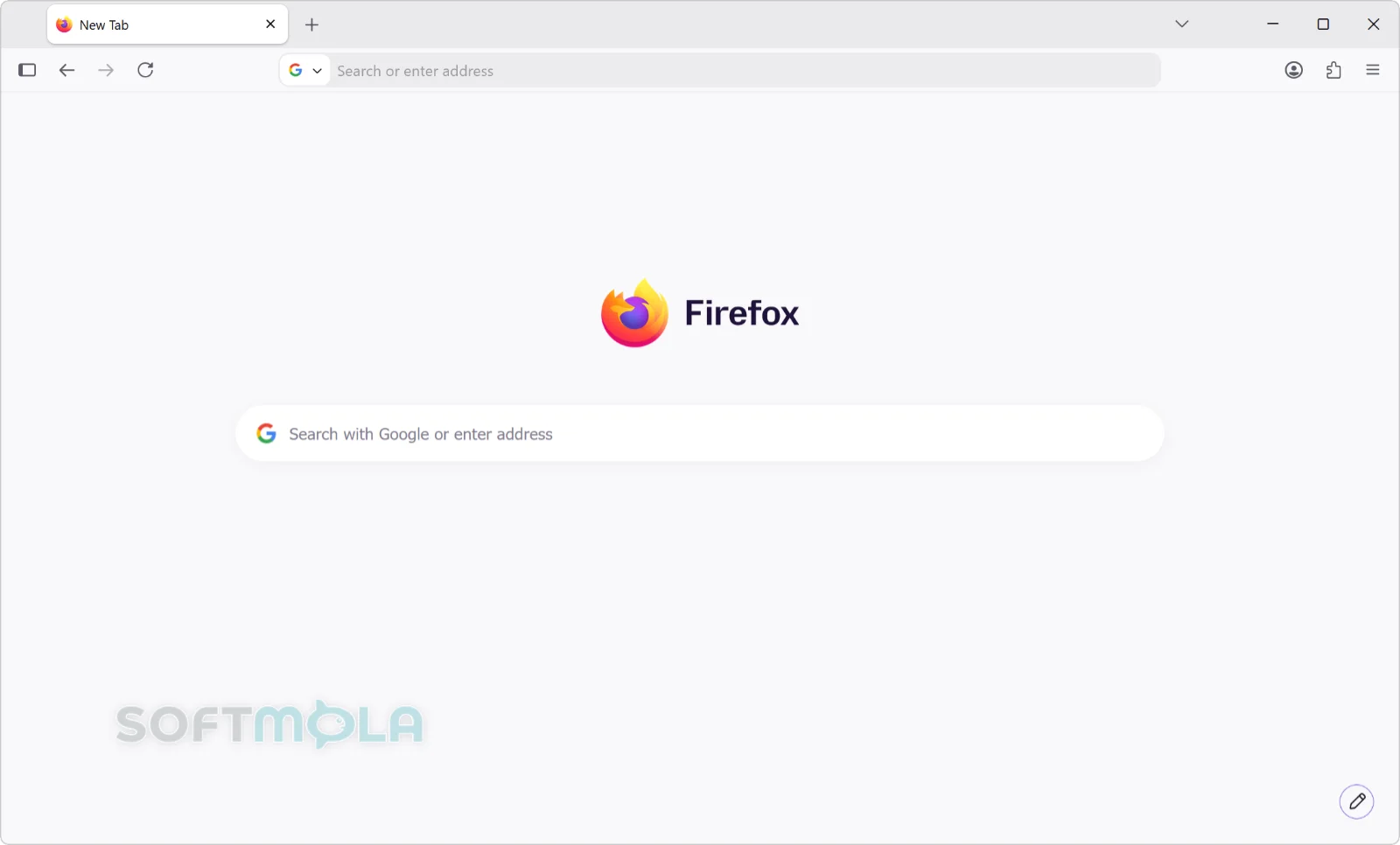
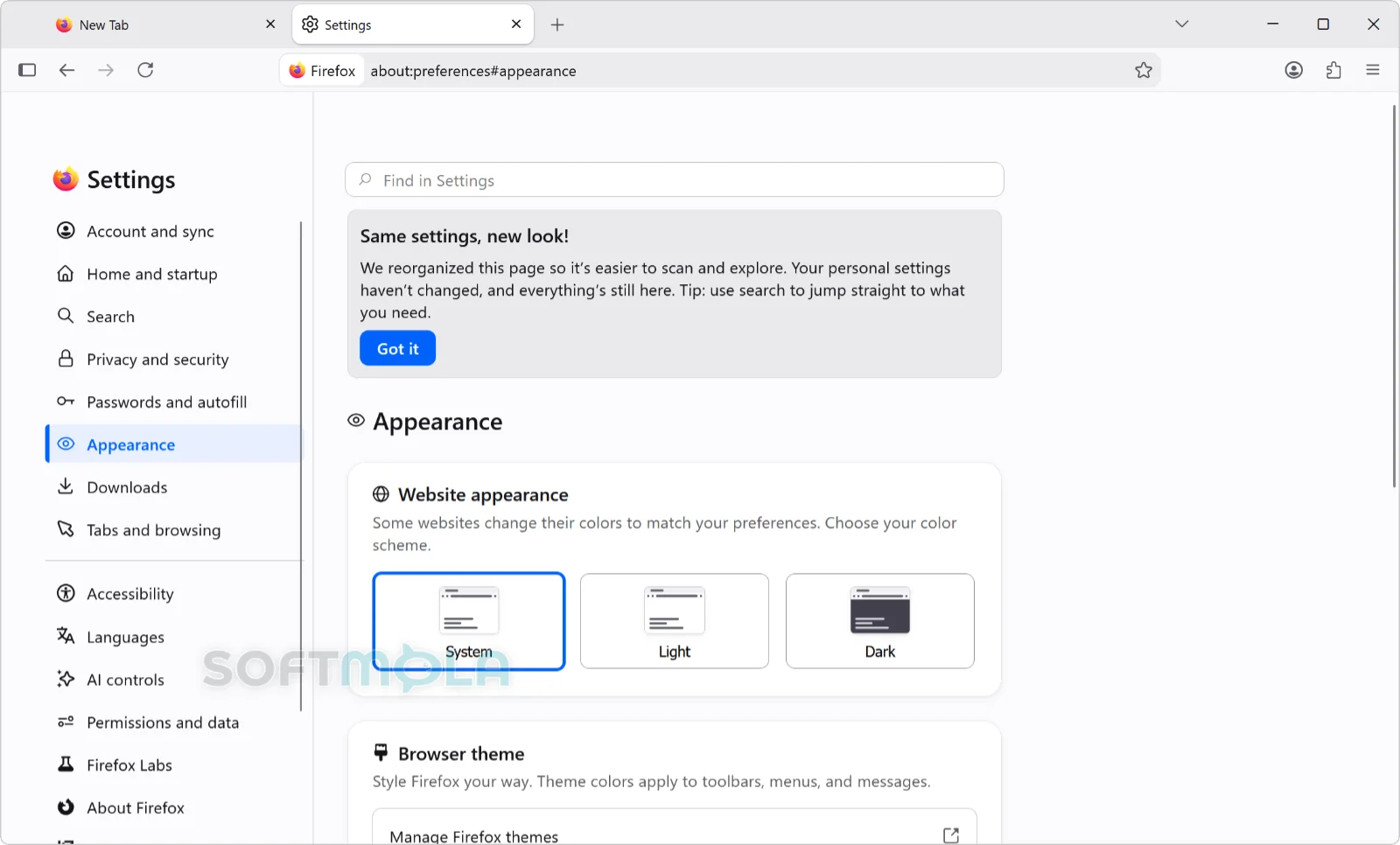
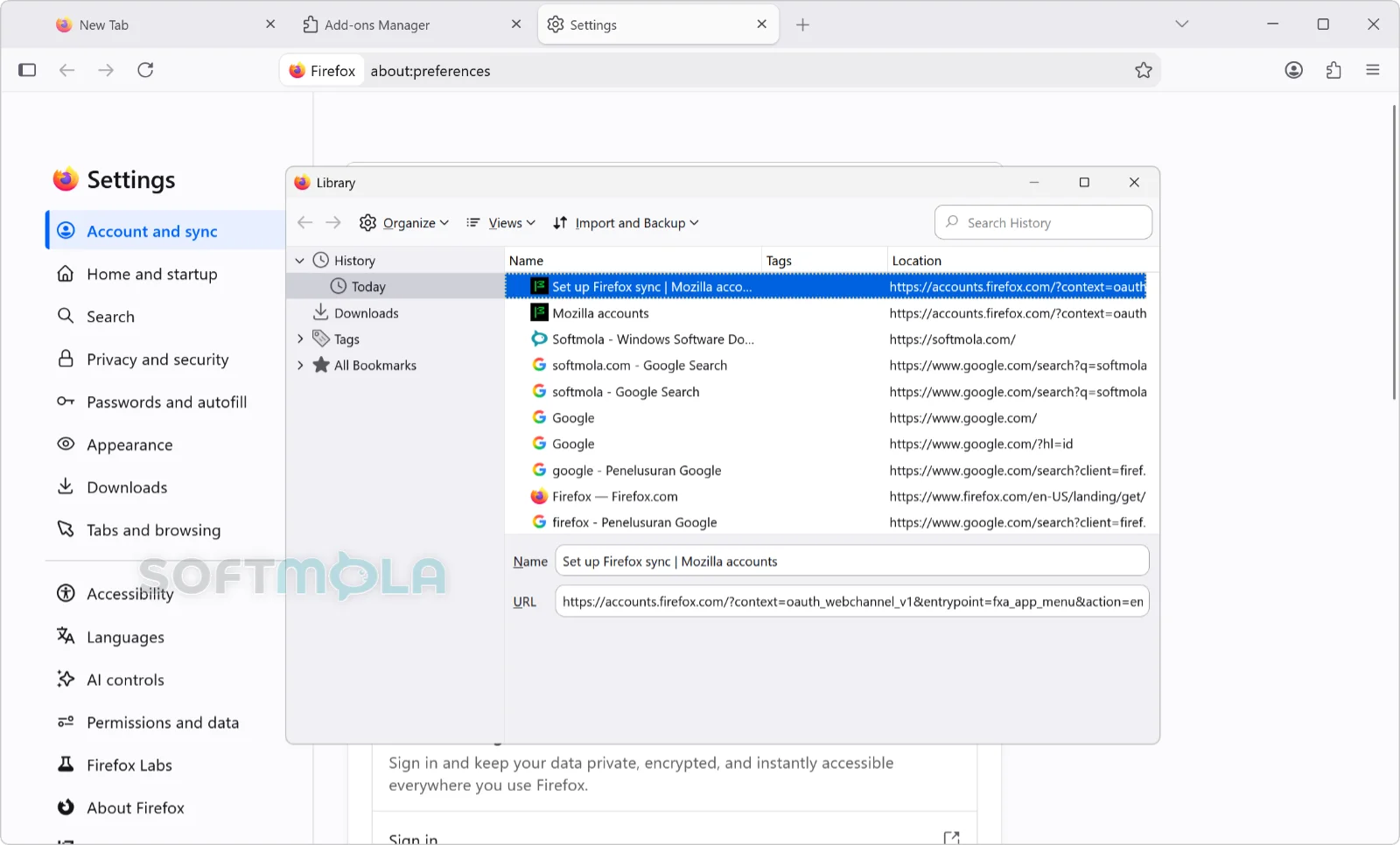
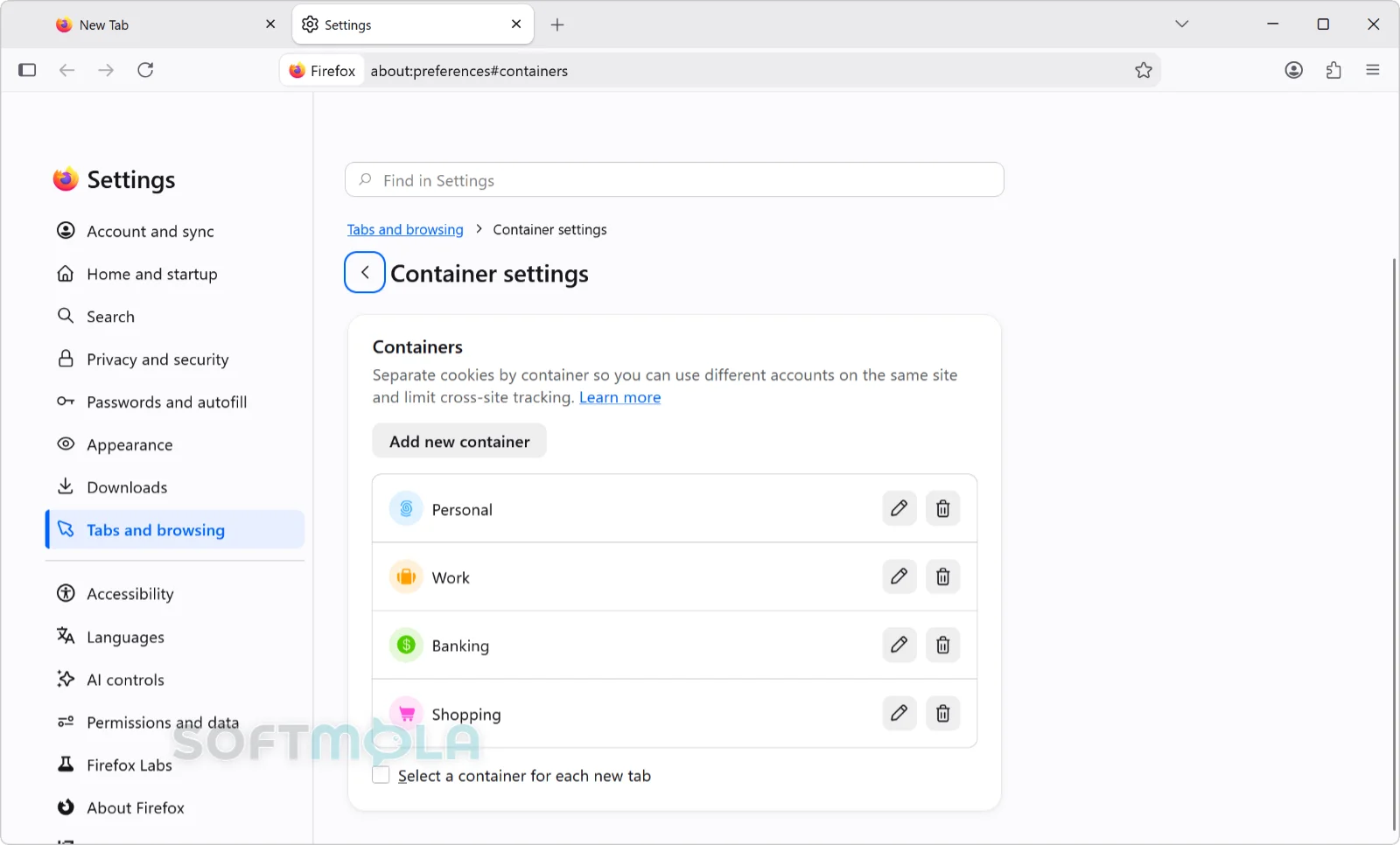
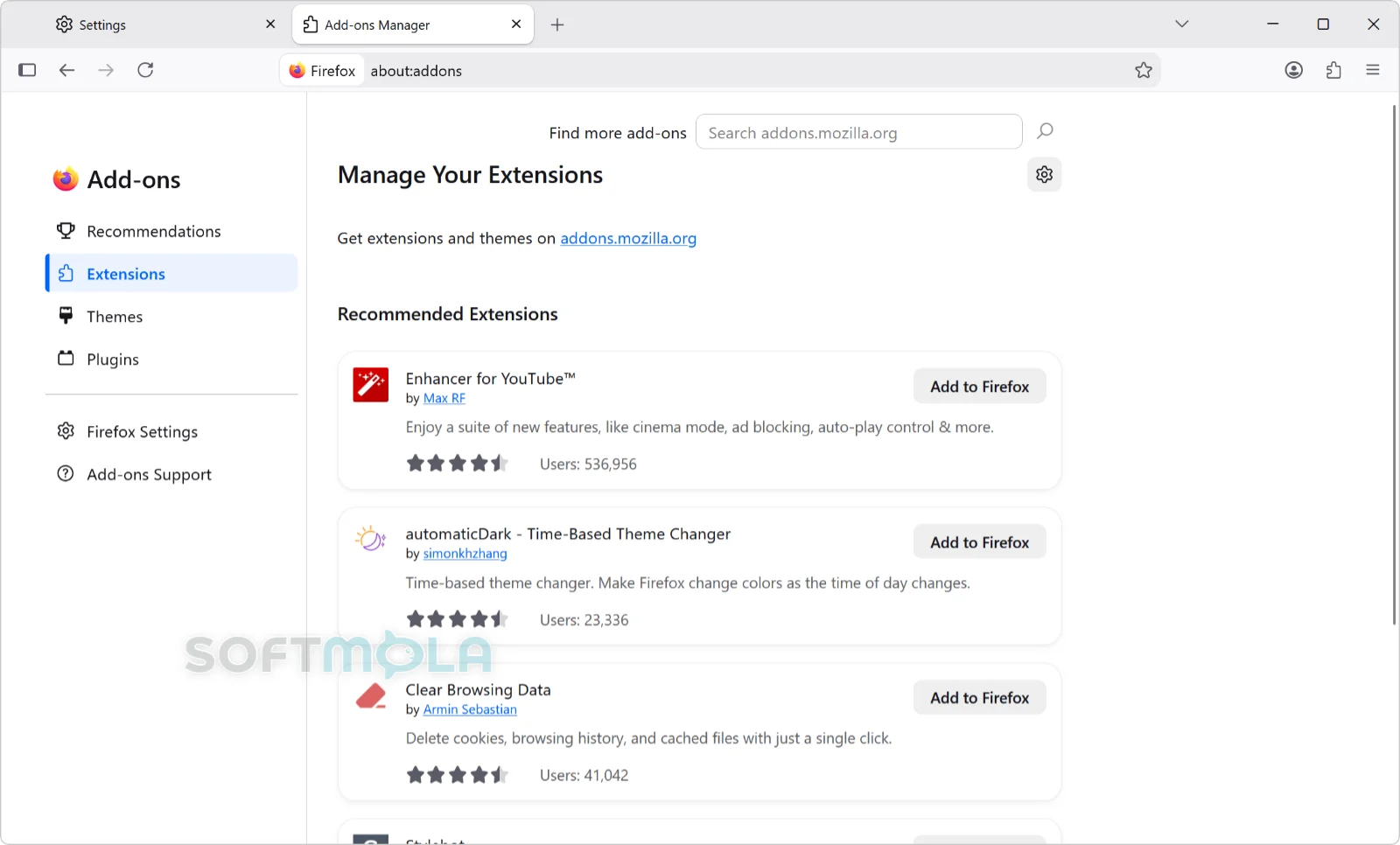
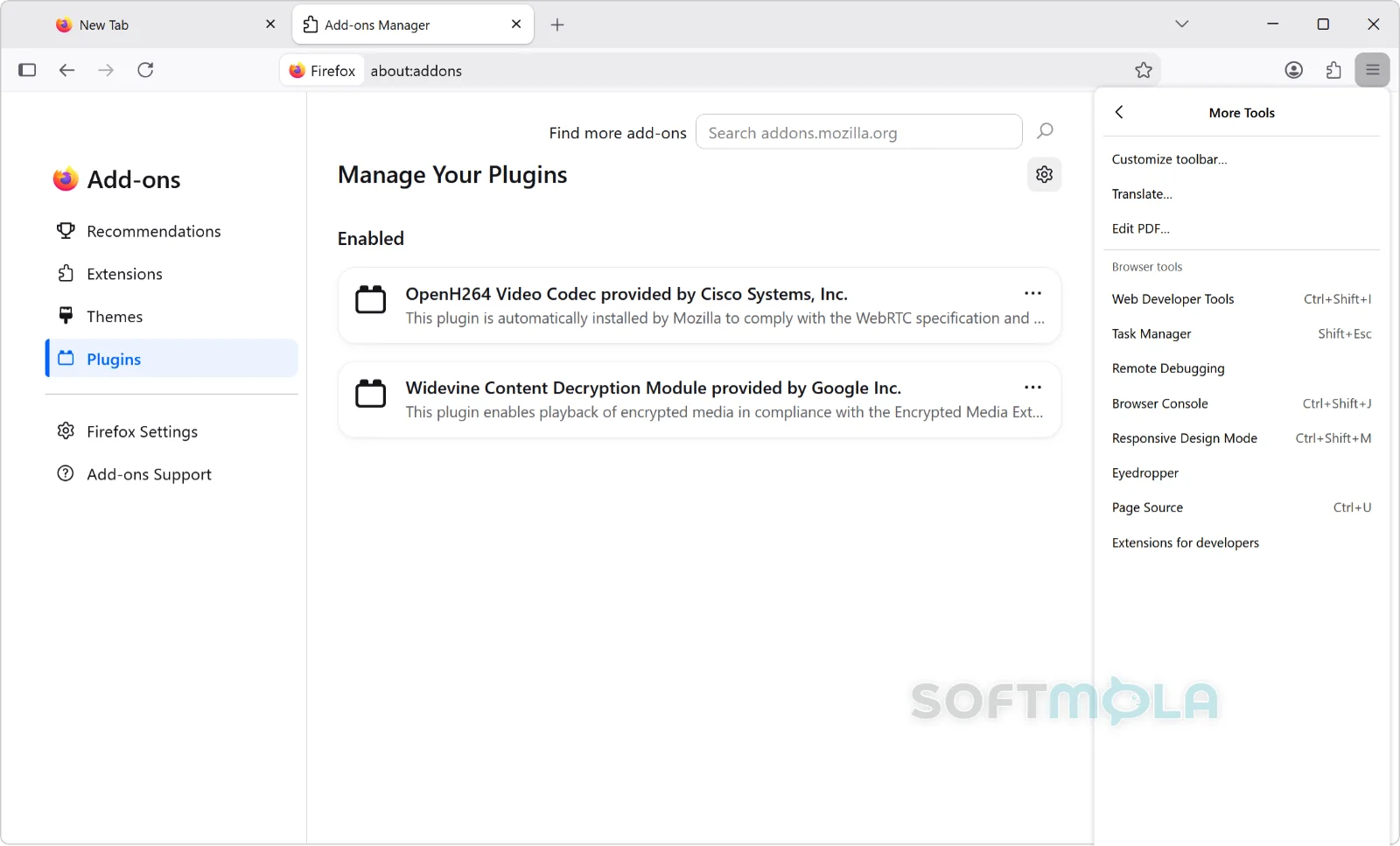
Table of Contents
Mozilla Firefox for Windows is a free, open-source web browser built around Mozilla's own Gecko engine, which makes it one of the few mainstream browsers that does not share its foundation with Google Chrome. That independence shapes almost everything about the product: how tracking protection works, how permissions are handled, and how much control the browser hands back to the person using it.
The browser is developed by Mozilla, a company owned by the non-profit Mozilla Foundation, and it runs on Windows 10 or later in 32-bit, 64-bit, and ARM64 builds. There is no paid edition of the browser and no account requirement for ordinary browsing, although a Mozilla account unlocks optional extras such as encrypted sync across devices.
Firefox tends to appeal to a specific kind of Windows user: someone who keeps a lot of tabs open, cares about who is collecting their data, wants extensions that go beyond the basics, or simply prefers not to hand another piece of their computing life to a Chromium-based browser. Whether that describes you is the useful question, and the sections below work through what the browser actually does well and where it asks for patience.
Mozilla Firefox Review
Installation on Windows is quick and unremarkable in the best way. Mozilla offers a small stub installer that downloads the current build, full offline installers, and MSI packages for administrators who deploy software across a fleet of machines. First launch offers to import bookmarks, saved passwords, and history from Edge or Chrome, and the import usually completes in seconds. Setting Firefox as the default browser still involves a trip through Windows Settings, which is a limitation of the operating system rather than the browser.
The default interface is restrained. A single address bar handles both navigation and search, tabs sit in a familiar strip at the top, and a sidebar can be switched on for vertical tabs, bookmarks, or history. Recent releases have quietly rearranged some of this, including moving Firefox View out of the toolbar by default for new profiles, so returning users may notice small differences from a few versions ago. Almost all of it can be rearranged through the Customize toolbar menu, and this remains one of the browser's genuine strengths: themes, toolbar layout, tab position, and userChrome tweaks are all available without third-party tools.
Day-to-day performance is competitive rather than dominant. Page loads, video playback, and scrolling feel comparable to other modern browsers on typical Windows hardware, and Mozilla has continued to work on the details that matter in real use, such as faster video seeking and HDR video playback on Windows displays configured for it. What matters more for most people is behaviour under load. Firefox splits page content across multiple processes and handles large tab counts without falling over, though memory use climbs the same way it does elsewhere. Independent benchmark results vary by test and hardware, so treat any claim of a clear winner with scepticism.
Privacy is where the browser makes its strongest case. Enhanced Tracking Protection is enabled by default, cross-site cookies are isolated so that a tracker cannot follow you from one site to the next using the same cookie jar, and Mozilla has spent recent releases tightening permissions rather than adding surface area. Websites now have to ask before reaching devices on your local network, extensions no longer get access to local files by default, and the address bar flags in red when a page is using your location. These are unglamorous changes that reduce the number of things happening silently in the background.
The larger question in 2026 is what to make of Mozilla's AI direction. Firefox now includes Smart Window, an optional window type with a built-in assistant that can summarise pages, compare open tabs, group tabs by topic, and answer questions about pages you have visited. It requires signing in with a Mozilla account, is still described by Mozilla as an early beta, and has been rolling out gradually by region, starting with the United States and Canada. Mozilla states that chat data is not stored by the company or its model providers, that memories are kept locally on your device, and that the assistant cannot fill forms, change settings, or act on your behalf. Daily usage limits apply. For users who want none of this, the AI Controls panel in Settings allows Smart Window and related enhancements to be blocked outright, which is a meaningful difference from browsers where AI features are simply present.
There are real limitations. A minority of sites, particularly older enterprise portals and some video and conferencing tools, are still built and tested primarily against Chromium, and Firefox users occasionally hit rendering quirks or outright blocks as a result. Firefox holds a single-digit share of the desktop browser market, and that share has been trending downward for years, which affects how much attention developers pay to it. Mozilla's funding has also depended heavily on search partnerships, a dependency the organisation itself has acknowledged as a strategic risk. None of this breaks the browser, but it is honest context for anyone deciding whether to make Firefox their default.
Who benefits most? People who want strong tracking protection without configuring anything, those who juggle multiple accounts or work contexts, developers who value a second rendering engine on their machine, and users who prefer their browser to be adjustable rather than fixed. Anyone who needs guaranteed compatibility with a specific corporate web application, or who is deeply invested in Chrome's account ecosystem, may find the switch more friction than it is worth.
Key Features of Mozilla Firefox
Enhanced Tracking Protection and cookie isolation
Firefox blocks known trackers, cryptominers, and fingerprinting scripts by default, and it confines cookies to the site that set them so cross-site tracking becomes considerably harder. The shield icon in the address bar shows what was blocked on any given page, and protection can be raised to a stricter setting or relaxed per site when something breaks. Recent versions also allow individual sites to be exempted from cookie clearing at shutdown without giving up tracking protection on those same sites.
Containers for separating accounts and activity
Containers let you keep work, personal, shopping, and banking sessions logged into different accounts inside one browser window, with cookies and tracking data isolated inside each container. In practice this means two Gmail accounts open side by side, or a shopping session that never shares a cookie with your work profile. For Windows users who currently juggle multiple browser profiles or a second browser entirely, this replaces a lot of manual housekeeping.
Granular permission and network controls
Websites must request permission before connecting to devices on your local network or to services running on your machine, a restriction that now covers WebSocket connections as well. Extensions require a separate, explicit permission to read local files. Location access is flagged visually while it is in use. Taken together these controls close off a category of quiet access that most browsers historically allowed by default.
Built-in PDF viewer and editor
Firefox opens PDFs directly, and its editor has grown past simple viewing. You can add text and drawings, highlight passages, insert images as new pages, and merge multiple PDFs by dragging them into the sidebar. For routine tasks like signing a form or combining scanned documents, this removes the need for a separate Windows PDF application.
On-device translation
Full-page translation runs locally rather than sending page text to a remote service, which matters if you translate documents that should not leave your machine. Recent releases extended translation to content inside embedded frames and improved how reliably Firefox detects a page's language in the first place. Language models download on demand, so the first translation into a new language takes a moment longer.
Extensions and customisation
Firefox maintains its own add-on catalogue and continues to support the extension capabilities that comprehensive content blockers and power-user tools rely on. Beyond extensions, the browser exposes an unusually large amount of configuration through Settings, the Customize toolbar menu, and the about:config page for those who want it. Firefox Labs offers early access to experimental work, including current support for the JPEG XL image format.
Smart Window and AI controls
The optional Smart Window brings an assistant that works with your open tabs and history, with a choice of underlying models and locally stored memories that can be reviewed, deleted, or switched off. Availability is still limited by region and language, and a Mozilla account is required. The corresponding AI Controls panel is arguably the more important feature: it lets you block these additions entirely, which keeps the decision in your hands.
Firefox remains a credible default browser for Windows rather than a nostalgic one. It is free, actively developed on a roughly four-week release cycle, and it offers privacy defaults and customisation depth that Chromium-based alternatives generally match only through extensions and manual configuration. The trade-offs are a smaller market share that occasionally shows up as site compatibility friction, and an evolving AI strategy that some long-time users will welcome and others will want to turn off on day one. If you value an independent engine, strict tracking protection, and a browser you can shape around how you actually work, Firefox is worth installing alongside your current browser and testing for a week before committing.
How to Download and Install Mozilla Firefox on Windows
Firefox for Windows is distributed by Mozilla as a downloadable installer and is also published in the Microsoft Store. Both routes are official, and both are free. No account, licence key, or payment is required at any point during setup. Choose the installer route if you want the standard self-updating build, or the Store route if you prefer Windows to manage updates.
How to Download Firefox
Select the download button on this page.
Continue to the official Mozilla download source.
Choose a different build if your setup requires one, such as an ARM64 package for Windows on ARM devices, an offline installer, or an MSI package for managed deployment.
Save the installer to a folder you can find easily, such as Downloads.
Wait for the download to finish before opening the file.
How to Install Firefox
Open the downloaded installer.
Approve the Windows User Account Control prompt if it appears, and check that the publisher is listed as Mozilla.
Let the setup process run. The standard installer completes without asking for configuration choices.
Firefox opens automatically once installation finishes.
Choose whether to import bookmarks, passwords, and history from another browser when prompted.
Set Firefox as your default browser through Windows Settings if you want links from other apps to open in it.
How to Install Firefox from Microsoft Store
Open Microsoft Store from the Start menu or taskbar.
Search for Firefox and select the listing published by Mozilla.
Choose Get to begin the installation.
Wait for Windows to finish downloading and installing the app.
Open Firefox from the Start menu.
Import your data or sign in if you want to sync an existing profile.
Firefox installed from the Store updates through Windows rather than through the browser's own updater, and it uses a separate profile from any copy installed from Mozilla's site. Running both at once is possible but means maintaining two sets of bookmarks and settings.
Getting Started with Firefox
Check your privacy settings. Enhanced Tracking Protection is already on in Standard mode; switch to Strict in Settings if you want more aggressive blocking and are willing to fix the occasional broken site.
Add the extensions you rely on. Install content blockers, password tools, or workflow add-ons from Mozilla's official add-on catalogue.
Turn on sync if you want it. Signing in with a Mozilla account keeps bookmarks, passwords, and open tabs consistent across devices, and can be left off entirely.
Decide about AI features. Open the AI Controls panel in Settings to try Smart Window or to block it before you start using the browser day to day.
Mozilla Firefox Pros & Cons
- Free and open source: The browser costs nothing, has no paid tier, and its code is published under an open licence that anyone can inspect.
- Tracking protection on by default: Enhanced Tracking Protection and cross-site cookie isolation are active from first launch, without extensions or manual configuration.
- Independent rendering engine: Gecko keeps Firefox outside the Chromium ecosystem, which matters both for web diversity and for developers who need to test against a second engine.
- Containers for separating accounts: Work, personal, and shopping sessions can stay logged into different accounts in one window with isolated cookies.
- Genuinely customisable: Toolbar layout, vertical tabs, themes, and a large add-on catalogue give more control than most competing browsers offer out of the box.
- Flexible installer options: Stub, full offline, MSI, and Microsoft Store packages cover home users, ARM64 devices, and managed deployments.
- Occasional site compatibility issues: A minority of sites, especially older enterprise portals and some conferencing tools, are tested primarily against Chromium and may misbehave or block access.
- Shrinking desktop market share: Firefox holds a single-digit share of desktop browsing, which affects how much attention developers give it during testing.
- AI features added to the core product: Smart Window and related additions are optional and can be blocked, but users who want a browser with no AI surface at all will need to change settings after installing.
- Regional limits on newer features: Smart Window has rolled out gradually by country and language, so availability depends on where you are.
- Setting it as default takes extra steps: Windows requires the default browser to be changed manually in Settings, and this applies to every non-Edge browser.
Frequently Asked Questions
Is Mozilla Firefox free?
Yes. Firefox is free to download and use on Windows, with no trial period, no paid upgrade, and no feature locked behind a subscription. It is released as open-source software under the Mozilla Public License. Mozilla does sell separate paid products, such as its VPN service, but those are distinct from the browser and are not required to use any part of Firefox.
Does Firefox work on Windows 11 and Windows 10?
Yes. The current Firefox release supports Windows 10 or later, including Windows 11, in 32-bit, 64-bit, and ARM64 builds. Mozilla no longer supports the standard release on Windows 8.1 or earlier and directs those users to an older Extended Support Release build instead. If your PC is on an unsupported version of Windows, keep in mind that the operating system itself may no longer receive security updates.
Is Firefox safe to download and use?
Firefox is developed by Mozilla and distributed through its official download pages and the Microsoft Store, which are the sources you should use. Downloading from unofficial mirrors introduces the risk of modified installers. In use, Firefox blocks known trackers by default and warns about reported phishing and malware sites, but no browser can prevent every threat. Safe browsing still depends on your own habits and on keeping the browser updated.
Do I need a Mozilla account to use Firefox?
No. Browsing, bookmarks, saved passwords, and extensions all work without signing in. A Mozilla account is only needed if you want to sync data across devices or use features that require it, such as Smart Window. Sync is optional and can be turned on or off at any time.
Should I install Firefox from Mozilla or the Microsoft Store?
Either works, and the difference is mainly in how updates are handled. The version from Mozilla's site updates itself in the background, while the Microsoft Store version is packaged for Windows and updates through the Store. The two installs create separate profiles, so bookmarks and history do not carry over between them. Note that Firefox cannot be installed from the Store on Windows in S mode.
Can I use Firefox alongside Chrome or Edge?
Yes. Firefox installs independently and does not interfere with other browsers already on your PC. Many people keep more than one installed, using Firefox as their main browser and another for the occasional site that requires it. Setting Firefox as your default browser is a separate step done in Windows Settings, and skipping it means links from other apps continue to open elsewhere.
Will my bookmarks and passwords transfer from another browser?
Firefox offers to import bookmarks, saved passwords, browsing history, and other data on first launch, and the import tool remains available afterwards from the bookmarks menu. The process reads data from browsers installed on the same PC, so the source browser needs to be present. Imported passwords land in Firefox's built-in password manager, where you can protect them further with a Primary Password.
Can I turn off Firefox's AI features?
Yes. Firefox includes an AI Controls panel in Settings where Smart Window and related AI enhancements can be blocked entirely. There is also a single option to block AI enhancements across the browser. Nothing AI-related activates on its own without you opening a Smart Window and signing in with a Mozilla account, so users who simply ignore the feature will not encounter it during normal browsing.