

Xshell for Windows
A powerful Windows terminal emulator for managing SSH connections, remote sessions, and repetitive server administration tasks.
Software Information
Xshell Screenshots
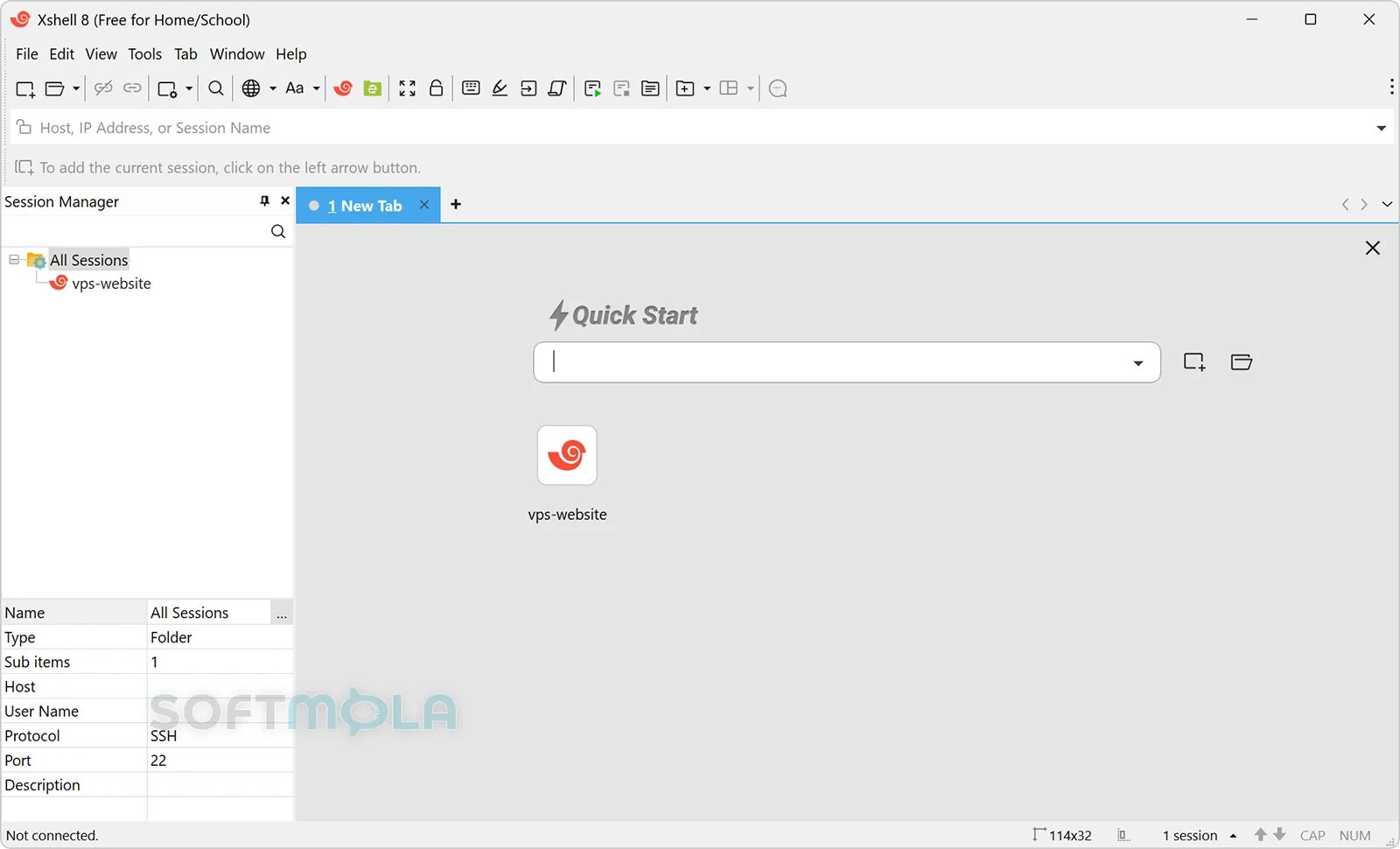
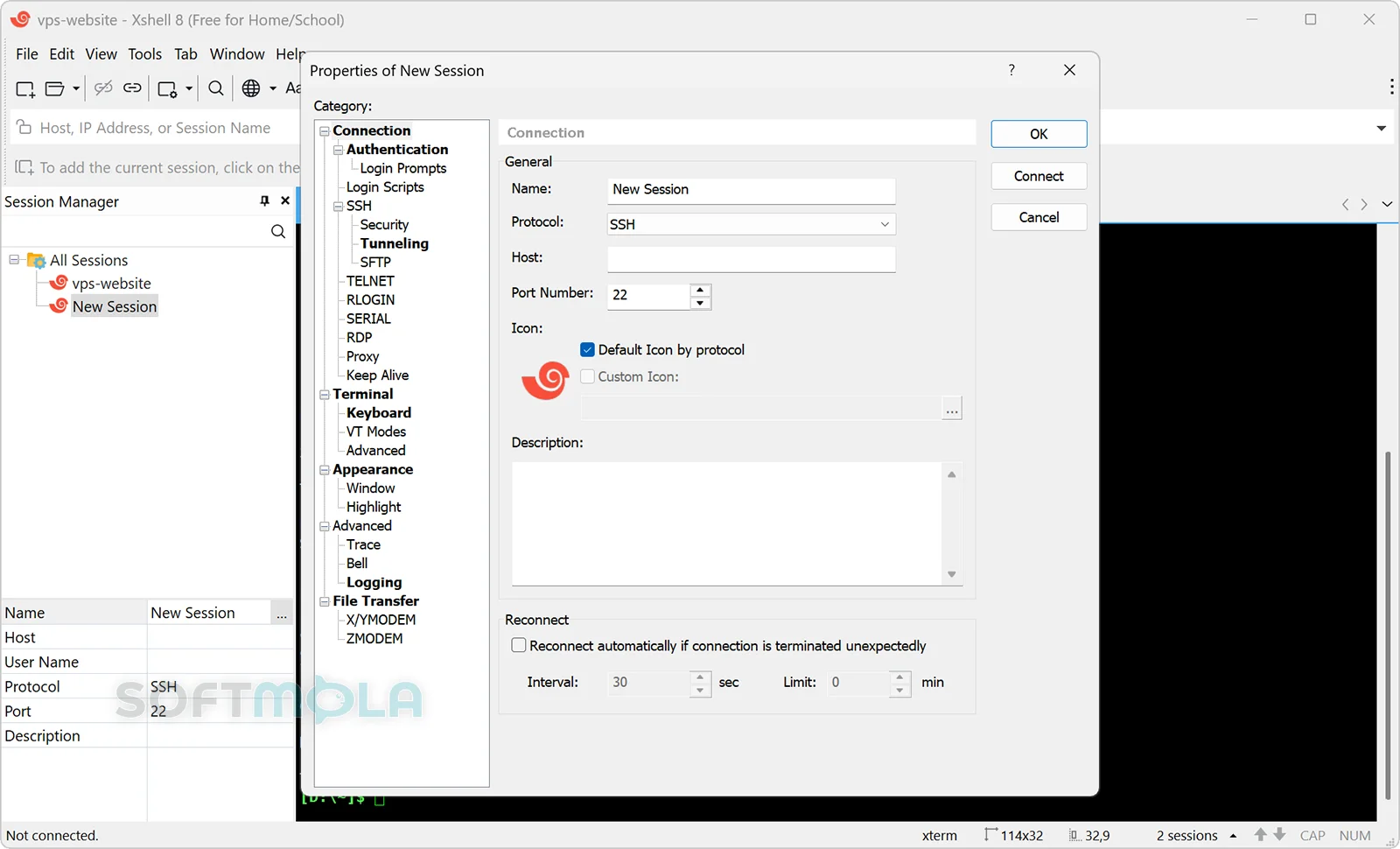
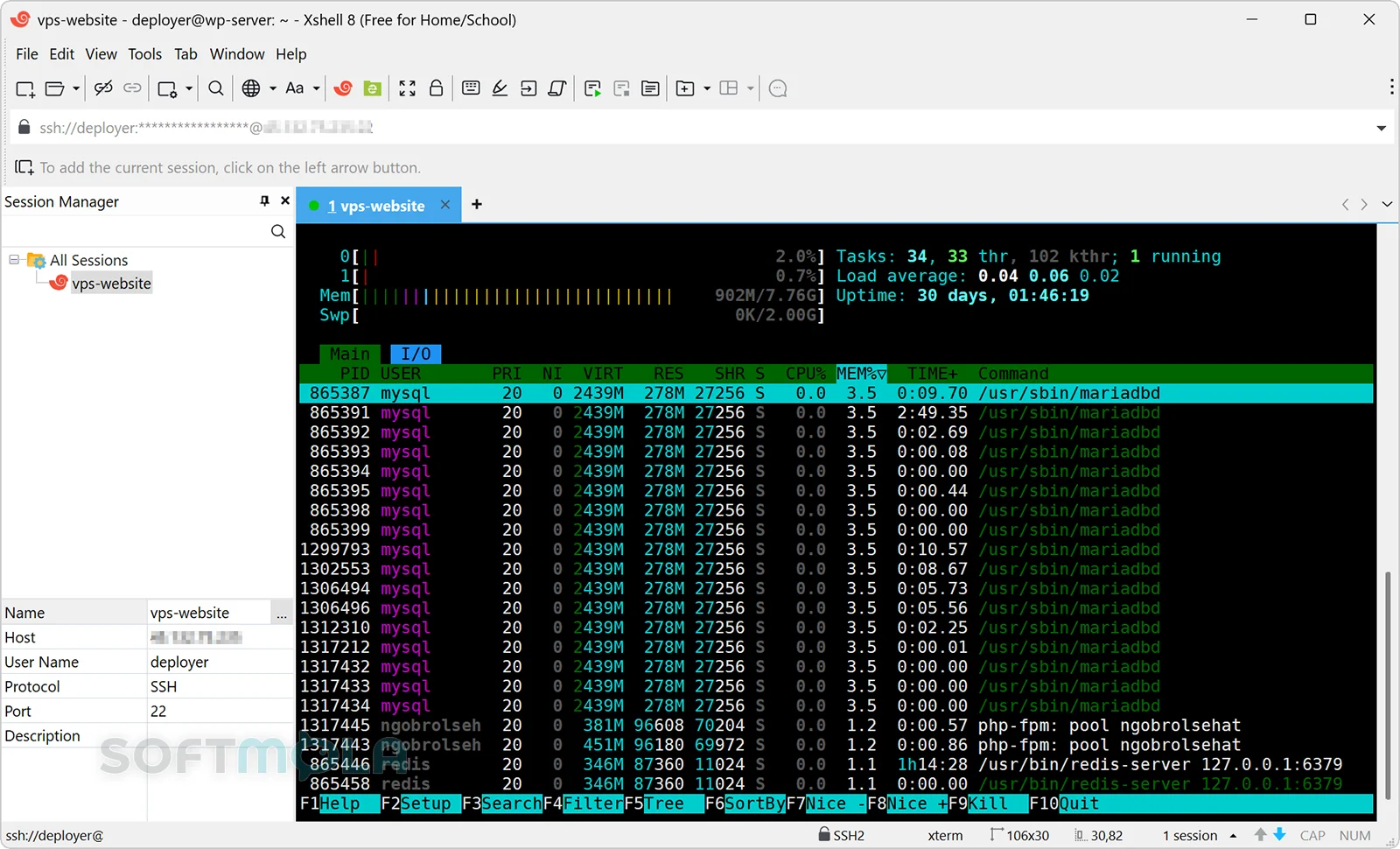
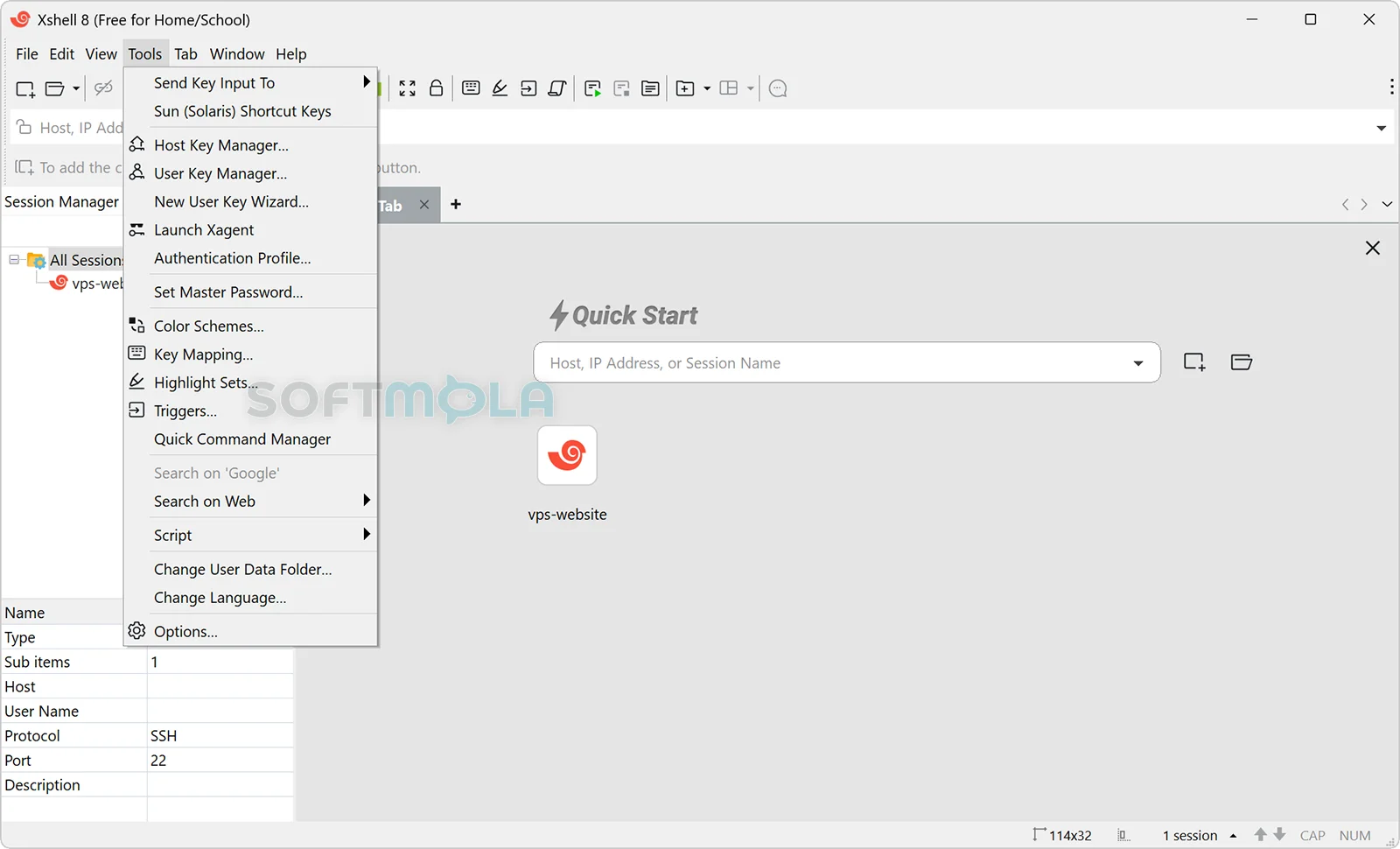
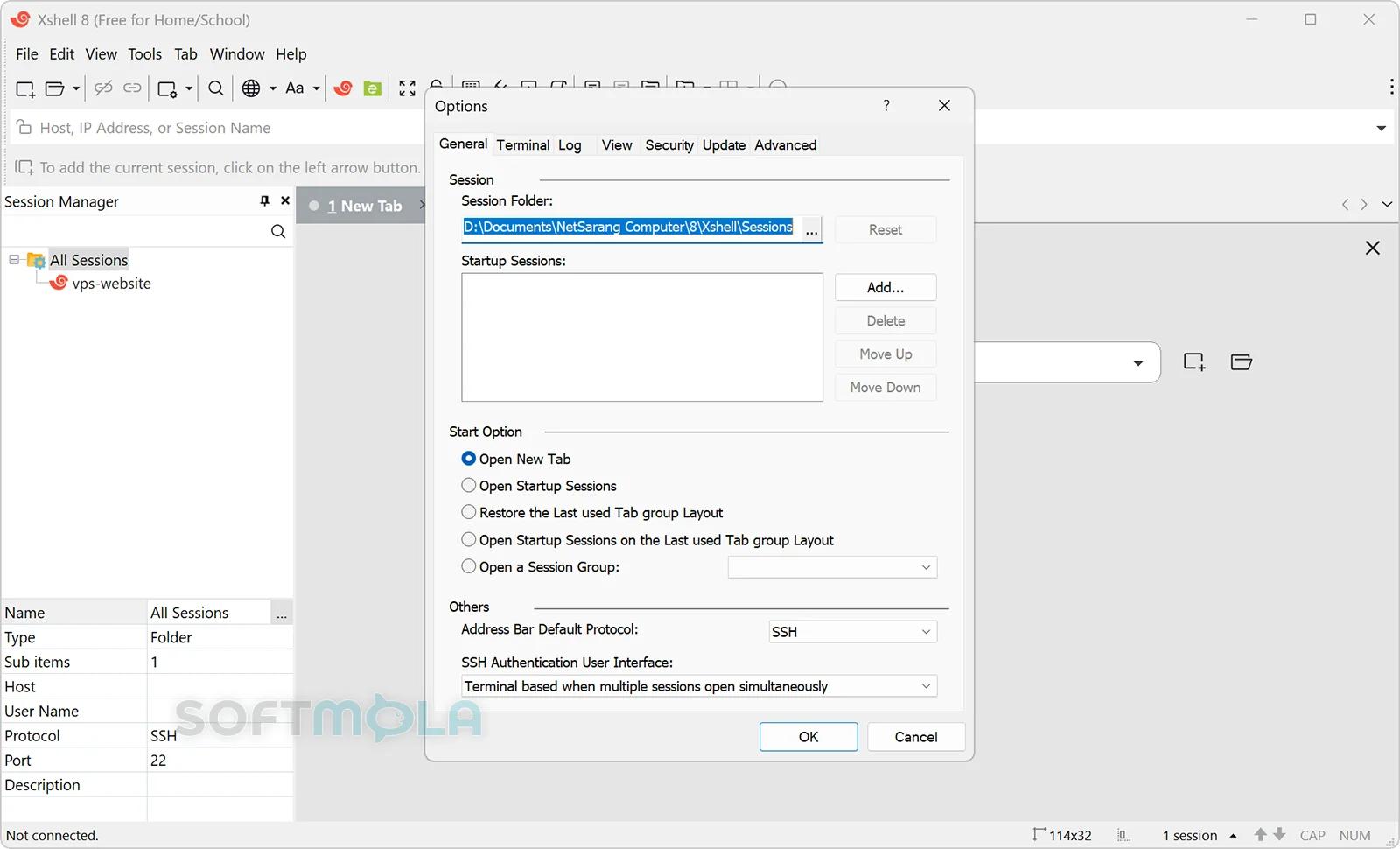
Table of Contents
Xshell for Windows is a terminal emulator and remote-access client designed for people who regularly connect from a Windows PC to Linux, Unix, network appliances, servers, and other remote systems. Its main strength is SSH, but it also supports SFTP, Telnet, Rlogin, serial connections, and RDP, giving administrators and technical users a single workspace for several types of remote sessions.
Developed by NetSarang Computer, Xshell is especially useful for system administrators, developers, network engineers, students, and advanced Windows users who need more session-management and automation tools than a basic command-line SSH client provides. The current product line is Xshell 8, and NetSarang continued releasing updates during 2026, indicating that the software remains actively maintained rather than being a legacy terminal utility.
Licensing depends on how the software is used. NetSarang provides Xshell free for home and school use under a non-commercial licence, while business use requires a commercial licence. A 30-day evaluation is also available for users considering the commercial edition.
Xshell Review
Xshell sits between a straightforward SSH client and a broader remote-administration workspace. A simple SSH connection can be created quickly, but the software becomes more useful when managing many hosts. Saved sessions can be organised through Session Manager, opened in multiple tabs, grouped, imported or exported, and launched simultaneously. For administrators who return to the same servers every day, this structured approach reduces the need to repeatedly enter connection details or remember host configurations.
The interface is more feature-dense than minimalist alternatives, although much of that complexity serves practical purposes. Tab Manager helps keep a large number of active terminals organised, while configurable layouts make it possible to display multiple tab groups within one window. Quick Commands can store frequently used commands or strings, and the Compose Pane lets users prepare multi-line input before sending it to selected sessions. These tools are particularly useful when repetitive terminal work would otherwise involve considerable copying and typing.
Xshell also provides several options for working across multiple systems at once. Synchronized Input can send the same input to selected terminal sessions, which can be useful when applying an identical command to several machines. That capability needs to be used carefully—sending an unintended administrative command to multiple servers can amplify a mistake—but for controlled maintenance tasks it can significantly reduce repetitive work.
Automation goes further than reusable command buttons. Xshell supports scripting and script recording, as well as Triggers that can perform predefined actions when specified text appears in a terminal session. Its scripting support includes VBScript, JScript, and Python according to NetSarang's current specifications. These capabilities make Xshell better suited to repeatable administrative workflows than terminal clients built primarily around manual interaction.
Remote connectivity is also relatively broad. Alongside SSH and SFTP, Xshell supports Telnet, Rlogin, serial connections, and RDP. Telnet and Rlogin are legacy protocols and should not be treated as substitutes for encrypted SSH on untrusted networks, but their availability can still matter when maintaining older equipment. RDP support is more immediately useful for mixed Windows and Linux environments because an administrator can keep remote desktop sessions next to terminal sessions in the same application.
For SSH authentication, Xshell supports common public-key methods including RSA, ECDSA and Ed25519, as well as password and keyboard-interactive authentication. It also supports PKCS#11, Windows CAPI, Kerberos, OpenSSH certificate-authority authentication, and integration with NetSarang's Xagent authentication agent. A Master Password can be used to add protection to passwords stored with session information.
The presence of security features does not remove the need for sensible configuration. Xshell's specifications retain compatibility with older protocols and cryptographic algorithms because it is designed to connect to a wide range of systems. Administrators should therefore select modern SSH configurations where possible instead of assuming every supported option represents a recommended modern default. NetSarang has also made security-oriented configuration changes over time; for example, a May 2026 update changed new port-forwarding rules so that accepting local connections only is enabled by default, reducing the chance of unintentionally exposing a forwarded port.
Another positive sign is the continuing maintenance of the application. Updates through 2025 and 2026 addressed crashes, authentication behaviour, session handling, IPv6-related issues, Windows 11 compatibility and other operational problems. That active maintenance matters for remote-administration software because compatibility with operating-system changes and authentication systems can be as important as adding new headline features.
Xshell will not suit everyone. Windows now includes native command-line SSH capabilities, and users who only connect to one or two hosts may not need a dedicated application with session managers, scripting tools, forwarding controls and extensive interface customisation. Its strongest case appears when remote access is frequent or complicated. People managing numerous machines, multiple authentication profiles or repetitive administrative routines are more likely to benefit from the extra structure.
The licence is another important distinction. The free Xshell licence is intended specifically for non-commercial home and school use. Business users cannot simply treat it as a general-purpose freeware SSH client; NetSarang directs commercial users toward its paid licensing. The company also offers a 30-day evaluation for users who want to assess the commercial product first.
Overall, Xshell remains relevant because it addresses a different problem from a bare SSH command. It is not merely a way to open a terminal connection; it is designed to organise, automate and operate many remote sessions from Windows. Users who value that workflow will find substantially more depth here than in a basic terminal, while occasional SSH users may prefer the simplicity of tools already included with Windows.
Key Features of Xshell
Session Manager and Tabbed Connections
Session Manager is one of Xshell's most practical features for anyone maintaining more than a handful of remote hosts. Users can create saved sessions, organise them into folders, open several connections simultaneously, import or export session data, and work with multiple tab groups within a single window.
This arrangement makes Xshell particularly useful for administrators moving regularly between production servers, test systems, routers or virtual machines. Instead of treating every connection as an isolated terminal window, the software turns them into an organised collection that can be reused and managed centrally.
Authentication Profiles
Authentication Profiles let users save sets of authentication settings and apply them across multiple session files. If shared credentials or related authentication details change, the profile can be updated rather than manually editing every associated session.
For environments with many saved hosts, this can make credential administration considerably easier. It also helps separate connection definitions from reusable authentication settings, although organisations should still follow their own credential-storage and access-control policies.
Quick Commands and Synchronized Input
Quick Commands allow commonly used terminal commands or text strings to be stored and sent without retyping them each time. Xshell also supports Synchronized Input, which distributes keyboard input to multiple selected terminals simultaneously.
Both features target repetitive administration. Quick Commands are useful for predictable commands that operators run regularly, while synchronized input can help when several systems need the same action. The latter should be used deliberately because an incorrect command can affect every selected session.
Scripting and Triggers
Xshell includes scripting capabilities for more advanced automation, with support for VBScript, JScript and Python listed in NetSarang's specifications. Script Recording can help generate scripts from terminal activity, while Triggers can react when designated strings appear during a session.
These tools extend Xshell beyond manual remote access. They can assist with repetitive workflows, predictable login sequences and other terminal operations where automation saves time, without requiring users to replace their entire remote-access environment with a separate management platform.
SSH Authentication and Key Management
The application supports password, keyboard-interactive and public-key authentication, including RSA, ECDSA and Ed25519 keys. Additional options include PKCS#11, CAPI, Kerberos, OpenSSH CA authentication and Xagent integration.
That range is useful in environments where authentication requirements differ between systems. The Master Password feature can also add protection to credentials stored in session configuration, although secure remote administration still depends on appropriate server policies, strong authentication choices and careful handling of private keys.
SSH Tunneling and Jump Hosts
Xshell provides TCP/IP forwarding, X11 forwarding and dynamic forwarding through SOCKS proxies, together with tools for viewing and changing active tunnels. Jump Host support is useful when a destination server cannot be reached directly and connections must pass through an intermediary host.
These capabilities are valuable for administrators working with segmented networks, development environments or infrastructure located behind controlled access points. A 2026 update also tightened the default behaviour of new forwarding rules by enabling local-only connections by default.
RDP and Multi-Protocol Access
Although SSH remains central to Xshell, the client also supports SFTP, Telnet, Rlogin, serial connections and RDP. RDP integration is particularly useful in mixed environments because Windows graphical sessions can be opened alongside terminal connections rather than requiring a completely separate workflow.
Legacy protocols such as Telnet and Rlogin remain useful mainly for compatibility with older systems and equipment. Where SSH or another encrypted protocol is available, it is generally the more appropriate option for remote access across networks that cannot be fully trusted.
Xshell is most compelling for Windows users whose remote-access workload has grown beyond occasional SSH connections. Its organised session management, authentication profiles, automation tools, tunneling controls and multi-protocol support can make frequent server administration much easier to manage. The interface and feature set may be excessive for casual users, and businesses need the appropriate commercial licence, but administrators, developers, network engineers and learners who make substantial use of remote terminals should still find Xshell a capable and actively maintained option.
How to Download and Install Xshell on Windows
Xshell is distributed through NetSarang's official download system. The available route depends on whether you are an existing customer, evaluating the commercial product, or qualifying for the non-commercial Home/School licence. The current Xshell generation is Version 8.
How to Download Xshell
Select the Download for Windows button on this page and continue to the verified Xshell download source.
Choose the licence route that matches your use: an existing licence, the 30-day evaluation, or the free Home/School licence.
For an evaluation, enter the required contact information. NetSarang sends the download link to the email address provided.
Home and school users should use the dedicated free-licensing route and confirm that their intended use is non-commercial.
Save the official Xshell installer to a location where you can easily find it after the download completes.
How to Install Xshell
Open the downloaded Xshell installation program.
Review the licence information and the installation options presented by the setup program.
Continue through the installer, changing the available installation options only when they are relevant to your setup. NetSarang's Version 8 manual states that Xshell uses an InstallShield-based installation program and that the default choices are generally sufficient for a standard installation.
Complete the installation and launch Xshell.
If you are upgrading from the free edition of Xshell 7 to Version 8, existing sessions and configuration data should be imported automatically according to NetSarang.
Getting Started with Xshell
Open Xshell and create a new session.
Give the session a recognisable name, choose the required connection protocol, and enter the remote host name or IP address and its port number.
For an SSH connection, select the appropriate authentication method required by the server, such as password or public-key authentication.
Save the session so that frequently used hosts are available through Xshell's session-management tools.
Prefer SSH or another appropriately secured connection method when available rather than legacy protocols such as Telnet or Rlogin, particularly across networks you do not fully control.
Xshell Pros & Cons
- Strong multi - session management: Session Manager, tabs, tab groups, and reusable connection profiles make it easier to organise numerous remote hosts.
- Useful tools for repetitive administration: Quick Commands, synchronized input, triggers, scripting, and script recording can streamline recurring terminal tasks.
- Broad remote - access support: Xshell handles SSH, SFTP, Telnet, Rlogin, serial connections, and RDP, making it suitable for mixed infrastructure.
- Flexible SSH authentication: Support includes password, public-key, PKCS#11, CAPI, Kerberos, and OpenSSH CA authentication options.
- Free option for eligible users: Home and school users can use the free licence for non-commercial purposes without the former tab limitation.
- Commercial use requires a paid licence: The free licence explicitly excludes business use, so workplace deployments need commercial licensing.
- More complex than a basic SSH client: Users who only need occasional command-line SSH access may not benefit from its extensive session, automation, and management features.
- Legacy protocols remain available: Telnet and Rlogin support helps with older equipment, but these protocols do not provide the protections expected from modern SSH connections.
- Windows - only desktop focus: The current Xshell specifications list Windows desktop and Windows Server platforms rather than native macOS or Linux editions.
Frequently Asked Questions
What is Xshell?
Xshell is a Windows terminal emulator and remote-access client developed by NetSarang Computer. Its primary use is connecting to remote systems through SSH, although it also supports SFTP, Telnet, Rlogin, serial connections, and RDP. Its session-management and automation features make it particularly useful for administrators, developers, and network professionals handling multiple remote hosts.
Is Xshell free?
Yes, Xshell is free for home and school use when the use is non-commercial. NetSarang states that using the free licence for business purposes violates its free licence terms. Organisations and other commercial users therefore need the appropriate paid licence rather than treating the Home/School edition as general freeware
Does Xshell offer a free trial?
Yes. NetSarang currently provides a 30-day evaluation of Xshell. The official download page asks evaluation users for their name and email address and states that the download link is sent by email. Existing licensed users can also obtain downloads by supplying a product key and selecting an available version.
Does Xshell work on Windows 11?
Yes. NetSarang's current Xshell specifications explicitly list Windows 10 and Windows 11, along with supported Windows Server editions. Version 8 is the current product generation offered on the official download page.
Can I still use the free version of Xshell 7?
Not under NetSarang's current free-licensing programme. The developer ended free-licence support for Version 7 and directs Home/School users to Version 8. NetSarang states that existing Version 7 settings and session files are automatically imported when Version 8 is installed. Paid Version 7 users are treated differently and can continue using their licensed software.
Do I need an account to use Xshell?
NetSarang does not present a general Xshell user account as a prerequisite for every session. However, the download process varies by licence type. A 30-day evaluation requires contact information, including an email address to which the download link is sent, while existing licensed customers use their product key.
Is Xshell suitable if I only use SSH occasionally?
It can be, but it may provide more functionality than an occasional user needs. Xshell is most valuable when saved sessions, multiple tabs, authentication profiles, tunneling, scripting, synchronized input, or management of many hosts are part of the workflow. Windows users who only make infrequent SSH connections may prefer a simpler terminal client.