
MobaXterm Home Edition for Windows
A versatile Windows toolkit for SSH, SFTP, remote desktop access, X11, and Unix-style command-line tools.
Software Information
MobaXterm Home Edition Screenshots
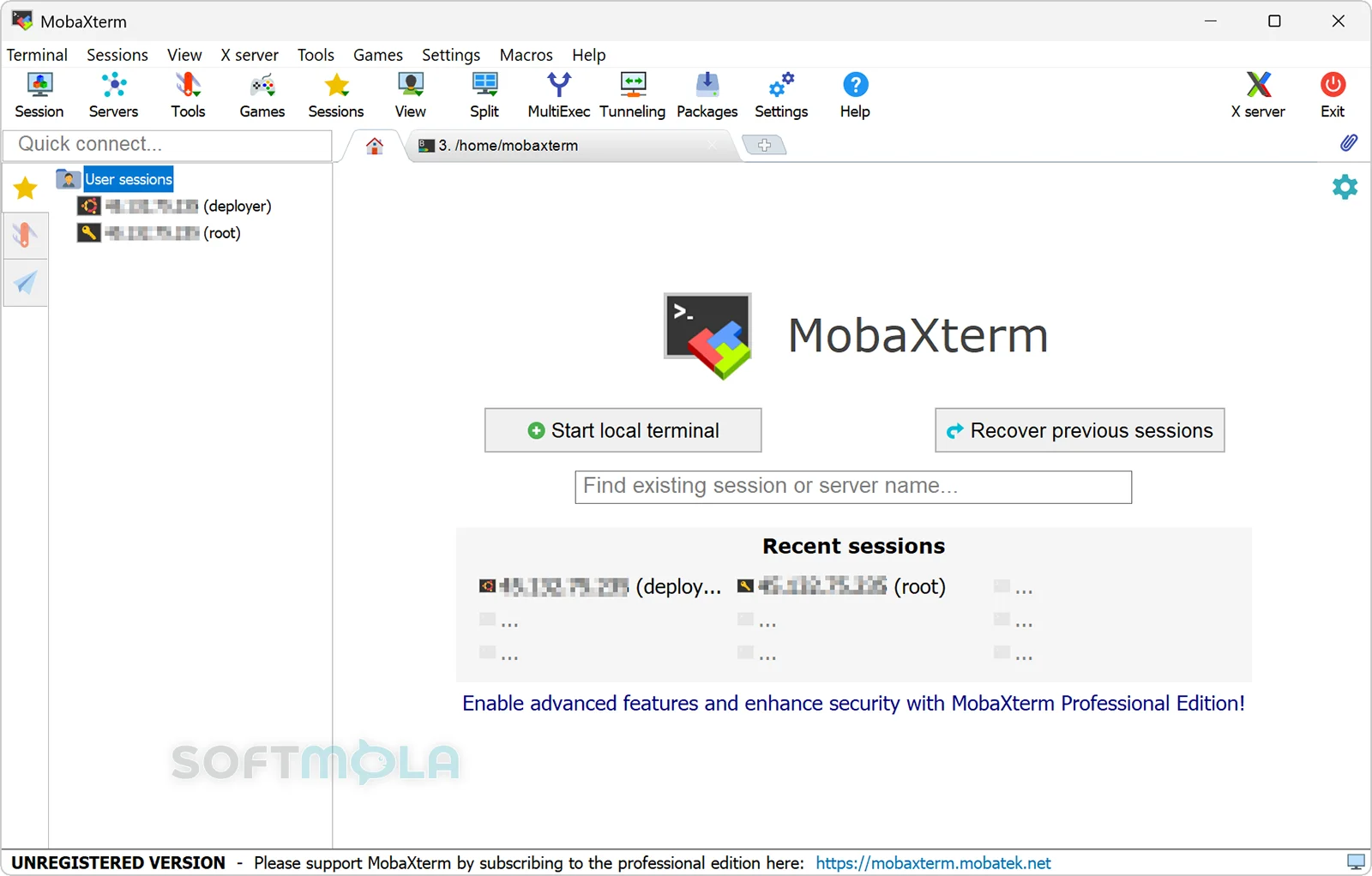
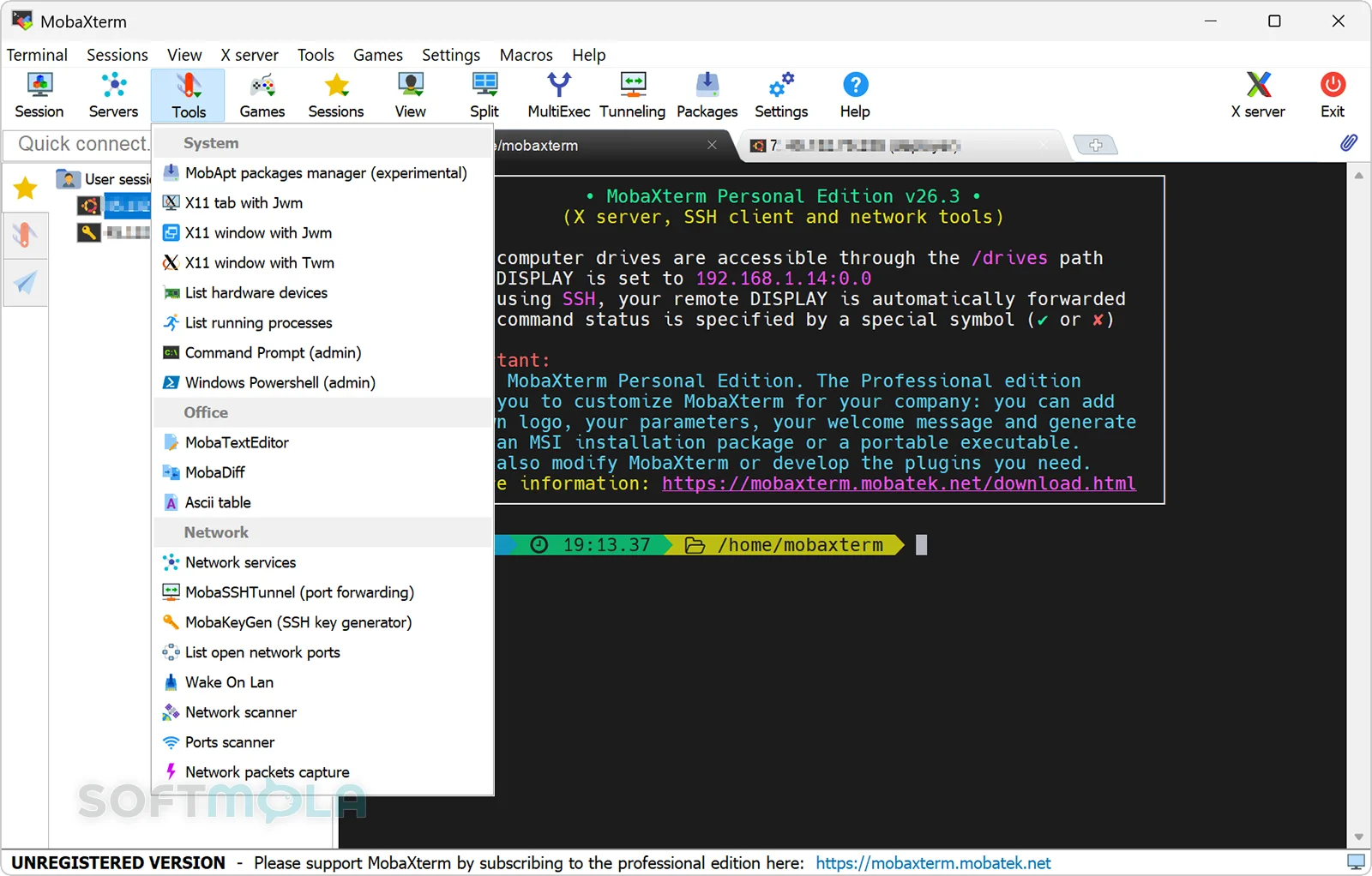
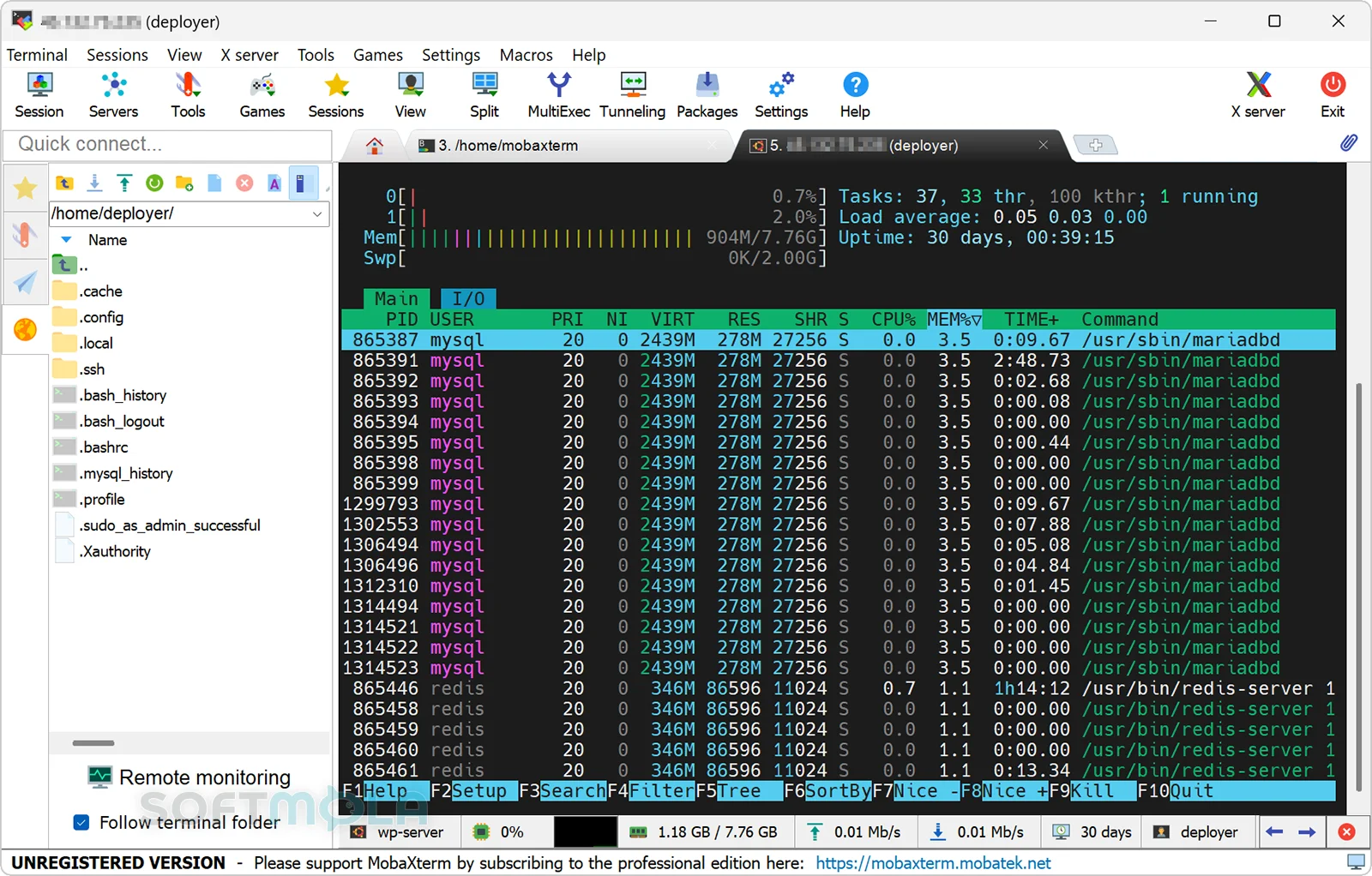
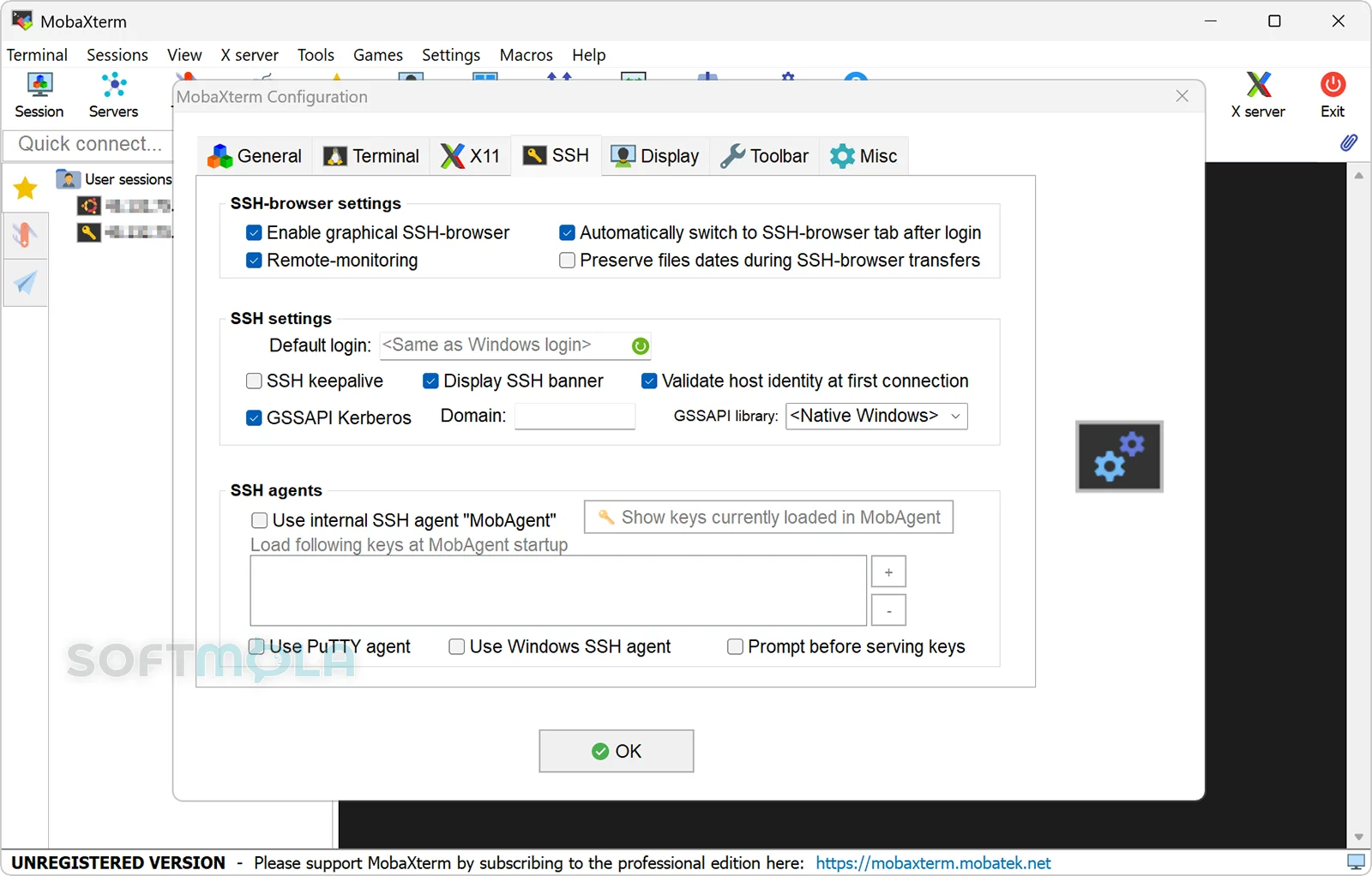
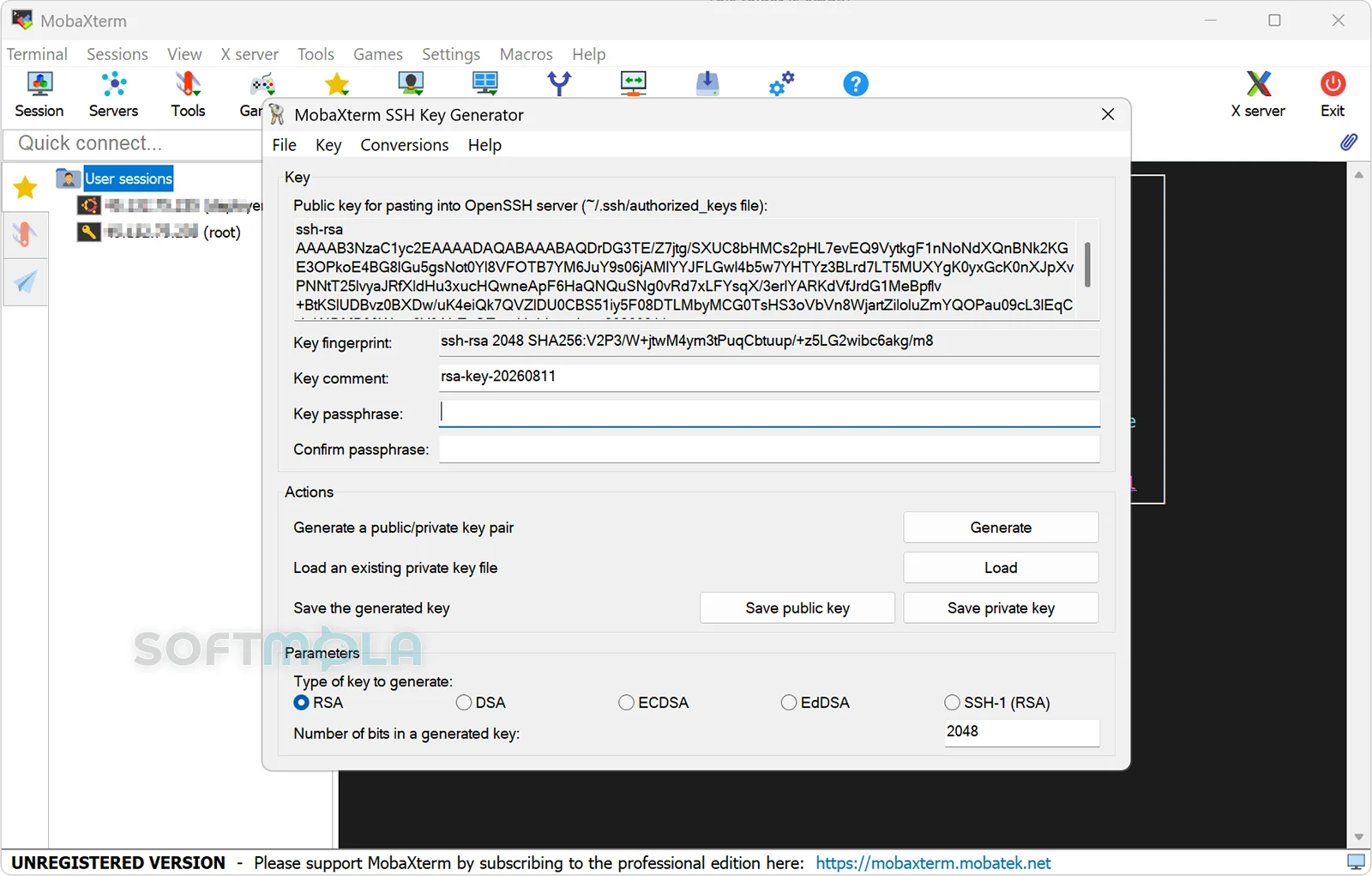
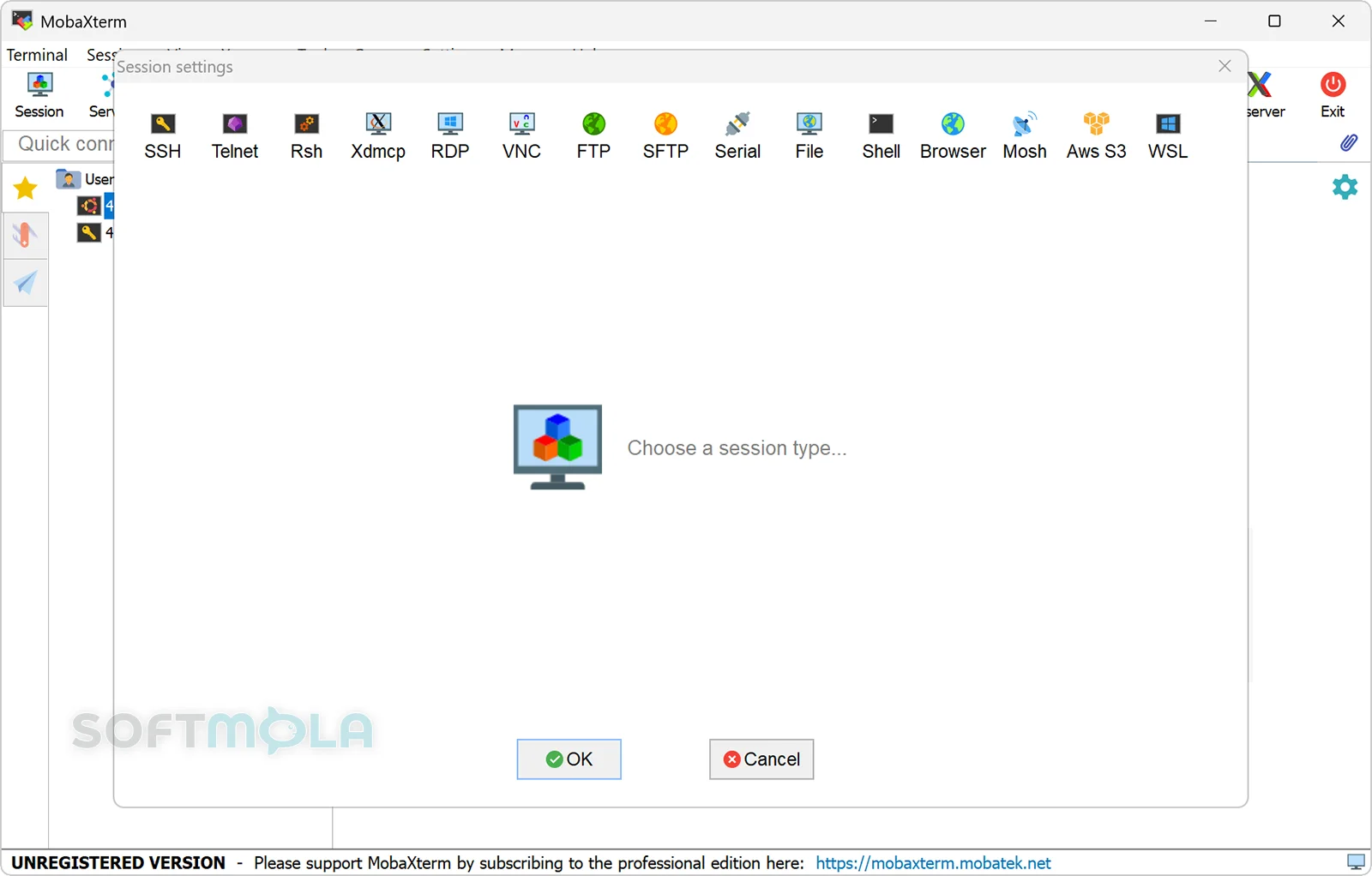
Table of Contents
MobaXterm for Windows is a remote computing toolkit that combines a tabbed terminal, SSH client, X server, file-transfer tools, remote desktop connections, and a collection of Unix-style utilities in one Windows application. It is aimed primarily at system administrators, developers, network engineers, support teams, and other technical users who regularly connect to Linux, Unix, or Windows systems from a PC.
Rather than requiring a separate application for SSH, SFTP, X11 forwarding, RDP, VNC, and several other protocols, MobaXterm places these functions behind a shared session manager. The current Home Edition remains available as freeware, while the Professional Edition removes several usage limits and adds deployment and customization capabilities for organizations.
Its main appeal is convenience. Windows already provides capable command-line and remote-access tools, but users who manage different environments may still prefer a single interface that keeps connections, file transfers, terminals, tunnels, and remote graphical applications together. MobaXterm continues to be actively developed; the official changelog lists version 26.4, released on June 11, 2026, with additional smart-card authentication and SSH workflow improvements.
MobaXterm Review
MobaXterm occupies a useful middle ground between a straightforward SSH client and a larger remote administration suite. Its core interface revolves around saved sessions, allowing users to create connections for SSH, Telnet, Rlogin, RDP, VNC, XDMCP, FTP, SFTP, Mosh, and serial devices. Sessions are saved in the sidebar, and frequently used groups can be launched together. This approach works particularly well for administrators who move between servers, network devices, development machines, and remote desktops throughout the day.
The terminal is more capable than a basic command prompt. MobaXterm combines a PuTTY-derived terminal emulator with Unix-style commands and optional plugins, giving Windows users access to familiar utilities without requiring a separate Linux machine for routine command-line work. Multiple sessions can be kept in tabs or displayed in split layouts, while MultiExec can send the same input to several terminals at once. That last feature can save time for repetitive administration, although any tool that repeats commands across multiple machines deserves careful use because one mistaken command can also be multiplied.
File handling is another reason MobaXterm can feel more efficient than a minimalist SSH client. Starting an SSH connection can also open a graphical SFTP browser in the sidebar. Files can be moved between the local PC and the remote system through the graphical interface, and remote files can be opened for editing without maintaining a completely separate file-transfer application. This is especially practical when a task alternates constantly between terminal commands and configuration-file changes.
The embedded X server is one of MobaXterm's more distinctive Windows-focused features. It enables graphical applications running on a remote Linux or Unix machine to display on the local Windows desktop, with X11 forwarding integrated into SSH sessions. For developers, researchers, engineers, and administrators who still rely on software built around X11, this avoids configuring an independent Windows X server. The implementation is based on X.Org and supports capabilities including OpenGL rendering, according to MobaXterm's documentation.
MobaXterm also goes beyond Unix-oriented remote access. RDP and VNC sessions can be stored alongside SSH connections, while SSH gateways can route supported sessions through a jump host. A graphical tunneling manager provides another layer of convenience for users who need SSH port forwarding but would rather configure it visually than build every tunnel from command-line parameters. The breadth of these tools is an advantage when several protocols are part of the same workflow, although users who only need occasional SSH access may find the interface and feature set more elaborate than necessary.
The Home Edition is generous enough for individual use but is deliberately limited. At present, it supports up to 12 saved sessions, two SSH tunnels, four macros, and restricted runtime for certain embedded network services. Professional Edition removes those limits and adds features aimed at organizations, including enhanced security settings, centralized customization, and deployment rights. The vendor currently lists Professional Edition at $69 or €49 per user before tax, with 12 months of updates included and a lifetime right to use the purchased version. Pricing and licensing can change, so organizations should still check the current terms before standardizing on it.
Licensing is particularly important in business environments. The Home Edition is freeware, and the license permits an individual end user to use it at work under specific conditions, but it does not permit an organization to redistribute or centrally deploy that edition. Professional Edition is therefore the more appropriate route for managed company-wide deployment.
From a security perspective, MobaXterm provides established encrypted protocols such as SSH and SFTP rather than inventing a proprietary replacement for remote access. It also offers master-password protection for stored session credentials and, in recent releases, support for smart-card certificate authentication through Microsoft CryptoAPI. Those features can support a sound administration workflow, but the application should still be treated as a powerful access tool rather than as a security product. Safe use ultimately depends on factors such as authentication practices, server configuration, key management, software updates, and which protocols an administrator chooses to enable.
Overall, MobaXterm remains particularly relevant for Windows users who regularly work across mixed operating systems or remote environments. A developer who only opens one SSH shell occasionally can use Windows' built-in SSH client or a simpler terminal with less overhead. For someone managing many sessions, transferring files, using jump hosts, opening remote desktops, forwarding X11 applications, and switching between Unix and Windows systems, however, MobaXterm can consolidate a surprisingly fragmented set of jobs into one workspace.
Key Features of MobaXterm
Tabbed Terminal and Session Management
MobaXterm organizes remote connections as reusable sessions rather than forcing users to enter connection information each time. SSH, RDP, VNC, SFTP, FTP, Mosh, serial, and several legacy protocols can be configured through the same session manager, with saved entries displayed in the sidebar.
Tabs and split-terminal layouts make it easier to keep several systems visible at once. For administrators who routinely jump between production servers, development machines, network equipment, and remote desktops, this unified layout can reduce application switching and make recurring environments quicker to reopen.
Integrated SSH and SFTP Workflow
An SSH connection can automatically expose the remote file system through a graphical SFTP browser. Users can transfer files through drag and drop while keeping the shell available in the same application, which is convenient for tasks involving configuration files, logs, scripts, or website assets.
The benefit is less about replacing command-line tools and more about flexibility. Experienced users can stay in the terminal when that is faster, then move to graphical file management when browsing directories or transferring a small set of files is more convenient.
Built-In X11 Server
MobaXterm includes an X.Org-based X server designed to display graphical Linux and Unix applications on Windows. Within an SSH session, X11 forwarding can handle the connection between the remote application and the local display without requiring users to manually configure the DISPLAY variable in normal use.
This feature is valuable in environments where remote graphical Unix applications remain part of the workflow. Users who work exclusively with command-line software or browser-based administration tools may rarely need it, but for the right workload it removes an additional piece of software from the Windows setup.
Remote Desktop and Multi-Protocol Connections
SSH is only one part of the package. MobaXterm can also create RDP, VNC, XDMCP and other remote sessions, giving administrators one place to manage both terminal-based and graphical systems.
That flexibility matters in mixed networks. A single administrator might SSH into Linux servers, use RDP for Windows machines, and connect to a network appliance through a different protocol. Keeping those sessions under the same interface can make MobaXterm more practical than a specialized SSH-only client.
SSH Gateways and Port Forwarding
MobaXterm supports SSH gateways, commonly called jump hosts, for reaching systems that are not directly accessible from the user's network. Compatible SSH, Telnet, RDP, and VNC sessions can be configured to connect through an SSH server before reaching the destination.
A graphical tunneling manager is also available for SSH port forwarding. This can make local, remote, or other tunneling workflows easier to configure for users who understand the networking concept but prefer not to construct every connection manually from command-line options.
Unix Tools on Windows
The local MobaXterm terminal provides a Unix-like environment with commonly used command-line tools, and additional utilities can be added through plugins. This can be useful for Windows users who frequently encounter Linux-oriented commands, scripts, or documentation and want lightweight access to familiar utilities from the same application they use for remote connections.
It is not intended to replace a complete Linux installation or every use case served by Windows Subsystem for Linux. Its strength is having practical Unix-style tools immediately available inside a broader remote-administration workspace.
MultiExec, Macros, and Repetitive Administration
MultiExec can send the same keyboard input to several open terminals simultaneously, while macro support can record terminal input for later replay. These tools can reduce repetitive work when administrators perform similar operations across multiple systems.
They also increase the consequences of user error, so they are best suited to deliberate, repeatable tasks rather than commands that should be reviewed independently on each machine. Home Edition places limits on the number of macros, while Professional Edition removes those restrictions.
MobaXterm remains a strong fit for Windows users whose remote-work needs extend beyond a single SSH terminal. Its combination of session management, SFTP, X11, remote desktop protocols, tunneling, and Unix-style utilities can replace several separate tools, particularly for system administrators and developers working in mixed environments. The Home Edition provides a practical way for individual users to evaluate that workflow, while teams that need unrestricted sessions or managed deployment will need to consider the Professional license. Users who want only a lightweight terminal may prefer something simpler, but for broader remote administration, MobaXterm continues to offer a useful and actively maintained Windows-focused toolkit.
How to Download and Install MobaXterm on Windows
MobaXterm Home Edition is currently distributed in two forms: an Installer edition and a Portable edition. Choose the installer if you want MobaXterm set up as a conventional Windows application, or use the portable version when you prefer a self-contained program that does not require traditional installation.
How to Download MobaXterm
Select the Download Free Version button on this page.
Continue to the verified MobaXterm download source.
Choose either the Installer edition or Portable edition, depending on how you want to use the application. Both are officially available for the current Home Edition.
Save the downloaded package to a folder you can easily access.
Wait until the download has finished before opening or extracting the package.
How to Install MobaXterm
Open the downloaded Installer edition package.
If Windows displays a permission prompt for the installer, review the publisher information before allowing it to continue.
Review the installation information and available setup choices before proceeding.
Complete the installation process and then open MobaXterm from Windows.
Create your first remote session when you are ready to connect to a server or another device.
MobaXterm's installed edition keeps its configuration separately from the portable version; the official documentation states that an installed setup can store MobaXterm.ini under the user's Documents-based MobaXterm folder, although other documented configuration locations can apply in some versions.
Getting Started with MobaXterm
Open MobaXterm and create a new session for the remote system you want to access.
Select the appropriate connection type, such as SSH, RDP, VNC, SFTP, or another supported protocol.
Enter the remote host information and authentication details required by that system.
For SSH connections, use the integrated file browser when you need graphical access to remote files alongside the terminal.
If you store credentials, configure MobaXterm's master-password protection and keep the master password securely managed. Home Edition includes master-password protection for stored credentials.
MobaXterm Home Edition Pros & Cons
- Combines several remote - access tools: SSH, SFTP, RDP, VNC, X11, Mosh, and other connection types can be managed from one Windows application.
- Integrated SSH and file - transfer workflow: SSH sessions can provide a graphical remote file browser, reducing the need to open a separate SFTP application for routine transfers and file editing.
- Built - in X server: MobaXterm can display remote graphical Linux and Unix applications on a Windows desktop through its integrated X.Org-based X server.
- Portable edition available: The portable version runs as a self-contained executable and does not require traditional installation or administrator privileges for normal use.
- Free Home Edition is functional: The freeware edition includes SSH, X11 forwarding, automatic SFTP browsing, remote desktop tools, plugins, and master-password protection.
- Actively maintained: Version 26.4 was released on June 11, 2026, with smart-card authentication support and several fixes, including the removal of a library dependency associated with CVE-2026-6421.
- Home Edition limits saved resources: The free edition is limited to 12 sessions, two SSH tunnels, four macros, and 360 seconds of runtime for its TFTP, NFS, and Cron services.
- Professional licensing is required for organizational deployment: Although an individual can use Home Edition under its license terms, the Professional Edition is positioned for company deployment and adds unrestricted sessions, tunnels, macros, and administrative customization.
- More functionality than some users need: Someone who only wants a basic SSH command line may not benefit from the additional X11, remote desktop, tunneling, file-management, and network-tool features bundled into MobaXterm.
- Portable and installed editions store configuration differently: Users switching between the two should be aware that the location of the MobaXterm configuration file can differ depending on how the application is run.
Frequently Asked Questions
What is MobaXterm?
MobaXterm is a Windows remote-computing application that combines a terminal with SSH, SFTP, RDP, VNC, X11, Mosh, FTP, Telnet, serial connections, and other administration tools. It is designed mainly for developers, system administrators, network professionals, and other users who frequently access remote machines from Windows.
Is MobaXterm free?
Yes. MobaXterm Home Edition is freeware and currently includes core functionality such as SSH, an X server, X11 forwarding, RDP and VNC connections, automatic SFTP browsing, plugins, and master-password protection. The free edition has limits including 12 saved sessions, two SSH tunnels, and four macros. Professional Edition removes these restrictions and adds features intended for organizational use.
Does MobaXterm require administrator privileges?
The portable edition does not normally require administrator privileges. MobaXterm's official documentation specifically describes the portable version as a self-contained program that can run without installation or administrator rights. Certain organization-specific configurations or Windows policies can still affect execution, so managed business PCs may have additional restrictions.
Does MobaXterm support SSH and SFTP?
Yes. SSH and SFTP are central MobaXterm features. When an SSH connection is established, MobaXterm can display a graphical remote file browser that lets users transfer or edit remote files while keeping the terminal session available. This integrated workflow is useful when server administration involves both commands and frequent file changes.
What is the difference between MobaXterm Home and Professional Edition?
Home Edition is free but places limits on saved sessions, tunnels, macros, and some embedded network services. Professional Edition includes the Home features while providing unlimited sessions, tunnels and macros, unrestricted network-daemon runtime, enhanced security settings, customization capabilities, professional deployment rights, and 12 months of updates with the purchase.
Is there a portable version of MobaXterm?
Yes. The current Home Edition is available in both Portable and Installer editions. The portable version is a self-contained executable that can run without traditional installation and normally does not require administrator privileges. This makes it convenient for users who want to keep MobaXterm in a dedicated folder or run it from removable storage.