

WinSCP for Windows
A free, open-source Windows client for securely transferring and managing files across remote servers and cloud storage.
Software Information
WinSCP Screenshots
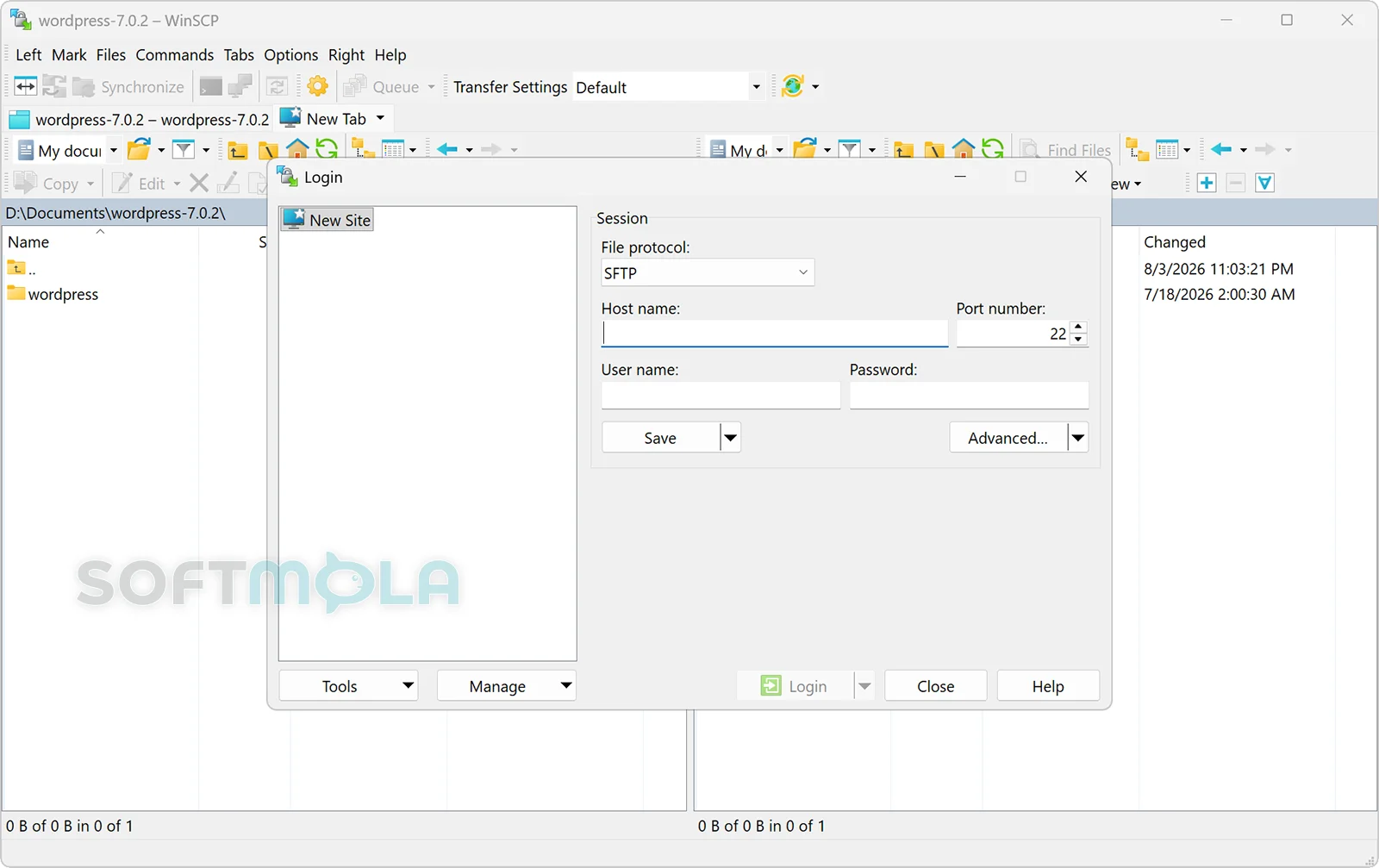
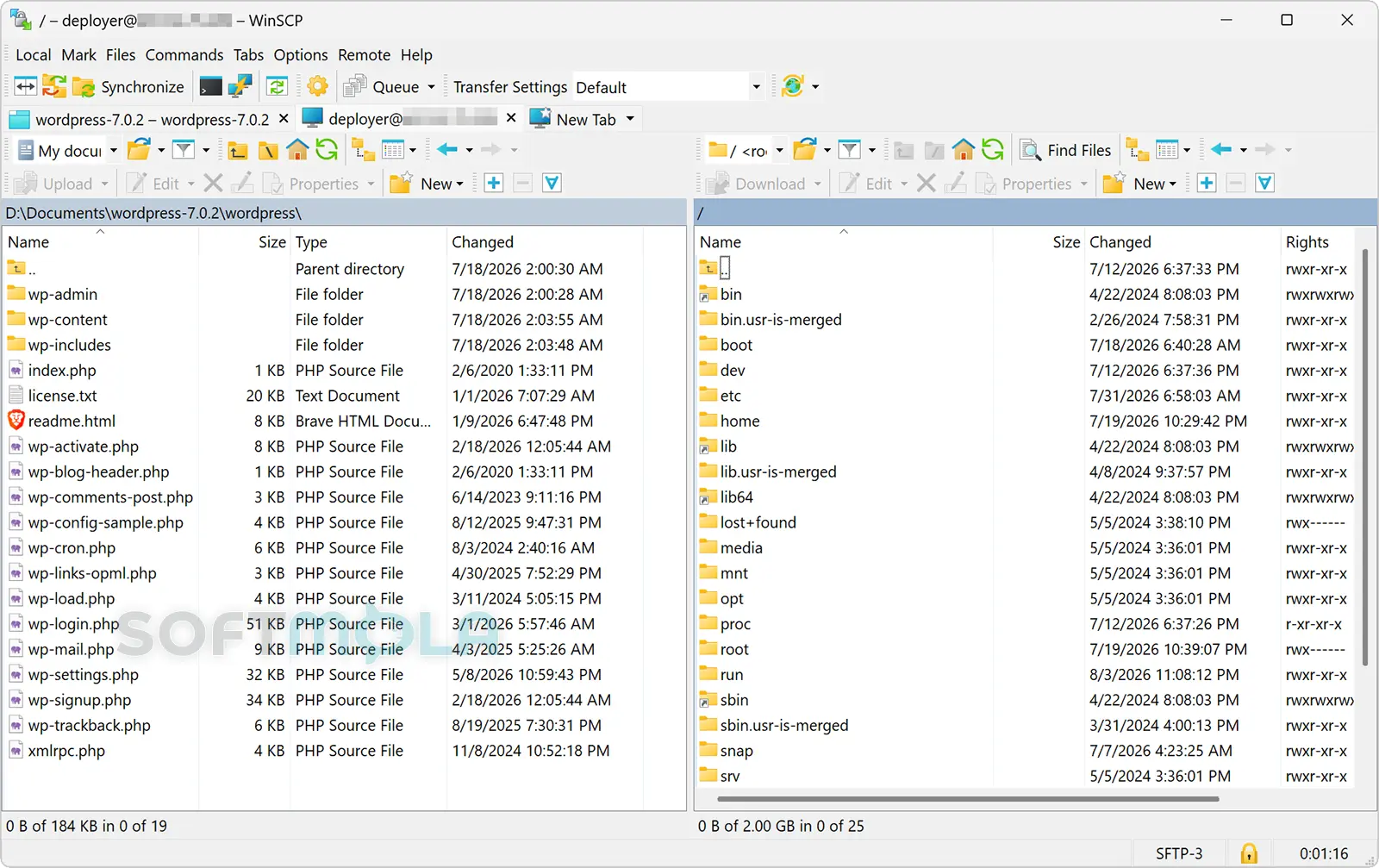
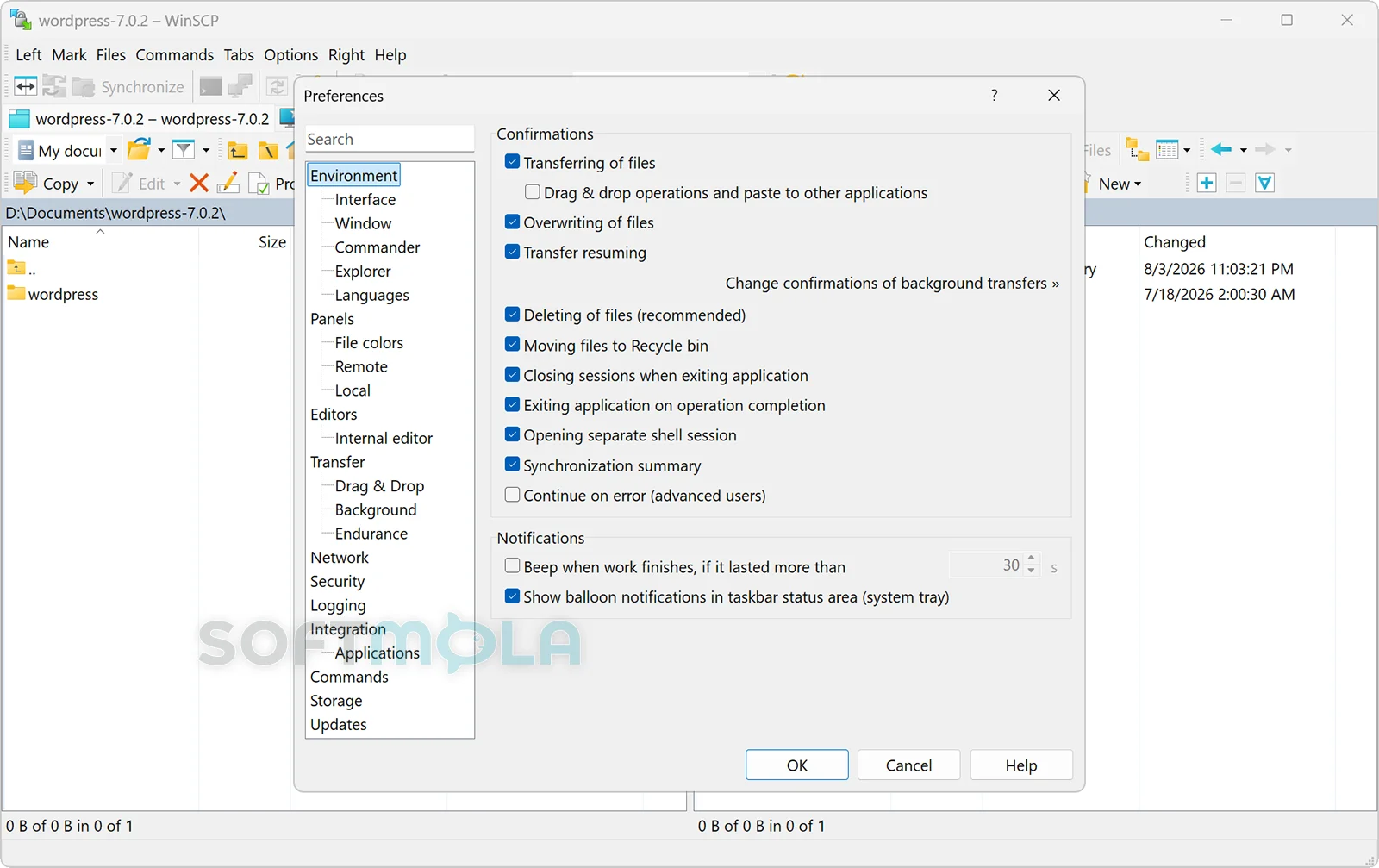
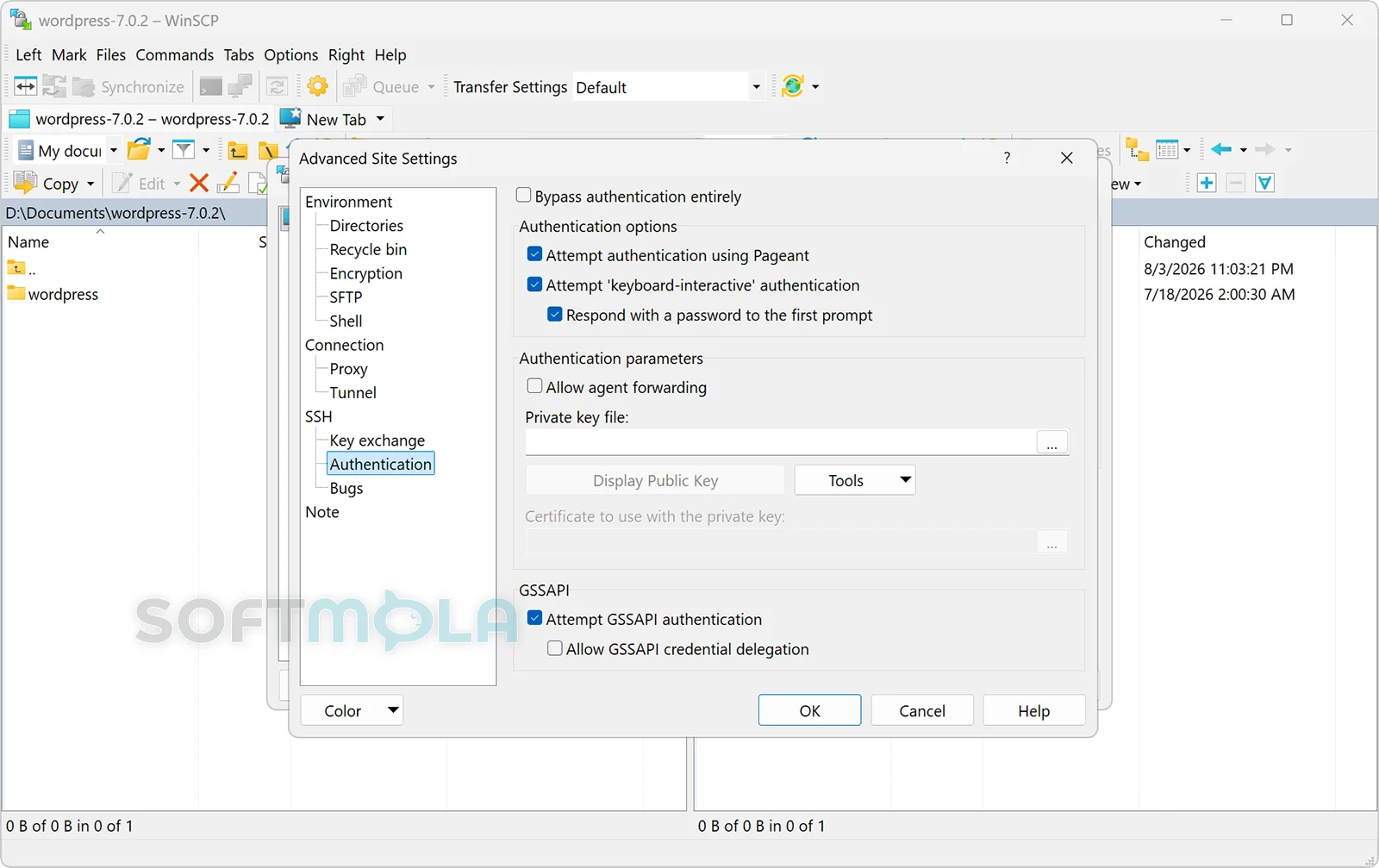
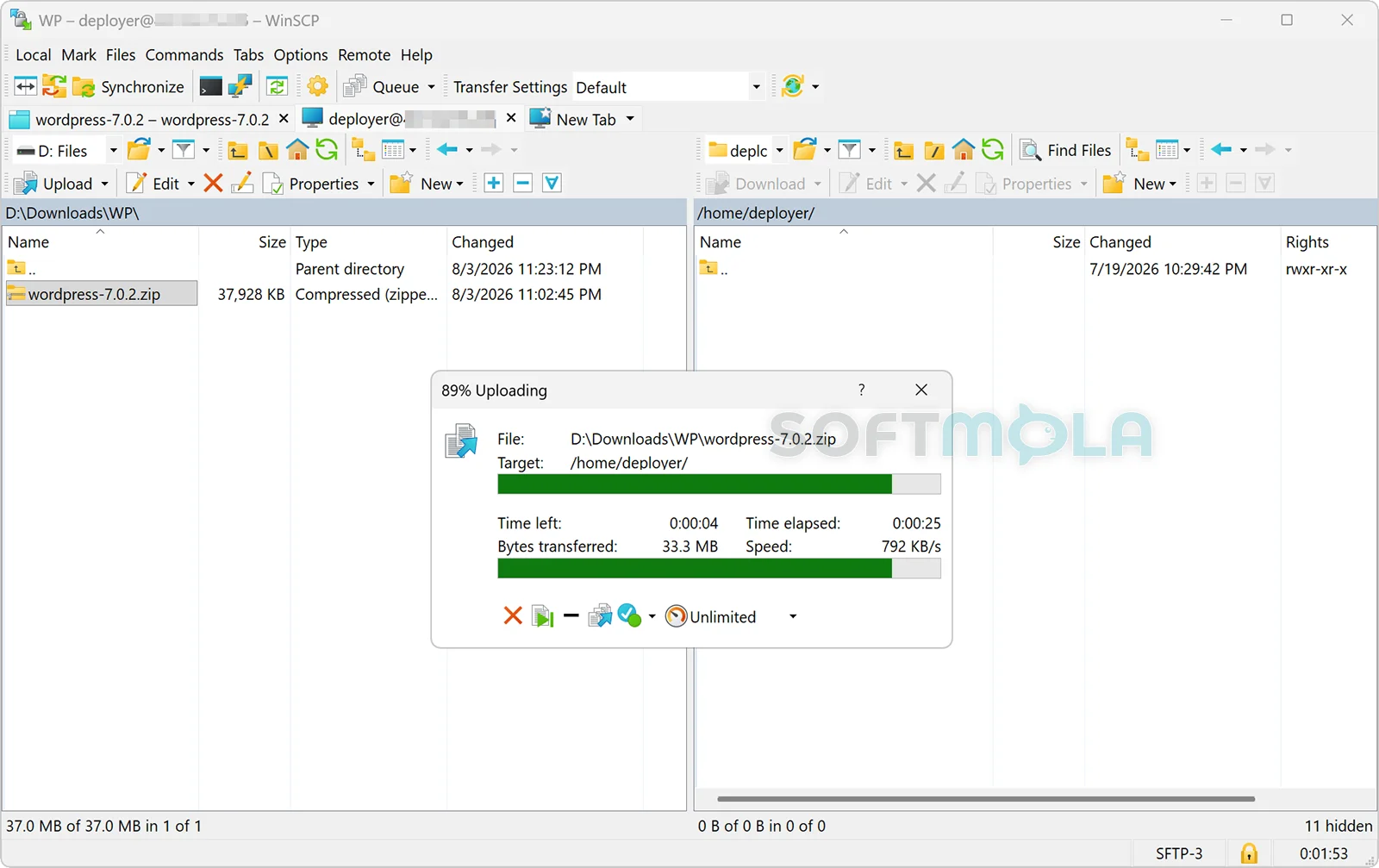
Table of Contents
Download WinSCP for Windows
WinSCP is a free, open-source file transfer client and file manager built specifically for Windows. It helps users move files between a PC and remote servers through SFTP, FTP, FTPS, SCP, WebDAV, and Amazon S3-compatible connections. Its combination of a graphical interface and extensive automation tools makes it useful for website administrators, developers, IT teams, and anyone who regularly manages files on remote systems.
For everyday work, WinSCP replaces typed terminal commands with familiar file panels, drag-and-drop controls, saved connection profiles, and visual synchronization tools. More experienced users can access the same transfer engine through scripts, a command-line console, or a .NET assembly. The standard desktop edition remains available without charge, while a paid Microsoft Store edition offers store-managed installation and automatic updates.
WinSCP Review
WinSCP occupies a practical middle ground between a simple FTP utility and a specialist server administration tool. Its main purpose is remote file management, but it provides enough depth to support anything from occasional website updates to scheduled business workflows. Users can browse local and remote folders, transfer files in either direction, rename and delete items, edit remote documents, compare directories, and synchronize changes without leaving the application.
The interface can use a two-panel Commander layout, which places local and remote folders side by side, or an Explorer-style layout that feels closer to Windows File Explorer. The two-panel option is particularly effective for frequent transfers because the source and destination remain visible at the same time. New users may initially find the number of toolbars, menus, and advanced settings dense, but the essential workflow is straightforward: create a site profile, enter the server details, verify the server identity, and connect.
Protocol coverage is one of WinSCP’s strongest qualities. SFTP is the sensible default for most SSH-based servers, while FTPS supports encrypted connections to compatible FTP services. WebDAV can be useful for document repositories and hosting platforms, and S3 support allows the program to work with compatible object-storage services. SCP is still included for older environments, although WinSCP’s own documentation describes it as a legacy protocol and recommends SFTP where possible.
Security depends partly on how the connection is configured. With SSH-based protocols, WinSCP asks users to verify the server’s host key. This check matters because encryption alone does not prove that the remote machine is the intended server. Once a verified key has been stored, the application can warn about an unexpected change that may indicate a server reconfiguration or a possible impersonation attempt. WinSCP also supports password, keyboard-interactive, Kerberos, and public-key authentication, with public keys offering a more flexible option for managed environments and automated connections.
That security model is robust when users verify fingerprints through a trusted channel, but the confirmation dialog can be misunderstood by less experienced users. Blindly accepting an unfamiliar key weakens the protection against man-in-the-middle attacks. Automated jobs need the same care: scripts should specify the expected SSH host-key fingerprint or TLS certificate rather than accepting any server identity. WinSCP provides dedicated parameters for this purpose.
WinSCP is equally capable as an automation tool. Its scripting interface can upload, download, synchronize, rename, and remove files through repeatable commands. Windows administrators can run these operations from batch files or Task Scheduler, while developers can control sessions from PowerShell, C#, and other .NET-compatible environments through the included assembly. This makes it suitable for recurring report transfers, server backups, deployment steps, and exchanges with business partners.
The application also integrates well with Windows. It supports drag and drop, desktop shortcuts, jump lists, protocol URLs, and direct editing of remote files through local applications. Registered links such as sftp://, ftps://, scp://, davs://, and s3:// can open the relevant location in WinSCP, depending on Windows configuration.
Its limitations mainly concern complexity and platform scope. WinSCP is a Windows-focused application rather than a native cross-platform client, and its extensive preferences can feel excessive for someone who only needs basic transfers. Performance can also depend heavily on the selected protocol, encryption settings, server configuration, network latency, and the number or size of files involved. It should not be treated as a general cloud-storage sync service or a full server-management suite.
The free desktop release provides the core functionality without requiring a subscription. The Microsoft Store edition is functionally similar but is sold as a way to support development and gain store-controlled updating and restoration. Users who are comfortable maintaining desktop software themselves have little functional reason to pay, while those who prefer Microsoft Store management may find the paid package convenient.
WinSCP remains relevant because secure file transfer is still widely used for hosting, infrastructure administration, automated data exchange, and cloud storage. Active development has continued with interface refinements, synchronization improvements, support for large local directories, security-library updates, and other maintenance work. The project also publishes release candidates separately from its stable download, so production users should confirm that they are selecting the stable channel rather than a preview build.
Key Features of WinSCP
Secure Multi-Protocol File Transfers
WinSCP supports SFTP and SCP over SSH, standard and encrypted FTP, WebDAV, and S3-compatible storage. This broad coverage allows one client to connect to many hosting accounts, Linux servers, document platforms, and object-storage services.
Users should choose the most secure protocol supported by the destination. SFTP is generally preferable for SSH servers, while FTPS or encrypted WebDAV should be used where those technologies are required. Plain FTP remains available for compatibility but does not protect credentials or transferred data with transport encryption.
Graphical Remote File Management
The application provides visual access to local and remote directories, including standard operations such as copying, moving, renaming, deleting, and creating folders. Users can work with an Explorer-like window or a dual-pane Commander interface, depending on whether they value Windows familiarity or faster side-by-side file handling.
This approach is especially helpful for people who manage servers but do not want to perform every operation through a command shell. It also reduces the chance of mistakes caused by manually entering long paths, although users still need to check the selected destination before moving or deleting important files.
Directory Synchronization
WinSCP can compare directories and transfer the changes needed to bring them into alignment. It supports manual synchronization as well as workflows that monitor a local folder and send updates to a remote location. Recent development has also improved the synchronization checklist and handling of transfer operations in the background.
Synchronization is useful when publishing a website, maintaining a remote copy of project files, or delivering recurring exports. It is not a replacement for a version-control system or a complete backup platform, however. Users should review synchronization rules carefully when deletions or overwrites could affect production data.
Scripting and Command-Line Automation
The winscp.com console and scripting language expose file-transfer operations without the graphical interface. Scripts can open sessions, move files, synchronize folders, and record logs, making them suitable for Windows Task Scheduler and other automated workflows.
For secure unattended connections, the script should include the expected host-key fingerprint or certificate details. WinSCP can generate script or code templates from an existing verified graphical session, which helps reduce configuration errors.
.NET Assembly
WinSCP’s .NET assembly gives developers a structured programming interface for controlling file-transfer sessions. It can be used from PowerShell or applications written with .NET-compatible languages, allowing transfer logic to become part of a larger business process rather than a separate manual task.
This option is most valuable when scripts need detailed error handling, transfer-result validation, logging, or integration with databases and internal systems. It requires programming knowledge, so the built-in scripting language remains more approachable for simpler scheduled jobs.
Server Identity and Authentication Controls
For SSH connections, WinSCP records and checks server host keys so it can detect an identity that differs from the one previously approved. It also supports public-key authentication, which can reduce reliance on reusable passwords and is well suited to managed or automated environments.
These controls only work properly when users verify the original fingerprint and protect their private keys. WinSCP can facilitate secure connections, but it cannot compensate for an untrusted server, exposed credentials, weak access policies, or careless approval of security warnings.
Remote File Editing
Files stored on a server can be opened in WinSCP’s internal editor or transferred temporarily to a chosen local editor. After saving, WinSCP can upload the revised version back to the server. This is convenient for small configuration changes, text documents, and website files because it removes the need to manage the download and upload as separate steps.
Direct remote editing should be approached carefully on production systems. A local copy, backup, or version-controlled workflow is safer when a mistake could interrupt a website or service.
Saved Sessions and Windows Integration
Connection settings can be stored as site profiles, reducing repetitive entry of hostnames, ports, usernames, and protocol options. WinSCP also integrates with Windows through shortcuts, drag and drop, jump lists, and registered transfer-protocol links.
Saved profiles improve convenience, but storing passwords introduces an additional security consideration, especially on shared computers. Users can configure password-protection settings and should restrict access to the Windows account that holds their saved sessions.
WinSCP is a strong choice for Windows users who need reliable graphical file transfers without giving up scripting and administrative control. Its protocol support, synchronization tools, security checks, and automation interfaces make it particularly useful for developers, hosting customers, and IT teams. The interface is more detailed than a basic consumer client, and secure setup still requires careful verification of server identities, but the free desktop edition remains a capable and actively maintained option for both occasional transfers and repeatable professional workflows.
How to Download and Install WinSCP on Windows
Most users should download the free classic installer through the verified button on this page or the official WinSCP download channel. Portable executables are available when installation is not appropriate, while organizations can use an MSI package. The paid Microsoft Store edition offers another official route with Store-managed updates.
How to Download WinSCP
Select the download button on this page.
Continue to the verified WinSCP download source.
Choose the standard installation package for normal personal or professional use.
Select the portable package only when you specifically need to run WinSCP without a traditional installation.
Use the MSI package when it has been requested by an organization or system administrator for managed deployment.
Save the downloaded package in an accessible folder and wait for the transfer to finish before opening it.
The stable download page may also show preview or release-candidate builds. Most users should choose the current stable release unless they deliberately want to evaluate unfinished features.
How to Install WinSCP
Close WinSCP first if an earlier version is currently running. The installer cannot continue while another WinSCP instance remains open.
Open the downloaded installation package.
Review the Windows security or User Account Control prompt if it appears. Confirm that the file came from the verified download source before allowing it to make changes.
Read the license information and review the installation mode and available setup options.
Choose the interface and installation preferences that fit your workflow when the installer presents those choices.
Complete the setup and open WinSCP from the Start menu or an installed shortcut.
Remove the installer afterward or retain it temporarily in case you need to repair the installation.
When upgrading an existing classic installation, the newer installer can be installed over the current version. WinSCP states that this process preserves stored sites and configuration data.
How to Run the Portable Ve
Getting Started with WinSCP
Gather the server hostname, protocol, port, username, and authentication details from your hosting provider or administrator.
Open WinSCP and create a new site entry using the protocol supported by the remote server. Prefer an encrypted option such as SFTP or FTPS when available.
Connect and verify the server’s SSH host-key fingerprint or TLS certificate through a trusted source before accepting it.
Save the site profile only after confirming that the connection details are correct. Consider whether storing the password is appropriate on that Windows account.
Test the connection with a non-critical file before performing a large transfer, synchronization, or automated task.
WinSCP Pros & Cons
- Free and open - source desktop edition: The classic Windows installer provides the main file-transfer and management features without a subscription.
- Broad protocol support: WinSCP can connect through SFTP, FTP, FTPS, SCP, WebDAV, and S3, allowing one application to serve several remote-storage and server environments.
- Useful graphical file management: Explorer-style and dual-pane layouts make it easier to move, rename, edit, and organize local and remote files without relying entirely on terminal commands.
- Strong automation options: Scripting, command-line tools, and the .NET assembly support scheduled transfers, synchronization jobs, deployments, and other repeatable workflows.
- Installer, portable, Store, and MSI options: Most users can choose the standard installer, while portable executables suit removable storage and the MSI package supports managed organizational deployment.
- Active Windows support: Current official requirements cover Windows 7 and newer, including Windows 10, Windows 11, and supported Windows Server editions.
- The interface can feel crowded: Its toolbars, menus, transfer settings, and advanced connection options may be more than occasional users need.
- Available only as a native Windows application: People who regularly switch between Windows, macOS, and Linux may prefer a client with matching native versions across platforms.
- Secure setup requires user attention: SSH host keys and TLS certificates must be verified correctly. Accepting an unknown server identity without checking it weakens protection against server impersonation.
- Not a complete backup or cloud - sync service: Directory synchronization is useful, but WinSCP does not replace version control, continuous consumer cloud backup, or a broader disaster-recovery system.
- The Microsoft Store edition is paid: Its binaries are equivalent to the classic edition, so the main benefits are Store-managed updating, easier restoration, and support for the project rather than additional core features.
Frequently Asked Questions
What is WinSCP used for?
WinSCP is a Windows file-transfer client and remote file manager. It lets users upload, download, organize, synchronize, and edit files stored on remote servers or compatible storage services. Common uses include maintaining websites, exchanging business files, managing Linux servers through SFTP, transferring reports, and automating recurring file operations.
Is WinSCP free?
Yes. The classic WinSCP installer is free to download and use. The project also provides portable executables and separate packages for scripting or organizational deployment. A paid edition is available through Microsoft Store, but its program binaries are the same as those in the classic installer. The Store edition mainly provides automatic Store-managed updates and easier restoration on another Windows installation.
Does WinSCP work on Windows 11 and Windows 10?
Yes. WinSCP officially supports Microsoft Windows versions from Windows 7 through Windows 11, as well as compatible Windows Server editions through Windows Server 2025. Its primary release is a 32-bit application, but it runs on 64-bit Windows. Users generally do not need to choose a separate 64-bit installer for the stable desktop edition.
Is WinSCP safe to download?
WinSCP is an established open-source project, but users should still obtain the installer from the official developer or another verified distribution channel. The official download pages publish release information and checksums that advanced users can compare with a downloaded file. No installer should be treated as risk-free regardless of its reputation, so confirm the source and review any Windows security prompt before continuing.
Do I need an account to use WinSCP?
You do not need a WinSCP account to install or open the classic application. However, you need valid connection information for the remote service you want to access. Depending on the server, this may include a hostname, username, password, private key, access key, or other credentials provided by a hosting company, cloud platform, or system administrator.
Is a portable version of WinSCP available?
Yes. WinSCP provides official portable executables that can run without a traditional Windows installation. The portable package is intended mainly for advanced users, removable drives, and situations where settings should remain in an INI file beside the application. The developer recommends the standard installer for general desktop use because it provides a more straightforward setup.
Is WinSCP an FTP client or an SSH client?
WinSCP can serve both roles, although its main focus is file transfer rather than providing a full interactive terminal. It supports FTP and encrypted FTPS connections, as well as SFTP and SCP over SSH. It also works with WebDAV and S3-compatible storage. For modern SSH servers, SFTP is generally a more suitable option than the older SCP protocol.
Can WinSCP automate file transfers?
Yes. WinSCP includes a console interface and scripting commands for unattended uploads, downloads, file management, and folder synchronization. It also supplies a .NET assembly for PowerShell, C#, and other .NET-compatible environments. Automated SSH sessions should specify the expected server host-key fingerprint rather than accepting any host key, especially when transfers travel across an untrusted network.