

VSCodium for Windows
A community-built distribution of Visual Studio Code, compiled from the same open source code with telemetry disabled and MIT-licensed binaries.
Software Information
Recommended: 64-bit Available: ARM64
VSCodium Screenshots
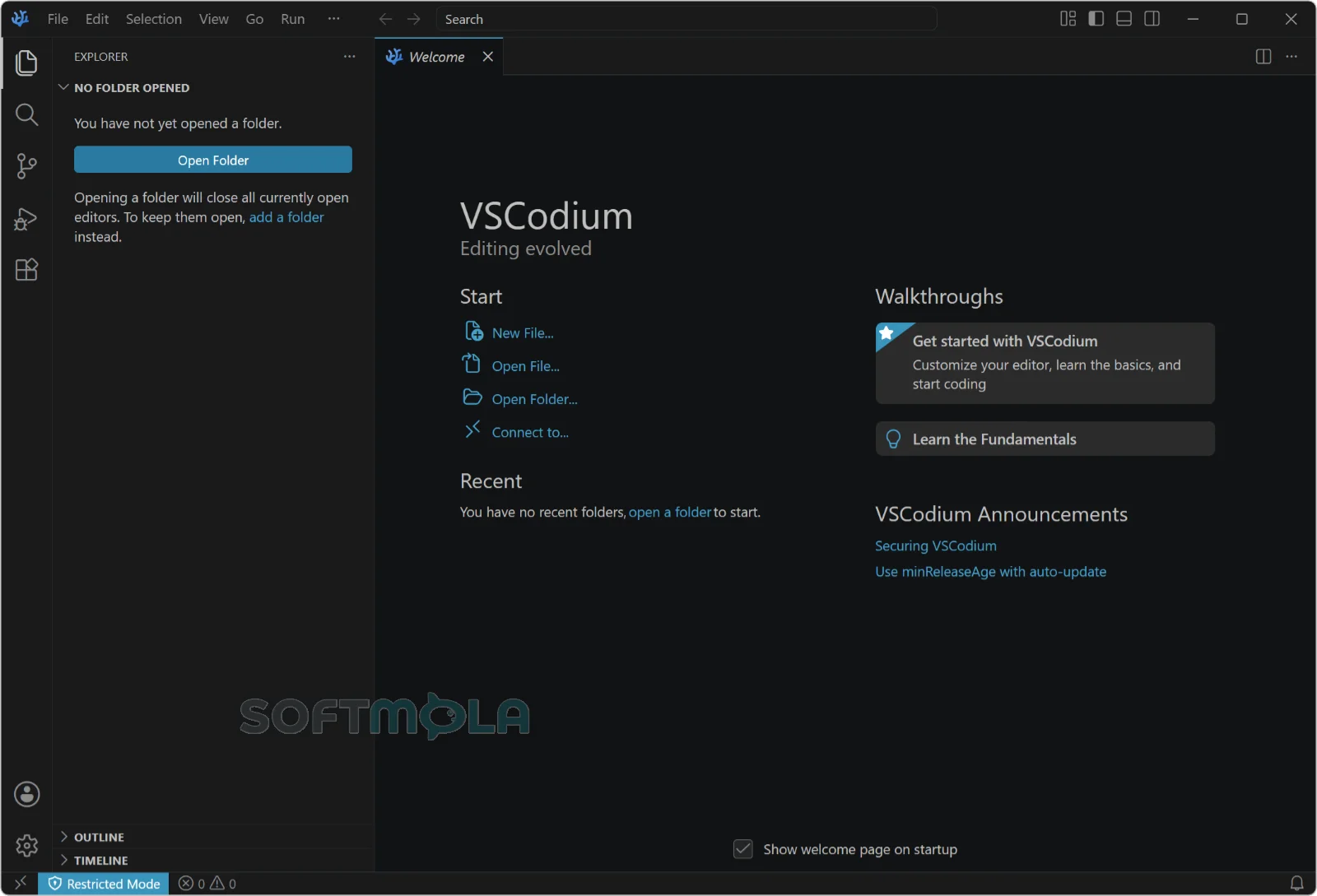
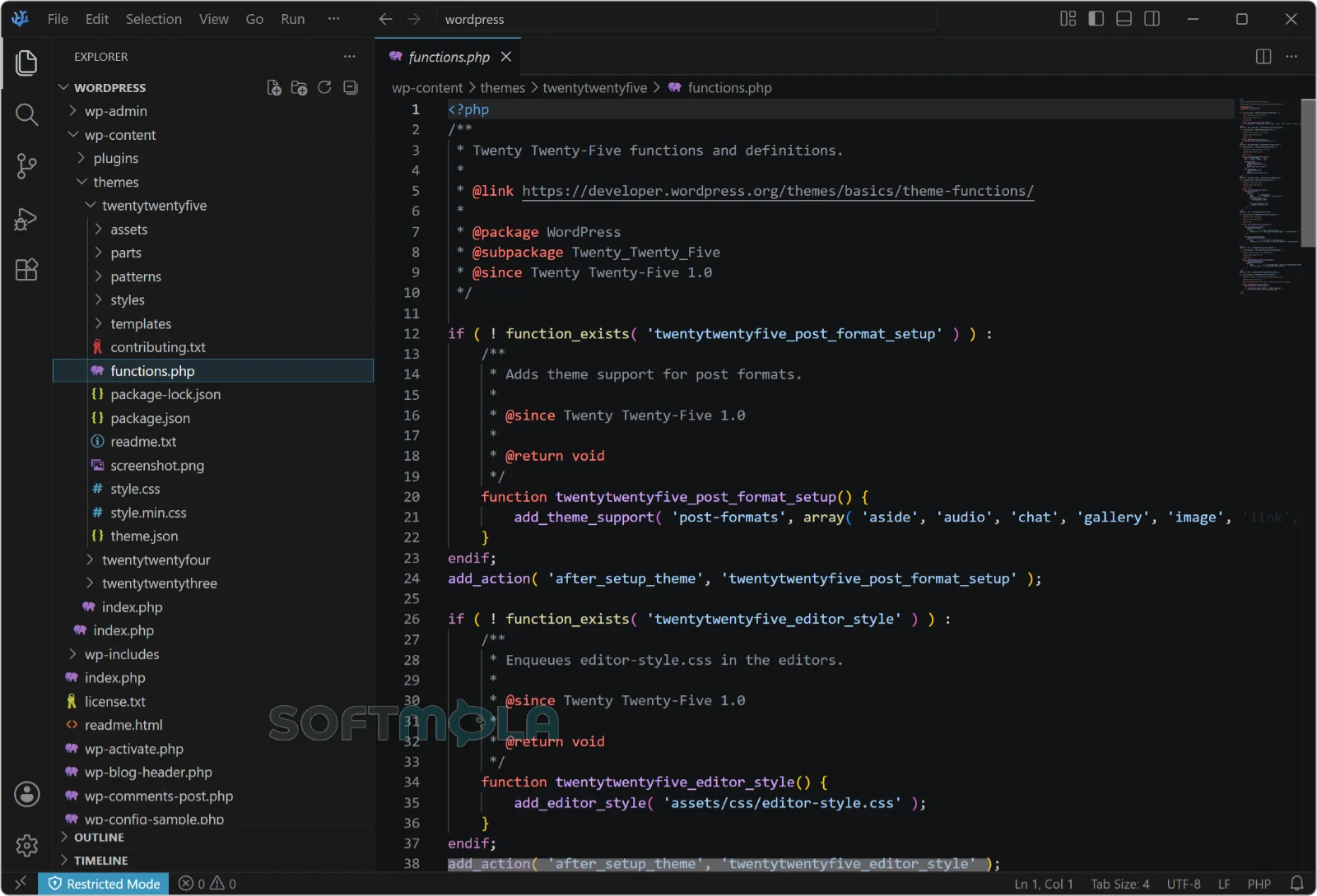
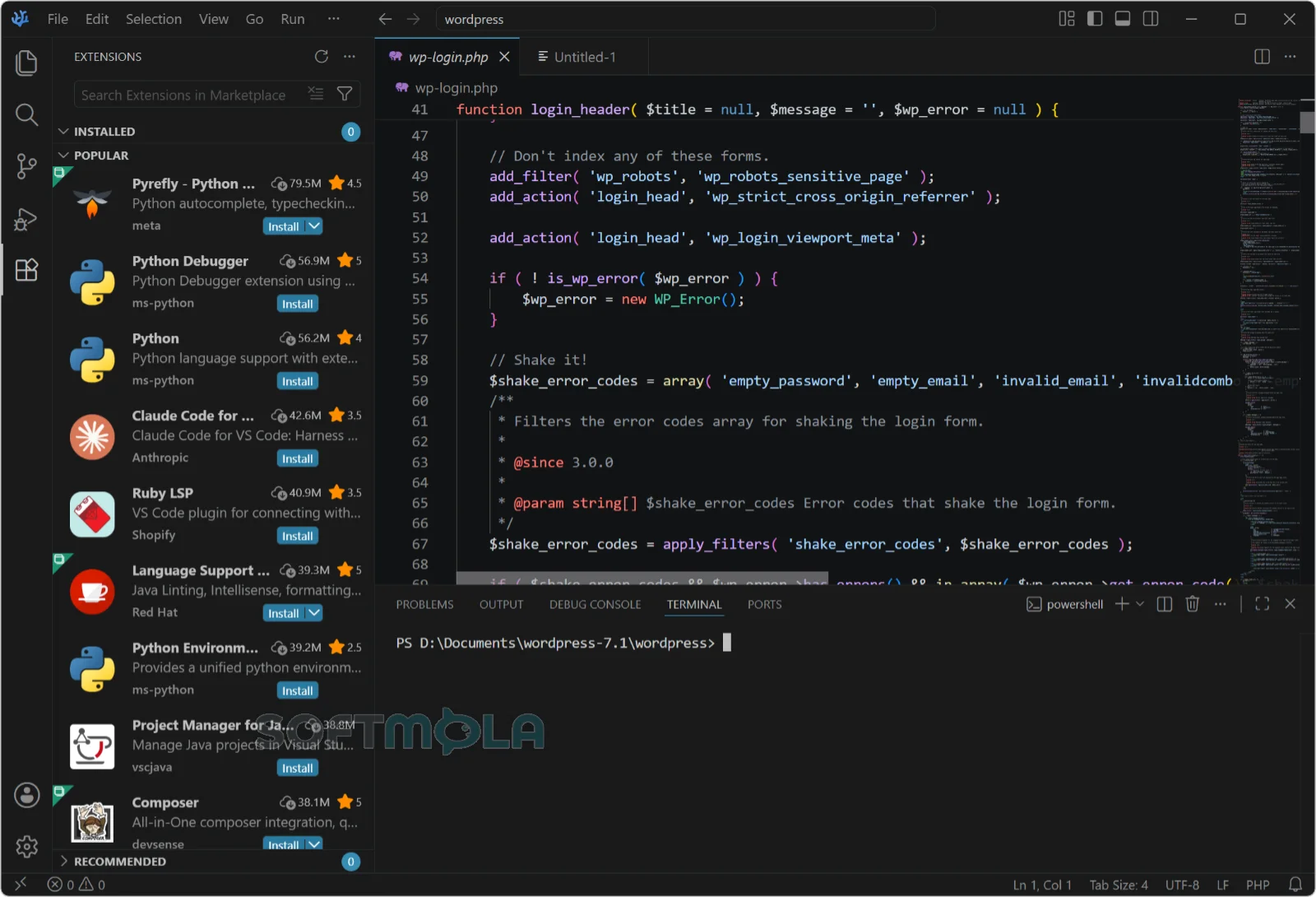
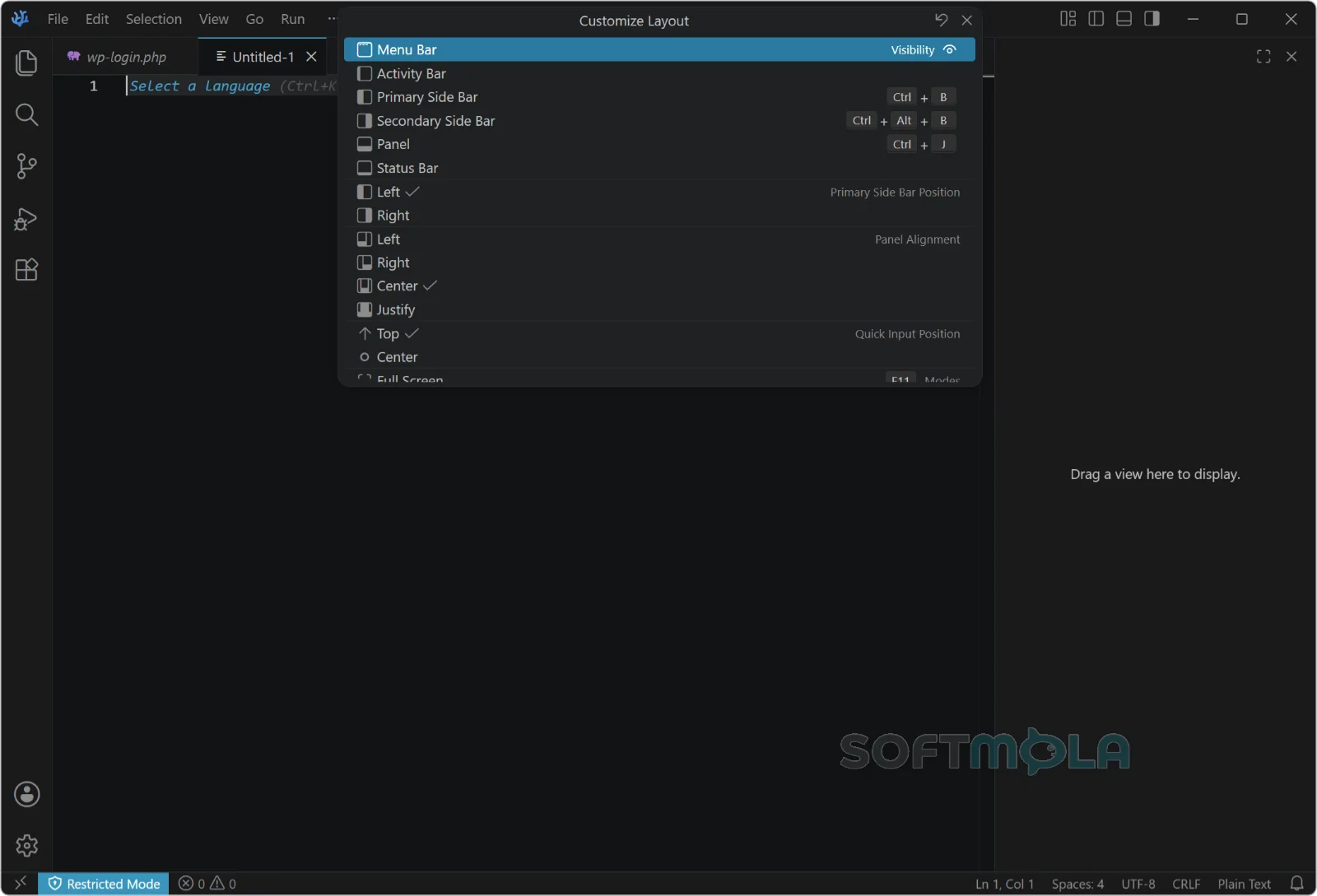
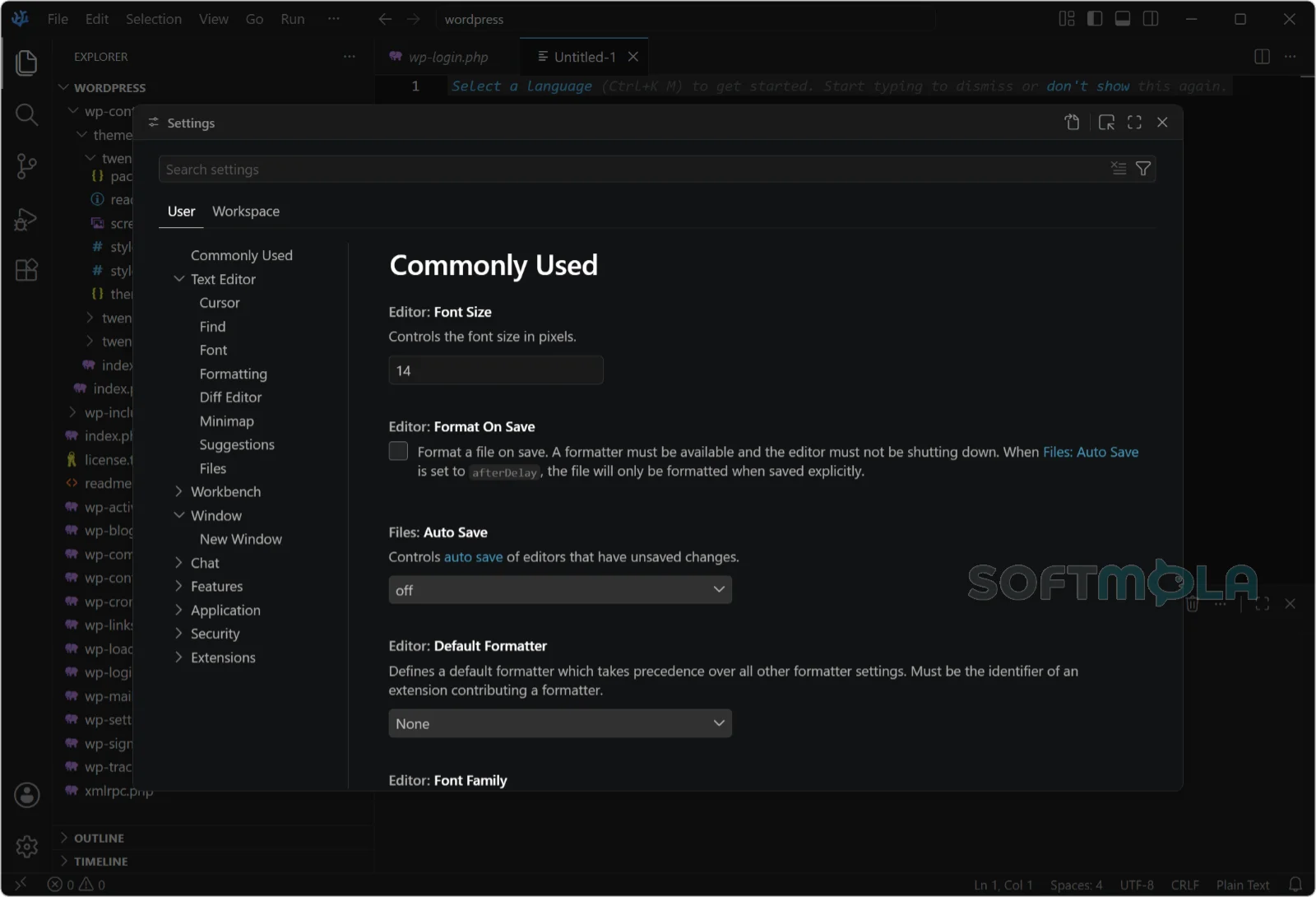
Table of Contents
VSCodium is a community-built distribution of Visual Studio Code that ships without Microsoft's telemetry, branding, and proprietary licensing. The editing experience is the same one millions of developers already know, because the project compiles the same publicly available source code Microsoft uses. What changes is everything wrapped around that source: the binaries VSCodium publishes are licensed under MIT, and telemetry is disabled.
The distinction matters more than it first appears. Microsoft's vscode source code is MIT-licensed, but the Visual Studio Code product available for download is covered by a separate, non-free license and includes telemetry and tracking. Building a clean copy yourself is possible but tedious, and it has to be repeated with every release. VSCodium exists so that step isn't necessary: its build scripts clone Microsoft's repository, apply patches, run the build, and publish the resulting binaries to GitHub releases.
For Windows users, VSCodium is a practical option if you want a full-featured code editor without a vendor analytics pipeline attached, or if you work in an environment where outbound data from developer tooling has to be justified. It is free in both senses — no cost, no account, no paid tier — and it runs on the same hardware that runs Visual Studio Code.
VSCodium Review
The first thing worth setting straight is what VSCodium is not: it is not a fork with its own roadmap, its own feature set, or its own opinions about how a code editor should behave. It is a rebuild. Open it after using Visual Studio Code and the layout, keyboard shortcuts, command palette, settings schema, and workflow are identical, down to the muscle memory. The visible differences amount to the logo and the application name.
That fidelity is the project's main strength and also the source of its main constraint. Because VSCodium is built from the same source without Microsoft's customized configuration file, it also loses the pieces that configuration file provides — chiefly, access to the Visual Studio Marketplace. Microsoft's Marketplace terms permit extensions to be installed and used only with Visual Studio products and services, so VSCodium points to open-vsx.org instead, an open source registry for VS Code extensions. Open VSX is hosted by the Eclipse Foundation and provides a vendor-neutral alternative to Microsoft's marketplace, and it has grown into serious infrastructure — the registry passed 300 million downloads per month in early 2026, serving VSCodium alongside tools like Cursor, Windsurf, and Ona.
In practice, that means most mainstream extensions are available, but not all of them, and some that are available lag behind their Marketplace counterparts. A handful are effectively off-limits. The debugger bundled with Microsoft's C# extension and the Windows debugger in their C++ extension are licensed to work only with official Visual Studio Code builds, and some extensions — the Remote Development family among them — are similarly restricted. Workarounds exist, including editing the extensionAllowedProposedApi list in product.json, though in some cases an extension is hard-coded to refuse anything but the official product. If your daily work depends on remote SSH development or the Microsoft C# debugger, this is the point where VSCodium stops being a drop-in substitute.
The privacy claim also deserves a measured reading rather than a headline. VSCodium sets telemetry.enableCrashReporter and telemetry.enableTelemetry to false by default, and its build replaces Microsoft's update endpoint with the project's own update server. But telemetry from the editor is not the only telemetry that exists. The project's own documentation notes that some extensions send data to Microsoft independently — it cites the C# extension as an example — and recommends reviewing every setting tagged as using online services, since search queries, extension update checks, and background app updates all reach out by default unless disabled. VSCodium reduces the surface area considerably; it does not make the editor silent.
Performance is essentially a non-question. Same Electron base, same rendering, same extension host — the resource profile matches Visual Studio Code, and any slowdowns you encounter will come from the extensions you install rather than from the distribution itself. Migration is equally undramatic, though not automatic: VSCodium stores extensions in a separate directory from Visual Studio Code, so extensions won't carry over on their own, and settings.json and keybindings.json need to be copied from %APPDATA%\Code\User to %APPDATA%\VSCodium\User.
Development is active and follows upstream closely. Releases are numbered to match the VS Code version they're built from, with mid-2026 builds tracking VS Code 1.126. The maintainers also make small deliberate departures from upstream, such as removing the onboarding screen and disabling the built-in Copilot entry points — decisions consistent with the project's premise that the editor should stay out of the way.
The realistic audience is narrower than "everyone who uses VS Code." If you want Microsoft's integrated AI tooling and the full Marketplace catalog, the official build is the better fit. If you value a genuinely MIT-licensed binary, work under a policy that restricts telemetry, or simply prefer tooling you can audit, VSCodium delivers that with almost no learning curve.
Key Features of VSCodium
The Same Editor Core, Without the Proprietary Layer
VSCodium is compiled from Microsoft's open source vscode repository, so IntelliSense, multi-cursor editing, the integrated terminal, task running, and the debugging interface all behave exactly as documented for Visual Studio Code. Anything you've learned about VS Code transfers directly, and any tutorial written for it applies here — a meaningful practical benefit, since the ecosystem of guides and community answers is enormous.
Telemetry Off by Default
Rather than asking you to hunt through settings after installation, VSCodium ships with crash reporting and telemetry switched off. The project also recommends filtering settings by the usesOnlineServices tag to review what else reaches the network — including natural-language search, extension auto-updates, and background app updates — all of which can be turned off. For Windows users on managed or air-gapped machines, that combination makes the editor considerably easier to justify to a security team.
Extensions via the Open VSX Registry
VSCodium's extension panel is wired to Open VSX rather than the Visual Studio Marketplace. Searching, installing, and updating work the same way, and the catalog covers the majority of widely used language servers, themes, formatters, and linters. When something you need isn't published there, the usual fallback is downloading the .vsix file directly and installing it from disk. Expect occasional gaps rather than a wholesale absence.
Flexible Windows Installation Options
The Windows release includes a user installer that doesn't require administrator rights, a system installer for machine-wide deployment, and a plain .zip for running the editor from a folder without installing anything. There are also MSI packages in two variants — one with automatic updates enabled and one with updates disabled, which is useful for controlled corporate rollouts. ARM64 builds are published alongside the x64 versions, and the editor is available through Windows package managers including winget and Chocolatey.
Portable Mode
VSCodium supports the same portable mode as Visual Studio Code, following the standard instructions on Windows. Placing your data folder alongside the extracted application keeps settings, extensions, and state self-contained, which is convenient for USB drives, shared workstations, or keeping separate configurations for separate projects.
Interface Font Controls Not Found Upstream
One of the few places where VSCodium adds rather than removes is typography. Recent builds introduced experimental settings for adjusting workbench font size globally and setting the font family and size independently for the sidebar, status bar, editor tabs, bottom panel, and activity bar. It's a small addition, but a long-requested one, and it's genuinely useful on high-resolution Windows displays where the default interface text can feel undersized.
VSCodium makes the most sense for developers who already like Visual Studio Code and want the same tool under an unambiguously open license with data collection reduced to a minimum. The trade-off is real and worth weighing honestly: a smaller extension registry, no Microsoft-licensed debuggers or remote development extensions, and a manual step or two when migrating an existing setup. If those constraints don't touch your workflow, there is very little friction in switching, and the cost of finding out is a few minutes with a portable build.
How to Download and Install VSCodium on Windows
VSCodium is distributed as free, open source software with no account, license key, or subscription involved. Windows builds are published as EXE installers, MSI packages, and portable ZIP archives, and the project is also listed with package managers such as winget and Chocolatey. Choose the format that fits how you work: the user installer for a standard personal setup, the MSI for managed environments, or the ZIP if you would rather not install anything at all.
How to Download VSCodium
Select the download button on this page.
Continue to the verified download source.
Choose the package that matches your setup — the user installer for a per-account install, the system installer or MSI for a machine-wide install, or the ZIP for portable use.
Select the build matching your processor architecture, x64 or ARM64, if both are offered.
Save the file to an accessible folder and wait for the download to finish before opening it.
How to Install VSCodium
Open the downloaded installer.
Approve the Windows User Account Control prompt if it appears. The user installer generally does not require administrator rights; the system installer and MSI packages do.
Review the license terms and the installation options presented by the setup.
Adjust the installation location or optional shortcuts and file associations if you want something other than the defaults.
Complete the setup and open VSCodium.
If you downloaded the ZIP instead, no installation takes place. Extract the archive to a folder you intend to keep, then run the application executable from inside it. Place the folder somewhere permanent if you plan to store settings locally.
Getting Started with VSCodium
Bring over your existing setup. If you are moving from Visual Studio Code, copy
settings.jsonandkeybindings.jsonfrom%APPDATA%\Code\Userto%APPDATA%\VSCodium\User. Extensions are stored separately and need to be reinstalled.Reinstall your extensions. Search for them in the extensions panel, which is connected to Open VSX. For anything missing, obtain the .vsix file from the publisher and install it from disk.
Review the online-service settings. Filter the settings page with the
usesOnlineServicestag to see what still connects outward, including update checks and search, and disable anything you would rather keep offline.Enable the terminal command if you use one. Running the shell command installation from the command palette lets you open files and folders in the editor directly from a terminal window.
VSCodium Pros & Cons
- Identical editing experience to Visual Studio Code: Built from the same source, so shortcuts, settings, extensions, and workflows transfer without a learning curve.
- Telemetry and crash reporting disabled by default: No need to hunt through settings after installation to reduce background data collection.
- MIT - licensed binaries: The downloadable build carries the same open license as the source code, which matters for organizations with license compliance requirements.
- No cost, no account, no subscription: The full editor is available without registration or paid tiers.
- Several Windows packaging options: User and system installers, MSI packages with updates enabled or disabled, portable ZIP, and ARM64 builds cover both personal and managed deployments.
- Extra interface font controls: Recent builds add per-area font family and size settings for the sidebar, tabs, status bar, and panels — options the upstream editor does not offer.
- No access to the Visual Studio Marketplace: VSCodium uses the Open VSX registry instead, and some extensions are either missing there or published with a lag.
- Certain Microsoft extensions will not run: The C# debugger, the Windows C++ debugger, and the Remote Development extensions are licensed to work only with official Visual Studio Code builds.
- Migration requires manual steps: Extensions do not carry over automatically, and settings and keybinding files must be copied from the Visual Studio Code user folder.
- Extension - level telemetry remains possible: Disabling the editor's telemetry does not stop individual extensions from sending their own data.
- Community - maintained release cadence: Builds follow upstream closely but are published by volunteers, so updates can arrive slightly later than Microsoft's releases.
Frequently Asked Questions
Is VSCodium free?
Yes. VSCodium is free and open source, with no paid edition, subscription, or trial period. The binaries are released under the MIT license, which is broader than the license covering Microsoft's official Visual Studio Code downloads. There is no account to create and no feature locked behind a purchase. Costs only appear indirectly, through paid services that individual extensions might connect to.
Who develops VSCodium?
VSCodium is maintained by an independent community of volunteers rather than by Microsoft. The project does not write the editor itself — it compiles Microsoft's publicly available, MIT-licensed source code and publishes the resulting binaries. Releases are signed and distributed through the project's GitHub repository, and the build scripts are open for inspection alongside the rest of the codebase.
Is VSCodium safe to download?
VSCodium is open source, and its builds are produced by publicly visible automation, which makes it easier to audit than closed distributions. Release files are published with checksums so you can verify what you downloaded. That said, no software can be guaranteed risk-free. Use the official project releases or a recognized Windows package manager rather than third-party mirrors, and remember that extensions you install afterward carry their own separate risk.
Can I install Visual Studio Code extensions in VSCodium?
Most, but not all. VSCodium's extension panel connects to Open VSX, an open registry hosted by the Eclipse Foundation, rather than Microsoft's Marketplace, whose terms limit extension use to Visual Studio products. Common language servers, themes, linters, and formatters are widely available there. When an extension is missing, you can usually download its .vsix file and install it manually. A few Microsoft extensions are technically restricted and will not function regardless.
Does VSCodium really block all telemetry?
It disables the editor's own telemetry and crash reporting by default and routes updates through the project's own server instead of Microsoft's. Extensions are a separate matter — third-party code can send its own data, and the project documentation notes this directly. Several settings that use online services, including background update checks and natural-language search, are also active unless you turn them off.
Can I run VSCodium and Visual Studio Code on the same PC?
Yes. The two applications use different installation directories, different user data folders, and different extension folders, so they run side by side without interfering. This makes it practical to trial VSCodium while keeping your existing setup intact. Settings do not sync between them automatically, so any configuration change you want in both has to be applied twice or copied across manually.
Is a portable version of VSCodium available?
Yes. A ZIP package is published for Windows alongside the installers, and VSCodium supports the same portable mode as Visual Studio Code. Creating the designated data folder next to the extracted application keeps settings, extensions, and state contained in that folder rather than in your user profile. This suits USB drives, shared machines, or keeping isolated configurations for different projects.