

VLC Media Player for Windows
Free, open-source media player that plays almost any video or audio format on Windows without extra codecs.
Software Information
VLC Media Player Screenshots
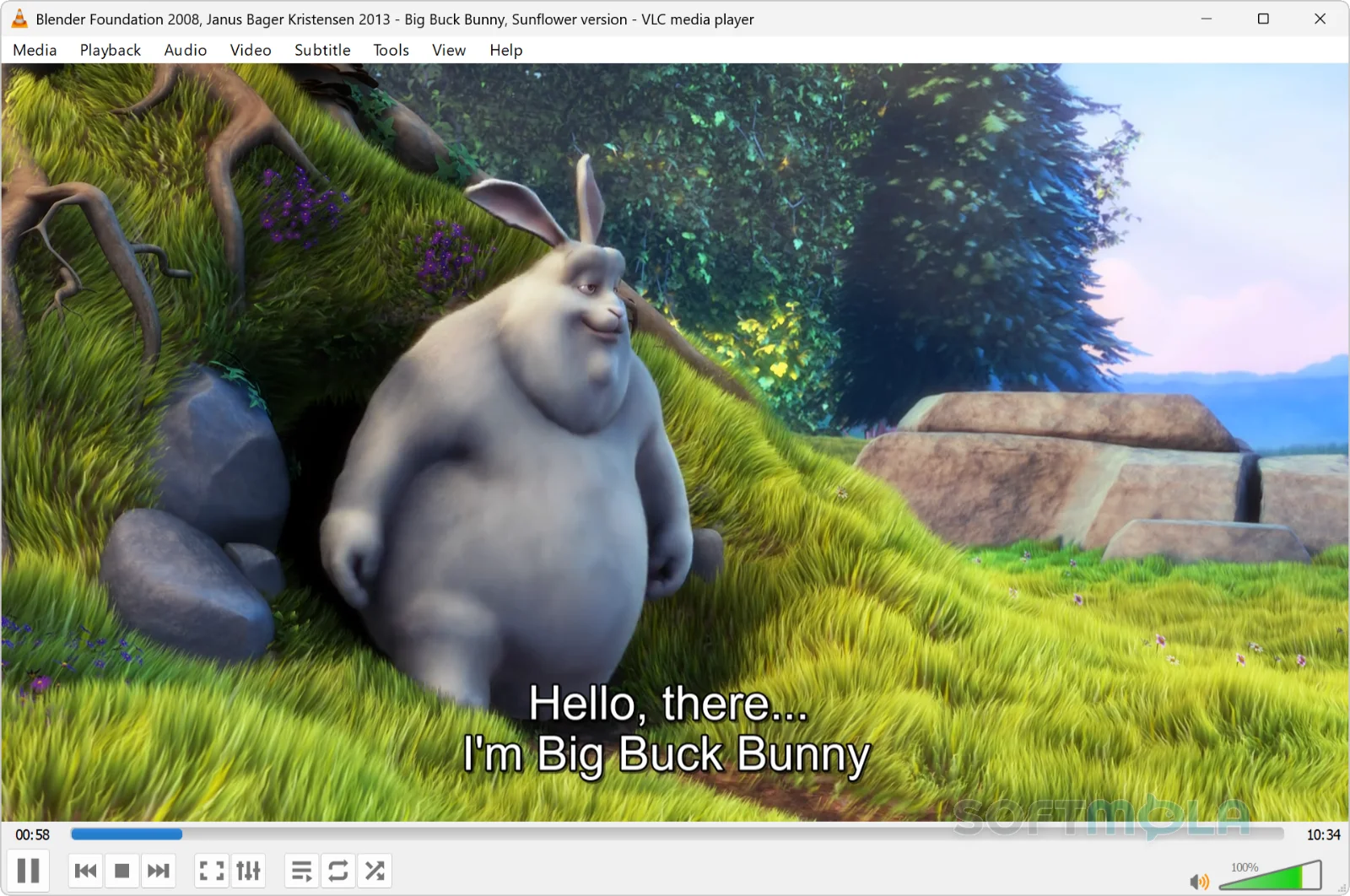
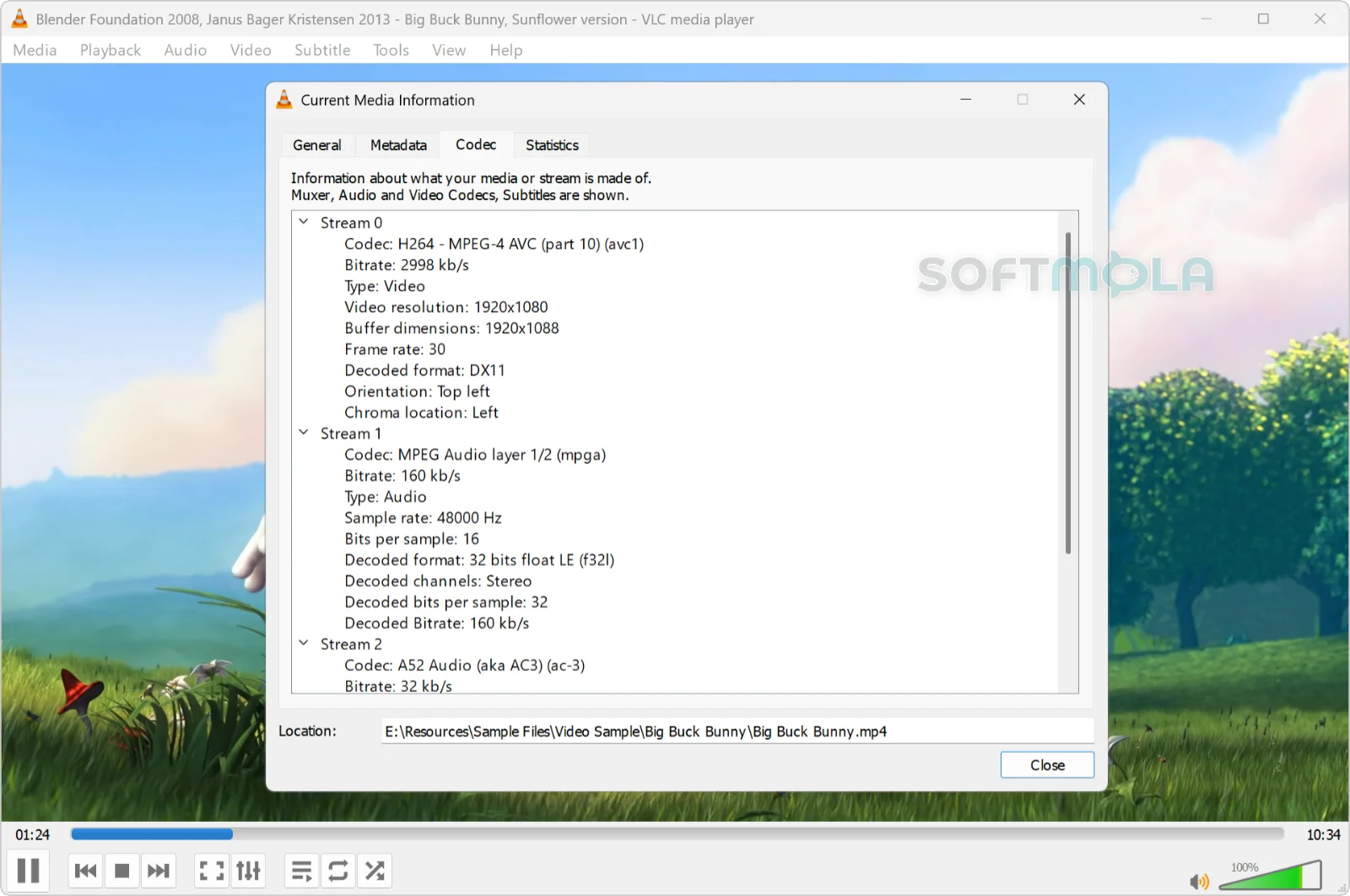
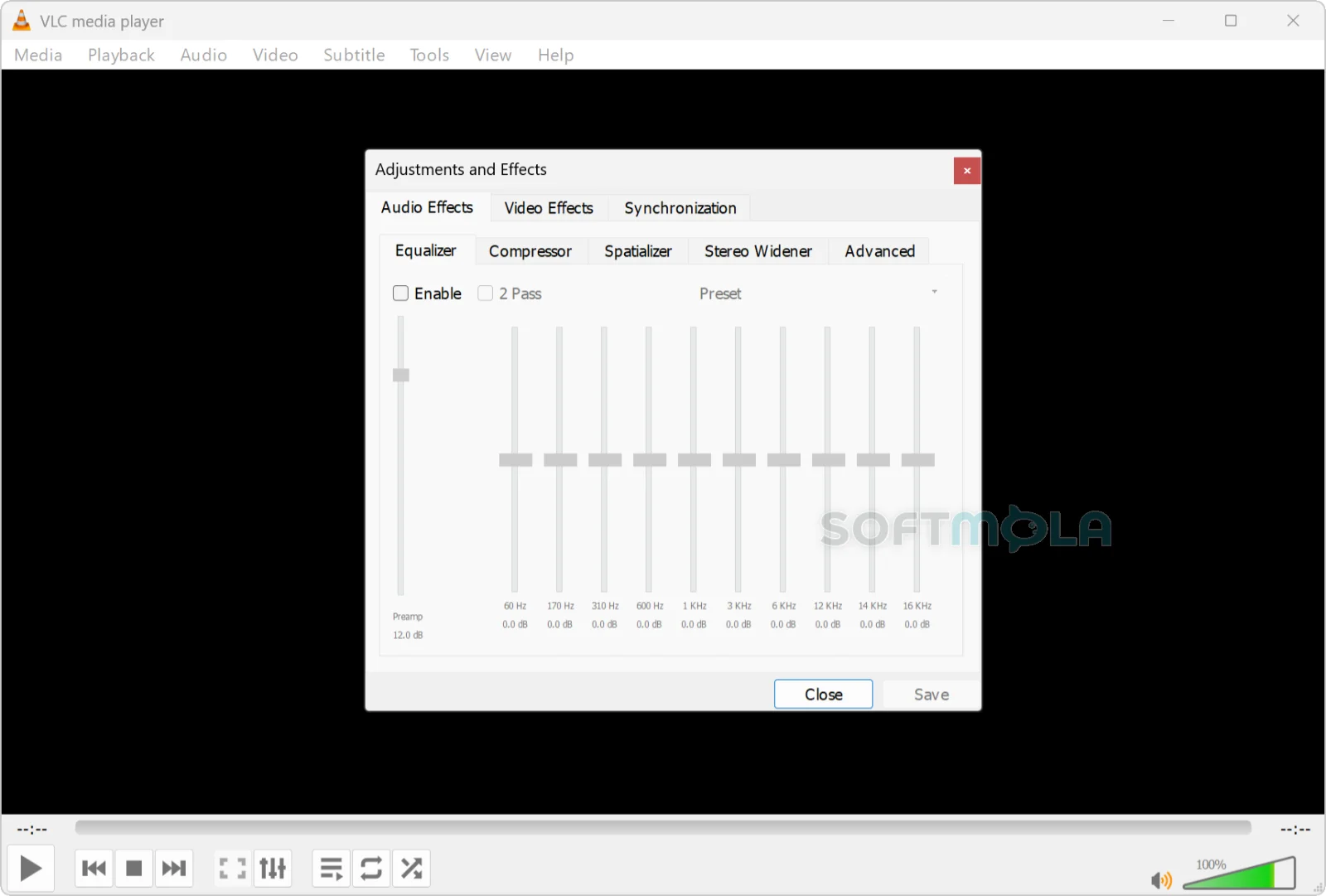
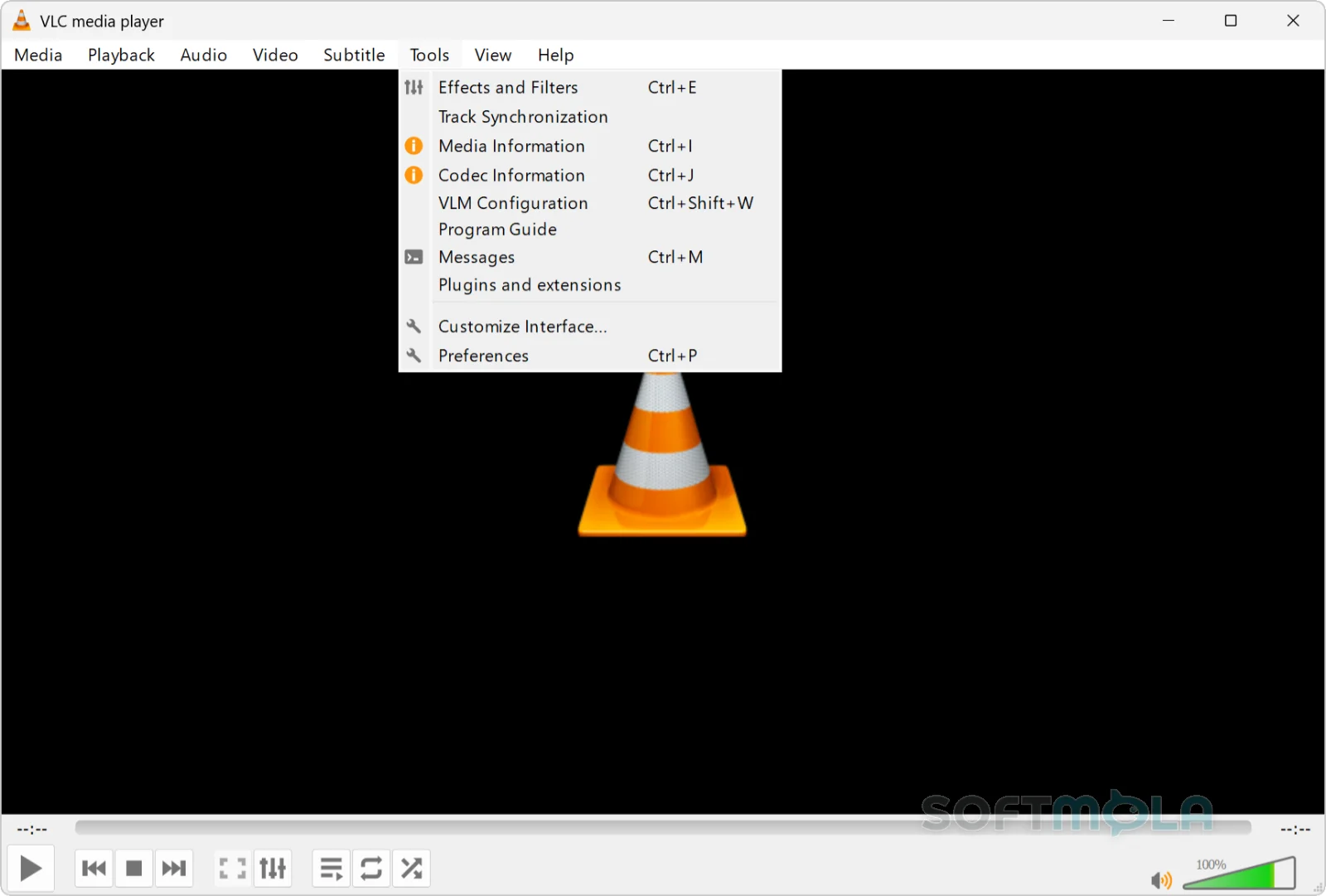
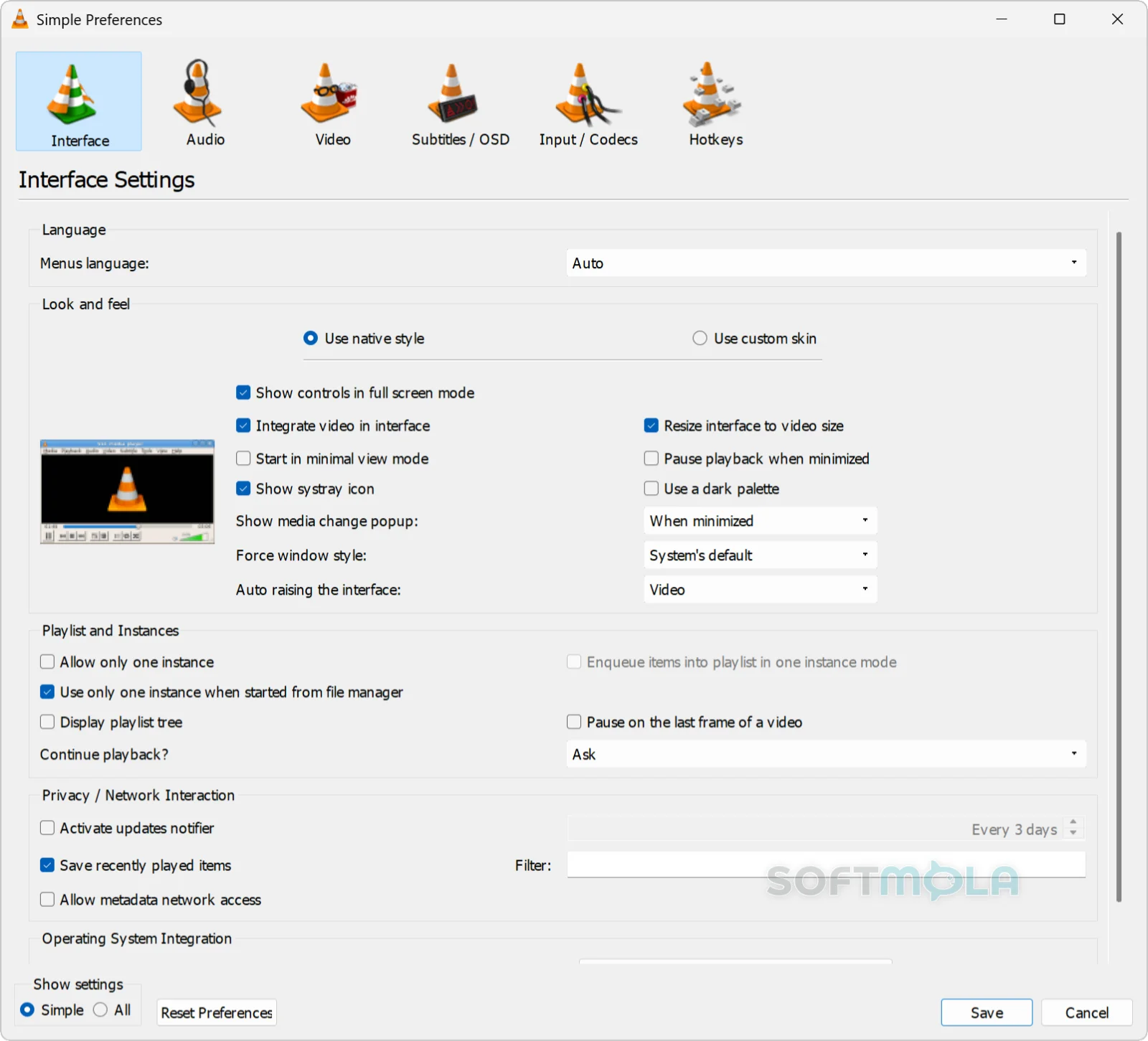
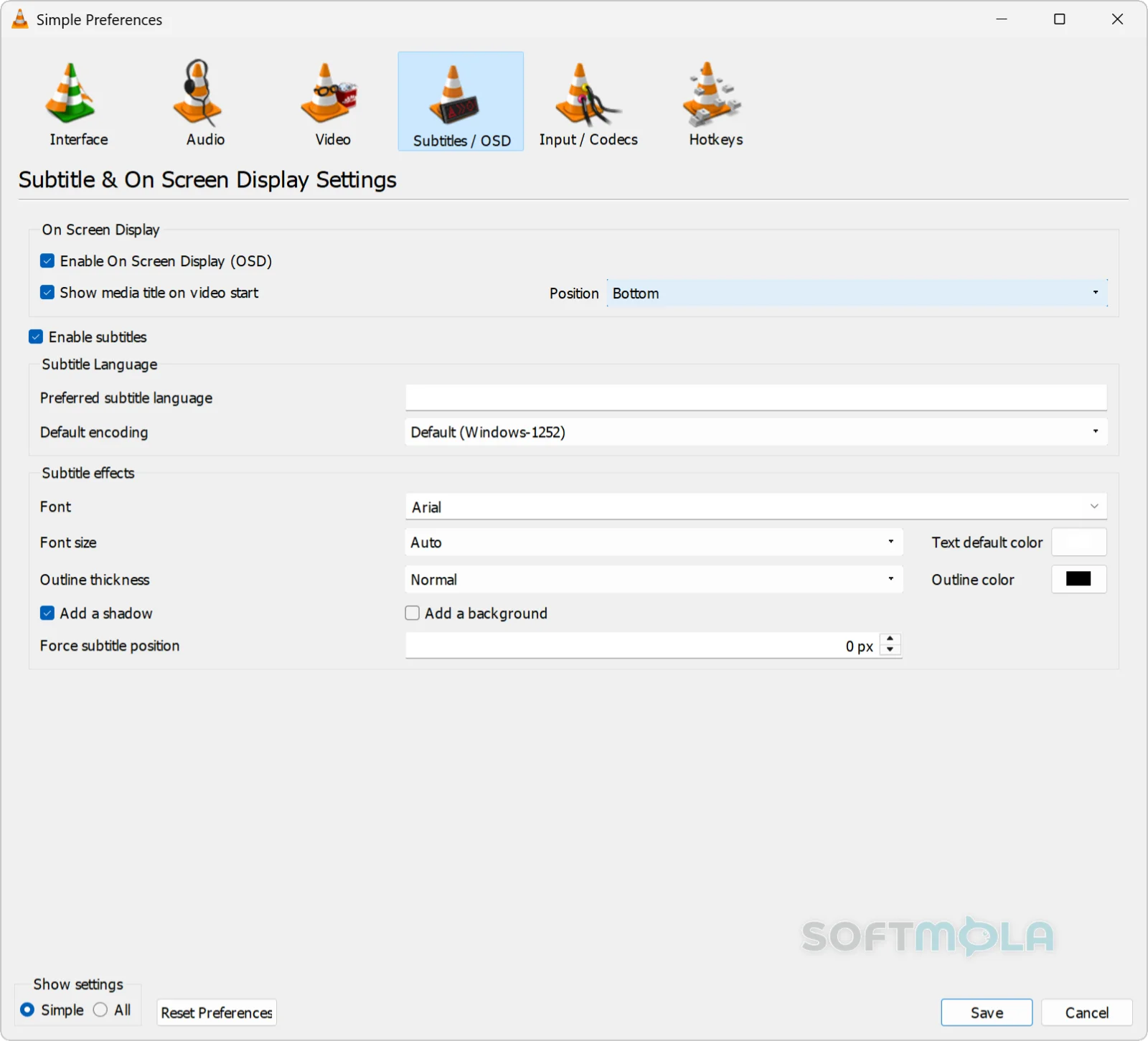
Table of Contents
VLC Media Player is a free, open-source multimedia player developed by VideoLAN, a nonprofit software project based in Paris. It plays nearly every audio and video format without requiring separate codec packs, handles DVDs and network streams, and works as a lightweight streaming server when needed.
For Windows users, VLC solves a specific problem: media files that Windows Media Player or other built-in tools simply refuse to open. Whether it's an oddly encoded MKV file, a damaged download, or footage pulled from an older camera, VLC tends to play it anyway. That reliability, combined with the fact that it costs nothing and comes with no ads or bundled software, is why it remains a fixture on so many PCs.
VLC suits casual viewers who just want a file to play, as well as more technical users who need precise control over subtitles, audio tracks, or network streaming. It doesn't try to be a media library manager or a polished entertainment hub. It focuses on playback, and it does that job with unusual thoroughness.
VLC Media Player Review
VLC's interface hasn't changed dramatically in years, and that's mostly by design. Open a file and playback starts immediately, with a control bar that covers volume, seeking, and basic navigation without extra steps. Menus expose deeper functionality, including audio and subtitle track selection, playback speed, and video filters, but none of it is forced on someone who just wants to watch a video. This layered approach is part of why the software has held onto such a broad user base: newcomers get a working player instantly, while experienced users can dig into equalizer settings, deinterlacing options, or scene filters when they need them.
Format compatibility remains VLC's defining strength. It plays MP4, MKV, AVI, FLAC, WAV, and dozens of less common formats out of the box, along with DVDs and many streaming protocols, without asking the user to hunt down a missing codec. On modern Windows PCs, VLC also takes advantage of hardware-accelerated decoding, which helps keep CPU usage reasonable even during 4K or HDR playback, though actual performance still depends on the graphics hardware in the system.
Subtitle handling is another area where VLC has built a loyal following. It supports a wide range of subtitle formats and lets users manually resync timing with a few keystrokes when captions drift out of alignment, a common annoyance with subtitle files pulled from different sources. Network and streaming support extends the same flexibility: VLC can open a network URL, play an IPTV playlist, or act as a basic streaming server, all from the same interface used for local files.
None of this comes at the cost of privacy or trust. VLC doesn't require an account, doesn't display ads, and its source code is publicly available for anyone to inspect. As an open-source project maintained by volunteers, VideoLAN has also kept up a steady pace of security patches for the current 3.0.x release branch, addressing vulnerabilities tied to how various media formats and subtitle types are parsed. Because a media player has to process files from untrusted sources by nature, that ongoing maintenance matters more than it might for other software categories.
The trade-offs are relatively minor but worth naming. VLC's interface, while functional, looks noticeably plainer than newer competitors with more polished dark themes or curated media libraries. Some advanced features, like audio filters or network stream configuration, are tucked into menus that aren't always intuitive to find on a first look. VideoLAN has also been developing a next-generation version, VLC 4.0, for several years; it remains in beta and nightly-build status on desktop, so Windows users on the stable release won't see its redesigned interface or newer features yet.
Even so, VLC's core appeal hasn't faded. It still opens files other players won't touch, it's still free without strings attached, and it's still actively maintained. For anyone who values a dependable, no-nonsense media player over a flashier alternative, that combination continues to hold up well.
Key Features of VLC Media Player
Broad Format Support
VLC plays most common and uncommon audio and video formats natively, including MP4, MKV, AVI, FLAC, and OGG, along with DVDs, VCDs, and audio CDs. This eliminates the need to install separate codec packs, which is especially useful for anyone who regularly deals with files from different sources, such as downloads, camera footage, or older archives that use less standard encoding.
Hardware-Accelerated Playback
On supported systems, VLC uses hardware decoding to offload video processing to the graphics card rather than relying entirely on the CPU. This helps keep playback smooth for high-resolution content, including 4K and HDR video, and reduces strain on lower-powered laptops. When hardware acceleration isn't available or compatible with a particular file, VLC falls back to software decoding automatically.
Subtitle Support and Sync Controls
VLC supports a wide range of subtitle formats and allows users to load external subtitle files alongside a video. When subtitles drift out of sync with the audio, a common issue with files sourced online, keyboard shortcuts let users nudge the timing forward or backward without pausing playback or opening a separate tool.
Streaming and Network Playback
Beyond local files, VLC can open network streams directly by URL, play IPTV playlists, and connect to shared drives or network locations. It can also function as a basic streaming server, sending media to other devices on the same network. This makes it useful for people who want one application to handle both local and networked media without switching tools.
Media Conversion and Recording
VLC includes built-in tools for converting media between formats and saving streams to a file, which can be useful for preparing video for a specific device or trimming down file types that aren't well supported elsewhere. It can also capture from webcams and record desktop screen activity, functions that go beyond what a typical media player offers.
Customization Through Skins and Extensions
The interface can be adjusted with alternate skins, and functionality can be extended through Lua-based extensions, including tools for downloading subtitles or adding new playback behaviors. Extensive keyboard shortcuts also give more experienced users a faster way to control playback, volume, and navigation without touching the mouse.
VLC Media Player remains one of the most dependable options for anyone who wants a media player that simply works, regardless of file format or source. It's best suited to users who prioritize compatibility, control, and a lack of ads or subscriptions over a curated media library experience. Those wanting a more visually modern interface, or built-in library organization, may find other players a better fit, but for straightforward, reliable playback on Windows, VLC continues to hold its ground.
How to Download and Install VLC Media Player on Windows
VLC is distributed as a traditional Windows installer directly from VideoLAN's official site, with no account or subscription needed to download or run it. Portable and Microsoft Store versions are also available for users who prefer those distribution methods.
How to Download VLC Media Player
Select the download button on this page.
You'll be directed to VideoLAN's official Windows download page.
Choose the 64-bit installer for a standard Intel or AMD PC, or the ARM64 build if your device uses a Windows on ARM processor.
Save the installer file somewhere easy to find, such as your Downloads folder.
Wait for the download to finish completely before opening the file.
How to Install VLC Media Player
Double-click the downloaded installer file to launch setup.
Approve the Windows User Account Control prompt if it appears.
Select your preferred installer language, then continue through the setup wizard.
Review the installation options, including which components to include, then follow the on-screen steps to complete the setup.
Launch VLC once installation finishes. No sign-in or activation step is required to start using it.
Getting Started with VLC Media Player
Open a file directly by dragging it into the VLC window, or use the Media menu to browse for one.
If you'd like VLC to open certain file types automatically, set it as the default player for those formats through Windows Settings or during the VLC setup process, if the option is presented.
Explore the Tools and View menus to adjust playback speed, enable subtitle track selection, or turn on hardware acceleration settings if they aren't already active.
VLC Media Player Pros & Cons
- Plays almost any file format: Handles MP4, MKV, AVI, FLAC, and many less common formats without needing separate codec packs.
- Completely free with no account required: VLC can be downloaded and used without payment, sign-in, or subscription of any kind.
- No ads or bundled software from the official installer: The VideoLAN download doesn't include third-party toolbars or sponsored offers.
- Hardware - accelerated playback: Uses GPU decoding where available, helping keep 4K and HDR playback smooth on capable hardware.
- Reliable subtitle handling: Loads a wide range of subtitle formats and lets users manually resync timing when captions drift.
- Actively maintained for security: VideoLAN continues to release patches for the 3.0.x branch, addressing vulnerabilities tied to media parsing.
- Interface looks dated next to newer players: VLC's design has changed little in years and lacks the polished themes some competitors offer.
- Some advanced settings are hard to locate: Options like audio filters or network stream configuration are tucked into menus that aren't always intuitive.
- VLC 4.0 remains unavailable on desktop: The redesigned next-generation version is still in beta and nightly builds, so Windows users on the stable release don't get its newer features yet.
Frequently Asked Questions
What is VLC Media Player?
VLC Media Player is a free, open-source multimedia player developed by VideoLAN, a nonprofit project. It plays most audio and video formats, along with DVDs and network streams, without requiring separate codec installations, and it works across Windows, macOS, Linux, Android, and iOS.
Is VLC Media Player free?
Yes. VLC is completely free to download and use, with no trial period, subscription, or paid tier for the desktop version. VideoLAN accepts optional donations to support development, but they aren't required to use the software.
Is VLC safe to download?
VLC itself is open-source software with publicly available code, and VideoLAN actively patches security vulnerabilities in the player. Safety mainly depends on the download source: getting VLC from the official VideoLAN website or Microsoft Store avoids the bundled extras sometimes added by third-party download aggregators.
Does VLC work on Windows 11?
Yes. VideoLAN lists Windows 11 as supported, alongside earlier versions of Windows going back several releases. Most users on a modern Intel, AMD, or ARM-based Windows PC can install the current version without compatibility concerns.
Do I need to install additional codecs to play video files?
No. VLC includes built-in support for the vast majority of common and uncommon audio and video formats, so it generally doesn't require separate codec packs the way some other Windows media players do.
Is a portable version of VLC available?
Yes. VideoLAN offers VLC as a ZIP or 7-Zip package that can run from an extracted folder without a traditional installation, which is useful for running the player from a USB drive or a restricted system.
Is VLC available through the Microsoft Store?
Yes, VideoLAN publishes VLC through the Microsoft Store as well as its own website. A separate UWP edition also exists, but it lacks some capabilities of the full desktop version, including DVD and Blu-ray playback, so the standard desktop installer is the more complete option for most users.