

SMPlayer for Windows
A free, open-source media player for Windows with built-in codec support and automatic subtitle downloads.
Software Information
Recommended: 64-bit Available: 32-bit
SMPlayer Screenshots
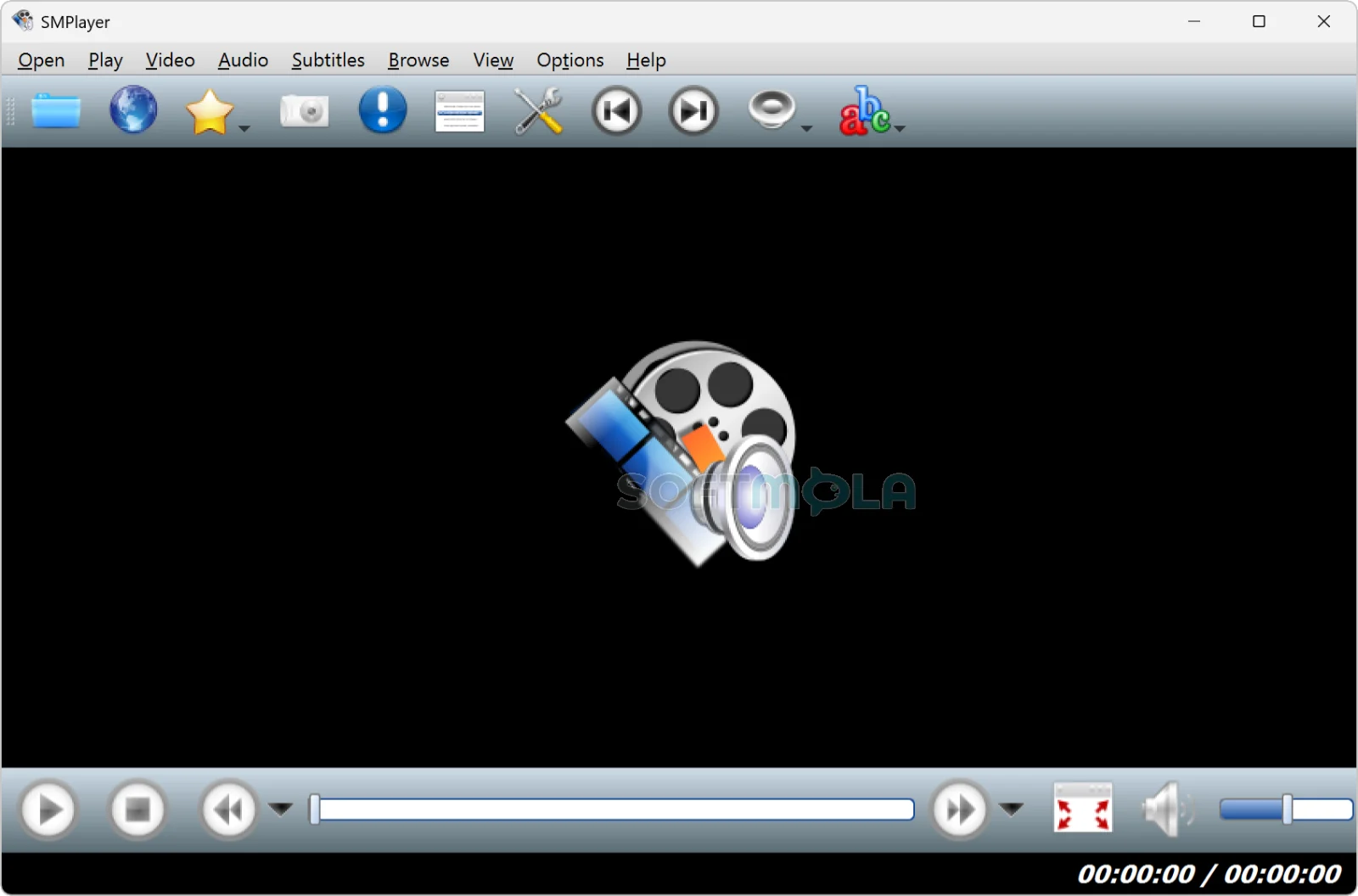
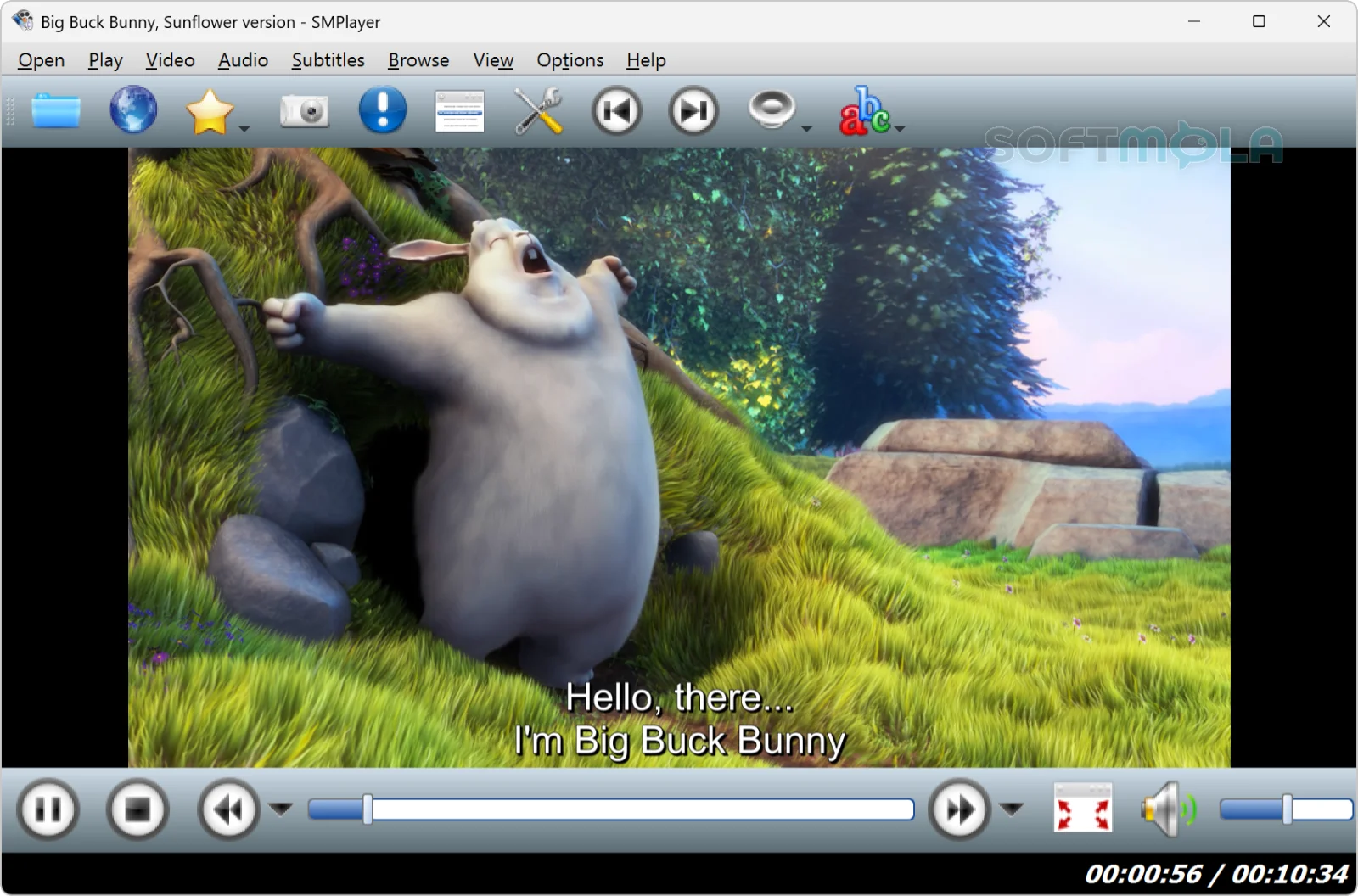
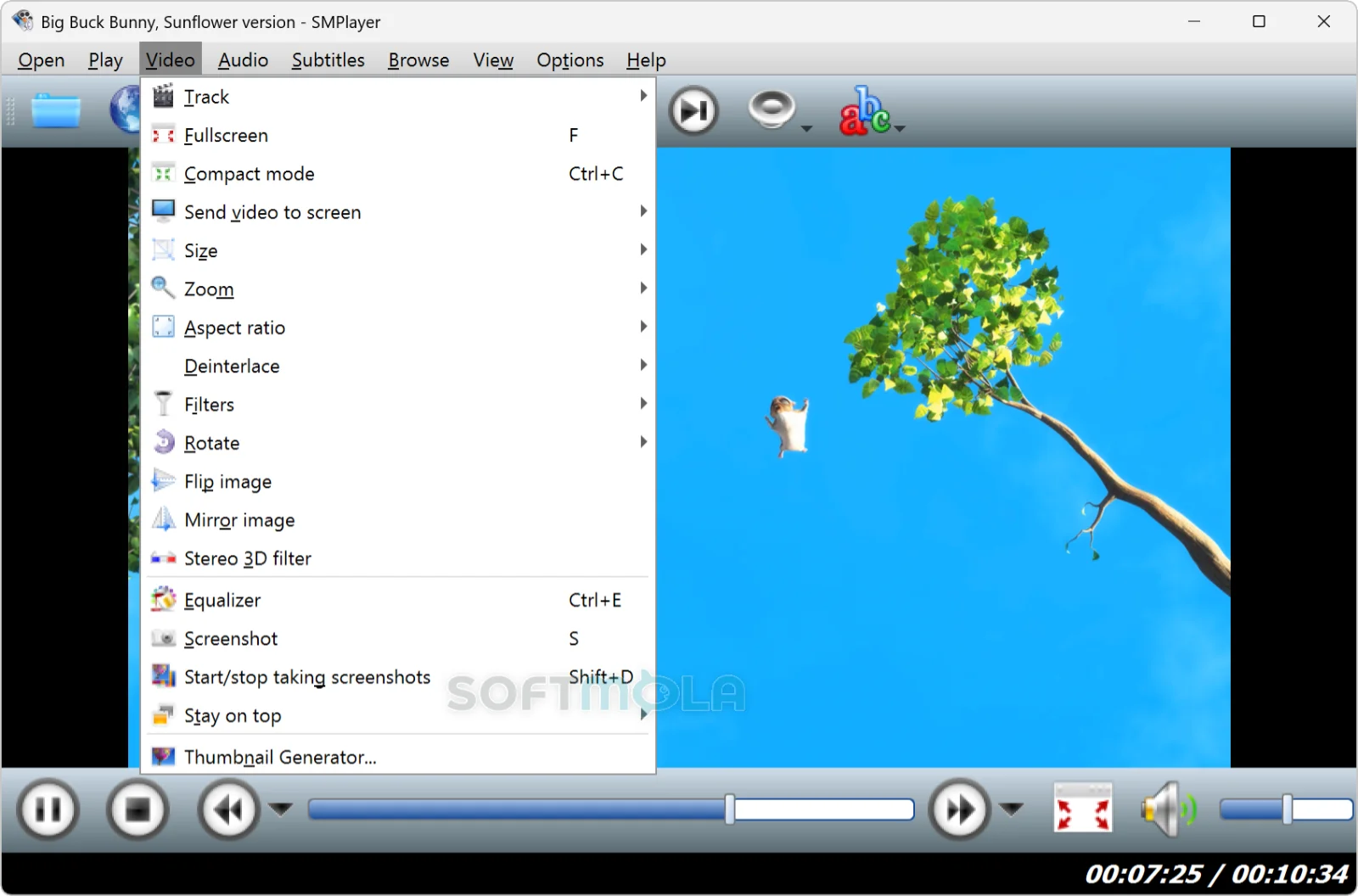
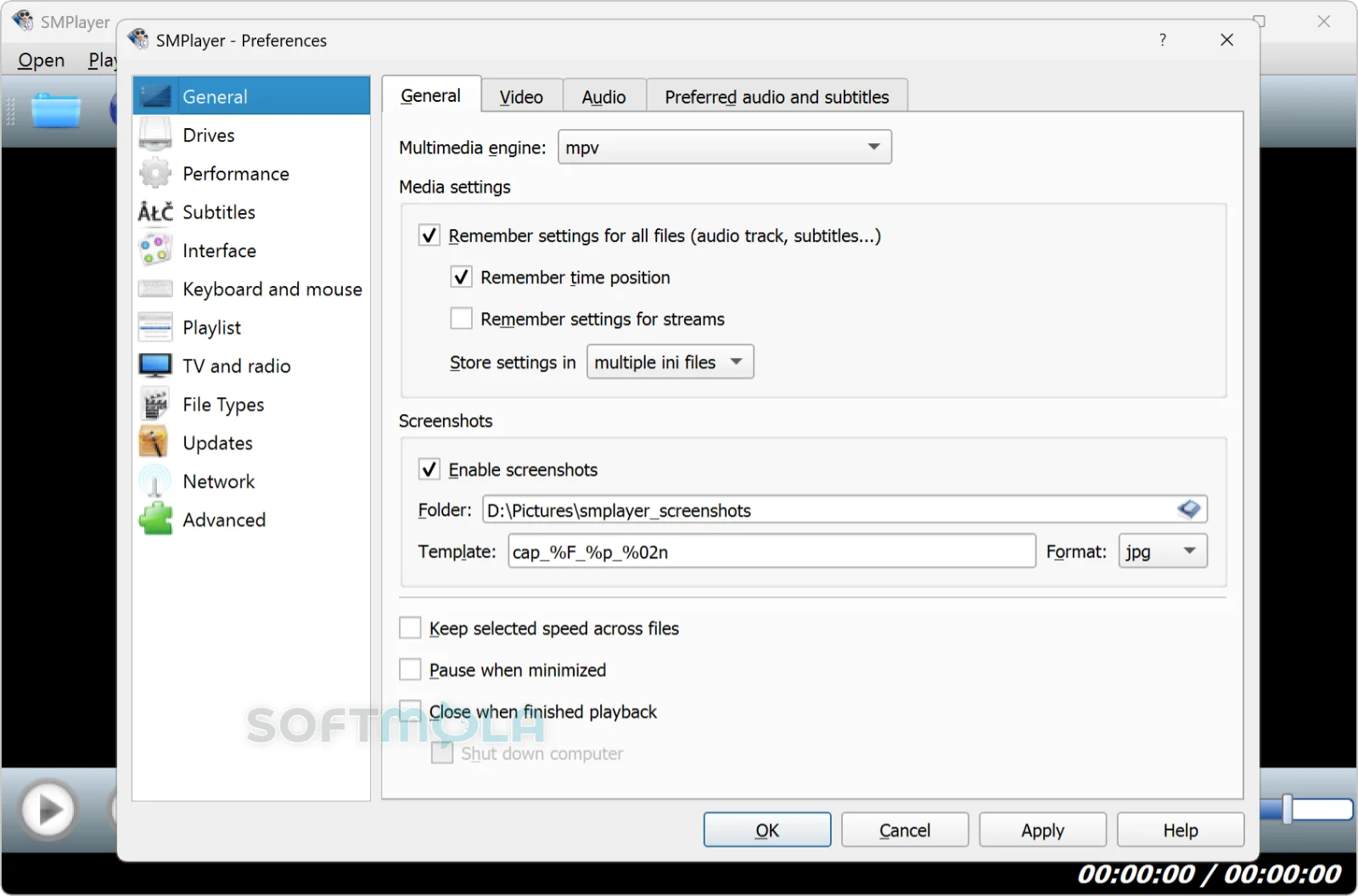
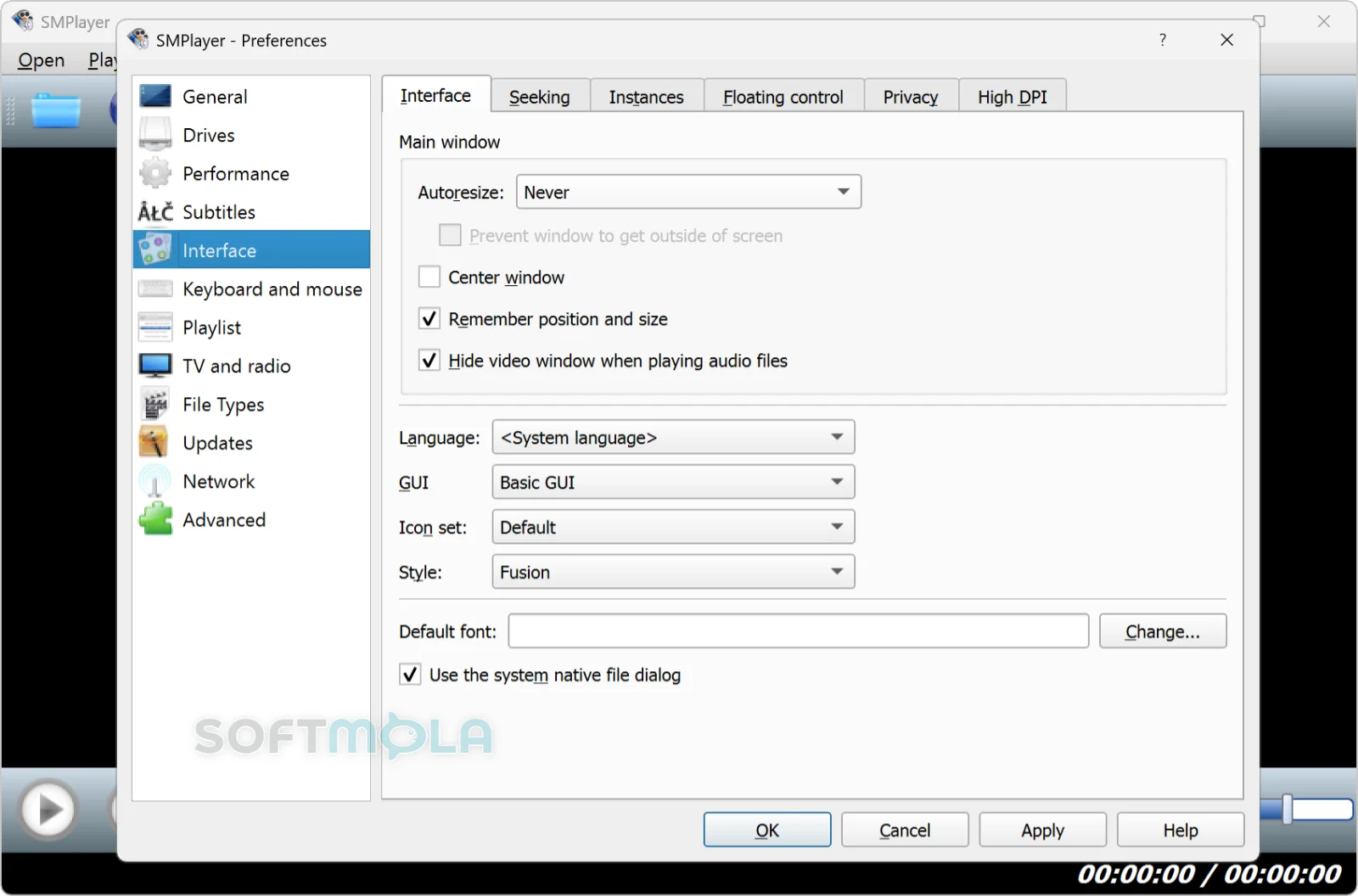
Table of Contents
SMPlayer is a free, open-source media player for Windows built around the playback engines of MPlayer and mpv. Developed by Ricardo Villalba and distributed under the GPL license, it plays most common video and audio formats without requiring a separate codec pack, which is the main reason it has kept a loyal following since its first release in 2006.
For Windows users, the appeal is straightforward. Rather than hunting down codecs for an obscure file or dealing with a bloated all-in-one suite, SMPlayer bundles everything needed to play AVI, MP4, MKV, MOV, and dozens of other formats out of the box. It also remembers where you left off in every file, down to the audio track and subtitle settings, so resuming a paused movie or series doesn't mean starting from scratch.
SMPlayer suits people who want a no-frills, codec-agnostic player rather than a flashy media hub. It's a reasonable fit for anyone who regularly deals with mixed file formats, watches downloaded video with external subtitles, or simply wants a lightweight alternative to Windows' built-in playback tools.
SMPlayer Review
What stands out first about SMPlayer is how little it asks of the user. Install it, drop in a video file, and it plays — no separate codec installation, no format guesswork. That's because the program pairs its interface with a full multimedia backend rather than relying on whatever codecs happen to be registered on the system. Windows users who have dealt with a video that plays audio but not picture, or vice versa, will recognize the value of a player that sidesteps that problem entirely.
The interface itself is functional rather than fashionable. Playback controls sit along the bottom of the window, with menus for audio tracks, subtitle timing, and video filters just a click away. It's not a bad layout, but it doesn't try to look modern either — SMPlayer favors accessible controls over visual polish, and long-time users of MPlayer-based tools will feel at home immediately. The interface can be reskinned with alternate icon themes, which helps, but the overall experience leans utilitarian.
One genuinely useful design choice is the ability to switch between the MPlayer and mpv playback engines from the preferences menu, or install both during setup. This matters more than it might sound: if a particular file or stream behaves oddly with one engine, switching to the other is often enough to fix it. Few free players offer this kind of engine-level flexibility, and it gives SMPlayer more troubleshooting headroom than most single-backend alternatives.
Subtitle handling is another strong point. SMPlayer can search opensubtitles.org directly from the playback window, download a matching subtitle file, and let you fine-tune sync delay without leaving the app. For anyone who watches a lot of foreign-language content or older files without embedded subtitles, this saves a fair amount of manual work.
Online video playback is where the picture gets more mixed. SMPlayer includes built-in support for playing YouTube links and other streaming sites directly, without opening a browser. When it works, it's convenient. The catch is that this feature depends on parsing YouTube's page structure and stream URLs, and YouTube changes that structure often enough that playback support periodically breaks until the underlying extraction tool is updated. Community bug reports on the project's GitHub page show this has been a recurring pattern for years rather than an isolated glitch, so it's worth treating online playback as a convenience feature that may need occasional troubleshooting, not as a guaranteed replacement for a browser or a dedicated streaming app.
On system resources, SMPlayer tends to be light, especially compared to full media-center software. It doesn't run background services or maintain a media library index, so it starts quickly and uses relatively little memory during normal playback. A portable build is also available for people who'd rather run it from a USB drive without installing anything on the host machine, which is a nice option for shared or locked-down computers.
The project has been around for close to two decades, and that maturity shows in how stable core playback feels. At the same time, development has slowed compared to its earlier years, and the interface hasn't changed much in style even as competing players have modernized theirs. Users who prioritize a current, actively evolving UI may find that trade-off noticeable. Those who mainly want dependable local file playback with strong subtitle and format support are less likely to mind.
Taken together, SMPlayer does its core job — playing almost anything without codec headaches — reliably well. Its secondary features, particularly online streaming, are useful when they cooperate but shouldn't be the main reason to choose it.
Key Features of SMPlayer
Dual Playback Engine (MPlayer and mpv)
SMPlayer isn't tied to a single decoding backend. During installation, users can choose to install MPlayer, mpv, or both, and switch between them later from the preferences menu. This is particularly useful for troubleshooting: a file or stream that stutters or fails to play under one engine will sometimes work cleanly under the other, giving users a built-in fallback rather than a dead end.
Built-In Codec Support
Because SMPlayer ships with its own multimedia engine rather than depending on codecs registered elsewhere on Windows, it can open a very wide range of container and encoding formats immediately after installation. This removes one of the more common frustrations with default or lightweight Windows players, where an unusual file format simply refuses to open until the right codec pack is tracked down and installed.
Resume Playback and Per-File Settings
SMPlayer keeps a memory of where each file was last stopped, along with its audio track, subtitle, and volume settings. Reopening a movie or episode picks up exactly where you left off, with the same configuration intact. For anyone who watches long-form content in multiple sittings, this removes the need to manually reset preferences every time.
Subtitle Search and Sync Adjustment
The player connects to opensubtitles.org to search for and download matching subtitle files directly from within the app, and includes controls to nudge subtitle timing forward or backward when a downloaded file is slightly out of sync with the video. This is a practical time-saver for viewers who regularly deal with foreign-language films or older releases that lack embedded subtitles.
Video and Audio Filters
SMPlayer includes a video equalizer for adjusting brightness, contrast, and saturation, along with variable-speed playback and frame-by-frame stepping in both directions. These controls are aimed at users who want finer control over playback than a basic player offers, without needing a separate video editing tool.
Online Video Playback
The player can open and stream video links, including YouTube content, directly without launching a browser. It's a genuinely convenient feature on the days it works smoothly, though it relies on keeping pace with changes on the streaming site's end, and playback support for sites like YouTube has a documented history of intermittent breakage that gets resolved through updates over time rather than staying permanently stable.
Portable Version
For users who don't want to install anything on a shared or restricted machine, SMPlayer offers a portable build that runs directly from a USB drive or a local folder, with no system-level installation required. Settings and playback history travel with the portable copy rather than being tied to a single PC.
Multi-Language Interface
SMPlayer's interface has been translated into more than 30 languages, which makes it accessible well beyond English-speaking users without needing a separate localized build.
SMPlayer remains a solid pick for Windows users who want dependable local playback across a wide range of formats without wrestling with codec packs, and who don't mind an interface built for function over style. Its subtitle tools and dual-engine flexibility are genuine advantages for anyone dealing with varied file sources. The online streaming features add convenience but come with the caveat that they can be less consistent than the core local-playback experience, so viewers who lean heavily on that side of things should treat it as a bonus rather than the deciding factor.
How to Download and Install SMPlayer on Windows
SMPlayer is distributed as a standard Windows installer from its official site, with separate 32-bit and 64-bit packages. No account or subscription is required to download or run it. A portable version is also available for those who'd rather skip installation entirely.
How to Download SMPlayer
Select the download button on this page.
Continue to the official download source.
Choose the installer that matches your system's architecture (32-bit or 64-bit) if more than one option is presented.
Save the installer file to a folder you can find easily, such as Downloads.
Wait for the download to finish before opening the file.
How to Install SMPlayer
Open the downloaded installer file.
Approve the Windows User Account Control prompt if it appears.
If Windows SmartScreen shows a warning, select "More info" and then "Run anyway" to proceed, provided the file came from the official source.
Review the installation options, which typically include creating shortcuts, selecting the multimedia engine (MPlayer, mpv, or both), choosing an icon theme, and picking an interface language.
Decide whether to include the optional SMTube component if it's offered during setup.
Complete the setup process.
Open SMPlayer from the Start menu or desktop shortcut.
Getting Started with SMPlayer
Open a video file to confirm playback works correctly with the default engine.
If a file doesn't play as expected, switch the multimedia engine in Preferences > General and try again.
Use the subtitle search option to download matching subtitles for content that doesn't include them.
SMPlayer Pros & Cons
- No separate codec packs needed: SMPlayer bundles its own playback engines, so most video and audio formats work right after installation.
- Choice of playback engine: Users can install and switch between MPlayer and mpv, which helps resolve playback issues that are specific to one engine.
- Remembers per - file settings: Playback position, audio track, subtitle choice, and volume are saved automatically for every file, so resuming later requires no reconfiguration.
- Built - in subtitle search: Subtitles can be found and downloaded from opensubtitles.org directly inside the player, along with sync adjustment tools.
- Free and open source: The software carries no purchase cost and is distributed under the GPL license, with no subscription or account requirement.
- Portable option available: A no-install version can run from a USB drive or local folder for users who don't want to modify the host system.
- Inconsistent YouTube and online playback: Streaming support depends on keeping pace with changes on video sites, and playback has a documented history of breaking until an update restores it.
- Interface hasn't kept up visually: The layout remains functional but has not been modernized in style, which may feel dated next to newer players.
- Slower release cadence: Development has slowed compared to SMPlayer's earlier years, so fixes for emerging compatibility issues can take longer to arrive.
Frequently Asked Questions
What is SMPlayer?
SMPlayer is a free, open-source media player for Windows that uses the MPlayer and mpv playback engines to play a wide range of video and audio formats without needing separate codec installations. It also remembers playback position and settings for every file, which makes it convenient for resuming paused content.
Is SMPlayer free?
Yes. SMPlayer is free to download and use, and it's distributed under the GPL open-source license. There is no paid tier, subscription, or account requirement to access its features.
Does SMPlayer work on Windows 11?
Yes. SMPlayer runs on current versions of Windows, including Windows 11 and Windows 10, with both 32-bit and 64-bit installers available depending on your system.
Do I need to install extra codecs to use SMPlayer?
No. SMPlayer includes its own multimedia engine, so it can open most common video and audio formats immediately after installation without requiring separate codec packs.
Can SMPlayer play YouTube videos?
SMPlayer includes built-in support for playing YouTube and other online video links without opening a browser. This feature relies on parsing the streaming site's structure, so playback occasionally breaks when a site changes something on its end, and may need an update to start working again.
Is a portable version of SMPlayer available?
Yes. SMPlayer offers a portable package for 32-bit and 64-bit Windows that runs from an extracted folder without a traditional installation, which is useful for USB drives or restricted computers.
Which playback engine should I choose, MPlayer or mpv?
Either engine works for most files, and both can be installed at the same time. If a particular video plays poorly or not at all under one engine, switching to the other in the preferences menu often resolves the issue.
Is SMPlayer safe to download?
SMPlayer itself is open-source software from a long-established developer, but safety depends on where you get it. Downloading only from the official site or a verified distribution source reduces the risk of bundled or modified installers. As with any software, no download can be guaranteed completely risk-free, so it's worth confirming the source before running the installer.