

SlimPDF Reader for Windows
A free, lightweight PDF viewer for Windows with tabbed reading, annotation tools, and digital signature verification.
Software Information
SlimPDF Reader Screenshots
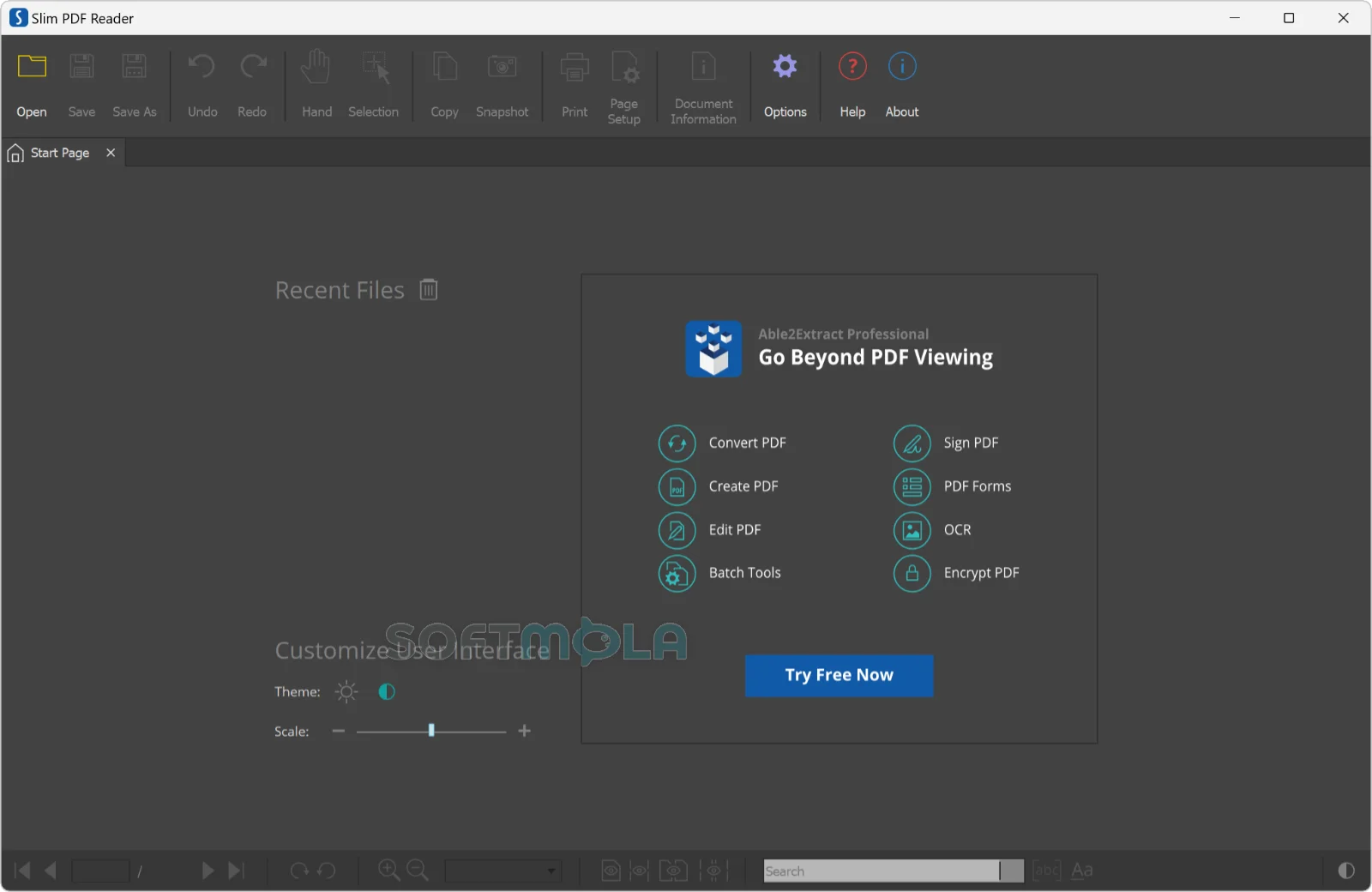
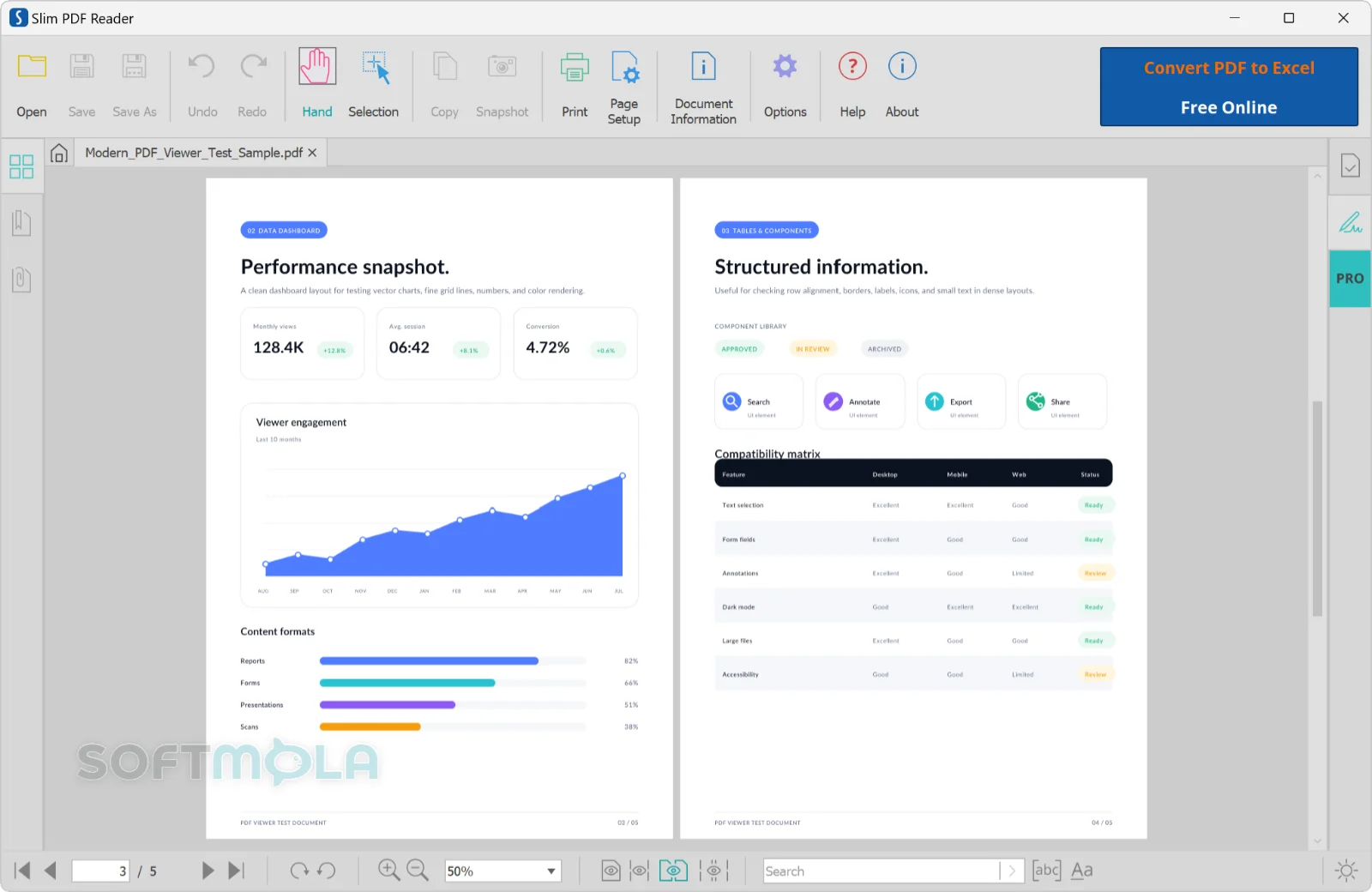
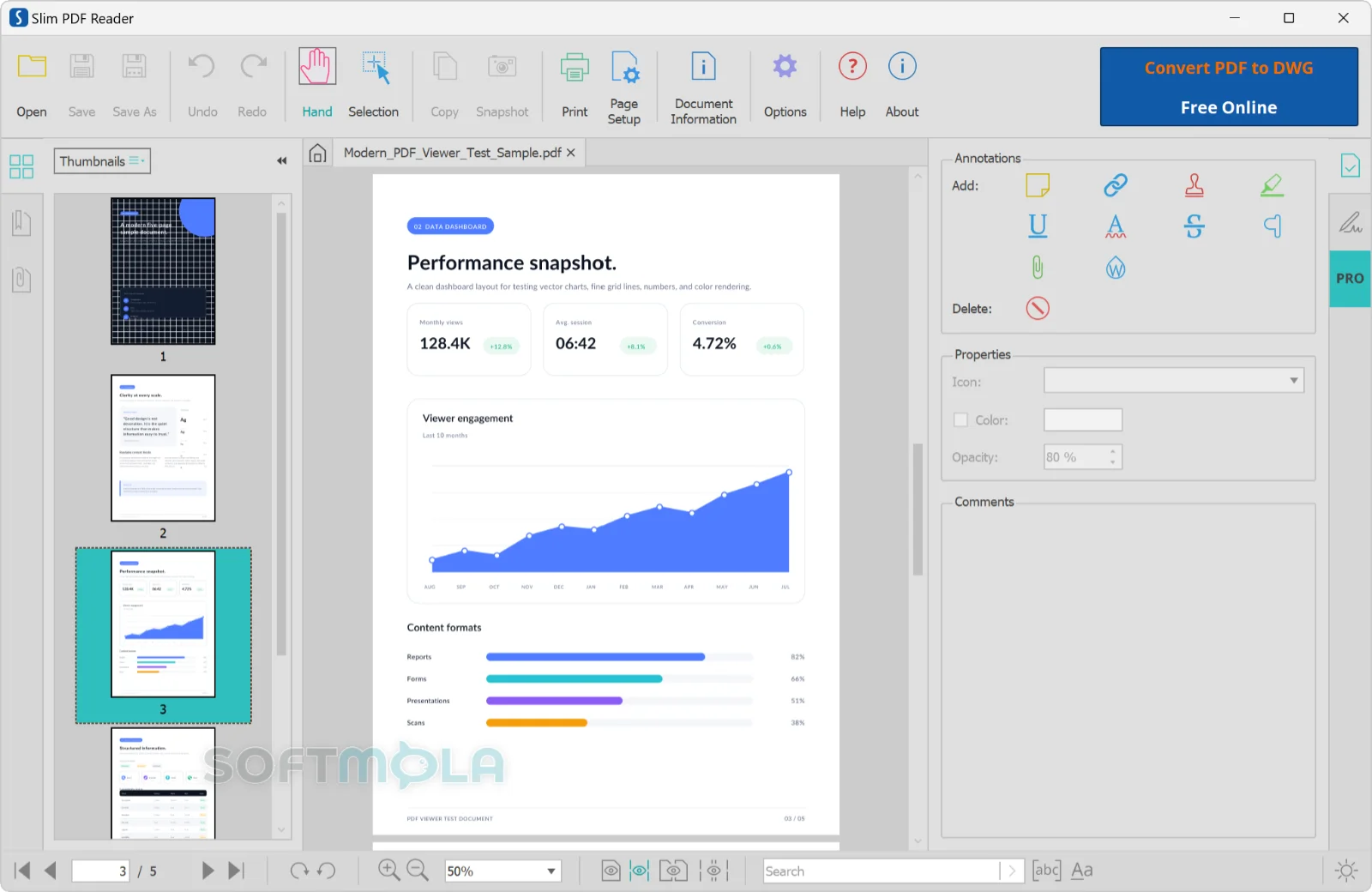
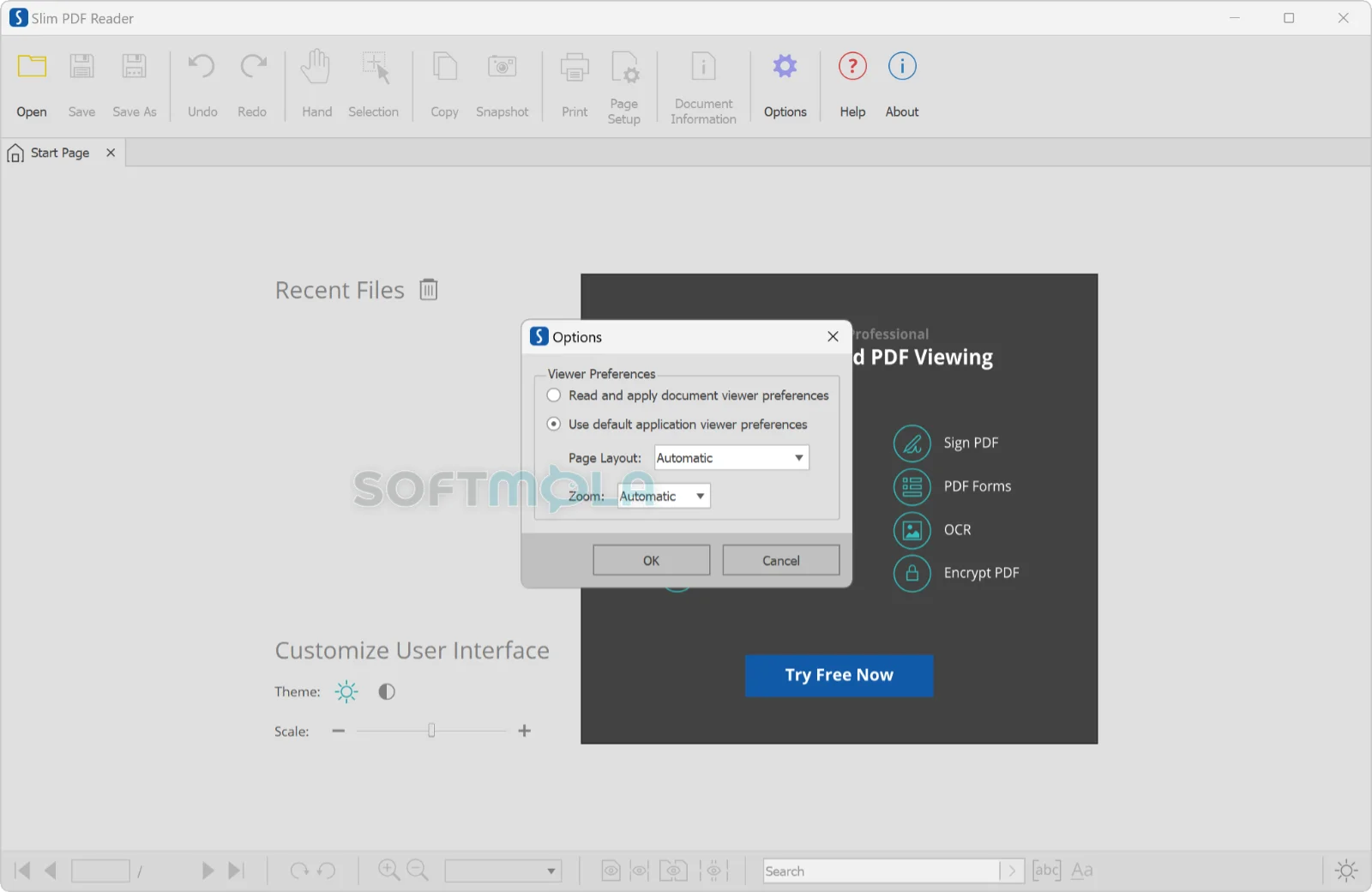
Table of Contents
Slim PDF Reader is a free desktop PDF viewer built for people who want to open a document, read it, mark it up if needed, and move on. It comes from Investintech, the Canadian developer behind the Able2Extract Professional converter, which now operates as part of Apryse. The Windows installer sits at roughly 15 MB, which is a fraction of the size of the full-featured PDF suites most people end up installing by default.
The appeal is straightforward. A large share of PDF work is simply reading: an invoice, a manual, a lease, a scanned form, a report someone emailed you. Heavyweight readers load background services, update agents, and cloud features that never get used for that kind of task. Slim PDF Reader for Windows strips the job back to viewing, navigating, annotating, and printing, with a small enough footprint to sit comfortably on an older laptop or a machine with limited storage.
That focus also defines its limits. This is a reader, not an editor. If your workflow involves converting PDFs to Word or Excel, running OCR on scans, or reorganizing pages, you will need something else alongside it. Understanding that boundary up front makes it much easier to judge whether the software belongs on your PC.
Slim PDF Reader Review
The current release is the version 2 line, which arrived in 2020 and replaced a much smaller, much more basic viewer that had circulated for years. The rewrite brought a proper start page, a redesigned interface, a real annotation toolkit, and support for Windows, macOS, and Linux from the same product page. It is worth knowing that the reader has been stable rather than actively evolving since then. Investintech continues to distribute and document it, but new feature work has clearly shifted toward the company's paid converter. For a viewer, that matters less than it would for a security product, though anyone who values frequent updates should factor it in.
Setup is quick and uneventful. The installer is a standard Windows executable with no bundled toolbars or third-party offers, and the application opens to a start page rather than an empty grey window. From there you can pick a recent file, switch between light and dark themes, and adjust interface scaling — useful on high-resolution displays where small toolbar icons become hard to hit. The scaling change requires a restart, which is a minor annoyance you only encounter once.
Day to day, the reading experience is the strongest part of the software. Documents open in tabs, so you can keep a specification and a reference sheet side by side without juggling separate windows. A left-hand panel holds thumbnails, bookmarks, and attachments, which covers the three things that actually help with long documents: jumping to a page you recognize, following a table of contents, and pulling out files embedded inside the PDF. Four page layouts are available, including two-page and continuous modes, and zoom runs from 5% to 400% alongside the usual fit-page and fit-width presets. Search supports case-sensitive and whole-word matching, which is more control than many lightweight viewers bother to offer.
Annotation is where version 2 pulled ahead of its predecessor. The reader supports ten annotation types, including sticky notes, highlights, underlines, strikethroughs, stamps, links, file attachments, and watermarks. The watermark tool is unexpectedly deep for a free viewer: you can use text or an image, set opacity, rotation, position, margins, and page range, then save the configuration as a reusable template. For anyone who regularly marks documents as drafts or internal copies, that alone can replace a paid tool.
Slim PDF Reader also verifies digital signatures, showing signature details in a side panel with a colour-coded status — green for valid, orange for valid with minor issues, red for invalid. This is a practical safeguard when you receive signed contracts or official documents and want confirmation that the file has not been altered since signing. The reader checks and reports; it does not create signatures, which stays consistent with its read-only philosophy.
The gaps are real and worth stating plainly. There is no text editing, no page merging or splitting, no OCR for scanned documents, and no conversion to Office formats. The application makes this explicit through a start-page button that promotes a trial of Able2Extract Professional, the company's commercial converter. The prompt is unobtrusive, but it is an upsell, and users who dislike in-app promotion should know it is there. Users have also reported occasional trouble with unusual or malformed PDF files, so if you routinely handle complex documents with heavy vector graphics or unusual encodings, it is sensible to keep a fallback reader installed.
On privacy, Investintech states that its desktop products do not monitor computer or internet activity and do not collect user data, and the reader works entirely offline once installed. That is a vendor claim rather than an independently audited finding, but the absence of account requirements, cloud sync, and mandatory sign-in is easy to verify yourself and removes an entire category of concern that subscription-based readers introduce.
Who benefits most? People on modest hardware, anyone maintaining older machines, users who want their PDFs to open in a dedicated application rather than a browser tab, and administrators looking for a small, quiet default viewer to deploy. Power users who edit PDFs daily, or teams that depend on shared review workflows and cloud commenting, will find it too narrow.
Key Features of Slim PDF Reader
Small Installation Footprint
The Windows installer is around 15 MB, and the installed application stays well under the space claimed by mainstream alternatives. On a system with a small SSD or an ageing hard drive, that difference is noticeable, and the application launches quickly because there is comparatively little to load. There are no background services running when the reader is closed.
Tabbed Viewing and Document Navigation
Multiple PDFs open as tabs within a single window, and tab order can be rearranged. The side panel provides thumbnails, bookmarks, and an attachments list, letting you move through long documents without endless scrolling. Page navigation buttons, a direct page-number field, and a hand tool for panning round out the controls.
Flexible Page Layouts and Zoom
Four viewing modes cover single page, single page continuous, two page, and two page continuous layouts — the last two being genuinely useful for reading scanned books or spreads. Zoom is adjustable between 5% and 400%, with actual-size, fit-page, and fit-width shortcuts. Pages can be rotated in 90-degree steps for documents that were scanned sideways.
Annotation and Markup Tools
Ten annotation types are available, spanning highlights, underlines, squiggly and strikethrough marks, sticky notes, carets, stamps, links, and file attachments. Colour and opacity are adjustable per annotation, and a comments area lets you leave notes for others reviewing the same file. Changes are written back to the PDF through the standard save and save-as commands, with undo and redo available throughout.
Customisable Watermarks
The watermark tool accepts either plain text with full typographic control or an existing image scaled to a chosen percentage. You can set opacity, rotation, page margins, position, and the exact page range where the watermark appears, then export the setup as a template file to apply to other documents later. It is a level of control most free readers leave out entirely.
Text Copying and Snapshot Capture
The selection tool copies text straight into any Windows application, and the snapshot function captures a chosen region of a page as an image on the clipboard. Together they cover most quick extraction needs — pulling a paragraph into an email, or grabbing a chart for a presentation — without requiring a conversion tool.
Digital Signature Verification
Signed PDFs can be inspected from a dedicated side panel showing signature details and a colour-coded validity indicator. It gives you a quick answer to whether a received document still matches what was signed, which is useful for contracts, certificates, and official correspondence.
Light and Dark Themes with UI Scaling
Both light and dark interface themes are available and switchable from the start page or the bottom toolbar. Interface scaling can be adjusted with a slider, helping on high-DPI monitors where default controls render too small. Viewer preferences can follow each document's own settings or apply a consistent layout and zoom level to everything you open.
Slim PDF Reader earns its place by being deliberately narrow. It reads PDFs well, marks them up more capably than its size suggests, verifies signatures, and asks for nothing in return — no account, no subscription, no cloud connection. Those trade-offs will suit anyone maintaining older Windows machines, working offline, or simply tired of readers that behave like full office suites. If your work involves converting, editing, or organizing PDF files on a regular basis, treat it as a companion rather than a complete solution, and pair it with a converter when the need arises. For everything short of that, it is a sensible, low-cost addition to a Windows setup and worth trying before committing to something heavier.
How to Download and Install Slim PDF Reader on Windows
Slim PDF Reader is distributed as a standard Windows installer through Investintech's official free tools page and through verified download listings such as this one. There is no Microsoft Store listing, no portable package, and no account or payment step involved — the installer downloads directly and the software is ready to use once setup finishes.
How to Download Slim PDF Reader
Select the download button on this page.
Continue to the verified download source for the Windows installer.
Save the installer file to a folder you can find again, such as Downloads.
Wait for the download to finish before opening the file.
How to Install Slim PDF Reader
Open the downloaded installer file.
Approve the Windows User Account Control prompt if it appears.
Accept the licence agreement to continue with the setup program.
Keep the suggested installation folder or choose a different location if you prefer.
Start the installation and wait for it to complete, then close the setup program.
Launch Slim PDF Reader from the Start menu.
Before running the file, confirm that the publisher matches Investintech or Apryse. If you already have another PDF application installed, there is no need to remove it — the two can coexist, and Windows will simply ask which one should handle PDF files by default.
Getting Started with Slim PDF Reader
Open a PDF using the Open button on the main toolbar, or drag a file into the window.
Switch between the light and dark themes from the start page or the bottom toolbar.
Adjust interface scaling from the start page if the controls appear too small, then restart the application to apply the change.
Set Slim PDF Reader as your default PDF viewer if you want it to handle PDFs system-wide.
SlimPDF Reader Pros & Cons
- Small installer and quick startup: At roughly 15 MB, it installs fast and leaves little behind on disk, which suits older laptops and machines with limited storage.
- Free with no account or subscription: You can download, install, and use the reader without signing in, activating a licence, or connecting to a cloud service.
- Capable annotation set for a free viewer: Ten annotation types cover highlights, notes, stamps, links, and attachments, with per-annotation colour and opacity controls.
- Detailed watermark tool: Text or image watermarks can be positioned, rotated, scaled, and limited to a page range, then saved as a reusable template.
- Digital signature verification: Signed documents show a colour-coded validity status, useful when handling contracts and official paperwork.
- Works offline and runs on multiple platforms: Once installed, no internet connection is needed, and the developer offers macOS, Ubuntu, and Fedora builds alongside the Windows version.
- No editing, conversion, or OCR: You cannot change PDF text, merge or split pages, or extract content to Word or Excel — those tasks require the developer's paid converter.
- Built - in upsell on the start page: A button promoting a trial of Able2Extract Professional sits in the interface, which some users will find intrusive.
- Infrequent updates: The version 2 line dates back to 2020 and has seen little visible feature development since, so it behaves as a finished tool rather than an evolving one.
- Occasional trouble with unusual files: Complex or malformed PDFs can render poorly or fail to open, so keeping a fallback reader available is sensible.
- No official portable build: The reader is distributed as an installer only, so it isn't suited to running from a USB drive without installation.
Frequently Asked Questions
What is Slim PDF Reader?
Slim PDF Reader is a free desktop application for viewing PDF files. It opens documents in tabs, provides navigation through thumbnails and bookmarks, supports annotation and watermarking, prints PDFs, and verifies digital signatures. It is a reader rather than an editor, so it does not modify PDF text or convert files to other formats. Versions are available for Windows, macOS, and Linux.
Who develops Slim PDF Reader?
Slim PDF Reader is developed by Investintech.com Inc., a Canadian company founded in 2000 and best known for the Able2Extract Professional PDF converter. Investintech now operates as part of Apryse, and the company's websites and legal documentation are published under Apryse Software Inc. The reader is distributed as a free tool alongside the company's commercial products.
Is Slim PDF Reader free?
Yes. Slim PDF Reader is offered free of charge with no trial period, licence key, or subscription. Every feature described on the official product page — viewing, annotating, form filling, printing, and signature verification — is available without payment. The developer's paid product is a separate application, Able2Extract Professional, which handles conversion and editing and is promoted from within the reader's start page.
Is Slim PDF Reader safe to download?
It comes from an established developer with a long commercial track record, and downloading from the official source or a verified download page is the important part. No software can be called risk-free, and a reader that opens files from unknown senders should still be paired with an up-to-date antivirus. Check that the installer is the one supplied by Investintech rather than a repackaged copy from an unfamiliar mirror.
Does Slim PDF Reader work on Windows 11 and Windows 10?
Investintech does not publish a detailed system requirements list for the reader, so specific Windows version support isn't formally documented. It is distributed as a standard Windows desktop installer and is widely used on current Windows releases. If you are running an older or unusual configuration, it is worth testing before relying on it as your only PDF viewer.
Can Slim PDF Reader edit or convert PDF files?
No. It can add annotations, comments, and watermarks and save those changes back to the file, but it cannot edit existing text or images, reorganise pages, run OCR on scans, or export to Word, Excel, or other formats. Those capabilities belong to Able2Extract Professional, the developer's paid converter. For most reading and review work, the annotation tools are enough.
Do I need an account to use Slim PDF Reader?
No account or sign-in is required. The reader installs and runs locally, and no registration step stands between you and opening a document. The developer states that its desktop products do not monitor computer or internet activity and do not collect user data, and the application works entirely offline once installed.
Can Slim PDF Reader be set as the default PDF viewer in Windows?
Yes. Right-click any PDF file, choose Open with, then Choose another app, select Slim PDF Reader, and tick the option to always use it. If the program isn't listed, expand the app list or browse to the installation folder and select the application file directly. Windows will then open PDFs in Slim PDF Reader instead of your browser or another viewer.