

PDF24 Creator for Windows
A free Windows toolkit for creating, converting, editing, organizing, compressing, and protecting PDF files locally.
Software Information
PDF24 Creator Screenshots
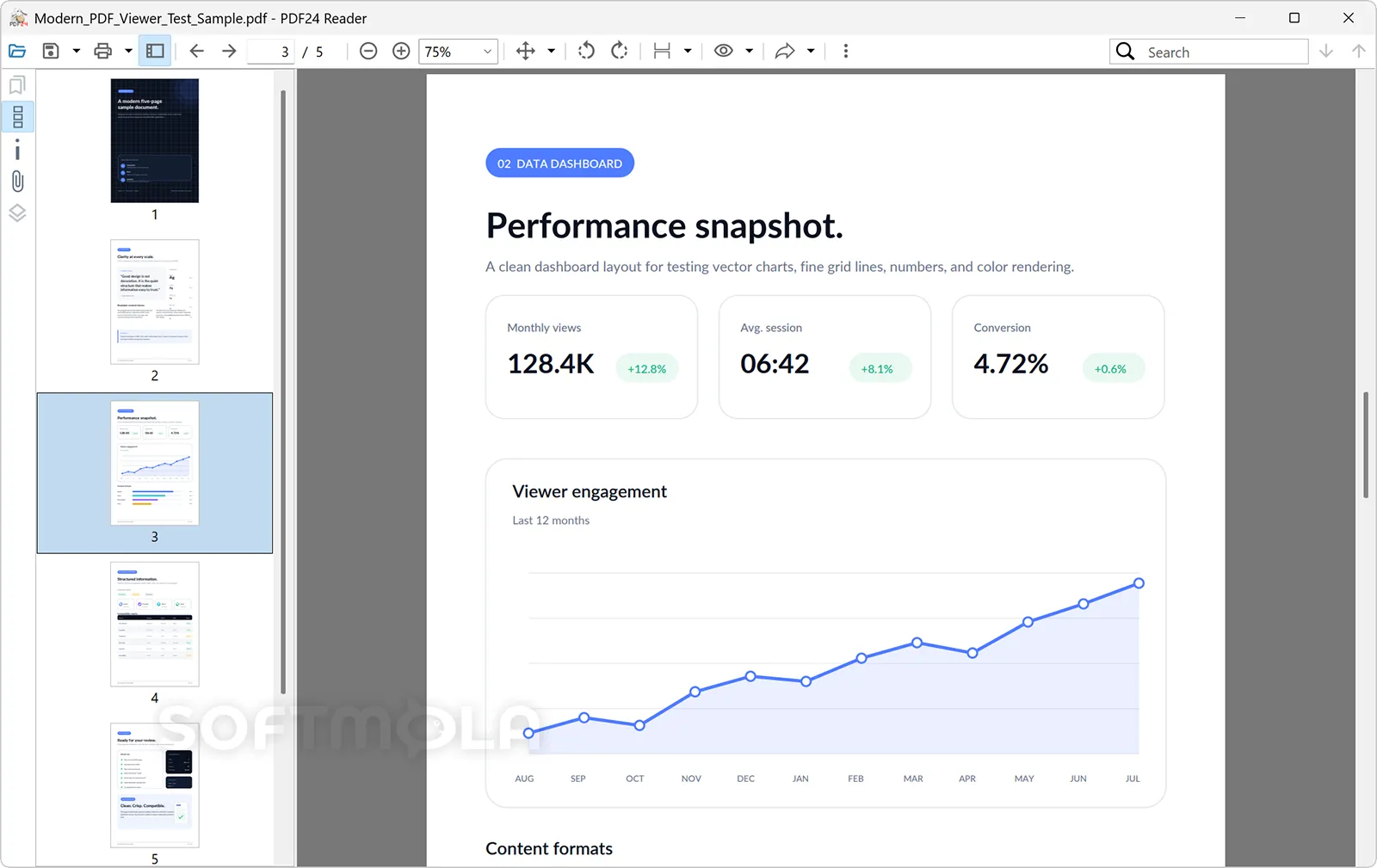
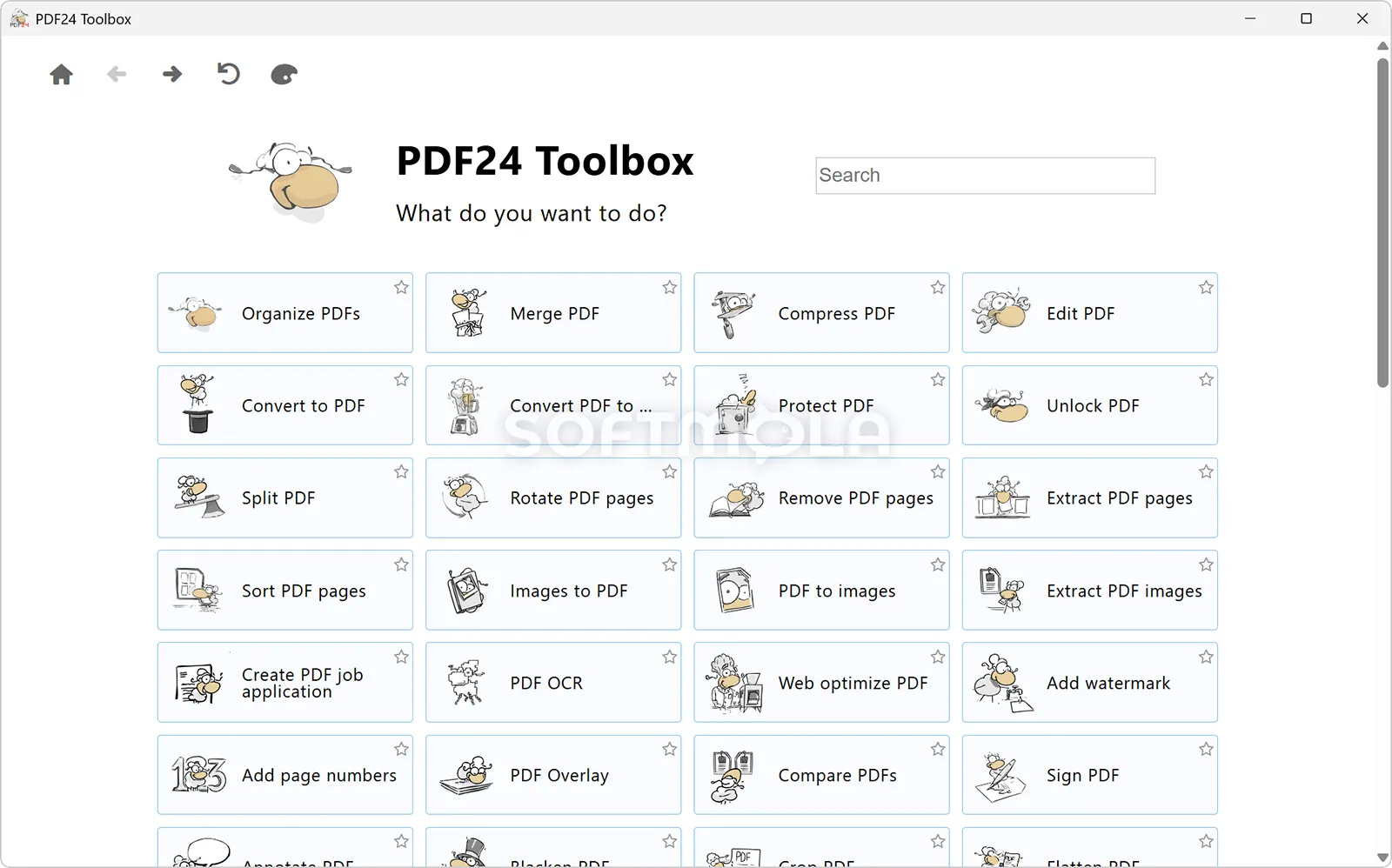
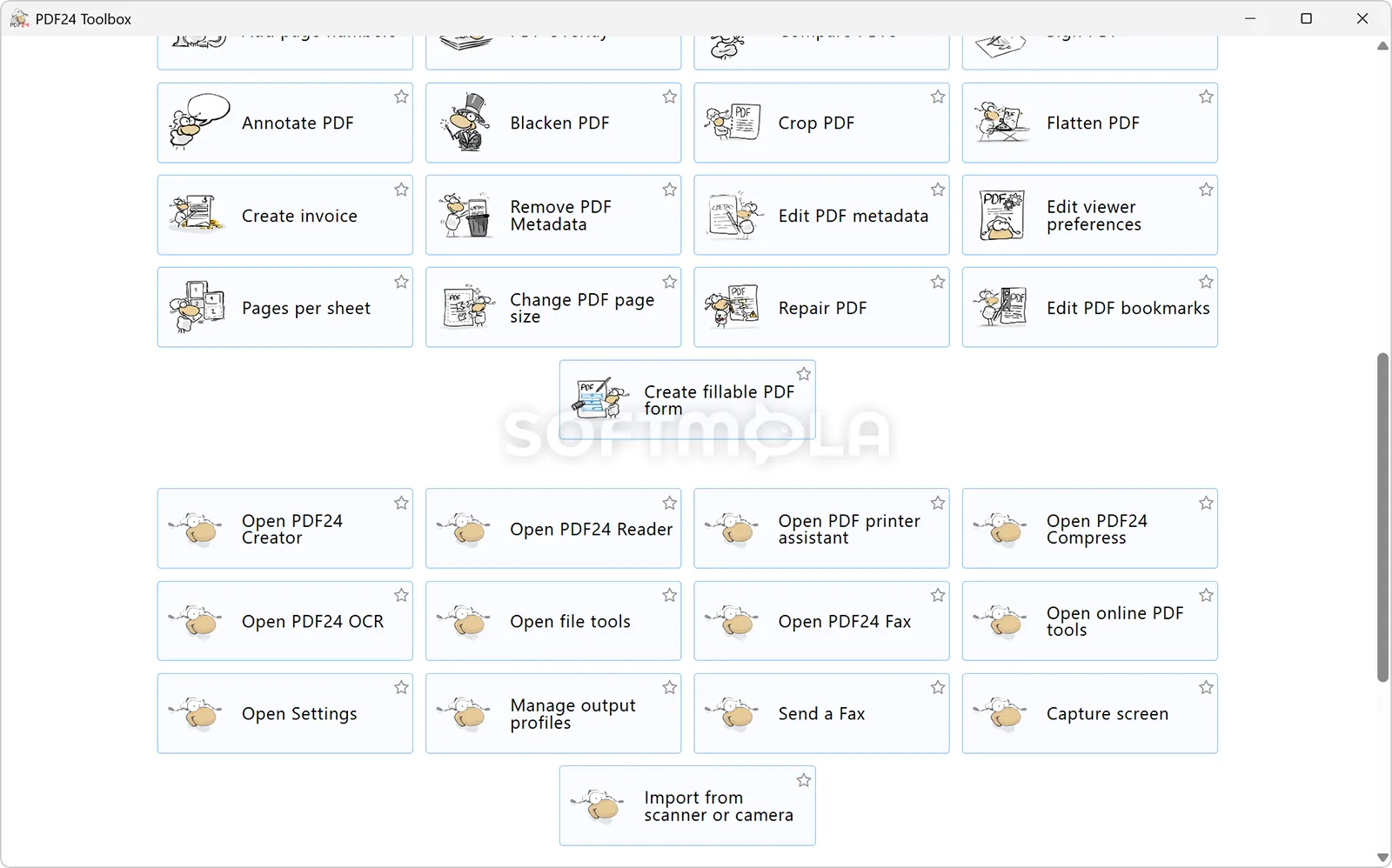
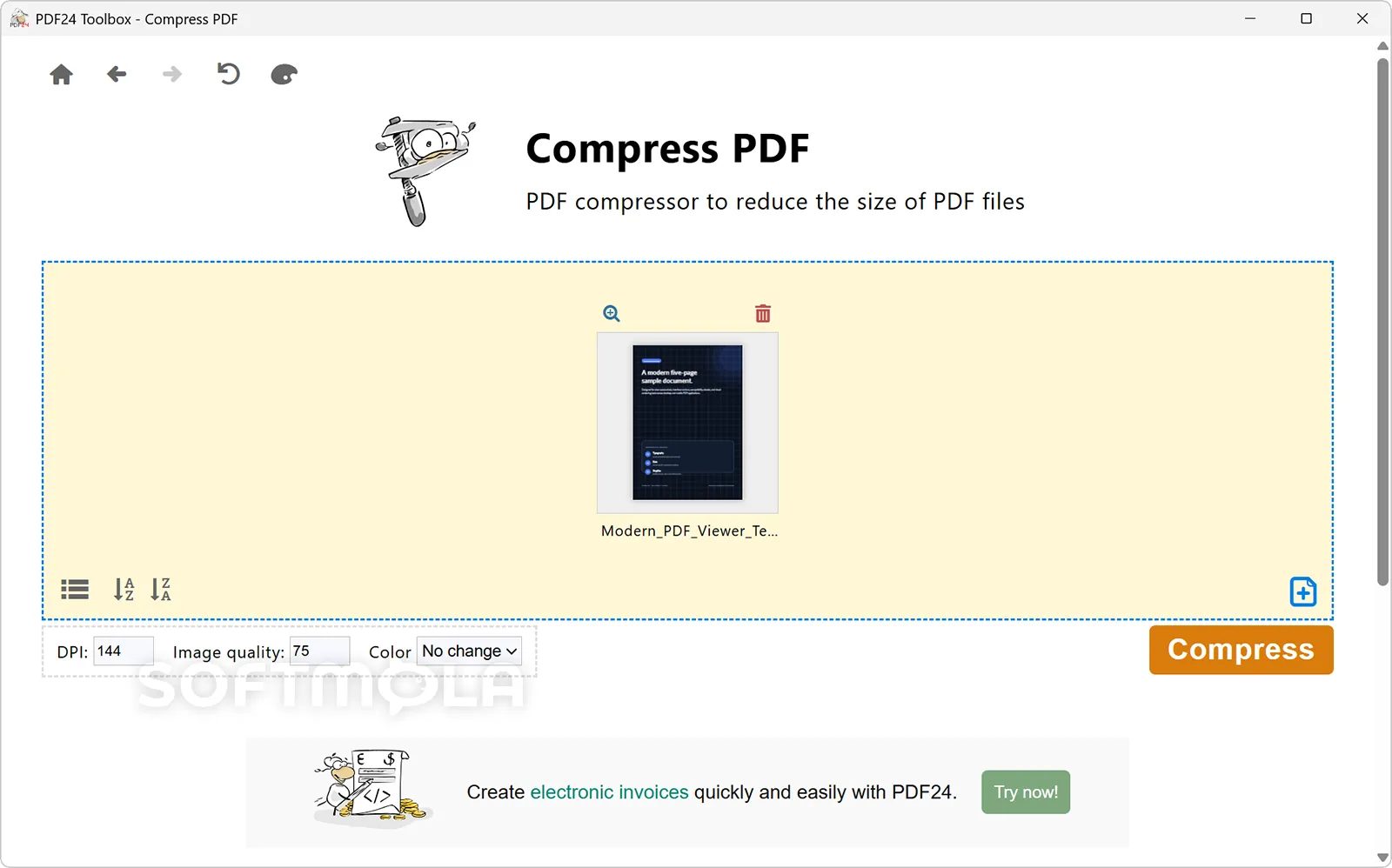
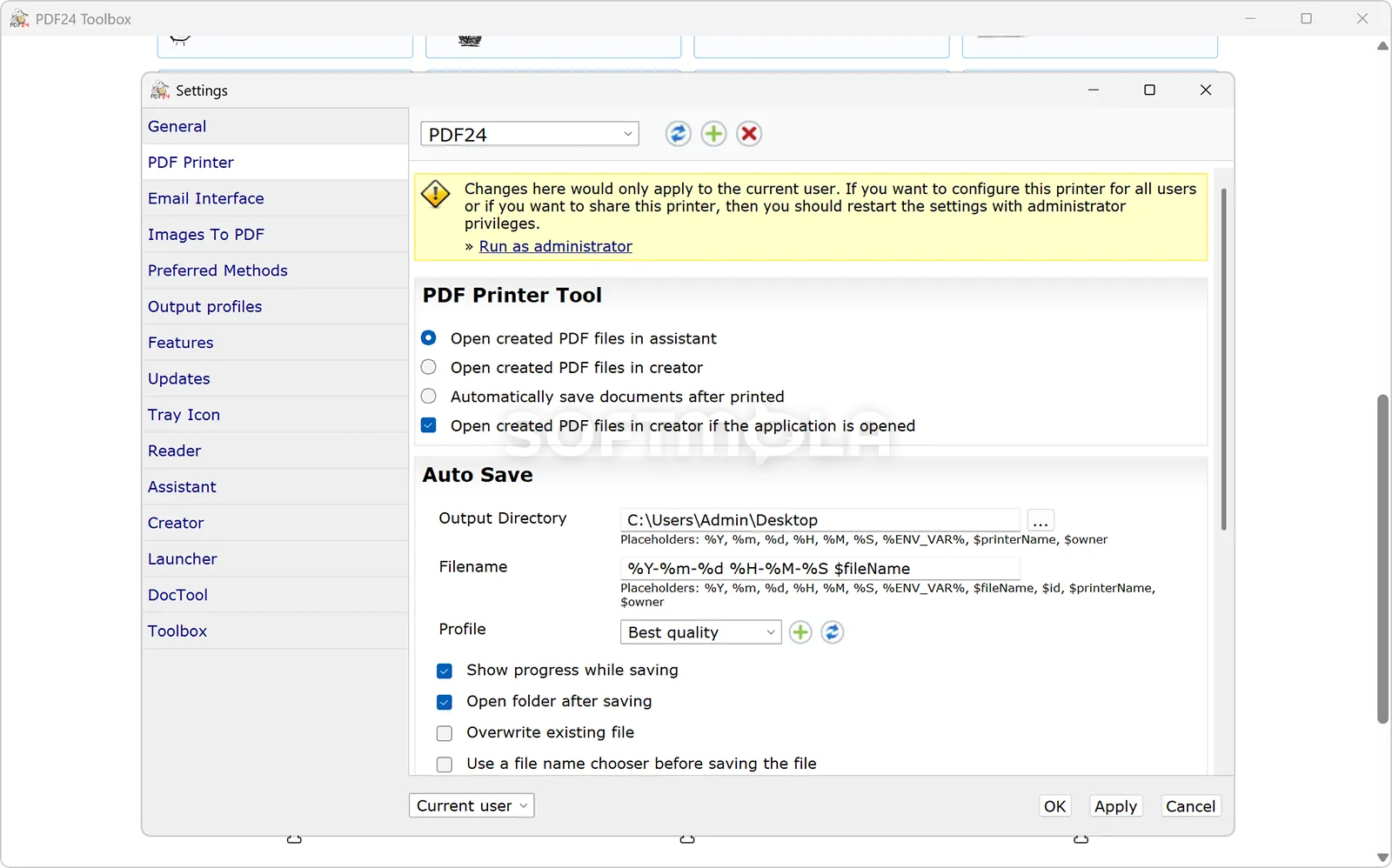
Table of Contents
PDF24 Creator for Windows is a free desktop toolkit for creating, converting, editing, organizing, and securing PDF files. Developed by Berlin-based Geek Software GmbH, it combines a virtual PDF printer with a large collection of focused utilities, including page management, compression, optical character recognition, document signing, and format conversion.
The software is aimed at home users, students, small businesses, public organizations, and office teams that regularly handle PDFs but do not need an expensive document-management platform. It is free for private and commercial use, has no paid upgrade tier, and performs its core document processing locally rather than uploading files to a cloud service. The current desktop release officially supports Windows 10 and Windows 11.
PDF24 Creator Review
PDF24 Creator is less a conventional PDF editor than a collection of specialized tools gathered under one desktop launcher. Its home screen presents individual options for tasks such as merging documents, compressing files, running OCR, adding page numbers, converting formats, signing PDFs, and protecting documents. This task-based design makes the software approachable when you know exactly what you need to do. Select a tool, add a file, adjust the relevant settings, and export the result.
The breadth of the toolkit is its main advantage. Many free PDF applications concentrate on one or two operations or place daily limits on processing. PDF24 Creator provides its desktop tools without subscriptions, usage quotas, watermarks, or a separate premium edition. It can therefore cover much of the routine PDF work found in homes and offices, from combining invoices to preparing scanned paperwork for archiving.
Creating PDFs is especially straightforward. Installation adds a virtual PDF24 printer to Windows, allowing any application with a Print command to generate a PDF. A document from an older program, accounting package, browser, image viewer, or other printable source can be sent to this virtual printer without needing direct PDF export support. Users can also create multiple virtual printers with different profiles for recurring jobs.
The software is also strong at page-level editing. You can merge and split files, rearrange pages, rotate them, remove unwanted sections, extract selected pages, or assemble a new document by dragging material into the workspace. These operations are often more important in everyday PDF management than rewriting paragraphs, and PDF24 handles them through visual previews rather than requiring detailed knowledge of the PDF format.
Its definition of PDF editing should nevertheless be understood before downloading it. PDF24 Creator is well suited to adding text, shapes, drawings, signatures, watermarks, or other elements, as well as reorganizing complete pages. It is not as sophisticated as a premium editor designed to rewrite existing text, rebuild complex layouts, manage collaborative review cycles, or preserve intricate typography during extensive content changes. Independent reviewers have similarly found it capable for occasional and general-purpose work but less polished for long, multi-stage editing projects.
The modular interface contributes to that limitation. Most tools open in their own workspace, so a job that involves editing, compressing, watermarking, and password-protecting the same document may require moving through several separate modules. This keeps individual screens relatively uncluttered, but it can feel fragmented when processing many documents or carrying out a complicated workflow. Both PCWorld and TechRadar have highlighted this separation between tools as one of the program’s more noticeable usability compromises.
Performance is generally another positive point. PDF24 Creator is designed as a lightweight Windows utility, and independent assessments describe it as fast and suitable for less powerful PCs. Actual processing time will still depend on the task: OCR, high-resolution conversion, and compression of image-heavy documents naturally require more resources than rotating or extracting a few pages.
Privacy is an important reason to choose the desktop edition instead of PDF24’s browser tools. The developer states that PDF24 Creator performs document processing locally and does not upload files for its normal offline operations. This is useful when handling contracts, internal reports, financial records, or other files that should not be submitted to a third-party processing server. Features that explicitly transmit information, such as sending a fax, should naturally be treated differently.
Local processing reduces one source of exposure, but it should not be interpreted as a complete security guarantee. Users should obtain the installer from the official site or Microsoft Store, install current updates, protect sensitive output appropriately, and check final documents before distribution. PDF24 remains actively maintained: its 2026 release notes include bug fixes and updates to components used for PDF processing and OCR, which is encouraging for software that regularly opens files from outside sources.
PDF24 Creator is therefore most convincing as a practical Windows utility rather than a direct replacement for every feature in Adobe Acrobat Pro or another enterprise editor. It offers unusually broad functionality for no charge, particularly for creating, converting, organizing, and preparing PDFs. Professional users who need advanced text reflow, cloud collaboration, signature-request tracking, detailed audit trails, or guaranteed priority support may still need a commercial product. The available support is mainly based on documentation, a help center, a user forum, and direct contact rather than a paid service agreement.
Key Features of PDF24 Creator
Virtual PDF Printer
The included virtual printer can create a PDF from almost any Windows application that supports printing. Instead of sending the document to physical paper, you select the PDF24 printer and save the generated file to your computer. This is particularly useful for older business software, specialized databases, web pages, and other applications without a reliable built-in PDF export function.
Multiple PDF printers can be configured for different purposes. For example, one profile could automatically create compressed files for email, while another produces higher-quality documents or a PDF/A file intended for long-term archiving.
Page Assembly and Document Organization
PDF24 Creator provides visual tools for merging several files and reorganizing their pages. Users can move, rotate, extract, delete, or sort pages and then save the result as a new document. Files from supported office and image formats can also be imported and converted during the assembly process.
This makes the software useful for building reports from separate sources, removing unnecessary pages from a scan, combining receipts, or dividing a large manual into smaller documents. Drag-and-drop support helps keep these operations manageable without relying on complex menus.
Offline PDF Processing
The desktop application performs its core PDF operations on the Windows PC where it is installed. Documents do not need to be uploaded merely to merge, convert, compress, edit, or run OCR on them. No PDF24 account is required for normal use, and the software can continue handling local files without a constant internet connection.
This local workflow is valuable for organizations with confidentiality policies or unreliable internet access. It also avoids the waiting time involved in uploading and downloading large documents, although local processing means demanding tasks use the computer’s own processor and memory.
OCR for Scanned Documents
The OCR tool recognizes printed text in scanned PDFs and image files, then creates a searchable text layer. A searchable document is easier to index, copy from, and locate through Windows search or a document-management system than a PDF containing only page images.
OCR accuracy depends on the source material. Clear, straight, high-resolution scans usually produce better results than blurred photographs, handwritten notes, decorative fonts, or pages with complicated layouts. Important names, numbers, and legal wording should always be checked against the original scan.
Conversion, Compression, and Reusable Profiles
PDF24 Creator can convert supported documents to PDF and export PDF content into other formats. It also provides a dedicated compression tool for reducing files that are too large to send, upload, or archive efficiently.
Output profiles give more experienced users control over options such as image resolution, metadata, password protection, page numbers, watermarks, overlays, and formats including PDF/A and PDF/X. Saving these settings as profiles can make repeated office tasks more consistent and reduce the need to configure every export manually.
Reading, Annotating, Signing, and Protecting PDFs
A lightweight PDF reader is included for opening and viewing documents without installing another dedicated reader. Separate tools can add text, images, shapes, freehand markings, or signatures, while protection options can apply passwords and document permissions.
These features are suitable for filling in simple paperwork, marking up a document, or placing a personal signature before returning a file. They should not be confused with a full electronic-signature platform that verifies recipients, manages approval sequences, records detailed audit evidence, and tracks documents throughout a contract workflow.
PDF24 Creator remains a relevant Windows download because it solves a wide range of ordinary PDF problems without subscriptions or cloud-dependent processing. Its modular interface and limited support for deep content editing prevent it from replacing a high-end professional editor in every setting. For Windows 10 and 11 users who mainly need to create, convert, organize, compress, scan, or make occasional changes to PDFs, however, it offers a capable and unusually complete set of local tools at no cost.
How to Download and Install PDF24 Creator on Windows
PDF24 Creator can be installed with the standard EXE package, through Microsoft Store, or with an MSI package intended mainly for managed business deployment. The EXE installer is the most appropriate choice for a typical home or individual office computer.
How to Download PDF24 Creator
Select the download button on this page.
Continue to the verified PDF24 Creator download source.
Choose the current Windows 10 and Windows 11 edition.
Select EXE when installing the software on one computer. Choose MSI only when your organization requires a managed deployment package.
Save the installer in an accessible folder and allow the download to finish before opening it.
PDF24 also offers a smaller 9.x package that excludes the Toolbox, OpenJDK, and WebView2 components. Most users should choose the complete current edition because the smaller package does not include the main Toolbox interface and its associated tools.
How to Install PDF24 Creator
Open the downloaded PDF24 Creator installer.
Approve the Windows User Account Control request if Windows displays one.
Review the licence information and the available setup options.
Keep the default components selected unless you have a specific reason to exclude a feature, such as PDF Reader registration or the virtual printer.
Continue through the installation wizard and wait for setup to finish.
Open PDF24 Creator from its desktop shortcut or the Windows Start menu.
The installer may offer components that integrate PDF24 with Windows, including its reader, virtual PDF printer, desktop icons, and Explorer context-menu functions. Review these selections rather than removing components at random, because excluding WebView2 or other required elements can prevent the Toolbox from working correctly.
How to Install PDF24 Creator from Microsoft Store
Select the Microsoft Store option from the verified download source.
Confirm that the listing is for PDF24 Creator from the official publisher.
Choose Get or Install in Microsoft Store.
Wait for Windows to download and install the application.
Open PDF24 Creator from the Start menu after installation is complete.
Getting Started with PDF24 Creator
Open the PDF24 Toolbox and select the utility that matches your task, such as Merge PDF, Compress PDF, PDF OCR, or Edit PDF.
Add the document you want to process, review the available output settings, and save the result as a new file.
To create a PDF from another Windows program, open that program’s Print dialog and select the installed PDF24 virtual printer.
Check periodically for PDF24 Creator updates so that document-processing components and bug fixes remain current.
PDF24 Creator Pros & Cons
- Free without a premium upgrade tier: Individuals, companies, public authorities, and other organizations can use PDF24 Creator without paying a licence fee.
- Extensive selection of PDF utilities: The package covers common tasks such as creating, merging, splitting, converting, compressing, signing, protecting, redacting, and running OCR on PDF files.
- Local document processing: The desktop tools normally process files on the PC instead of uploading them to a remote service, which is helpful for confidential or large documents.
- Useful virtual PDF printer: Any Windows application with a standard Print command can create a PDF through the installed PDF24 printer.
- Flexible distribution options: An EXE installer is available for individual computers, while an MSI package supports managed deployment across business systems. Microsoft Store installation is also offered.
- Actively maintained: The official changelog documents continuing feature additions, component updates, performance improvements, and bug fixes through 2026.
- Windows - only desktop application: PDF24 Creator cannot be installed on macOS or Linux, although PDF24 provides separate browser-based tools for those platforms.
- Limited deep content editing: It works well for page organization, annotations, signatures, and added elements, but it is not designed for extensively rewriting existing page content while preserving complex layouts.
- Separate interfaces can interrupt longer workflows: Many functions open as individual modules, which may feel fragmented when a document must pass through several tools.
- No enterprise collaboration platform: It does not provide the advanced team review, workflow tracking, or document lifecycle controls found in some subscription-based business PDF suites.
Frequently Asked Questions
What is PDF24 Creator?
PDF24 Creator is a Windows desktop suite for creating and working with PDF documents. It combines a virtual PDF printer with tools for conversion, compression, page organization, OCR, signatures, document protection, redaction, and other routine PDF operations. It is developed by Geek Software GmbH, a German company based in Berlin.
Is PDF24 Creator free?
Yes. PDF24 Creator is free for both private and commercial use, including use by companies, government authorities, and other organizations. The developer does not advertise a time-limited trial or a paid desktop edition required to unlock the main Creator features.
Does PDF24 Creator work on Windows 11?
Yes. The current standard edition of PDF24 Creator officially supports Windows 11 and Windows 10. The latest full release requires at least Windows 10, so users of unsupported older Windows versions should not install it through an unofficial mirror or assume that the current installer will work.
Can PDF24 Creator work without an internet connection?
Yes. PDF24 Creator is designed as an offline desktop solution, and its main tools process documents locally on the computer. An internet connection may still be useful for downloading the installer, receiving software updates, accessing help resources, or using separate online services, but it is not required for ordinary local PDF processing.
Does PDF24 Creator upload my documents?
Its normal desktop tools are intended to keep files on the local PC rather than upload them. The developer corrected a PDF Form Editor issue in April 2026 after that component attempted an unnecessary upload, reinforcing that local processing is the expected behaviour in PDF24 Creator. Features that explicitly use an online service should still be reviewed separately before sensitive information is submitted.
Can PDF24 Creator edit existing text inside a PDF?
Not in the same way as a full document editor. PDF24 Creator can reorganize complete pages and add text, shapes, drawings, images, annotations, or signatures. However, it is not intended for freely rewriting the original text and layout of every PDF as though the file were open in Microsoft Word or a professional publishing application.
Can PDF24 Creator replace Adobe Acrobat?
It can replace a commercial PDF application for many everyday tasks, including PDF creation, page management, conversion, compression, OCR, signatures, and basic editing. It is less suitable when you need extensive editing of existing content, sophisticated collaboration, approval workflows, audit trails, or enterprise document-management features.
Is PDF24 Creator safe to download?
PDF24 Creator is actively maintained by Geek Software GmbH, and its official changelog records regular fixes and component updates. However, no software download should be treated as risk-free. Use the verified Softmola download route, the developer’s official distribution page, or Microsoft Store, and avoid modified installers or unofficial mirrors.