
PDFgear for Windows
A free Windows PDF editor for editing, converting, signing, compressing, and organizing documents with optional AI assistance.
Software Information
PDFgear Screenshots
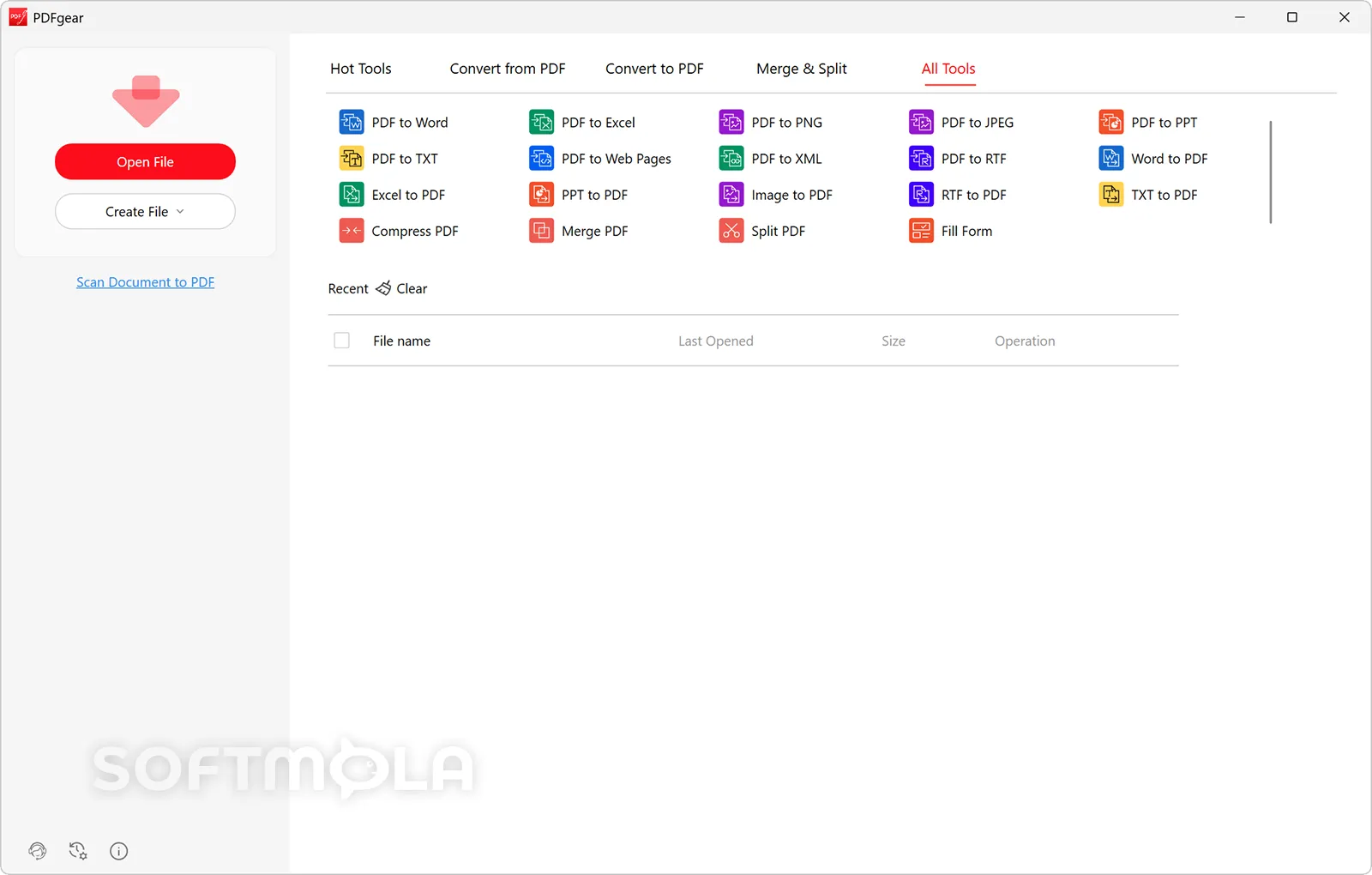
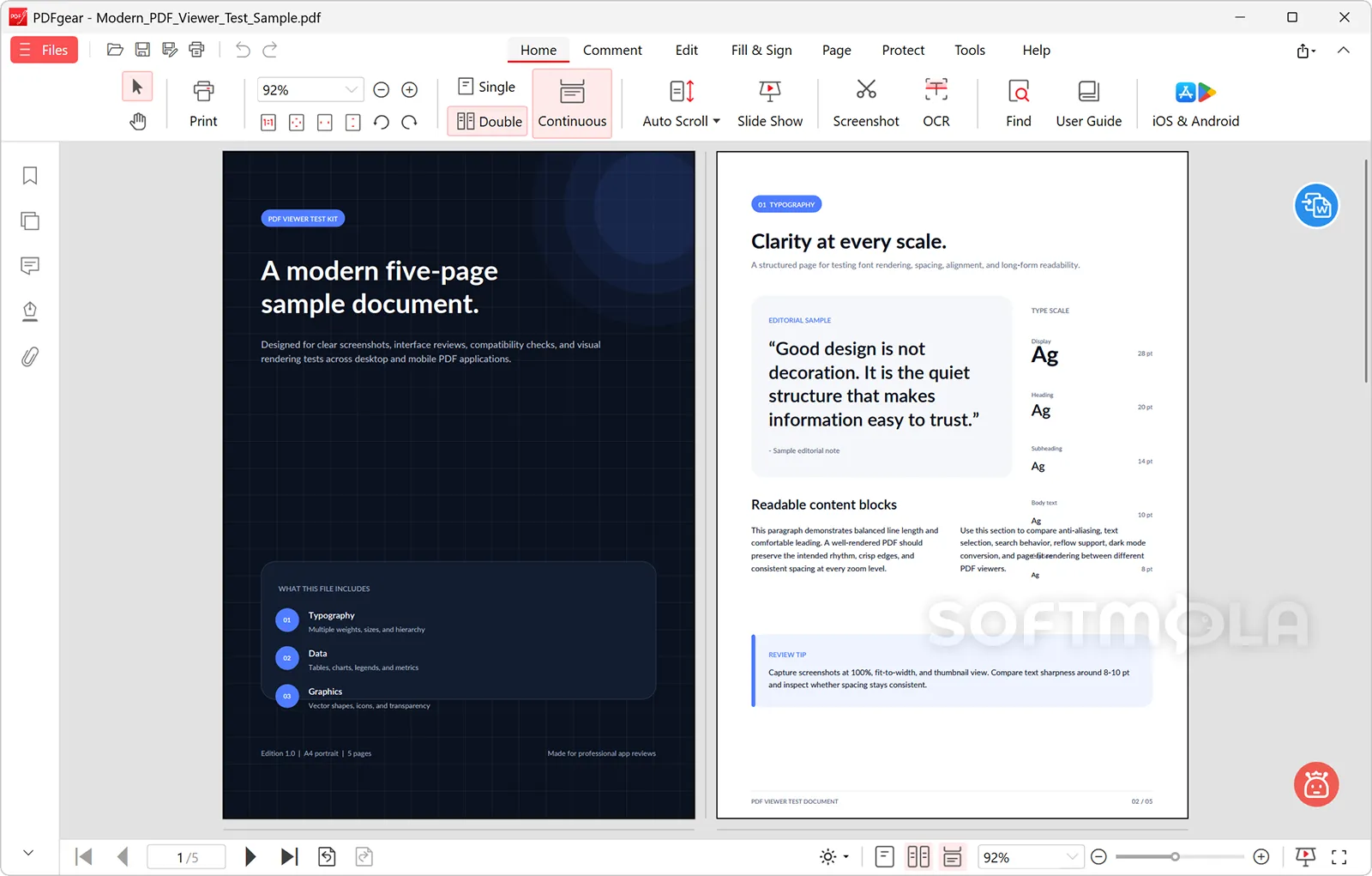
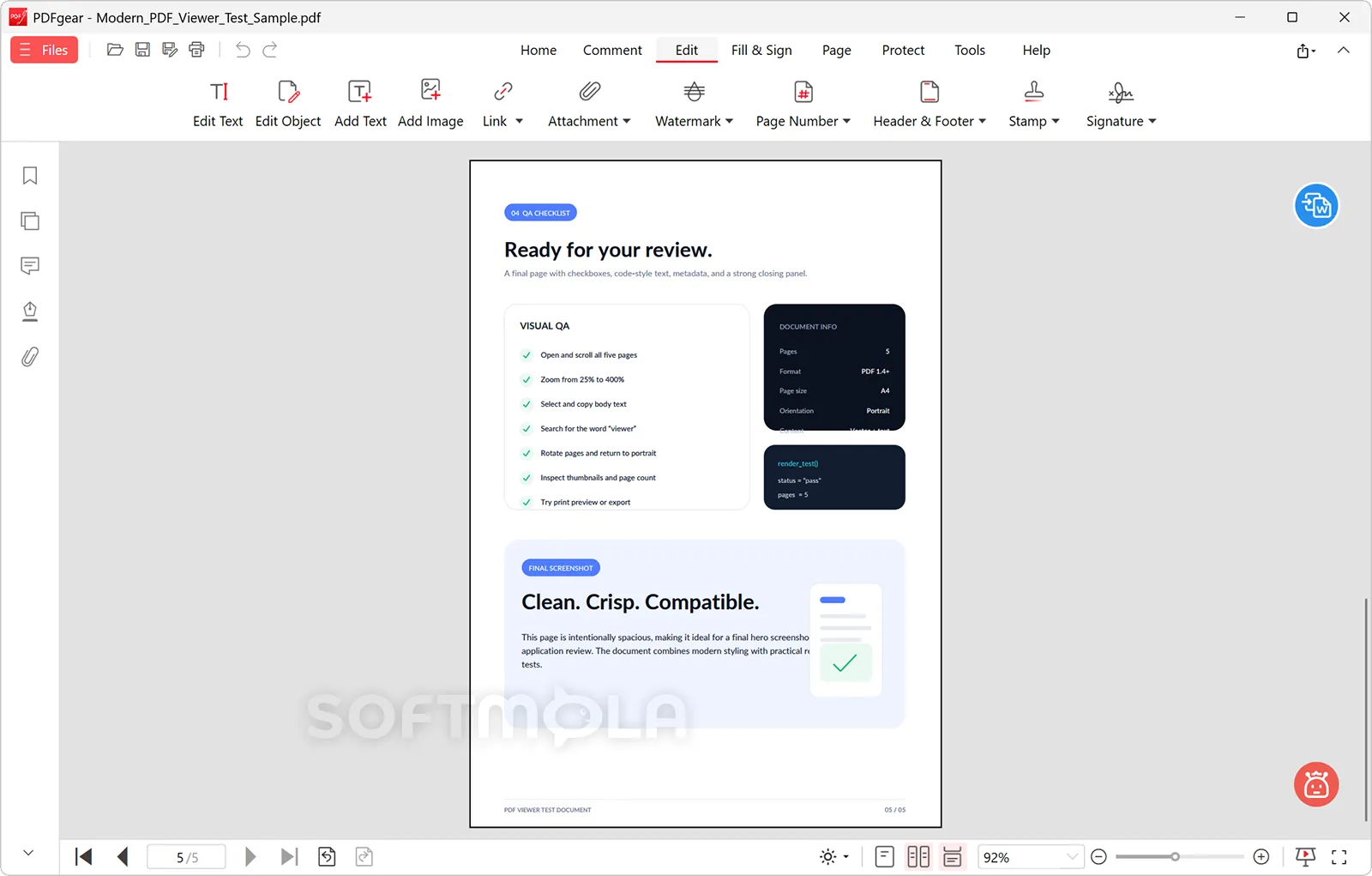
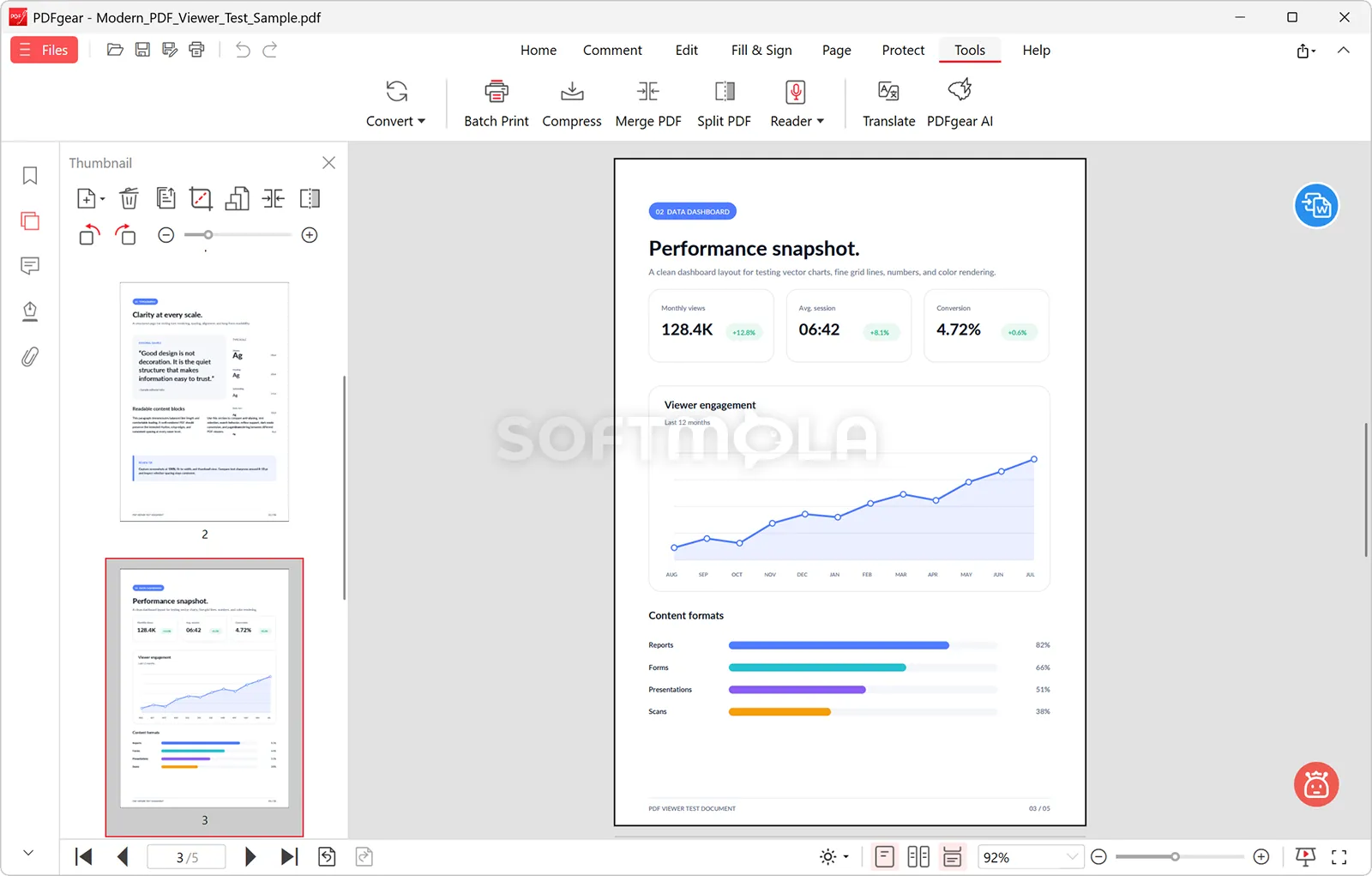
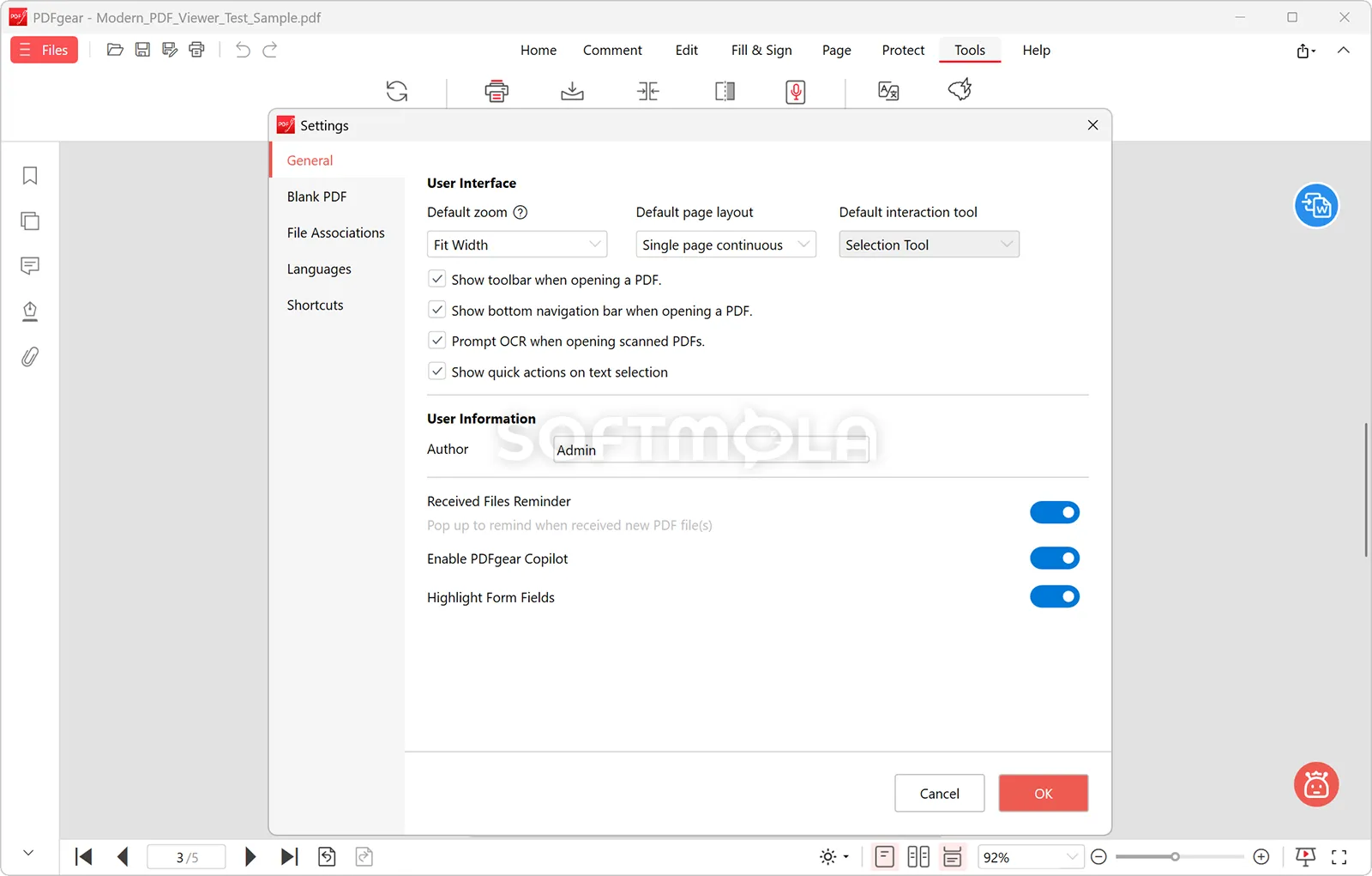
Table of Contents
PDFgear for Windows is a free PDF editor that combines document viewing, content editing, conversion, annotation, page management, form filling, signing, and optical character recognition in one desktop application. It is designed for people who need more control than a browser or basic PDF reader provides but do not want to pay for a recurring professional-software subscription.
Developed by PDF GEAR TECH PTE. LTD., the application is currently available for Windows 10 and Windows 11. The developer states that the Windows edition has no premium tier, advertising, watermarks, or mandatory registration for its core features. That makes it particularly attractive to students, home users, freelancers, and small businesses handling everyday document work.
PDFgear remains relevant because it covers tasks that Windows’ built-in PDF viewing options do not handle well, including changing existing text, recognizing scanned pages, rearranging documents, and exporting content to editable formats. Its optional AI assistant adds another layer for summarizing or questioning long documents, although privacy-conscious users should understand when their files are processed locally and when information is sent to an online AI service.
PDFgear Review
PDFgear occupies a useful middle ground between a simple PDF reader and a business-focused document platform. Its Windows application brings the most common tools into a conventional desktop interface, so users can open a file and move between editing, annotation, conversion, form, protection, and page-management functions without relying on separate websites. The software can also be set as the default Windows PDF viewer, with support for different page layouts, continuous scrolling, presentation mode, and light or dark themes.
The main attraction is genuine content editing. PDFgear can modify existing text and images rather than merely placing new text boxes over a finished page. This is useful for correcting a name, replacing an outdated paragraph, adjusting an image, or repairing a document when the original Word or PowerPoint file is unavailable. Editing a PDF is still less predictable than editing its source document, especially when a page uses unusual fonts, tightly positioned elements, or a complex design. For routine corrections and moderately structured documents, however, the available toolset is considerably more capable than a standard free reader.
PDFgear also handles the surrounding work that often takes longer than the edit itself. Pages can be inserted, extracted, deleted, cropped, rotated, reordered, merged, or split. Conversion tools export PDFs to formats such as Word, Excel, PowerPoint, images, text, HTML, and RTF, while other file types can be turned into PDFs. Batch conversion and batch compression are available when several documents need the same treatment. These functions make the software practical for recurring office, administrative, and academic tasks rather than occasional annotation alone.
Scanned documents are supported through optical character recognition, commonly called OCR. PDFgear can recognize text inside an image or scanned page and copy the result to the clipboard or save it as a text file. OCR is also available in selected conversion workflows, including PDF-to-Word and PDF-to-text conversion. Users must choose the appropriate document language for better recognition, and results should always be checked when the scan is blurred, skewed, handwritten, or arranged in a complicated table.
The annotation and form tools are broad enough for common review workflows. Users can highlight, underline, strike through, draw, add comments and stamps, insert text or images into forms, and create a signature by typing, drawing, or importing an image. A placed signature can be flattened so that it becomes part of the page rather than an easily movable annotation. This is convenient for approvals and ordinary paperwork, but an inserted signature image should not be confused with a regulated electronic-signature service that verifies identity, records an audit trail, and manages multiple signers. Organizations with formal compliance requirements may therefore need a more specialized platform.
PDFgear Copilot is the product’s most distinctive feature. It accepts natural-language commands for actions such as navigating, converting, compressing, or reorganizing a document. It can also summarize a PDF, explain passages, answer questions about its contents, and help translate selected text. This can reduce the time required to understand a lengthy report or locate a particular point, but AI-generated answers can be incomplete or inaccurate. Important legal, medical, financial, or academic information should always be checked against the original pages.
The privacy distinction between normal editing and AI use is important. PDFgear states that standard desktop PDF processing is performed locally. When a user activates AI features and gives consent, however, the document content, chat text, and limited processing metadata may be transmitted to Microsoft Azure OpenAI Service. People working with confidential contracts, personal records, unpublished research, or restricted company information should confirm that this processing is permitted before enabling Copilot. The rest of the editor remains useful without the AI functions.
Security questions deserve a measured answer. In March 2026, Cure53 published a vendor-commissioned review of Windows components that had been flagged by an automated sandbox. The firm reported that it found no malicious functionality in the components it analyzed. However, the assessment covered selected code segments rather than the complete codebase. It also noted unconventional interaction with some Windows mechanisms and an information-level weakness involving MD5 validation in the examined update process. Cure53 recommended supported Windows APIs, a stronger hashing method, and broader recurring audits. The findings provide useful context, but they should not be interpreted as a guarantee covering every component or future release.
For individual users, PDFgear’s combination of capability and current zero-cost model is its strongest advantage. Its limitations become more apparent in larger organizations that need centralized administration, documented compliance controls, sophisticated accessibility remediation, managed signature workflows, or deep collaboration systems. Those buyers should verify each requirement rather than assuming that a broad set of editing tools replaces an enterprise document platform.
Key Features of PDFgear
Direct PDF Text and Image Editing
PDFgear lets users select and modify existing text elements, change formatting, reposition content, and edit or replace images within a PDF. This is valuable when only the finished PDF survives and returning to the original source file is not possible.
The feature is best suited to corrections, updates, and relatively straightforward layout changes. Heavily designed pages may require more manual adjustment because PDF content is stored as positioned objects rather than flowing like text in a word processor.
OCR for Scanned Documents
The built-in OCR tool recognizes printed text in scanned pages and images, turning otherwise inaccessible content into selectable information. Users can copy recognized text or save it as a TXT file, while supported converters can apply OCR when exporting scanned PDFs to editable formats.
Choosing the correct recognition language can improve the result. Clear, high-resolution scans are also likely to require less correction than photographs, faint copies, handwriting, or documents with complex columns.
PDF Conversion and Creation
PDFgear converts PDFs to Word, Excel, PowerPoint, image, text, HTML, and other supported outputs. It can also create PDFs from office documents, images, RTF files, and plain text, reducing the need to maintain a collection of single-purpose conversion utilities.
Batch mode is especially helpful for users who regularly archive documents or prepare multiple files for editing. Conversion quality still depends on the original structure, so exported documents containing intricate tables or layered graphics may need cleanup.
Annotation, Forms, and Signatures
Review tools include highlighting, underlining, strikethrough, freehand drawing, comments, shapes, and stamps. PDF forms can be completed with text, images, check marks, and other visual elements, including documents that were not originally designed with interactive fields.
Signatures can be typed, drawn with a mouse, or imported as an image. Flattening a signature prevents it from remaining a separately editable object, although this does not provide the identity verification or audit records associated with dedicated digital-signature services.
Page Organization and File Compression
Users can merge several PDFs, split a large document, extract selected pages, rotate or crop pages, insert new material, and change page order. These tools simplify jobs such as assembling an application package, removing irrelevant sections from a report, or separating chapters for distribution.
Compression is available for individual files and batches, with selectable compression levels. Stronger compression may reduce image clarity, so documents containing detailed diagrams or photographs should be checked before the original copy is discarded.
PDF Protection and Redaction
PDFgear can add an opening password to a document, preventing access without the correct password. It can also remove protection when the user already knows the password; it is not intended to crack locked files.
A redaction function is available for permanently removing selected information rather than simply covering it with a black rectangle. Users should save a separate copy and verify the result by searching for or attempting to select the removed content before sharing a sensitive document.
AI-Assisted Document Work
PDFgear Copilot can carry out certain interface commands from plain-language instructions and analyze document content for summaries, explanations, questions, and translation assistance. It is most useful when a long file needs an initial overview or when a user cannot immediately locate a conventional menu command.
AI processing requires an internet connection and explicit consent. Because document content may be transmitted to Microsoft Azure OpenAI Service, the feature should be disabled for files that cannot be shared with an external processor.
PDFgear for Windows offers unusual value for people who need substantial PDF editing without a subscription. It is best suited to students, independent professionals, home users, and smaller teams that regularly edit, convert, annotate, sign, scan, or reorganize documents. Its optional AI tools can save time, but they require informed privacy choices, and organizations with strict governance or advanced workflow requirements may still need enterprise software. For everyday Windows PDF work, the breadth of its currently free desktop features makes PDFgear a practical option worth considering.
How to Download and Install PDFgear on Windows
PDFgear is distributed for Windows through a conventional .exe installer. Use the download button supplied by Softmola and continue only to the verified official source. The desktop application does not require a subscription or account for its standard functions, and the current installer supports Windows 10 and Windows 11.
How to Download PDFgear
Select the Download Free Version button on this page.
Continue to the verified PDFgear download source configured by Softmola.
Allow the official download page to begin downloading the Windows installer. Use its restart-download option if the transfer does not begin automatically.
Save the
.exefile in an accessible location, such as your Downloads folder.Wait until the browser confirms that the download has finished before opening the installer.
How to Install PDFgear
Double-click the downloaded PDFgear
.exefile.Check that the file came from the verified download source. Review the publisher information shown by Windows before approving any permission prompt that appears.
Wait while the installer initialises, then review the licence terms and any setup choices it presents.
Complete the installation and select Finish when the installer offers that option.
PDFgear should launch after setup. You can also open it later from the Windows Start menu. The official installation guide does not state that a restart is required.
Getting Started with PDFgear
Open PDFgear and select Open File to choose a PDF from your computer. You can also right-click a PDF in File Explorer and open it with PDFgear.
Work on a duplicate when editing, compressing, redacting, or reorganising an important document. This preserves the original if the layout or output needs further adjustment.
When using OCR, select the language that matches the scanned document and review the extracted text for recognition errors.
Read the consent notice before activating Copilot. Keep the feature disabled for documents that should not be processed by an external AI provider.
Periodically use the application’s upgrade check to obtain current fixes and feature updates.
PDFgear Pros & Cons
- A substantial free feature set: PDFgear currently provides editing, conversion, OCR, annotation, signing, compression, and page-management tools without a premium edition, usage watermark, or mandatory registration.
- Direct editing of existing content: Users can change text and images already embedded in a PDF instead of merely placing new elements over the page.
- Useful offline operation: Normal desktop editing can be performed without an internet connection, making the application practical for local documents and unreliable network environments.
- Strong support for repetitive document work: Batch conversion and OCR-assisted exports can process multiple files, which is helpful for administrative, academic, and archiving tasks.
- Optional AI assistance: PDFgear Copilot can summarise documents, answer questions, and interpret natural-language commands without replacing the conventional editing interface.
- AI processing is not fully local: When Copilot is enabled with consent, PDF content, chat text, and limited processing metadata may be transmitted to Microsoft Azure OpenAI Service.
- OCR has practical limitations: Handwriting, unusual fonts, graphics, poor scans, and an incorrectly selected recognition language can reduce the quality of extracted text.
- Direct OCR - to-editable-PDF support remains limited: PDFgear can extract text and convert scanned PDFs into formats such as Word, TXT, and RTF, but the developer still describes direct conversion into a fully searchable and editable PDF as an upcoming capability.
- No support for older Windows desktop versions: The current native Windows application is officially listed for Windows 10 and Windows 11. Users of older systems must rely on browser-based tools or another application.
Frequently Asked Questions
What is PDFgear?
PDFgear is a desktop PDF reader and editor with tools for modifying text and images, converting files, recognising scanned text, filling forms, adding signatures, annotating pages, compressing documents, and reorganising PDFs. It also includes an optional AI assistant for document analysis and selected editing commands
Is PDFgear free?
Yes. PDFgear’s current Windows product pages describe the desktop application as free, with no premium version, advertising, watermarks, or mandatory sign-up for its main editing functions. It is not presented as a time-limited trial. The developer may change its commercial model in the future, so the current licence terms should still be reviewed when downloading.
Does PDFgear work on Windows 11 and Windows 10?
Yes. The official documentation supports both Windows 11 and Windows 10. Its current requirements page lists a 1 GHz or faster processor, at least 512 MB of memory with 1 GB recommended, and 500 MB of available storage. Users should allow additional space for source documents, converted files, and temporary data
Do I need an account to use PDFgear?
No account is required for standard PDF editing on the Windows desktop application. The developer currently states that users can access its main editor, conversion, OCR, and document-management features without signing up. Optional online services may have separate consent or account conditions, so prompts should be reviewed before enabling them.
Does PDFgear work without an internet connection?
Most desktop editing functions work offline. You can open, edit, annotate, organise, and process local PDFs without maintaining an active connection. Internet access is required for PDF chatting through Copilot, product help, and live updates. Any workflow involving online PDF tools also requires a connection.
Is PDFgear safe to download?
Download PDFgear only through the verified Softmola button or the developer’s official distribution page. A PDFgear-commissioned Cure53 review published in March 2026 found no malicious functionality in the specific Windows components it analysed. However, Cure53 did not receive the full source code and clearly stated that the assessment could not establish the security of the entire application. No software review provides an absolute guarantee.
What happens to my documents when I use PDFgear Copilot?
PDFgear states that AI features transmit document content, entered chat text, and limited metadata to Microsoft Azure OpenAI Service only after the user gives explicit consent. Declining consent prevents that transmission but also disables the AI functions. Confidential documents should not be submitted unless external processing is permitted by the document owner or organisation.
Can PDFgear edit scanned PDF documents?
PDFgear can recognise and extract text from scanned pages through OCR. It can copy recognised text or export scanned PDFs into editable formats such as Word, TXT, and RTF. Recognition results depend on scan quality, language selection, fonts, and page design, so important output should be checked before use.