
Rufus for Windows
Create bootable USB drives for installing Windows, Linux, and system recovery tools.
Software Information
Recommended: 64-bit Available: ARM64
Rufus Screenshots
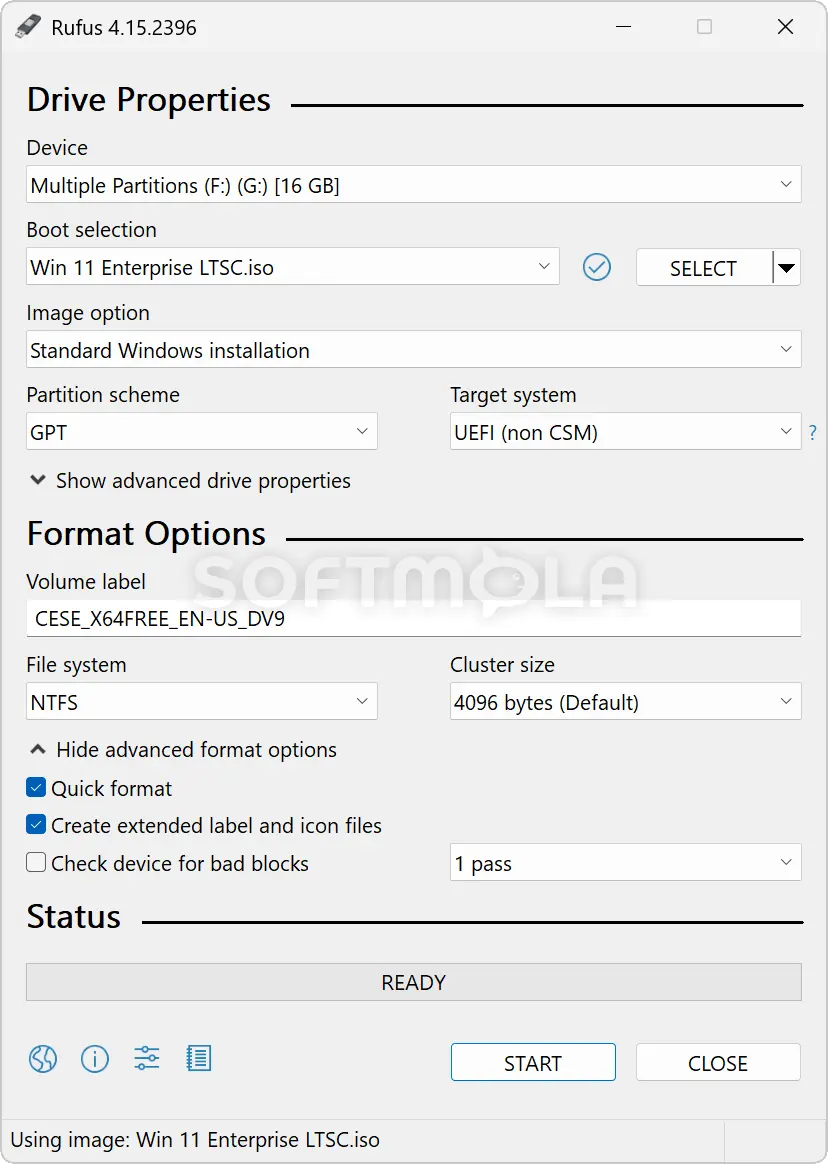
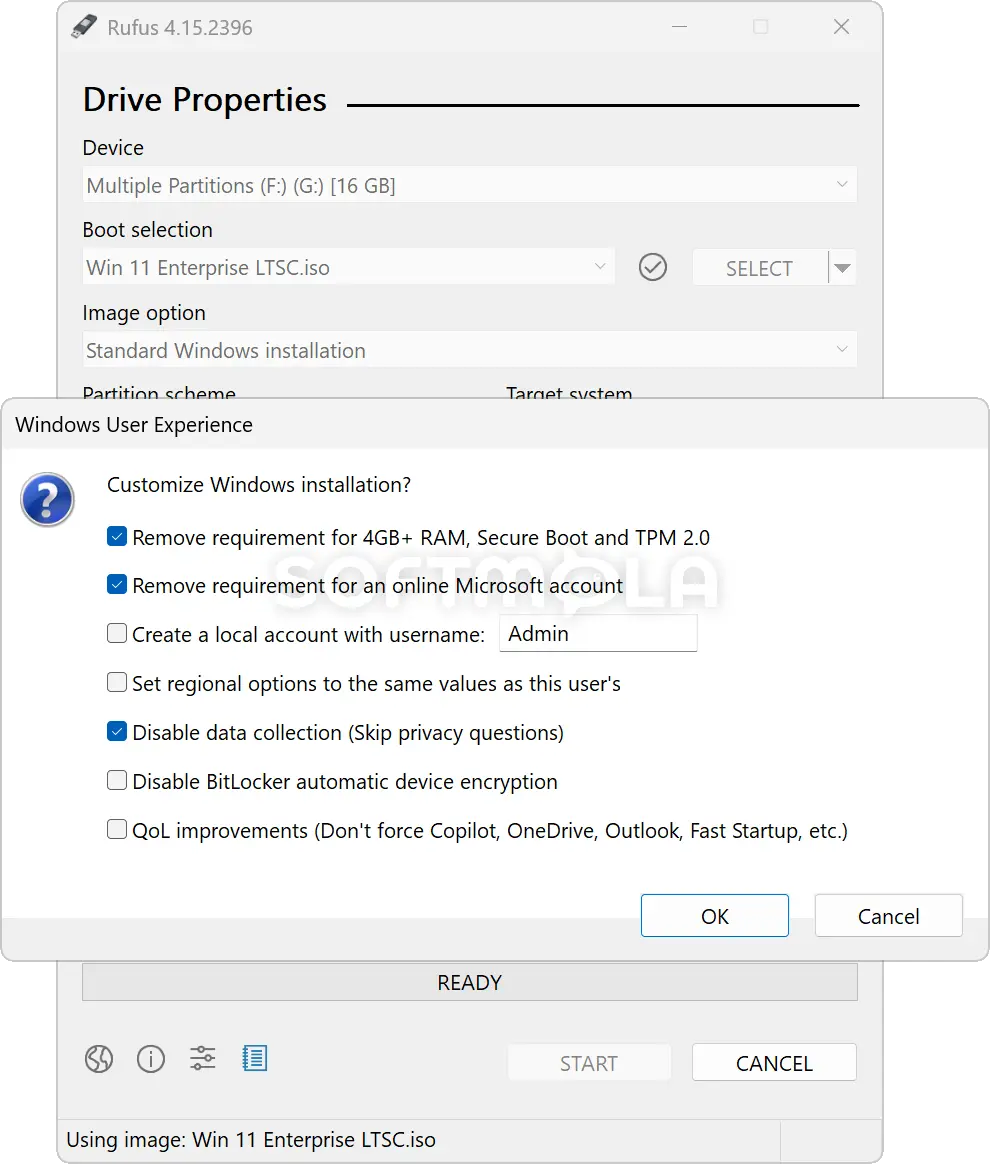
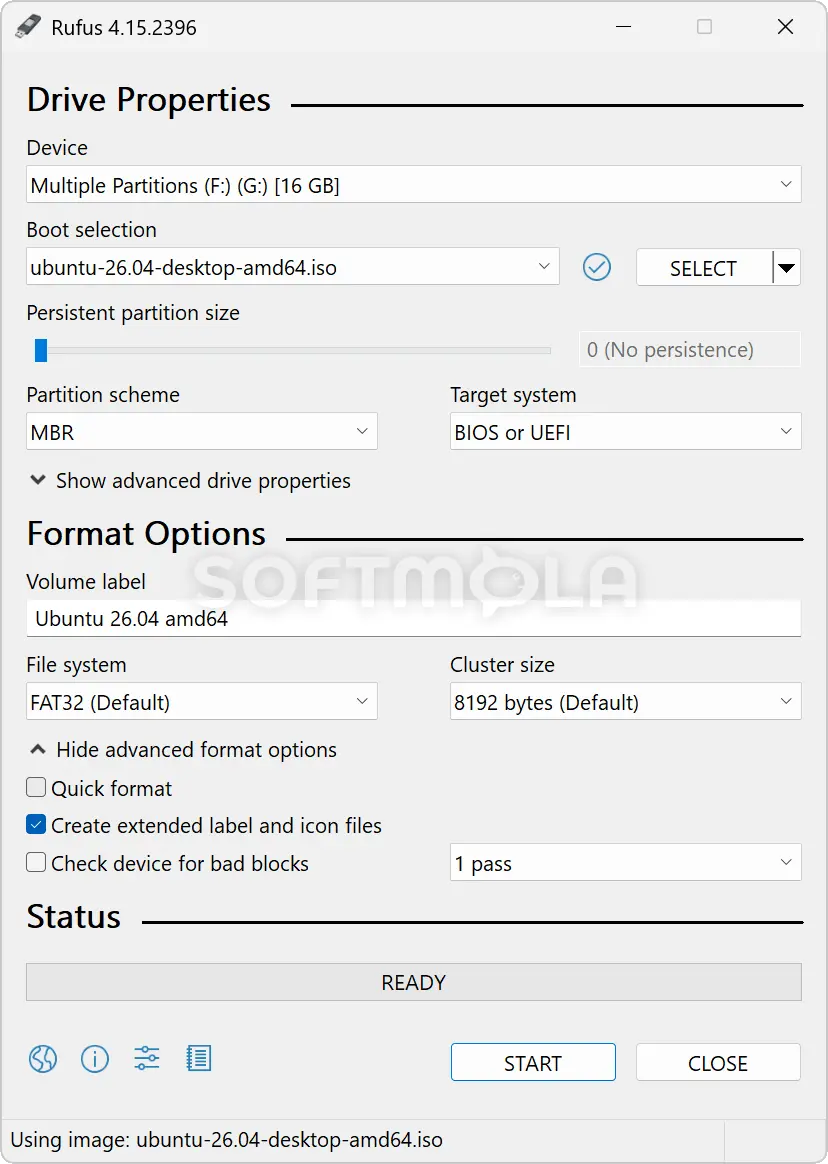
Table of Contents
Rufus is a free, open-source utility for creating bootable USB drives on a Windows PC. It can turn a standard flash drive into installation or recovery media using a Windows or Linux ISO, a disk image, or several other supported formats. The software is particularly useful when reinstalling Windows, testing a Linux distribution, updating firmware, or repairing a computer that can no longer start normally.
Unlike a general-purpose disk manager, Rufus focuses on preparing removable media that can boot reliably on BIOS- and UEFI-based computers. It is portable, requires no conventional installation, and does not place essential features behind a paid edition or subscription. That straightforward approach makes Rufus for Windows suitable for home users, technicians, PC builders, and anyone who occasionally needs dependable installation media.
Rufus Review
Rufus has earned its place as a practical Windows utility by concentrating on one job and handling it with unusual depth. You select a USB drive, choose an ISO or another boot image, review the partition and file-system settings, and start the writing process. Common configurations are filled in automatically, so creating standard Windows installation media does not require a detailed understanding of bootloaders or disk layouts. More experienced users can still adjust settings such as GPT or MBR partitioning, BIOS or UEFI compatibility, file systems, cluster sizes, and advanced drive options.
The interface is compact rather than simplified to the point of removing useful information. Most controls appear in a single window, with less frequently needed options hidden until they become relevant. Rufus also provides an accessible activity log, which can help diagnose an incompatible ISO, a write failure, or a bootloader-related problem. The number of choices may initially look intimidating to someone creating a bootable drive for the first time, but the default values usually reduce the task to selecting the correct drive and image.
Its support extends beyond copying ISO files. Rufus can create BIOS or UEFI media, handle Windows and Linux images, write compressed disk images, prepare Windows To Go drives, add persistent storage for compatible Linux distributions, and work with several common file systems. It can also save selected drives as VHD, VHDX, FFU, or other image types in supported situations. These tools make it more flexible than basic media-creation utilities, especially when the source image does not follow a conventional Windows installer layout.
That flexibility comes with an important limitation: creating bootable media normally erases the selected drive. Rufus removes existing partitions because retaining an unusual or conflicting disk layout could prevent the device from booting correctly. The software tries to reduce accidental data loss by listing ordinary USB flash drives and memory cards while hiding many USB hard drives, SSDs, and system disks by default. Advanced users can expand the list, but doing so makes careful drive selection essential. Rufus should therefore be treated as a destructive formatting tool, not as a safe way to add boot files while preserving unrelated data.
Windows installation customization is one of its most distinctive capabilities. When processing a suitable Windows image, Rufus can offer options related to local accounts, regional settings, privacy questions, BitLocker device encryption, Microsoft account requirements, and other setup preferences. Recent releases have also expanded quality-of-life and unattended installation controls. These functions can reduce repetitive setup work, although some advanced options—particularly silent installation—deserve caution because they can automate actions that would normally require confirmation.
Rufus can also create Windows 11 installation media that bypasses checks for TPM, Secure Boot, or other requirements in supported image-processing scenarios. This may help with testing, maintenance, or extending the usefulness of older hardware, but it does not convert an unsupported computer into an officially supported one. Microsoft warns that Windows 11 installations on ineligible hardware may encounter compatibility problems, are not supported by Microsoft, and are not guaranteed to receive updates. Users should first check whether TPM or Secure Boot is merely disabled in the firmware before choosing a bypass.
The project remains actively maintained. Rufus 4.15 was released on June 30, 2026, with improved image-writing behavior, additional UEFI:NTFS architecture support, fixes for silent Windows installation, and a correction for security issues in its XML parser. Other recent releases addressed vulnerabilities involving downloaded scripts and DLL handling while adding support for newer Windows and Linux installation scenarios. This development activity matters because boot media tools interact with privileged disk operations and components that run early in the startup process.
Rufus is open source under the GPLv3 license, and official executables are digitally signed. The project also documents how it validates updates and additional bootloader files downloaded during certain operations. Update checking is presented as an opt-in choice; according to the project’s security documentation, the check can include the installed Rufus version, Windows version, and an IP address recorded by the server. Users who prefer an offline workflow can decline update checks, although some operations may still request additional components when the selected image requires them.
The main drawback is that Rufus is not designed as a comprehensive deployment platform. Its developer explicitly positions it around creating a bootable drive for installing an operating system on a target computer, rather than managing fleets, maintaining large image libraries, or automating enterprise deployments. For occasional installations and repair work, that narrow focus keeps the program fast and manageable. Organizations needing repeatable network deployment, centralized policies, or large-scale provisioning will require more specialized tools.
Key Features of Rufus
Bootable USB Creation from ISO and Disk Images
Rufus can create bootable media from Windows installers, Linux distributions, recovery environments, firmware tools, and other compatible ISO or disk images. It supports direct image writing as well as ISO extraction methods, selecting an appropriate approach according to the image and available settings. Compressed images are also supported in relevant formats.
This capability is useful when a computer lacks an optical drive or when USB installation is more practical than using a DVD. Rufus can also retrieve official retail ISO images for supported Windows releases through its integrated download mechanism, although users may need an internet connection and PowerShell support for that process.
BIOS, UEFI, GPT, and MBR Support
Modern computers generally use UEFI firmware and GPT-partitioned disks, while older systems may require legacy BIOS booting and an MBR layout. Rufus supports both environments and normally proposes settings based on the selected image and intended target system.
These choices matter because correctly written files are not enough to make a USB drive bootable. The partition scheme, firmware mode, bootloader, and file system must also match what the destination computer can start. Rufus exposes these settings without requiring users to build the disk structure manually.
Windows Installation Customization
For compatible Windows images, Rufus can modify parts of the setup experience before writing the USB drive. Available options may include creating a local account, applying regional preferences, reducing setup questions, changing device-encryption behavior, and adjusting selected Windows defaults. The exact controls depend on the Windows image and Rufus release being used.
This is especially valuable for technicians who reinstall Windows regularly and want to avoid repeating the same initial configuration. However, automated installation options should be reviewed carefully. A setting that saves time on a prepared test machine can be inappropriate when several internal disks contain important data.
Windows 11 Requirement Options
Rufus can prepare Windows 11 installation media with options that remove certain setup checks, including requirements related to TPM and Secure Boot. It may also provide controls for Microsoft account and data-collection prompts, depending on the selected image.
These options provide flexibility rather than official compatibility. TPM 2.0 and Secure Boot capability remain part of Microsoft’s Windows 11 hardware requirements, and installing the operating system on unsupported equipment carries support, update, and reliability risks. The feature is therefore better suited to informed users who understand the difference between making installation possible and making a device officially eligible.
Windows To Go and Persistent Linux Media
Rufus supports Windows To Go drive creation and can create persistent storage for compatible Linux distributions. Persistence allows a live Linux USB to retain supported files, settings, and installed changes between restarts instead of returning to its original state after every session.
Compatibility and performance depend heavily on the operating-system image and storage device. A fast external SSD will generally provide a more practical portable operating-system experience than a low-cost flash drive. These features are helpful for testing and troubleshooting, but they are not replacements for a well-managed backup or a conventional installation.
Image Checksums and Media Validation
Rufus can calculate MD5, SHA-1, SHA-256, and SHA-512 checksums for a selected image. A checksum lets users compare a downloaded file with a value published by its provider, helping reveal corruption or unexpected modification before the image is written. It can also perform runtime validation on suitable UEFI media and check storage devices for bad blocks or misleading capacity claims.
These checks do not guarantee that an image is trustworthy; a malicious file can still have a valid checksum if the comparison value comes from the same untrusted source. They are nevertheless useful for confirming that an official image arrived intact and that a USB drive is capable of storing the expected data reliably.
Portable, Open-Source Operation
Rufus runs as a small portable executable and does not require a conventional installation. Because low-level disk changes require elevated access, Windows will request administrator privileges when it starts. Its source code is publicly available under GPLv3, while official binaries and update packages use digital-signature checks intended to reveal tampering.
Current Rufus 4.x releases require Windows 8 or later, with the main download defaulting to a 64-bit build. Older unsupported releases exist for previous Windows versions, but they do not contain the latest compatibility and security fixes and should not be presented as equivalent to the current software.
Rufus remains a strong choice for Windows users who need to create installation, recovery, or diagnostic USB media without adopting a larger deployment system. Its portable design, broad image support, firmware compatibility, validation tools, and Windows setup controls provide considerable flexibility in a compact package. The destructive formatting process and advanced bypass options require attention, but users who verify the selected drive and understand the target computer’s requirements will find Rufus practical, transparent, and highly relevant for modern PC maintenance.
How to Download and Run Rufus
Select the Download for Windows button on this page.
Continue to the verified Rufus download source.
Choose the build that matches your Windows device. The standard x64 release suits most Intel and AMD PCs, while official x86 and ARM64 builds are available for compatible systems.
Save the executable in an accessible folder. A permanent utilities folder is preferable if you expect to use Rufus again.
Wait for the download to finish, then open the executable.
Approve the Windows User Account Control request. Rufus cannot format or prepare bootable drives without administrator privileges.
Choose whether to allow update checks if Rufus displays that option. Declining does not prevent you from using a compatible local image, although some download-based functions will remain unavailable without internet access.
Rufus does not add a conventional installed application to Windows. Keep the executable in its chosen folder, or delete it when it is no longer required. Removing the executable does not restore or change USB drives that were previously created.
Getting Started with Rufus
Back up the USB drive. Copy every file you want to keep to another location because the media-creation process will erase the selected device.
Connect the intended USB device. Check its name and capacity carefully, especially when several removable drives are connected.
Select the source image. Choose your Windows, Linux, recovery, firmware, or other compatible ISO or disk image.
Review the target settings. Rufus usually proposes suitable defaults, but the partition scheme and firmware mode should match the computer that will boot from the drive.
Begin writing the media. Review any final warnings and confirm only after checking that the correct USB device is selected.
Allow the process to finish. Do not unplug the drive or shut down the computer while data is being written.
Eject the drive and test it. Connect it to the target computer, open that computer’s boot menu, and select the USB device.
For Windows 11 media, review every customization or hardware-bypass option before continuing. Removing setup requirements may be useful in specific cases, but installations on unsupported hardware remain outside Microsoft’s supported configuration.
Rufus Pros & Cons
- Free and open source: Rufus is distributed under the GPLv3 license, with no paid edition, subscription, or account requirement.
- No traditional installation: The executable is ready to run after downloading, making Rufus easy to keep in a utilities folder or on removable storage.
- Broad boot - media support: It can create BIOS- and UEFI-compatible USB drives from Windows, Linux, compressed disk images, and other supported bootable media.
- Useful Windows setup controls: Compatible Windows images can be prepared with selected account, privacy, hardware-check, and out-of-box setup options.
- Flexible hardware support: Official downloads include builds for common x64 systems as well as x86 and ARM64 devices.
- Actively maintained: Recent releases continue to improve operating-system compatibility, image writing, bootloader support, and security.
- Writing an image erases the selected drive: Rufus removes existing partitions to create a predictable boot structure, so any files on the USB device must be backed up first.
- Administrator access is mandatory: Windows must grant elevated privileges because formatting disks and changing boot records are protected operations.
- Incorrect settings can prevent booting: Advanced partition, firmware, and file-system controls are useful, but they must match the destination computer.
- Windows is required to run it: Rufus is a Windows application and does not provide native macOS or Linux editions.
- Not intended for centralized deployment: Its workflow focuses on preparing a drive for an individual installation rather than managing large device fleets or network-based operating-system deployment.
Frequently Asked Questions
What is Rufus?
Rufus is a Windows utility for formatting removable storage and creating bootable USB drives. It can prepare installation or recovery media from Windows and Linux ISO files, compressed disk images, and several other supported formats. It is primarily intended for installing operating systems, running diagnostic environments, performing firmware updates, or repairing computers that cannot start normally.
Is Rufus free?
Yes. Rufus is free and open-source software released under the GPLv3 license. It does not require a paid plan, product key, subscription, or user account. Users can download and run the complete application without purchasing a premium edition, although donations to support development may be available separately.
Does Rufus work on Windows 11 and Windows 10?
Yes. Current Rufus 4.x releases require Windows 8 or later, so they work on supported Windows 10 and Windows 11 computers. The main download is intended for 64-bit x86 systems, while separate official builds are available for 32-bit x86 and ARM64 hardware. Users should select the build that matches the processor architecture of the Windows computer running Rufus.
Does Rufus need to be installed?
No. Rufus runs directly from its downloaded executable and does not use a conventional setup wizard. You can save it in a permanent utilities folder and open it whenever bootable media is needed. Windows will request administrator permission when the application starts because Rufus must be able to format drives, modify partitions, and write boot records.
Will Rufus erase my USB drive?
Yes. Creating bootable media with Rufus normally removes all partitions and data from the selected USB drive. Back up any files you want to keep before starting. Rufus hides many external hard drives and SSDs by default to reduce accidental data loss, but users can expose them through advanced options. Always verify the selected device by its capacity and name before writing an image.
Can Rufus create a multiboot USB drive?
Rufus is primarily designed to prepare a USB drive for one operating-system installation or boot environment at a time. Its official project scope emphasizes creating reliable boot media for a single target system rather than maintaining a menu of many ISO files. Users who need a reusable multiboot library should consider a utility specifically designed around that workflow.
Can Rufus download a Windows ISO?
Yes. Rufus includes a feature for retrieving official retail ISO images for supported Windows releases. This process requires an internet connection. An internet connection may also be needed when Rufus must obtain additional bootloader components for a particular image. If you already have a complete compatible ISO and Rufus has all required components, the main USB-writing process can be performed locally.
Can Rufus bypass Windows 11 hardware requirements?
Rufus can prepare Windows 11 installation media with options that remove selected checks involving TPM, Secure Boot, and memory requirements. This makes installation possible in some unsupported configurations, but it does not make the computer officially compatible. Microsoft states that unsupported devices may experience compatibility problems, are not supported, and are not guaranteed to receive updates. Check whether TPM or Secure Boot is simply disabled before using a bypass.