
balenaEtcher for Windows
Flash OS images to SD cards & USB drives, safely and easily.
Software Information
balenaEtcher Screenshots
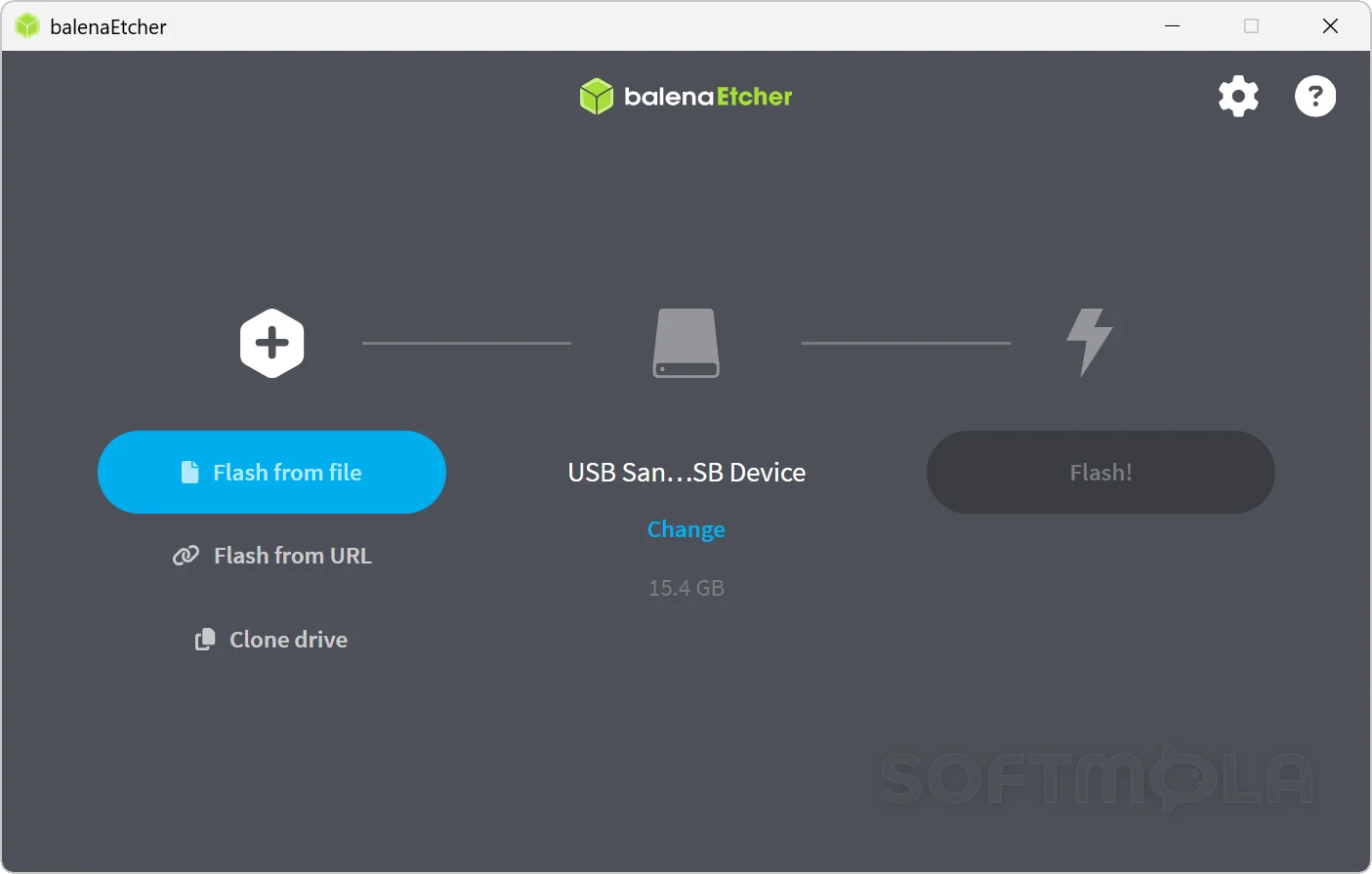
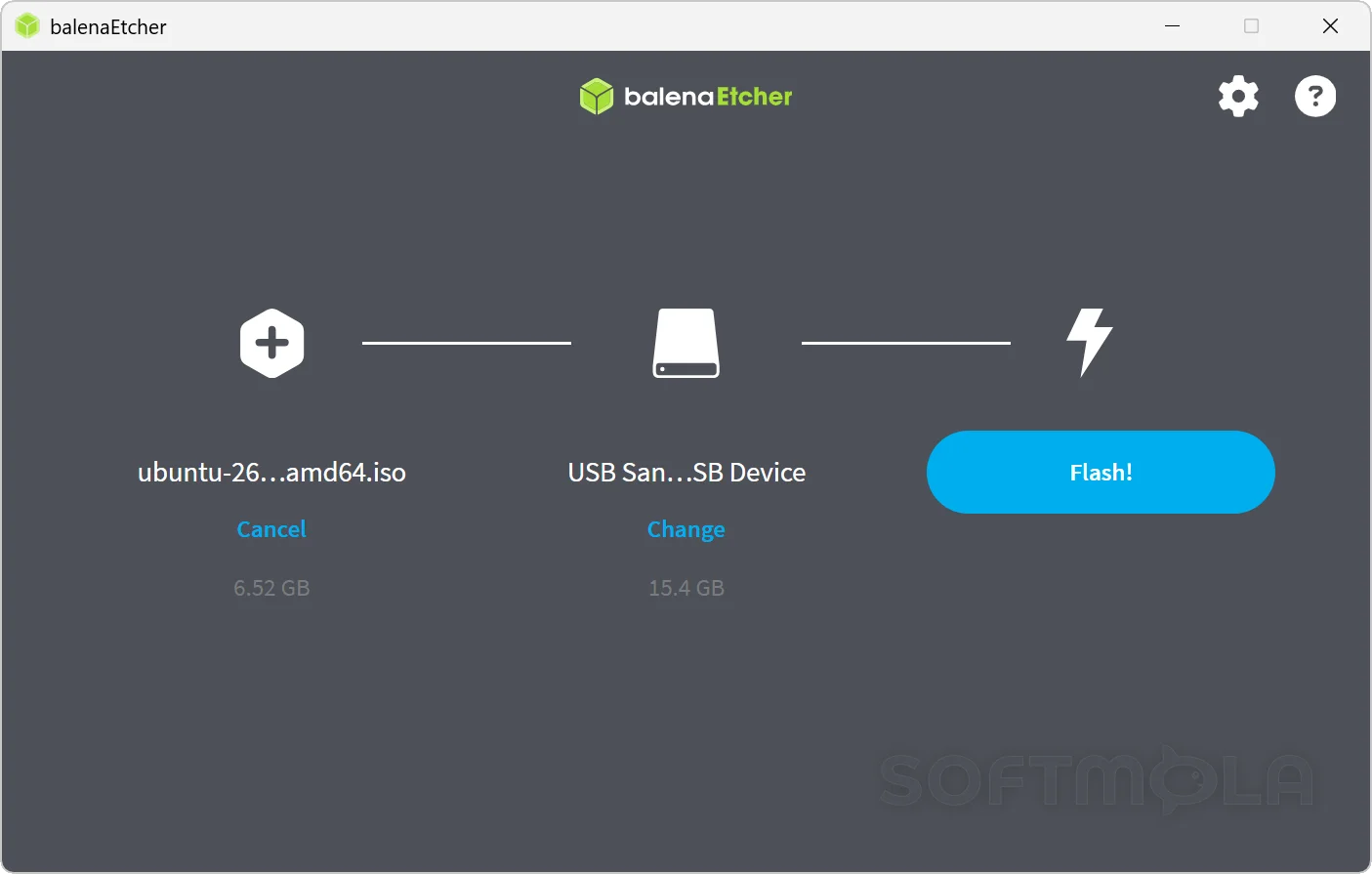
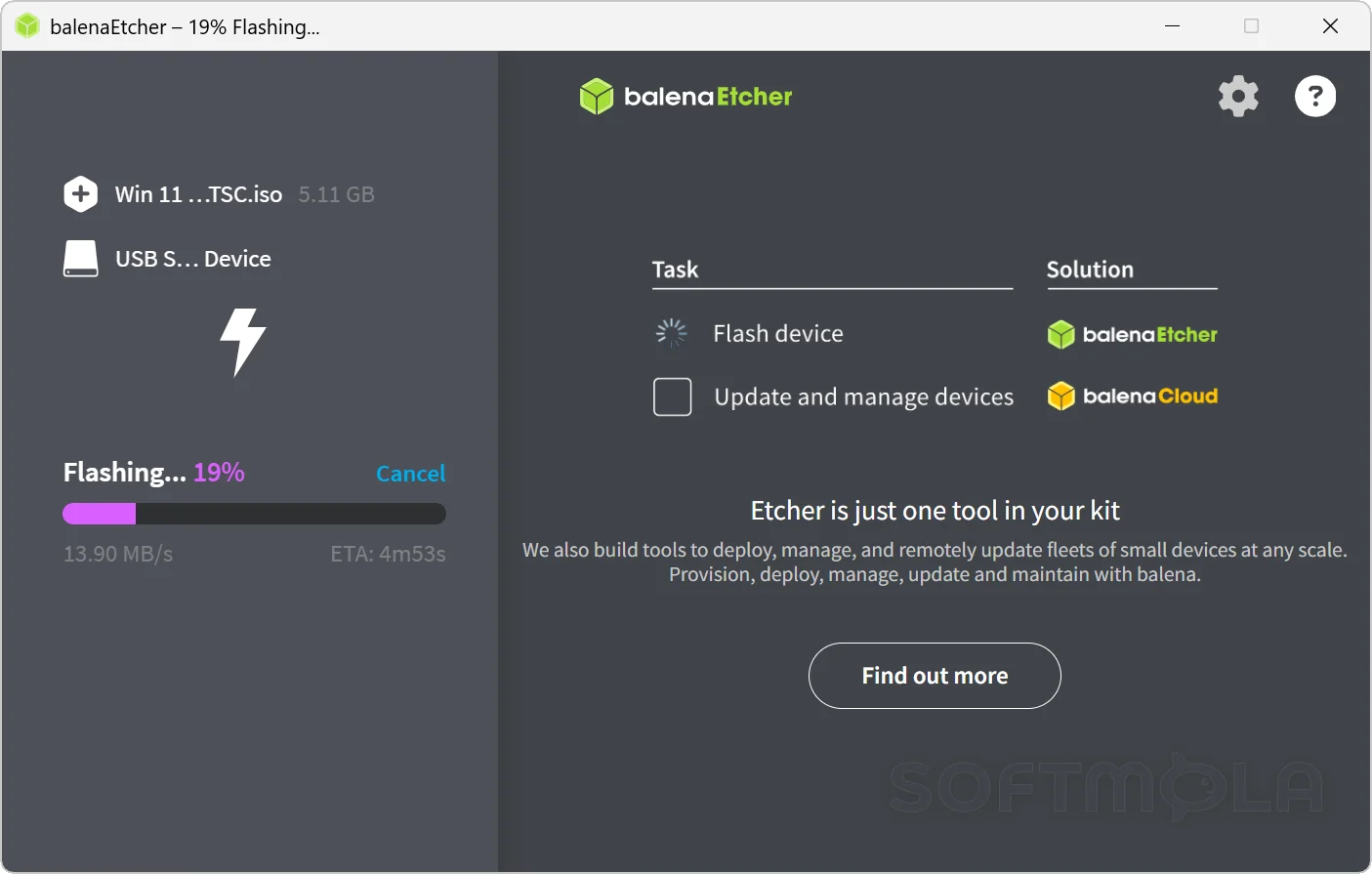
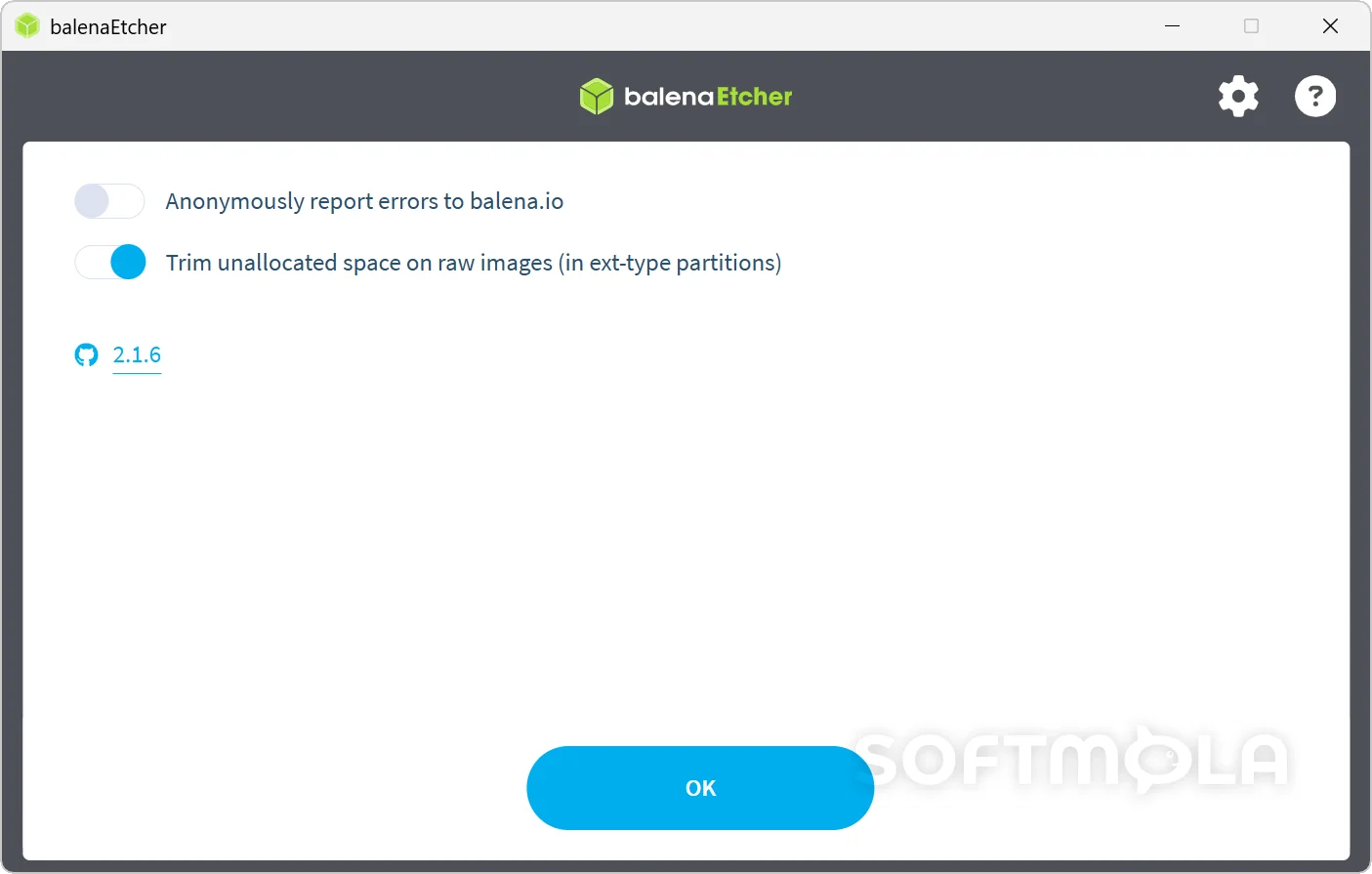
Table of Contents
balenaEtcher is a free, open-source disk-imaging utility that writes operating-system images to USB drives, SD cards, and other removable storage. Its focused interface makes balenaEtcher for Windows particularly useful for creating Linux installation media, preparing Raspberry Pi cards, and deploying images for single-board computers or recovery tools. The current desktop application supports 64-bit Windows 10 and later.
Unlike advanced boot-media tools filled with partition schemes and formatting controls, balenaEtcher concentrates on a guided image-to-drive process. This simplicity suits beginners, occasional Linux users, educators, developers, and hardware enthusiasts who need to write a prepared image without learning command-line utilities. However, it is not designed to customise Windows installation media or add persistent storage to live Linux drives.
balenaEtcher Review
balenaEtcher reduces disk imaging to three clear stages: choose an image, select the target drive, and start flashing. The interface avoids exposing technical options that many users do not need, such as file-system selection, cluster sizes, partition layouts, or boot modes. For someone preparing an SD card for a Raspberry Pi or turning a Linux ISO into a bootable USB drive, this narrow approach removes much of the uncertainty associated with traditional disk utilities.
The application performs a byte-for-byte copy of the selected image. It does not need the target drive to be formatted beforehand because the existing contents and partition structure are replaced by the image. This is convenient, but it also means that choosing the correct device is essential: everything on the selected USB drive or memory card will be erased. Etcher attempts to reduce that risk by hiding system drives by default, displaying target information, and warning about unsuitable, locked, undersized, or potentially dangerous devices.
Validation is one of its most useful practical safeguards. After writing an image, Etcher can read the target and confirm that the data was transferred correctly. This adds time to the overall process, especially with slow memory cards or large images, but it can reveal failed writes and unreliable storage before the drive is placed in another computer or embedded device. The check confirms the integrity of the flashing process; it does not determine whether the original image is genuine, trustworthy, or free from malicious code. Users should still obtain operating-system images from their official publishers and verify any checksums they provide.
Image compatibility is broader than the minimal interface suggests. Etcher’s official testing process covers uncompressed images as well as Bzip2, XZ, ZIP, GZ, and DMG files. Being able to handle compressed downloads directly is helpful when operating-system publishers distribute an image as an archive. In supported cases, users can select the downloaded package without manually extracting a much larger image first. Archives containing multiple images may still require attention because Etcher expects a clear source to write.
The tool works best when the source image has already been prepared for direct disk writing. Many Linux distributions and device images use formats that can boot after a raw copy, making them well suited to Etcher. Standard Microsoft Windows installer ISOs are a significant exception. Balena’s documentation explains that Windows images require additional treatment that Etcher does not perform, so a Windows-specific media creation utility or another tool with the required conversion logic is more appropriate for that task.
Advanced live-USB features are also limited. Etcher does not provide a built-in control for persistent Linux storage, which allows documents and configuration changes to survive between live sessions. Nor does it offer detailed bootloader, partition, or file-system controls. Those omissions keep the workflow approachable, but they make the program less suitable for technicians who want to customise how installation media is constructed.
Privacy has become a stronger part of the current product story. Balena removed Etcher’s analytics code in version 2.1.2. The company says newer releases may still collect anonymous crash reports, but the first-run notice explains this and the reporting option can be disabled in settings. Balena also states that it has not accepted paid advertising within Etcher. These changes address earlier concerns about background data collection while retaining diagnostic reporting for users who leave it enabled.
The software remains free and open source under the Apache 2.0 licence, and official Windows releases are available as both a setup executable and a compressed application package. Recent release pages also provide SHA-256 information and a software bill of materials for users who want additional package-verification details. The project is still active rather than abandoned: GitHub identified version 2.1.6, published on May 13, 2026, as the latest release at the time of writing.
There are practical trade-offs. Etcher is built with Electron, and its Windows package is relatively large for a utility with one primary purpose. Its public issue tracker also contains recent individual reports of image-selection or target-selection problems on some Windows systems. Such reports do not establish that the problem affects most users, but they show that occasional compatibility failures remain possible and that another image writer may be needed when Etcher does not recognise a file or drive correctly.
Overall, balenaEtcher remains relevant because it solves a common task without turning it into a configuration project. Its strongest audience is anyone who values clear target selection, automatic validation, and minimal setup over advanced boot-media controls. Power users building customised multiboot drives, persistent live systems, or Windows installers will find its deliberate simplicity restrictive.
Key Features of balenaEtcher
Guided Three-Step Workflow
The main interface organises the job around selecting an image, choosing a drive, and starting the write. Users are not required to configure partitions or select a destination file system because those details are already defined by the source image. This makes the process easier to follow when preparing Linux media or storage for a single-board computer.
The stripped-back design also reduces opportunities to choose an incompatible technical setting. Its limitation is equally clear: users who need control over boot modes, partition schemes, persistence, or formatting options will need a more configurable utility.
Validated Flashing
After the image has been written, Etcher can validate the contents of the target drive. The program checks whether the output corresponds with the selected source, helping detect incomplete writes, connection problems, or failing removable storage.
Validation is particularly valuable for inexpensive SD cards and media that will be used in devices without a conventional screen or keyboard. A failed card is easier to identify on the Windows PC than after it has been inserted into a remote sensor, Raspberry Pi, or other embedded system.
Safer Target Selection
Disk-imaging software can destroy data when the wrong destination is selected. Etcher reduces this risk by hiding system drives under normal settings and by warning about conditions such as insufficient capacity, locked cards, or questionable targets. An unsafe mode exists for exceptional cases, but it deliberately removes part of this protection.
These safeguards cannot replace checking the drive name and capacity before flashing. External hard drives and large USB storage devices may still appear as valid targets, so the final selection always deserves careful review.
Compressed Image Support
balenaEtcher can process several compressed image formats, including ZIP, GZ, XZ, and Bzip2, alongside uncompressed disk images. This can save both time and temporary storage because a supported archive does not always need to be expanded manually before it is written.
The destination must still be large enough for the uncompressed image rather than merely the smaller downloaded archive. Etcher checks this distinction during target selection and should warn when the available capacity is insufficient.
Flashing from a File or URL
Local files are the most common source, but Etcher also supports workflows that open an image from a web address. Balena provides a “Flash with Etcher” mechanism that operating-system publishers can place on their websites, allowing a compatible image URL to be passed to the application.
Downloading the image separately remains the more dependable option when a connection is unstable. It also gives users a better opportunity to verify the publisher’s checksum or digital signature before writing the image.
Direct Raspberry Pi Device Support
In addition to standard SD cards and USB drives, Etcher can flash compatible Raspberry Pi hardware that supports USB device boot mode. This can simplify provisioning for supported compute modules and related development hardware because the target can be written through its USB connection rather than through a removable card.
This feature is specialised and depends on the device’s hardware and boot-mode support. Most Raspberry Pi users will continue to use Etcher primarily for preparing a microSD card with a suitable operating-system image.
balenaEtcher for Windows is a strong fit for users who want a clean, guided way to write Linux, Raspberry Pi, appliance, or recovery images to removable storage. Its validation and drive-safety measures provide meaningful advantages over basic raw-writing tools, while its open-source licence and improved privacy practices support its continued relevance. It is less suitable for customised live environments and standard Windows installation media, but for straightforward image flashing, its focused design remains easy to understand and practical to use.
How to Download and Install balenaEtcher on Windows
The standard Windows distribution uses a setup executable, while the official release page also provides a compressed x64 application package. For the simplest setup, use Softmola’s download button and continue only to a verified balena distribution source. The current application is intended for 64-bit Windows 10 and later.
How to Download balenaEtcher
Select the Download for Windows button on this page.
Continue to the verified balenaEtcher download source.
Choose the Windows setup package for the standard installed version.
Save the installer in your Downloads folder or another accessible location.
Wait for the file to finish downloading before opening it.
For additional verification, compare the file’s SHA-256 value with the checksum published alongside the matching official release.
Avoid download advertisements, unofficial mirrors, repackaged installers, or websites using similar product names. Balena has documented cases in which malicious software was presented as balenaEtcher.
How to Install balenaEtcher
Open the downloaded balenaEtcher setup executable.
Review the filename and Windows publisher information before allowing it to run.
Approve the Windows User Account Control request if Windows displays one.
Allow the installer to copy the required application files.
Open balenaEtcher from the Start menu or its desktop shortcut, when available.
Review the first-run privacy notice. Open the application settings if you want to disable anonymous crash reporting.
A restart is not normally part of the basic setup process. However, Windows may request elevated permission when Etcher needs direct write access to a USB drive or SD card.
Getting Started with balenaEtcher
Download a compatible operating-system image from its official publisher. Check the publisher’s checksum or digital signature when one is provided.
Connect the USB drive or SD card and back up any files stored on it.
Open balenaEtcher and select Flash from file.
Choose the downloaded image or supported compressed package.
Select the target drive and verify its name and capacity carefully.
Start the flash and approve the Windows permission prompt if it appears.
Leave the drive connected while Etcher writes and validates the image.
Eject the completed drive through Windows before disconnecting it.
Do not interrupt the application, unplug the drive, or allow the computer to shut down while data is being written. If validation fails, try another USB port or card reader before assuming that the image itself is defective; balena notes that faulty drives and adapters are common causes of failed flashes.
balenaEtcher Pros & Cons
- Simple three - step workflow: Selecting an image, choosing the destination, and starting the flash requires little technical knowledge.
- Automatic write validation: Etcher checks the completed flash, helping identify unsuccessful writes or unreliable removable storage.
- Safer drive selection: System drives are hidden by default, and the application displays warnings intended to reduce accidental data loss.
- No pre - formatting required: Etcher replaces the target drive’s existing partitions and data with the structure contained in the selected image.
- Supports common image packages: It can work with standard disk images and several compressed formats, reducing the need to extract some downloads manually.
- Free and open source: The software is distributed under an open-source licence without a subscription requirement.
- Not suitable for standard Windows installer ISOs: Microsoft Windows images require additional processing that Etcher does not perform.
- No persistent live - USB configuration: It cannot reserve storage for files and settings that remain between Linux live sessions.
- Few advanced controls: There are no detailed options for partition schemes, bootloaders, file systems, or multiboot configurations.
- The selected drive is completely erased: Choosing the wrong target can permanently remove important data despite Etcher’s protective warnings.
- Limited current Windows architecture support: Official documentation lists Windows 10 and later on 64-bit Intel-compatible systems, with no current native Windows ARM release.
Frequently Asked Questions
What is balenaEtcher?
balenaEtcher is a disk-image flashing utility developed by balena. It copies a prepared operating-system image to an SD card, USB flash drive, or other compatible storage device. It is commonly used to prepare Linux installation media, Raspberry Pi cards, recovery environments, and storage for embedded devices.
Is balenaEtcher free?
Yes. balenaEtcher is free and open-source software, and its standard image-flashing features do not require a paid plan or subscription. The project’s source code is publicly available, and the official repository identifies its licence as Apache 2.0.
Does balenaEtcher work on Windows 11?
Yes. The current application supports 64-bit Windows 10 and later, which includes Windows 11 on compatible x64 computers. Windows on ARM is not listed among the officially supported Windows platforms, so users with ARM-based PCs should not assume native compatibility.
Can balenaEtcher create a bootable Windows installation USB?
Not reliably from a standard Microsoft Windows ISO. Etcher performs a direct byte-for-byte copy and does not apply the additional processing required to turn typical Windows images into bootable USB installation media. A Windows-specific media creation utility is more appropriate for that task.
Does balenaEtcher erase the USB drive or SD card?
Yes. Flashing replaces the existing data and partition structure on the selected drive. Copy any files you need to keep somewhere else before starting, and verify the drive’s name and capacity on the target-selection screen. Etcher hides system drives by default, but users remain responsible for selecting the correct removable device.
Do I need to format a drive before using balenaEtcher?
No. Etcher writes the source image directly to the target and replaces its current file system and partitions. Pre-formatting the card or USB drive normally provides no benefit. After flashing, Windows may show only one small partition or may report that part of the capacity is unavailable because the image uses a layout intended for another operating system.
Can balenaEtcher be used without an internet connection?
Yes, once the application and operating-system image are stored locally. An internet connection is needed to download Etcher, obtain the image, use an image URL, or retrieve updates. The basic process of selecting and writing a local image does not depend on a cloud service.
Does balenaEtcher collect user data?
Current releases no longer contain the previous analytics code. Balena says anonymous crash reports may still be collected, but the application presents a first-run notice and provides a setting to disable crash reporting. Users who prefer not to send diagnostic information should review this option after opening Etcher for the first time.