

PowerISO for Windows
Create, edit, convert, mount, and burn ISO and other disc image files on Windows with bootable USB support.
Software Information
Recommended: 64-bit Available: 32-bit
PowerISO Screenshots
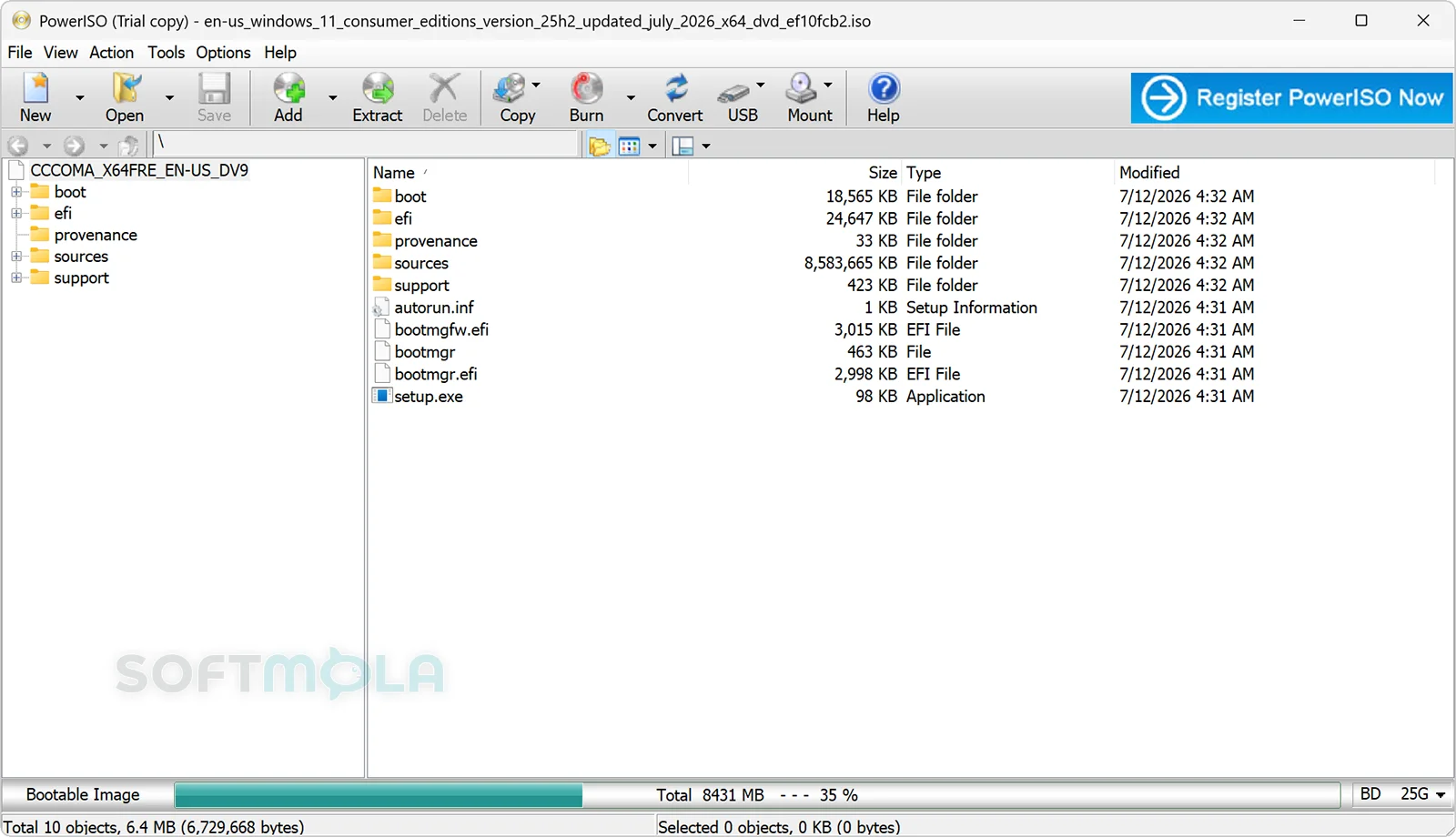
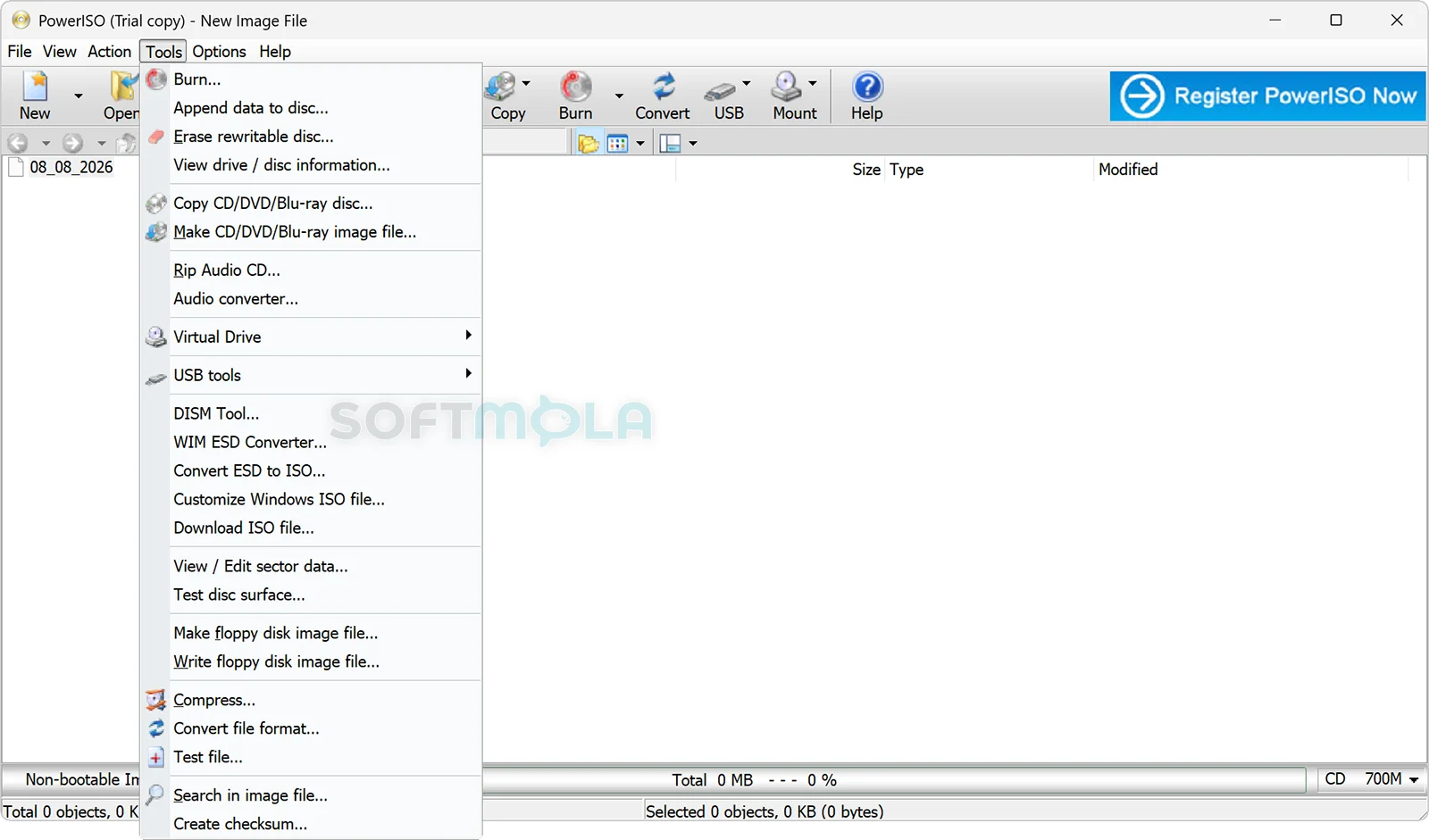
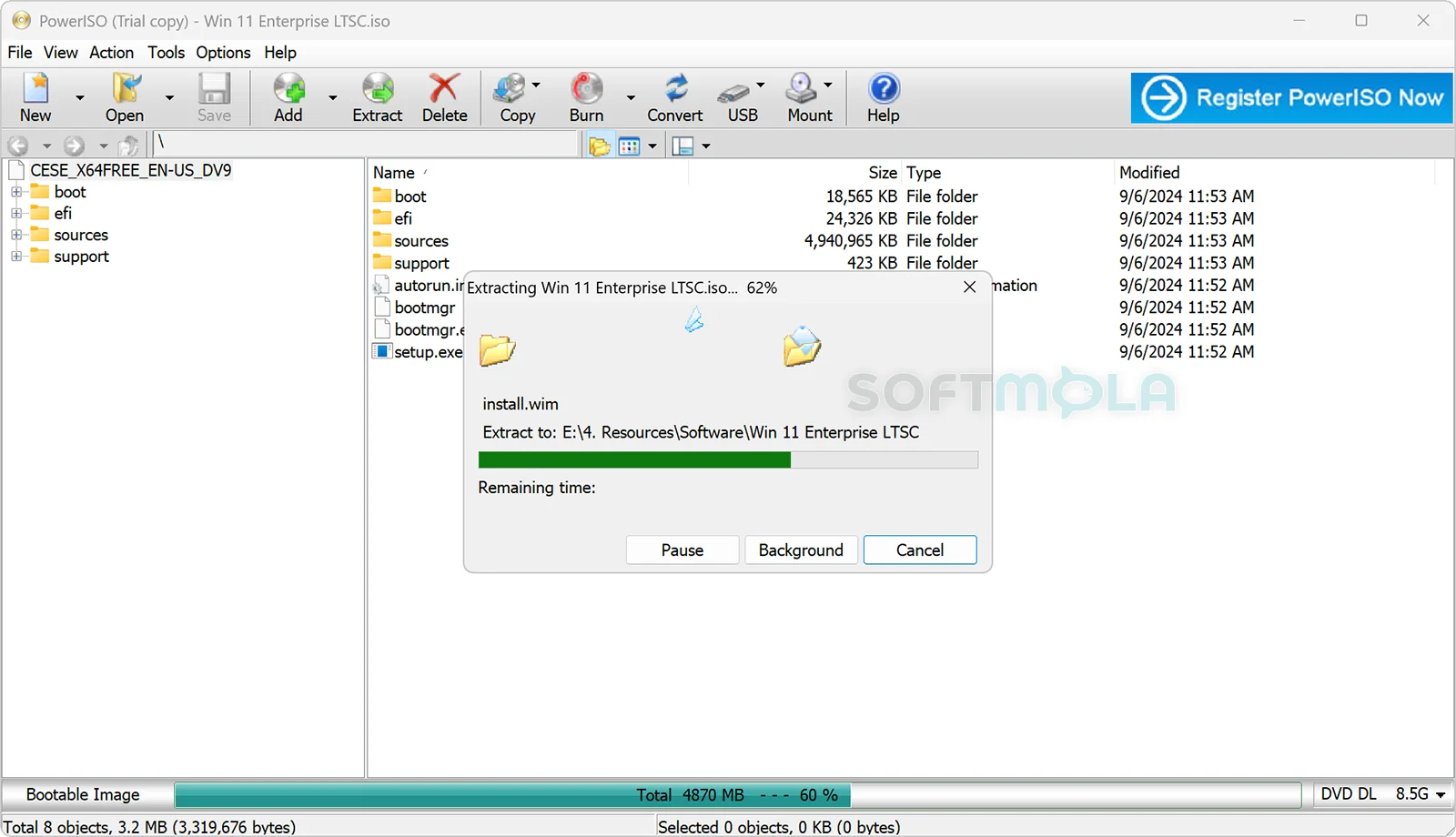
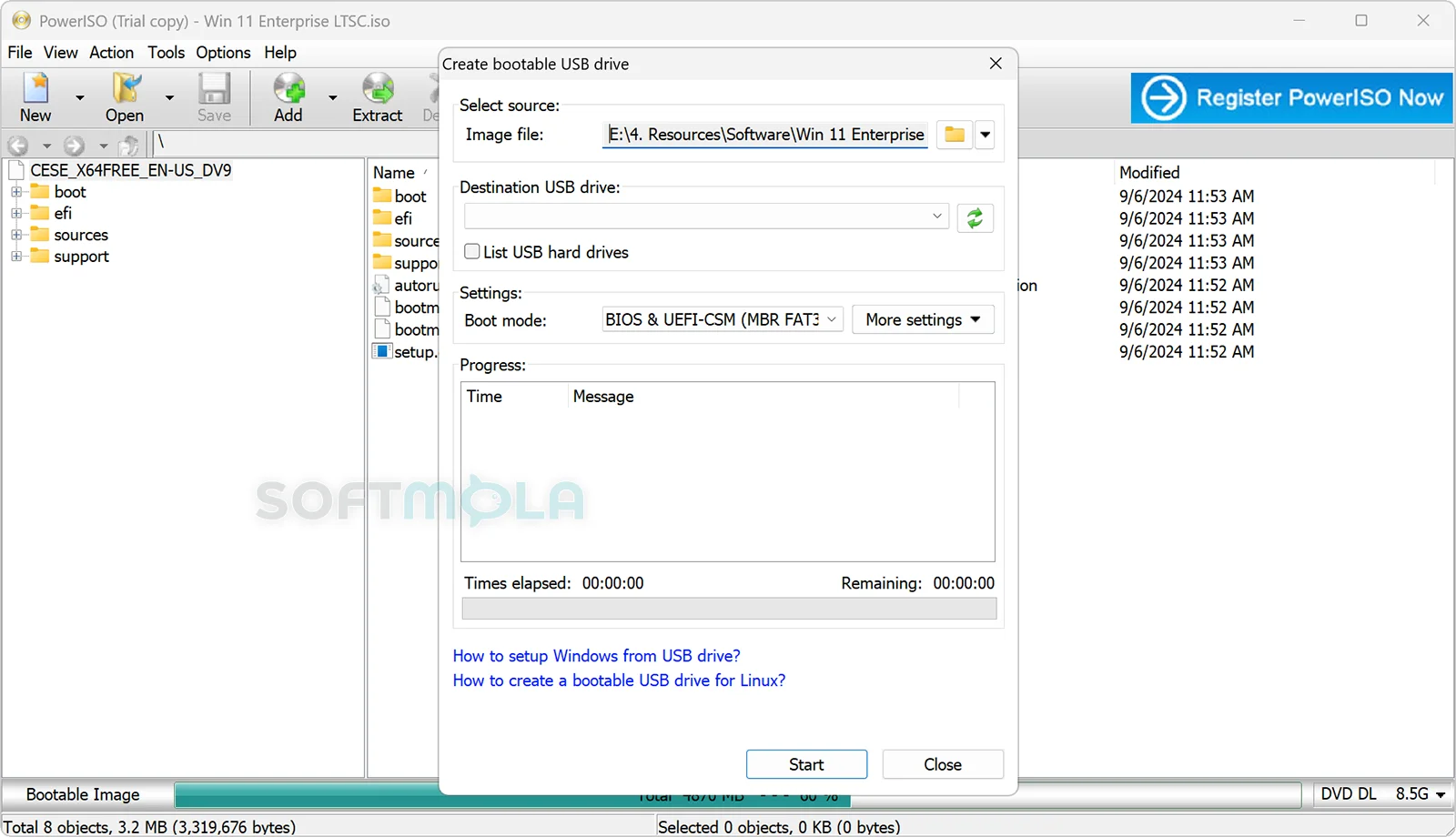
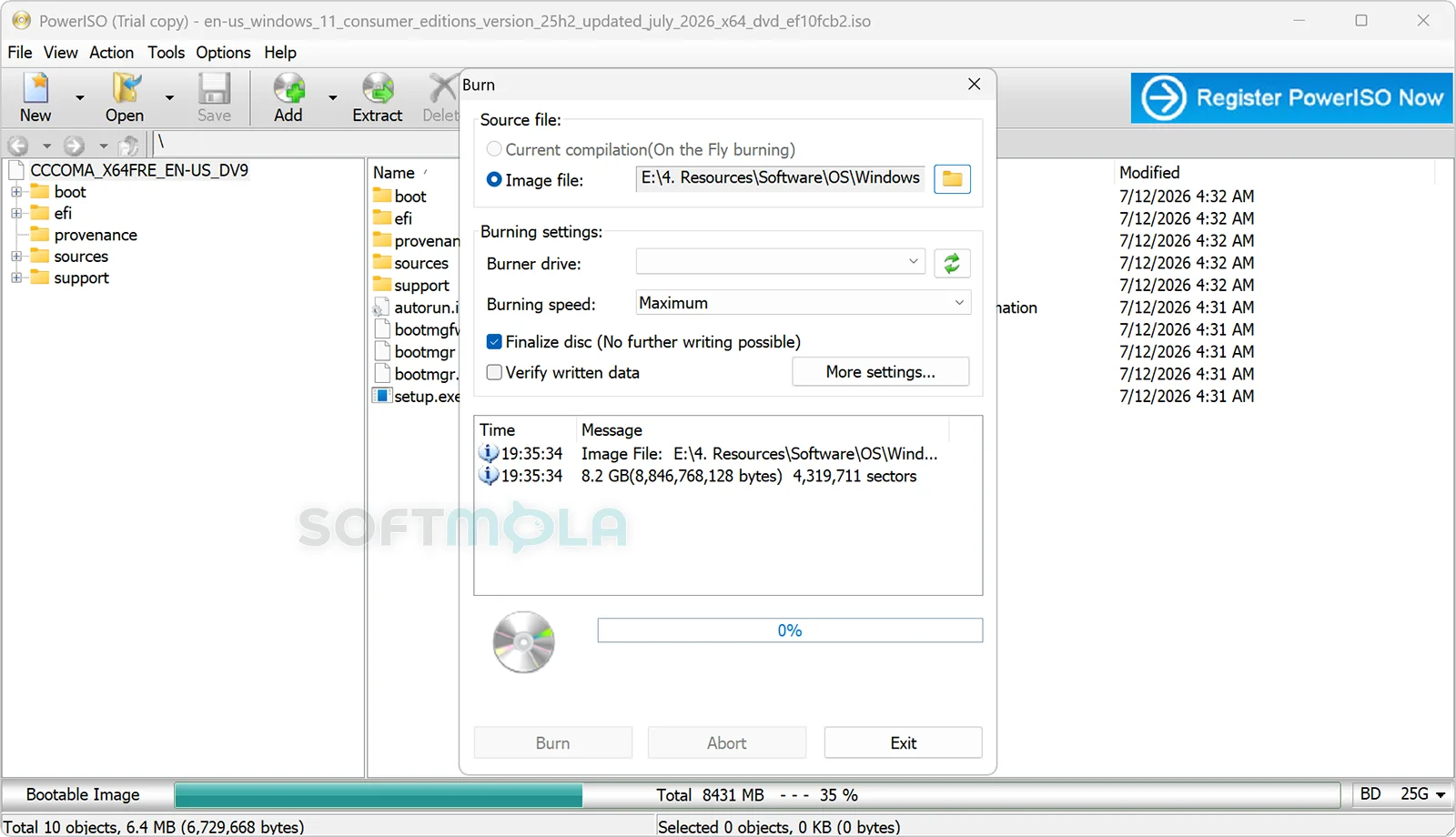
Table of Contents
PowerISO for Windows is a desktop utility for working with ISO files, disc images, optical media, archives, and bootable USB drives. It is designed for users who need more than Windows’ basic ISO mounting tools, combining image creation, editing, conversion, burning, extraction, and virtual-drive functions in one application.
The software remains actively available for Windows. PowerISO 9.4 was released on May 15, 2026, with separate 32-bit and 64-bit editions, and the developer lists Windows 11 and Windows 10 among its supported operating systems. The current release also extends its bootable USB functionality by allowing bootable drives to be created from ZIP, RAR, and 7Z archives.
PowerISO is particularly useful for PC technicians, advanced home users, system administrators, and anyone who regularly handles installation media or less common disc-image formats. Users who only need to double-click an ISO and access its files may find Windows’ built-in features sufficient, but PowerISO becomes more relevant when an image needs to be edited, converted, burned, or turned into bootable media.
PowerISO Review
PowerISO has developed into a broad image-management utility rather than a simple ISO opener. Its central strength is the ability to perform several related jobs without switching between separate programs. Users can create ISO and BIN/CUE images, open and extract existing images, edit their contents, burn images to optical discs, convert between formats, and mount images through virtual drives. The application also supports bootable USB creation and tools for installing Windows onto a USB device.
That breadth is most valuable when ISO files are part of a larger workflow. For example, a technician preparing installation media can modify an image, write it to a USB drive, and later mount another image for inspection from the same program. PowerISO supports considerably more than the standard ISO format, including BIN/CUE, NRG, MDF/MDS, DMG, IMG, CDI, and numerous other disc-image types. It can also open virtual disk formats used by virtualization software, including VMDK, VHD/VHDX, and VDI files.
For ordinary Windows users, the key question is whether those additional capabilities justify installing a dedicated utility. Modern Windows versions already mount ISO images without third-party software, which covers the most common requirement: viewing files stored inside an ISO. PowerISO makes more sense when the task goes beyond viewing. Editing an image, converting a DMG or NRG file to ISO, creating an image from a physical disc, or managing bootable installation media are the kinds of jobs that distinguish it from Windows’ built-in tools.
Its virtual-drive support is still useful for software archives and older workflows that expect removable media. PowerISO can mount ISO files and other supported images as virtual drives, and the developer states that it can provide up to 23 virtual drives. This is more capacity than most individual users will ever need, but it shows that the feature is intended for more demanding image-management scenarios as well as occasional use.
Physical-disc support is another area where PowerISO remains relevant despite the decline of optical media on mainstream PCs. It can work with CD, DVD, and Blu-ray media, create images from discs, burn images back to supported media, and handle audio CD tasks such as ripping tracks or creating audio discs. Those functions are increasingly specialist features, but they can be valuable on older systems, archival PCs, or workstations that still use optical drives.
PowerISO uses a shareware licensing model rather than offering an unrestricted free edition. The unregistered version can be downloaded for evaluation, but it displays registration prompts and cannot create or edit image files larger than 300 MB. Other functions remain available according to the developer’s FAQ. A registered license is currently listed at US$39.95, and the developer states that registered users receive lifetime software updates.
The 300 MB restriction is significant because contemporary Windows installation ISOs and many software images are several gigabytes in size. The trial therefore provides a practical way to explore the application, but anyone intending to create or modify typical modern operating-system images will need the registered version. Users should consider that limitation before treating PowerISO as a fully free ISO editor.
Bootable media tools strengthen its value for Windows maintenance and deployment. PowerISO can create Windows installation USB drives from ISO files and supports both BIOS and UEFI boot modes. It can also install Windows 10 or Windows 11 onto a USB flash drive or portable SSD for a Windows-to-USB setup. These operations modify storage devices and can erase their existing contents, so selecting the correct destination drive and keeping backups remain essential.
Overall, PowerISO occupies a useful middle ground between basic tools built into Windows and more specialized imaging or deployment software. Its appeal comes from combining many mature disc and image operations in one utility. The trade-off is that much of this functionality is unnecessary for someone who rarely goes beyond opening an ISO. For users who frequently create, modify, convert, burn, or deploy image files, however, its broader toolkit remains relevant.
Key Features of PowerISO
ISO Creation and Editing
PowerISO can create ISO and BIN/CUE image files from local files and folders or from physical CD, DVD, and Blu-ray discs. It can also create bootable ISO images and work with common image file systems such as ISO 9660, Joliet, and UDF.
Existing images can be modified without rebuilding everything manually. Users can add, delete, or rename files inside an ISO, change file timestamps, and add boot information to an image. These tools are particularly useful when preparing customized installation, recovery, or archival media. The unregistered version limits creation and editing of images larger than 300 MB.
Disc Image Extraction and Format Conversion
One of PowerISO’s more practical advantages is its support for many disc-image formats beyond ISO. It can open and extract formats including BIN/CUE, NRG, MDF/MDS, DMG, IMG, CDI, and several legacy image formats, which can be helpful when dealing with archives created by different disc-authoring programs.
Conversion tools allow supported images to be converted to ISO or BIN, including common tasks such as converting DMG, IMG, or NRG images to ISO. This can simplify compatibility when another application or device expects a standard ISO file rather than the original format.
Virtual Drives
PowerISO can mount ISO files and other compatible disc images as virtual drives. Once mounted, Windows treats the image much like inserted media, allowing its files to be browsed and accessed without first extracting the entire image.
Windows already includes native ISO mounting, so this feature alone is unlikely to justify PowerISO for many current PCs. Its advantage is broader format support and the ability to manage multiple virtual drives, particularly when working with image types that Windows does not handle natively.
Bootable USB Creation
PowerISO can write supported installation images to USB drives to create bootable media. The official Windows USB workflow supports both BIOS and UEFI boot modes and includes Windows 11, Windows 10, and multiple earlier Windows and Windows Server installation images.
PowerISO 9.4 also adds the ability to create a bootable USB drive from ZIP, RAR, and 7Z files. This broadens the feature beyond conventional ISO-based workflows and is one of the notable additions in the current release.
Windows on a USB Drive
PowerISO can install Windows 10 or Windows 11 onto a USB flash drive or portable SSD so that Windows can run from the external device. The developer recommends a drive with at least 32 GB for this process and supports both BIOS and UEFI configurations.
This capability is more specialized than creating a standard Windows installer. It may be useful for testing, portable environments, or situations where users want to run another Windows installation without replacing the operating system on the internal drive. Because creating the drive deletes existing data on the selected device, backups are important before starting.
CD, DVD, and Blu-ray Tools
PowerISO remains useful for PCs that still work with optical media. It can burn files and image files to CD, DVD, and Blu-ray discs, copy physical media into disc-image files, and erase supported rewritable discs.
Its audio tools extend that functionality to music collections. PowerISO can create audio CDs and rip tracks to formats including MP3, WMA, WAV, FLAC, and APE. These features are less central to modern Windows computing than they once were, but they give the application additional value for users maintaining physical media libraries.
Archive and Virtual Disk Support
PowerISO is not limited to traditional optical-disc images. Its current tools include support for opening and extracting common archives such as ZIP, RAR, and 7Z, alongside virtual disk formats used by virtualization platforms. The official documentation lists VMDK, VHD/VHDX, and VDI among the virtual disk formats that can be opened.
This wider format support makes PowerISO useful as a general image-file utility when files come from different operating systems, virtualization environments, or older software. It does not replace a dedicated archive manager or enterprise deployment platform, but having these capabilities alongside ISO editing and bootable-media tools can reduce the need for several small utilities.
PowerISO for Windows remains most compelling for users who regularly do more with disc images than simply open them. Its combination of ISO editing, image conversion, virtual drives, optical-disc tools, and bootable USB creation gives it considerably more depth than Windows’ built-in ISO support. The trial’s 300 MB creation and editing limit makes the registered version necessary for many real-world image projects, so occasional users may prefer simpler tools. For technicians, enthusiasts, and users working frequently with installation media or multiple image formats, however, PowerISO continues to offer a practical and unusually broad Windows toolkit.
How to Download and Install PowerISO on Windows
PowerISO uses a traditional Windows desktop installer. The official distribution currently provides separate 64-bit and 32-bit editions of PowerISO 9.4, while an Arm64 version is listed separately. The software can be evaluated before registration, although image creation and editing are limited to files of 300 MB or less until the program is activated with a license.
How to Download PowerISO
Select the Download for Windows button on this page.
Continue to the verified PowerISO download source.
Choose the Windows edition that matches your PC architecture. The current standard downloads include separate 64-bit and 32-bit editions; use the separate Arm64 package when appropriate.
Save the installer in an accessible location such as your Downloads folder.
Allow the file to finish downloading before opening it.
How to Install PowerISO
Open the PowerISO installer you downloaded from the verified source.
If Windows displays a User Account Control prompt, review it and approve the installation only when the publisher and file are the ones you expected.
Review the license terms and the installation choices presented by the setup program before continuing.
Complete the installation using the options appropriate for your system.
Open PowerISO from Windows after setup finishes.
You can use the unregistered version for evaluation, subject to its 300 MB creation and editing limit.
If you have purchased PowerISO, open the program and use the registration prompt to enter the user name and registration code supplied with your license. Successful activation removes the unregistered-version limitations.
PowerISO Pros & Cons
- Broad disc - image format support: PowerISO works with ISO, BIN/CUE, NRG, DMG, IMG, MDF/MDS, virtual disk images, and numerous other formats, making it useful when files come from different tools or platforms.
- Strong all - in-one toolset: Image creation, editing, extraction, conversion, mounting, optical-disc burning, archive handling, and bootable USB creation are available within one application.
- Useful bootable - media features: PowerISO can prepare Windows installation media and create bootable USB drives, with version 9.4 adding support for creating bootable drives from ZIP, RAR, and 7Z files.
- 32 - bit, 64-bit, and Arm64 options: The official download page provides separate Windows editions, which helps users choose a build suited to their PC architecture.
- Still actively maintained: PowerISO 9.4 was released on May 15, 2026, following several feature updates during 2025 and 2026.
- Major trial restriction: The unregistered version cannot create or edit image files larger than 300 MB, which excludes many modern operating-system and software images from those workflows.
- Basic ISO mounting is already built into Windows: Users who only need to open or mount standard ISO files may not need a separate utility.
- Many features are specialist tools: Optical-disc authoring, advanced image conversion, multiple virtual drives, and Windows-to-USB functions may be unnecessary for occasional ISO users.
Frequently Asked Questions
What is PowerISO?
PowerISO is a Windows utility for creating, opening, extracting, editing, converting, mounting, and burning disc-image files. It also provides virtual drives, bootable USB tools, archive functions, optical-disc utilities, and support for several virtual disk formats. It is most useful when you need more than the basic ISO mounting capabilities included with Windows.
Is PowerISO free?
PowerISO is not an unrestricted free application. It is distributed as shareware, so you can download and evaluate the unregistered version before purchasing a license. The main restriction is that the unregistered version cannot create or edit image files larger than 300 MB and also displays registration prompts. Other functions are available according to the developer’s FAQ.
Does PowerISO work on Windows 11?
Yes. The developer officially lists Windows 11 among PowerISO’s supported operating systems. Windows 10 and several older Windows releases are also listed, and both 32-bit and 64-bit Windows are supported.
Which PowerISO version should I download for Windows?
Most modern PCs running 64-bit Windows should use the 64-bit edition, while systems running 32-bit Windows require the 32-bit version. The official PowerISO download page currently provides both editions of version 9.4 and also lists a separate Arm64 download. Check your Windows system type before choosing an installer if you are unsure which architecture your PC uses.
Can PowerISO create a bootable USB drive?
Yes. PowerISO includes tools for creating bootable USB media, including Windows installation drives. Recent releases have expanded this area: version 9.4 can create bootable USB drives from ZIP, RAR, and 7Z files, while earlier releases added Windows installation customization and additional compressed-image support. When creating bootable media, check the selected destination carefully because some USB-writing operations erase existing data on the drive.
Can PowerISO mount ISO files without burning them?
Yes. PowerISO can mount an ISO as a virtual drive, allowing Windows to access its contents without first burning the image to a physical disc. PowerISO also integrates virtual-drive commands with Windows Explorer. However, current Windows versions already support basic ISO mounting, so PowerISO is more valuable when you also need its wider image-format and editing tools.
Is PowerISO safe to download?
No software download should be treated as risk-free based on its name alone. PowerISO remains available from its developer and continues to receive updates, but users should obtain the installer through the verified Softmola download route or the official developer distribution rather than unofficial mirrors, modified installers, cracks, or repacks. The latest official Windows release listed by the developer is PowerISO 9.4.
Where should I download PowerISO?
Use the verified download button provided on this Softmola page or obtain PowerISO directly through its official developer distribution. Avoid unofficial mirrors, torrents, cracked versions, key generators, and repackaged installers because their contents or licensing modifications may not match the software distributed by the developer.