

PhotoScape for Windows
Free all-in-one photo editor for Windows with batch processing, collage tools, and an animated GIF creator.
Software Information
PhotoScape Screenshots
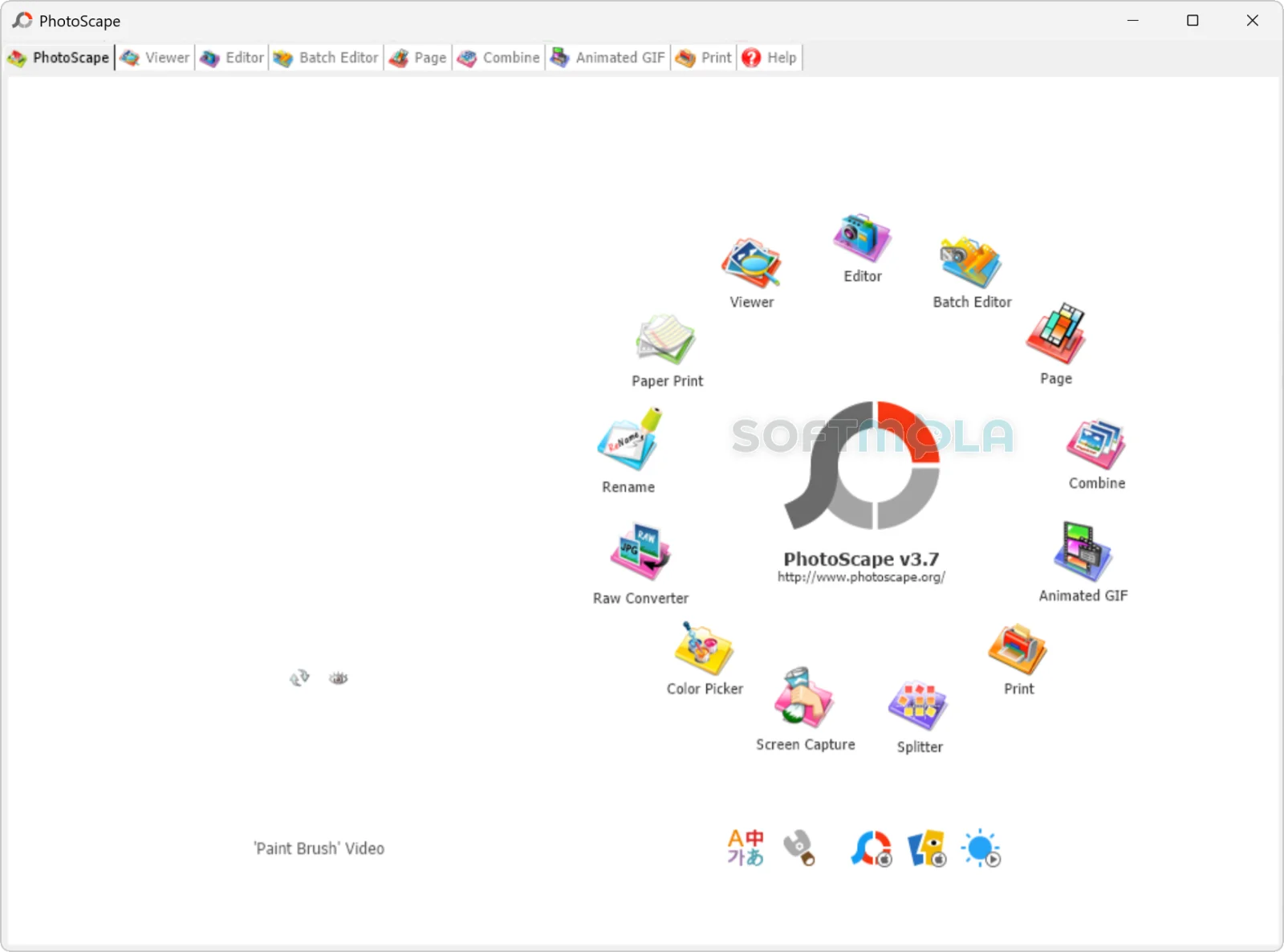
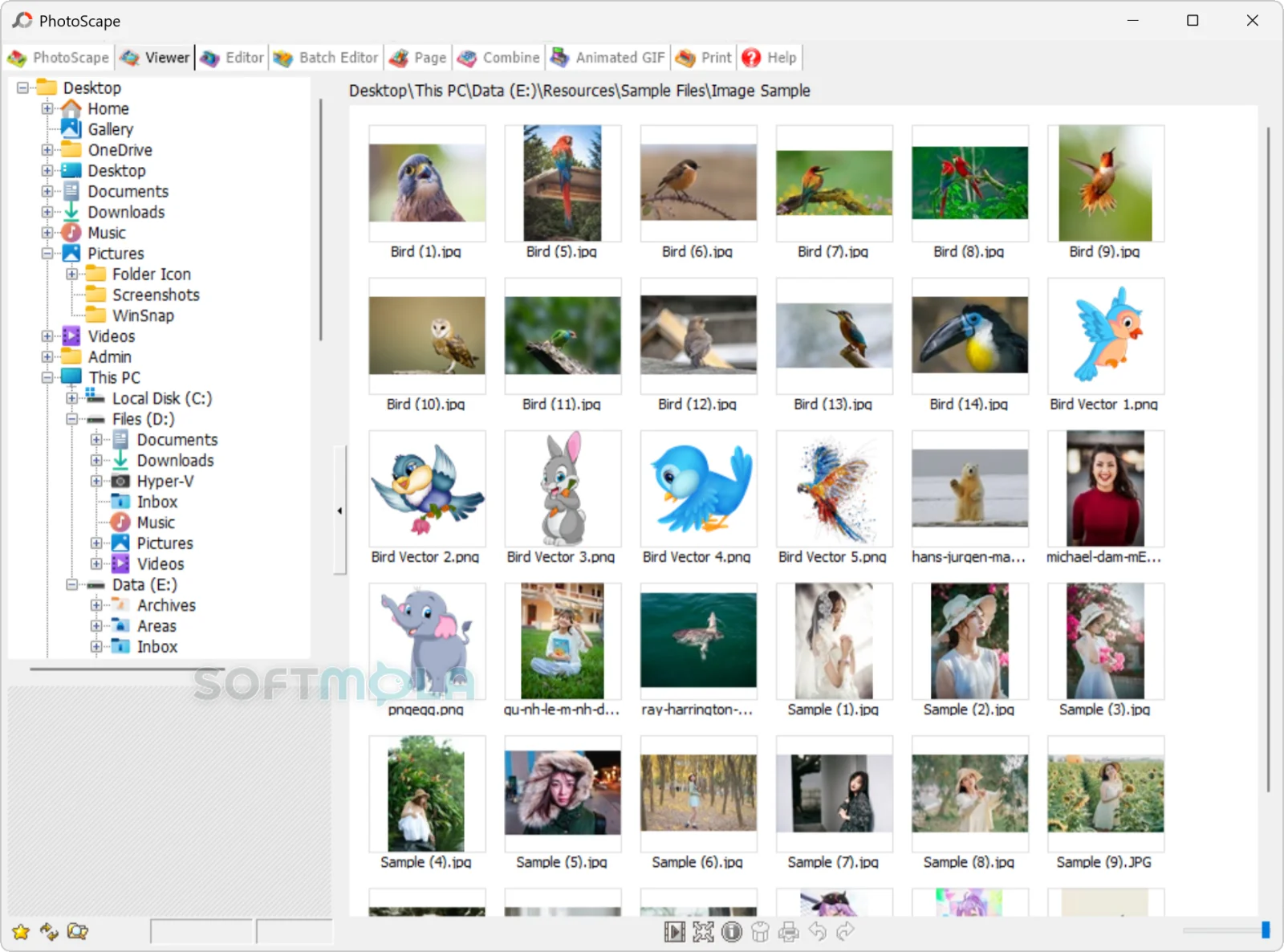
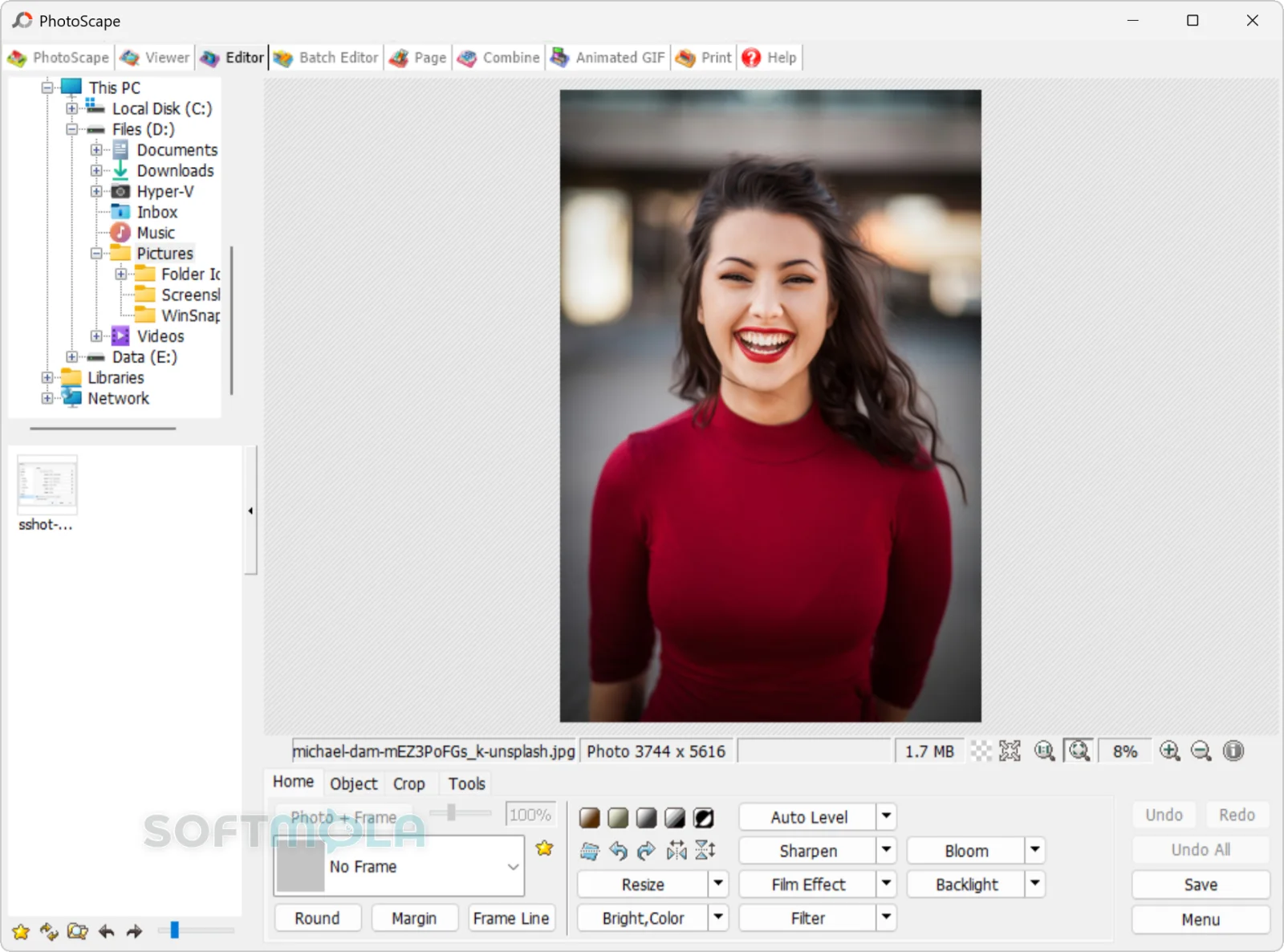
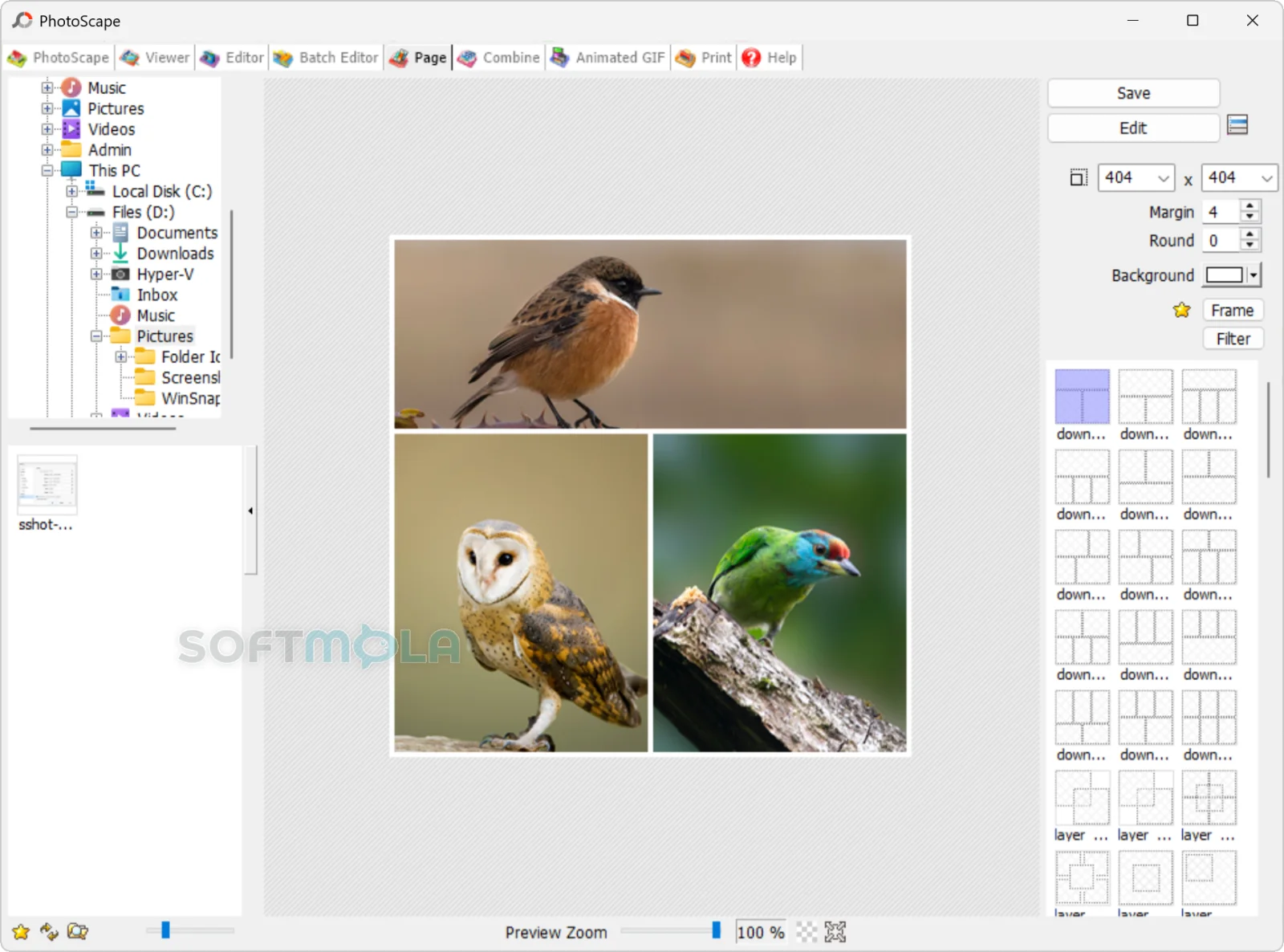
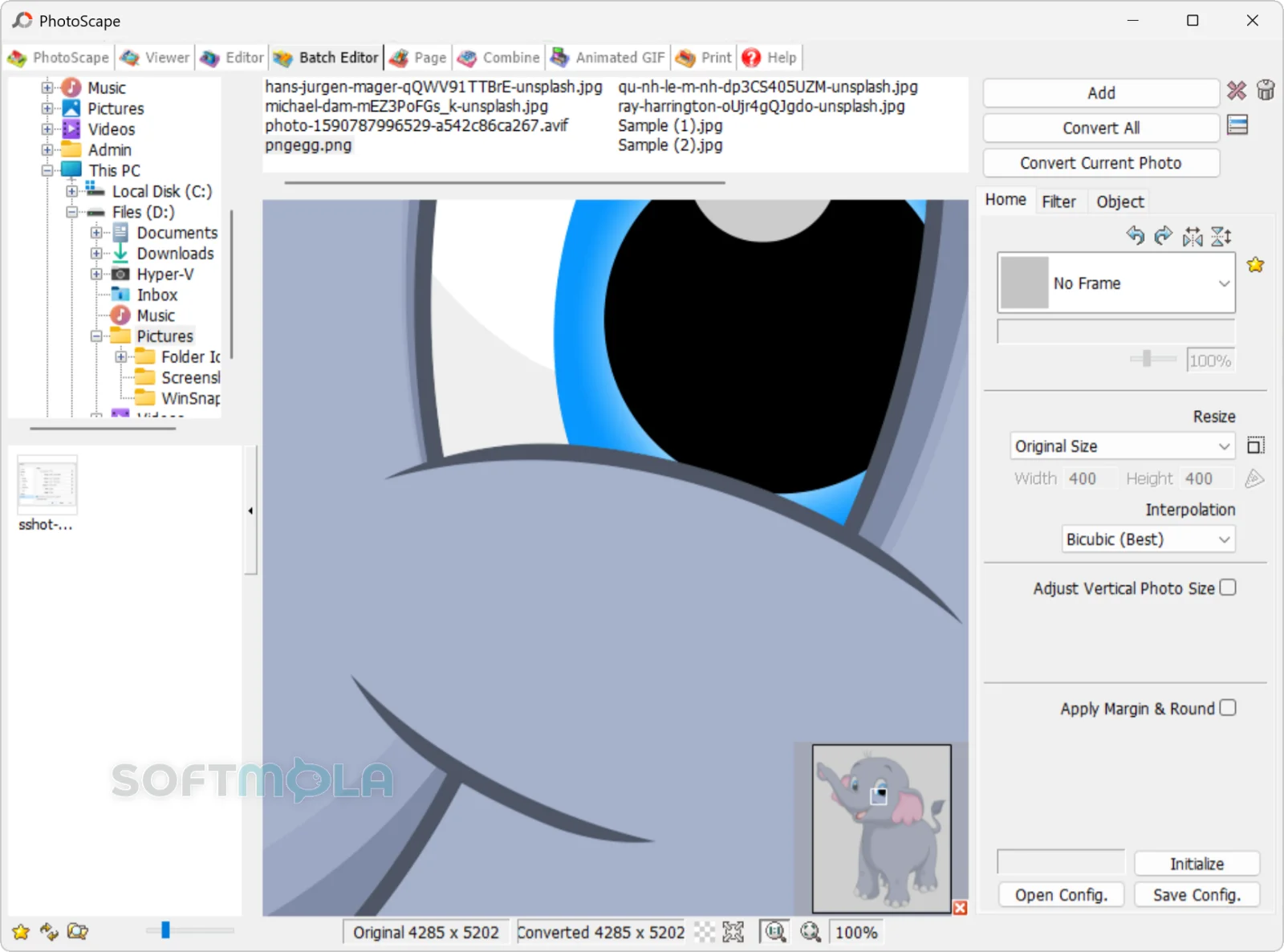
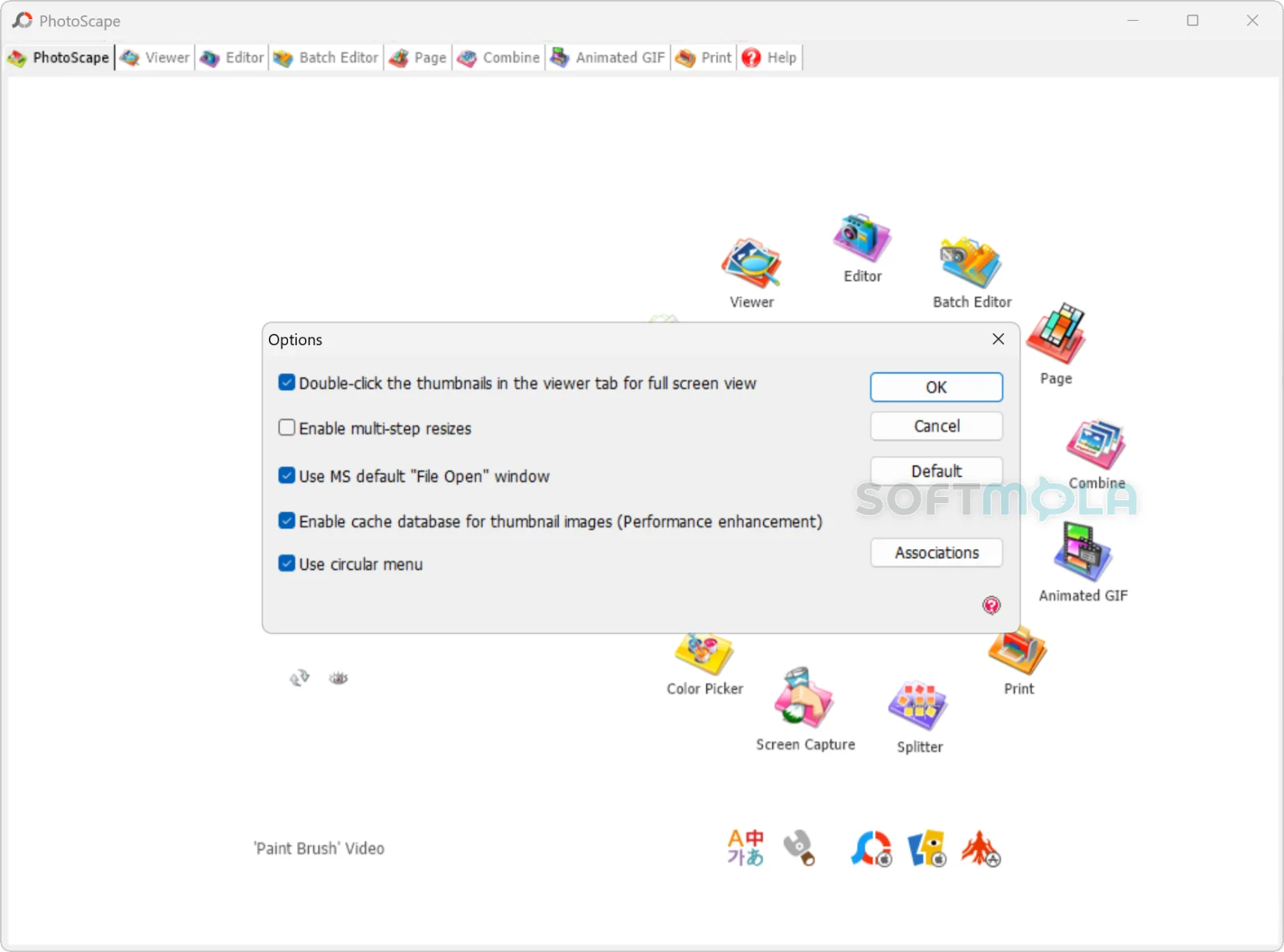
Table of Contents
PhotoScape is a free, all-in-one photo editing suite for Windows built around a simple idea: most people who edit pictures are not professional retouchers. They want to crop a holiday photo, brighten an underexposed shot, add a caption, stitch a few images into a collage, and move on. PhotoScape for Windows groups those everyday jobs into a single tabbed workspace instead of scattering them across separate programs.
The software comes from MOOII Tech, a South Korean developer that has maintained the PhotoScape name for well over a decade. Two branches now exist under that name. The classic desktop application, PhotoScape 3.7, has been the stable Windows release since September 2014 and remains freeware. Alongside it sits PhotoScape X, a rebuilt version distributed through the Microsoft Store, which the developer positions for Windows 10 (version 1709 or later, 64-bit) and offers in both a free edition and a paid PhotoScape X Pro edition.
That split matters before you download anything. MOOII Tech's own guidance points Windows XP, Vista, 7, and 8 users toward PhotoScape 3.7, and directs Windows 10 users to PhotoScape X. If you are running Windows 10 or Windows 11 today, the Store version is the branch the developer actively supports — the classic build still installs on many modern systems, but it is no longer the version being updated.
PhotoScape Review
The clearest way to understand PhotoScape is to look at how it is organised. Rather than opening into a blank canvas with a toolbar, the classic version opens into a circular menu of task-based modules: Viewer, Editor, Batch Editor, Page, Combine, Animated GIF, Print, Splitter, Screen Capture, Color Picker, Rename, and Raw Converter. Each one is a self-contained mini-application. You pick the job first and the tools follow, which is close to the opposite of how Photoshop or GIMP present themselves. For someone who edits photos occasionally, this removes a lot of the guesswork about where a particular function lives.
Inside the Editor, the emphasis is on adjustments that produce a visible result quickly. Brightness, contrast, and colour controls sit next to backlight correction, white balance, sharpening, and a large set of one-click filters, frames, and border styles. Text, speech balloons, clip art, and mosaic blurring for obscuring faces or licence plates are all a click or two away. The results are more preset-driven than precise — you are choosing from prepared looks more often than dialling in exact values — which suits casual editing but frustrates anyone who wants layer-based control, masking, or non-destructive workflows. PhotoScape does not offer those, and it has never claimed to.
Where the classic version still earns its place is in the supporting modules. Batch Editor applies the same resize, rename, filter, or watermark across a folder of images in one pass, which is genuinely useful if you are preparing photos for a blog, a listing, or a shared album. Page and Combine handle collages and image stitching. The Animated GIF module remains one of the simplest GIF builders available on Windows: drag frames in, set timing, save. Splitter, Rename, Screen Capture, and Color Picker round out a toolkit that covers a surprising amount of routine image housekeeping without asking you to install four different utilities.
The trade-offs are real, and they have grown with time. PhotoScape 3.7 dates from 2014, and it shows. The interface was designed for smaller, lower-density displays, so on a modern high-DPI monitor it can look coarse. RAW support is dated and unlikely to recognise files from recent camera bodies. There is no HEIC or WebP handling in the classic build, no dark mode, and no meaningful integration with anything Windows has added in the past decade. Because the developer positions 3.7 for Windows 8 and earlier, running it on Windows 10 or Windows 11 falls outside official support — many people do it without incident, but it is not a supported configuration and behaviour can vary.
Installation deserves a note. The classic PhotoScape installer has been documented over the years as bundling third-party promotional offers through the OpenCandy module, and several security-focused download sites flagged it on that basis. OpenCandy itself was retired years ago, so what appears during setup now may differ, but the general advice holds for any legacy freeware installer: read each screen, decline optional extras, and download only from the developer's site or a source you trust.
PhotoScape X answers most of the ageing complaints. It is a modern, actively maintained application with a redesigned interface, a far deeper filter library, a Cut Out tool for background removal, layered objects, spot healing and clone stamp brushes, macro recording, and current format support. Distribution through the Microsoft Store also sidesteps the installer concerns entirely. Version 4.3 arrived in June 2026, though MOOII Tech shipped it for macOS first and listed the Windows build as still to come, so the two platforms are not always in step. The catch is the paywall: the free PhotoScape X edition covers a lot, but several tools sit behind the one-time purchase of PhotoScape X Pro, and some users have reported friction with Store payment availability in certain regions.
So who is PhotoScape actually for? It suits people who need capable, unfussy image editing without a subscription or a learning curve — teachers, small sellers, bloggers, community managers, and anyone processing photos in volume rather than perfecting them individually. It is not a Photoshop replacement, and treating it as one leads to disappointment. Understood as a fast, practical toolbox, it holds up well.
Key Features of PhotoScape
Task-Based Editor
The Editor tab combines cropping, resizing, rotation, exposure and colour correction, backlight repair, sharpening, and red-eye removal with a large catalogue of frames, filters, and film-style effects. Controls are grouped along the bottom of the window rather than buried in menus, so a typical edit takes a handful of clicks. Text, arrows, speech balloons, and clip art can be layered on top for annotated screenshots or simple social graphics.
Batch Editor
Batch processing is the feature most likely to save real time. Point the module at a folder, define a resize, rename pattern, filter, frame, or watermark, and PhotoScape applies it to every image at once. For anyone preparing product photos, event galleries, or blog images, this turns an afternoon of repetition into a single operation. Settings can be reused, so a recurring workflow only needs to be set up once.
Page, Combine, and Print
Three related modules handle multi-image layouts. Page arranges photos into templated collage grids, Combine attaches images vertically, horizontally, or in a tiled pattern to form one long file, and Print lays out portraits or thumbnail sheets for physical output. Together they cover most of the reasons someone would otherwise open a desktop publishing tool for a quick job.
Animated GIF Creator
The GIF module accepts a sequence of images, previews the animation live, and lets you reorder frames or change individual frame durations before saving. It is deliberately narrow in scope, which is precisely why it stays approachable — there is no timeline, no keyframing, and no export settings maze to work through.
Utility Tools
Screen Capture, Color Picker, Rename, and Splitter address small tasks that usually require separate downloads. Screen Capture grabs a region or window and drops it straight into the editor. Color Picker magnifies any area of the screen and samples the colour underneath. Splitter cuts a single image into evenly sized pieces, which is useful for tiled backgrounds or segmented social posts.
Raw Converter
The classic build includes a Raw Converter that turns camera RAW files into JPEGs, either singly or in bulk. It is basic by current standards and its camera support reflects the software's 2014 vintage, so newer bodies may not be recognised. For older RAW archives that simply need converting rather than developing, it still does the job. PhotoScape X carries a considerably more current RAW engine if that matters to your workflow.
PhotoScape remains a sensible choice for Windows users who want practical photo editing without cost, complexity, or an account to sign into. The classic 3.7 release is best understood as a stable, feature-rich piece of legacy software — excellent at batch work, collages, and GIFs, but visibly dated and no longer maintained. If you are on Windows 10 or 11, PhotoScape X is the version worth starting with, since it delivers the same task-based approach with modern format support and ongoing development, and its free edition is enough for most everyday editing. Anyone who needs layers, masking, or professional colour management will still want a dedicated editor alongside it, but for quick fixes and repetitive image work, PhotoScape covers the ground efficiently.
How to Download and Install PhotoScape on Windows
Which download you need depends on your Windows version. On Windows 10 and Windows 11, install PhotoScape X through the Microsoft Store, where the free edition and the paid Pro edition are listed separately. On Windows 8 or earlier, use the classic PhotoScape 3.7 installer from the developer's site. No account or subscription is required to install and use either free version.
How to Download PhotoScape
Select the download button on this page.
Continue to the verified download source for the version that matches your Windows release.
Save the installer to a folder you can find again, such as Downloads.
Wait for the download to finish completely before opening the file.
How to Install PhotoScape
Open the downloaded installer.
Approve the Windows User Account Control prompt if it appears, and check that the publisher name matches the developer.
Read the license terms and continue.
Review each setup screen carefully and decline any optional third-party software offered during installation.
Confirm or change the installation folder if the installer gives you that option, then follow the on-screen steps to finish setup.
Open PhotoScape from the Start menu or desktop shortcut.
How to Install PhotoScape X from Microsoft Store
Select the Microsoft Store button on this page.
Open the PhotoScape X product page in the Microsoft Store app.
Choose Get to install the free edition, or open the separate PhotoScape X Pro listing if you want the paid tools.
Wait for Windows to complete the download and installation.
Open PhotoScape X from the Start menu.
Getting Started with PhotoScape
Open the Viewer or Editor module and load a folder of images to see how the tabbed layout is organised.
Try a single edit first — a crop, brightness adjustment, or frame — before applying anything across a batch.
Use Batch Editor for repetitive jobs, and save your settings if you expect to reuse the same resize or watermark later.
Keep original files in a separate folder, since edits are applied directly to the image and cannot be reversed once saved over the source.
PhotoScape Pros & Cons
- No cost and no account required: The classic PhotoScape 3.7 release is freeware, and the free PhotoScape X edition covers most everyday editing without a sign-in or subscription.
- Task - based layout: Modules are organised by job — Editor, Batch Editor, Page, Combine, Animated GIF — so you rarely have to hunt for a function.
- Strong batch processing: Resizing, renaming, watermarking, and filtering entire folders in one pass saves real time when preparing images in volume.
- Several utilities in one package: Screen capture, colour picker, image splitting, and GIF creation remove the need for separate small tools.
- Low barrier to entry: Preset-driven adjustments produce usable results quickly, which suits people who edit occasionally rather than daily.
- Classic version is no longer developed: PhotoScape 3.7 has been the stable release since September 2014, and its RAW support, format handling, and high-DPI display behaviour reflect that age.
- No layers or masking: Edits are applied directly to the image, so there is no non-destructive workflow and no fine selective control.
- Windows support is split: MOOII Tech positions 3.7 for Windows XP through 8 and directs Windows 10 users to PhotoScape X, so the branch you should install depends on your system.
- Installer requires attention: The classic setup file has historically included third-party promotional offers, so each screen needs reviewing rather than clicking through.
- Paywalled tools in PhotoScape X: Several advanced tools in the modern version sit behind the PhotoScape X Pro purchase, and Store payment availability varies by region.
Frequently Asked Questions
What is PhotoScape?
PhotoScape is an all-in-one photo editing application for Windows developed by MOOII Tech, a South Korean software company. It combines an image viewer, a preset-driven editor, a batch processor, collage and image-stitching tools, an animated GIF builder, and small utilities such as screen capture and colour picking. The software targets casual and everyday editing rather than professional retouching.
Is PhotoScape free?
Yes. The classic PhotoScape 3.7 release is freeware and can be downloaded and used at no cost. The modern branch, PhotoScape X, is also free to install from the Microsoft Store, but it splits its toolset between a free edition and a paid version called PhotoScape X Pro. Certain advanced editing tools are only available after purchasing Pro.
What is the difference between PhotoScape and PhotoScape X?
PhotoScape 3.7 is the original desktop application, last updated in 2014 and offered as a direct download from the developer's site. PhotoScape X is a rebuilt version distributed through the Microsoft Store, with a modern interface, a much larger filter library, background removal, layered objects, and current format support. MOOII Tech recommends 3.7 for Windows XP, Vista, 7, and 8, and PhotoScape X for Windows 10.
Does PhotoScape work on Windows 11?
PhotoScape X is the version to use on Windows 11. The developer lists it as compatible with Windows 10 version 1709 or later on 64-bit systems, which covers Windows 11 installations. The classic PhotoScape 3.7 is documented for Windows 8 and earlier, so running it on Windows 11 falls outside supported use — it often works, but the developer does not guarantee it and will not fix issues that arise.
Is PhotoScape safe to download?
PhotoScape comes from an identifiable developer with a long release history, and PhotoScape X is distributed through the Microsoft Store, where packages are signed and vetted before publication. The classic 3.7 installer has been flagged over the years for bundling optional third-party offers during setup, so read each screen and decline extras. As with any download, use the official source, and remember that no installer can be described as guaranteed safe.
Do I need an account or an internet connection to use PhotoScape?
No account is required for either branch, and both work offline once installed. An internet connection is only needed to download the software, and, for PhotoScape X, to sign in to the Microsoft Store if you want to buy or restore the Pro upgrade. Editing, batch processing, and file saving all happen locally on your PC.
Can PhotoScape replace Photoshop or GIMP?
Not for professional work. PhotoScape has no layer system, no masking, and limited colour management, which rules out the kind of composite and precision retouching those applications handle. It is better understood as a complement: fast corrections, bulk edits, collages, and quick graphics, with a dedicated editor kept alongside for anything that needs fine control.