

GIMP for Windows
A free, open-source image editor for photo retouching, compositing, digital painting, and layered graphic design on Windows.
Software Information
Recommended: 64-bit
GIMP Screenshots
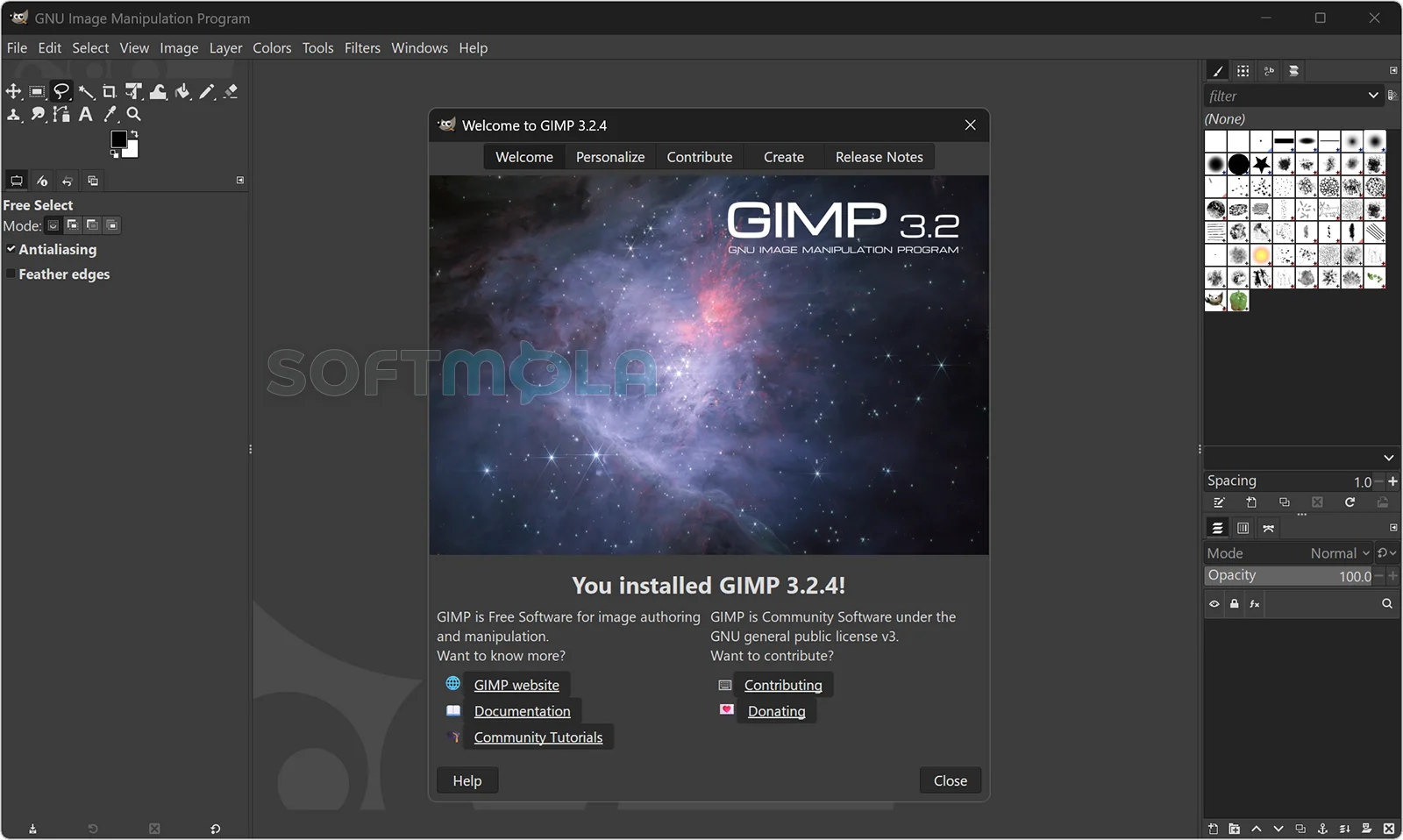
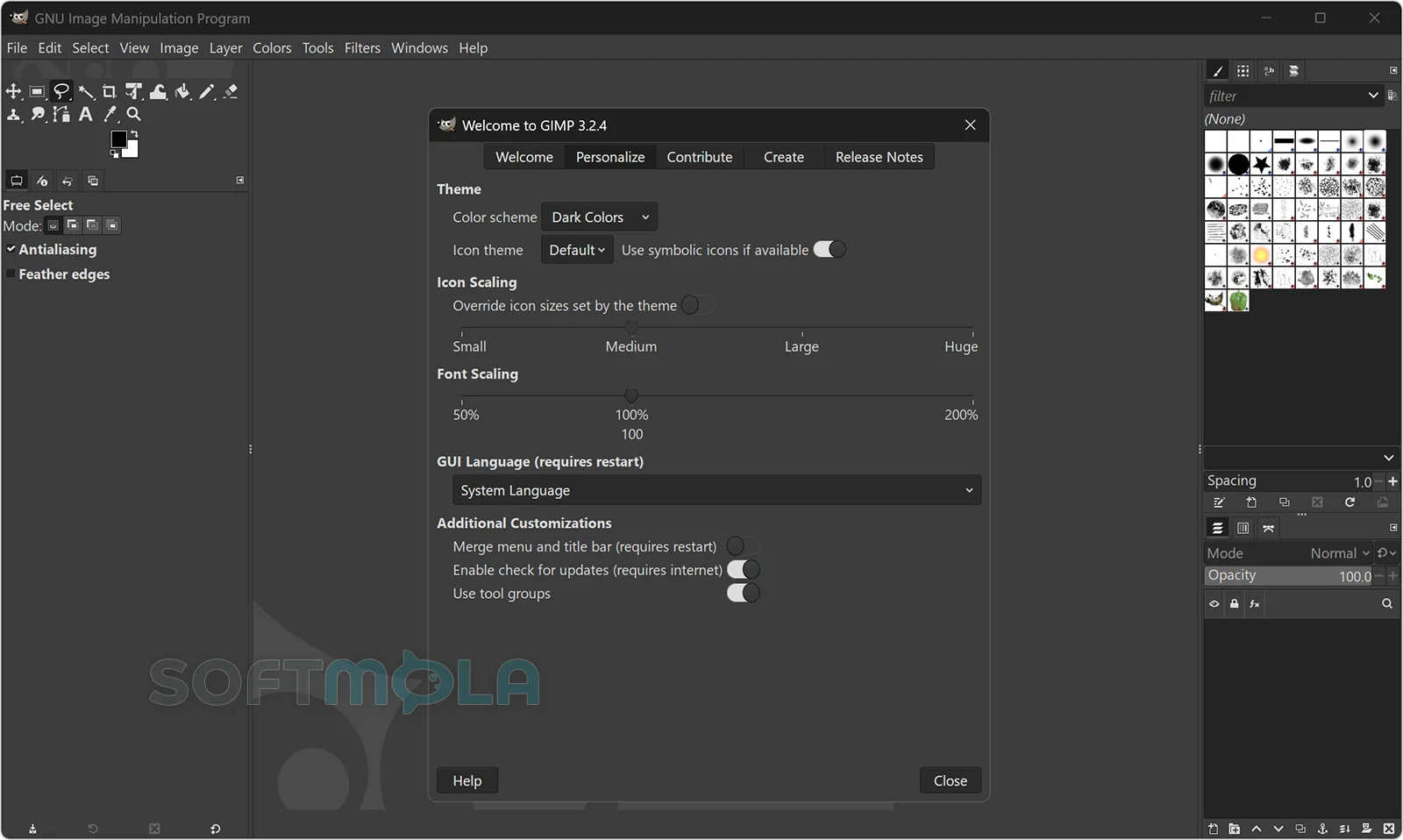
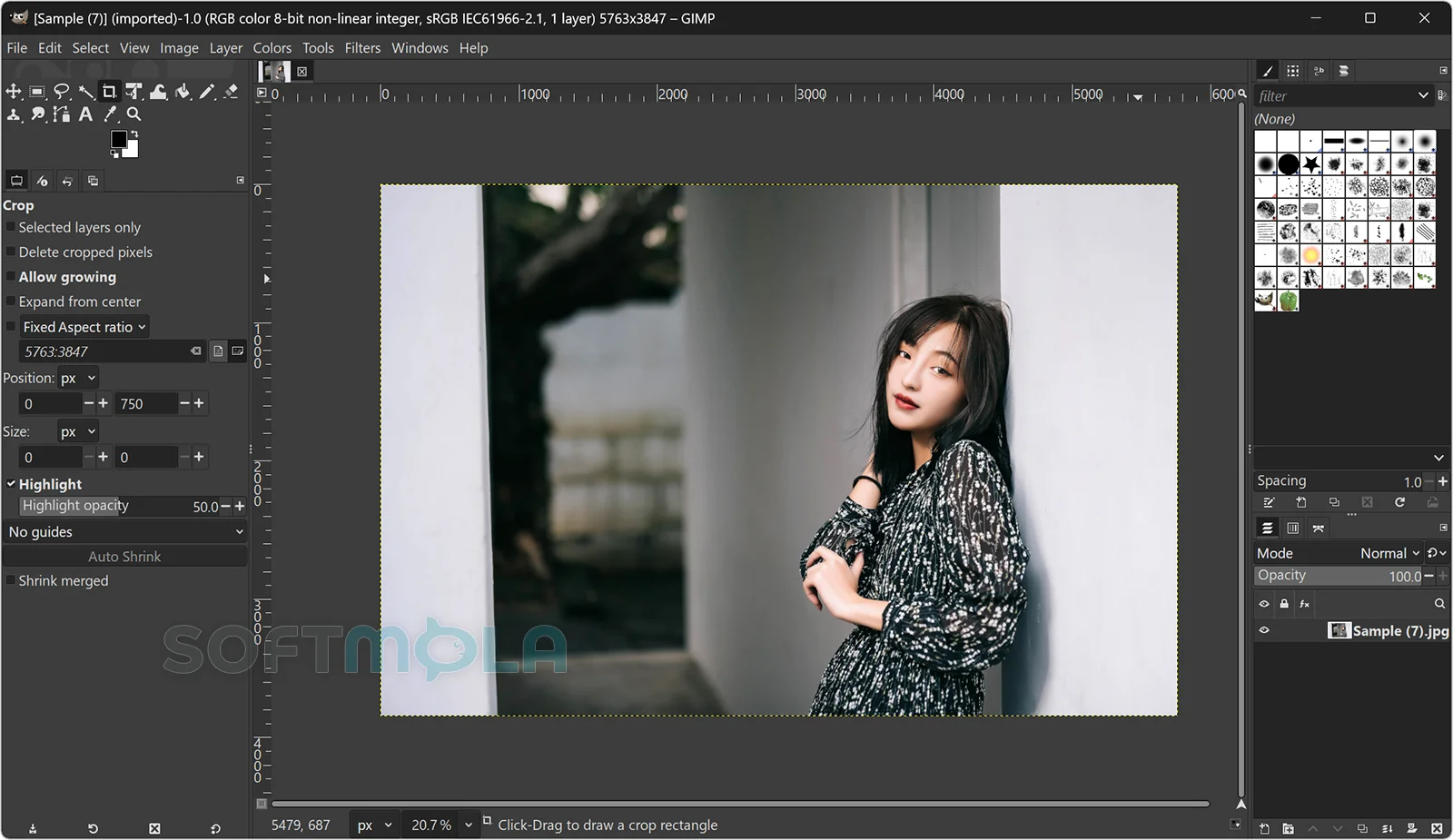
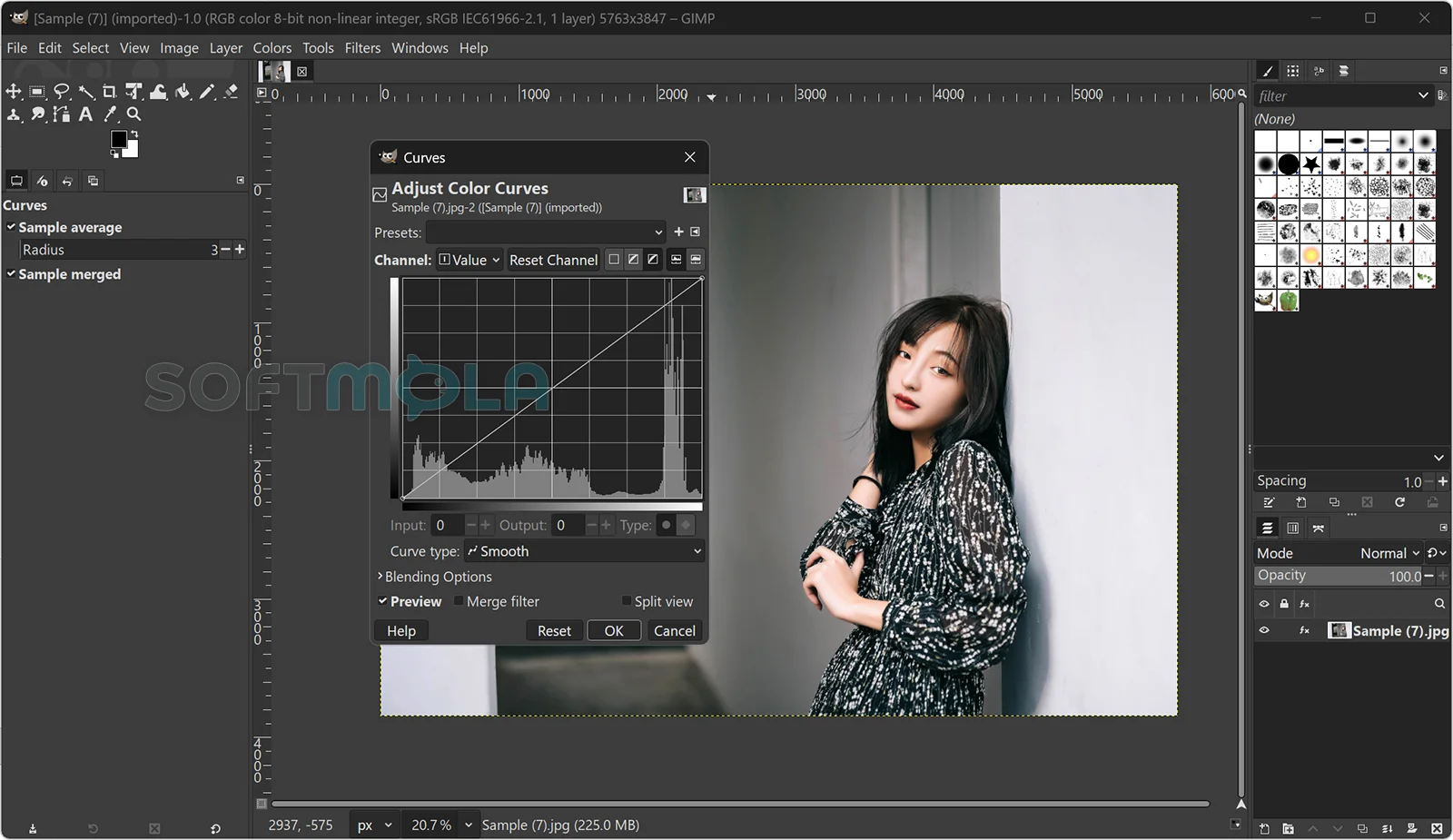
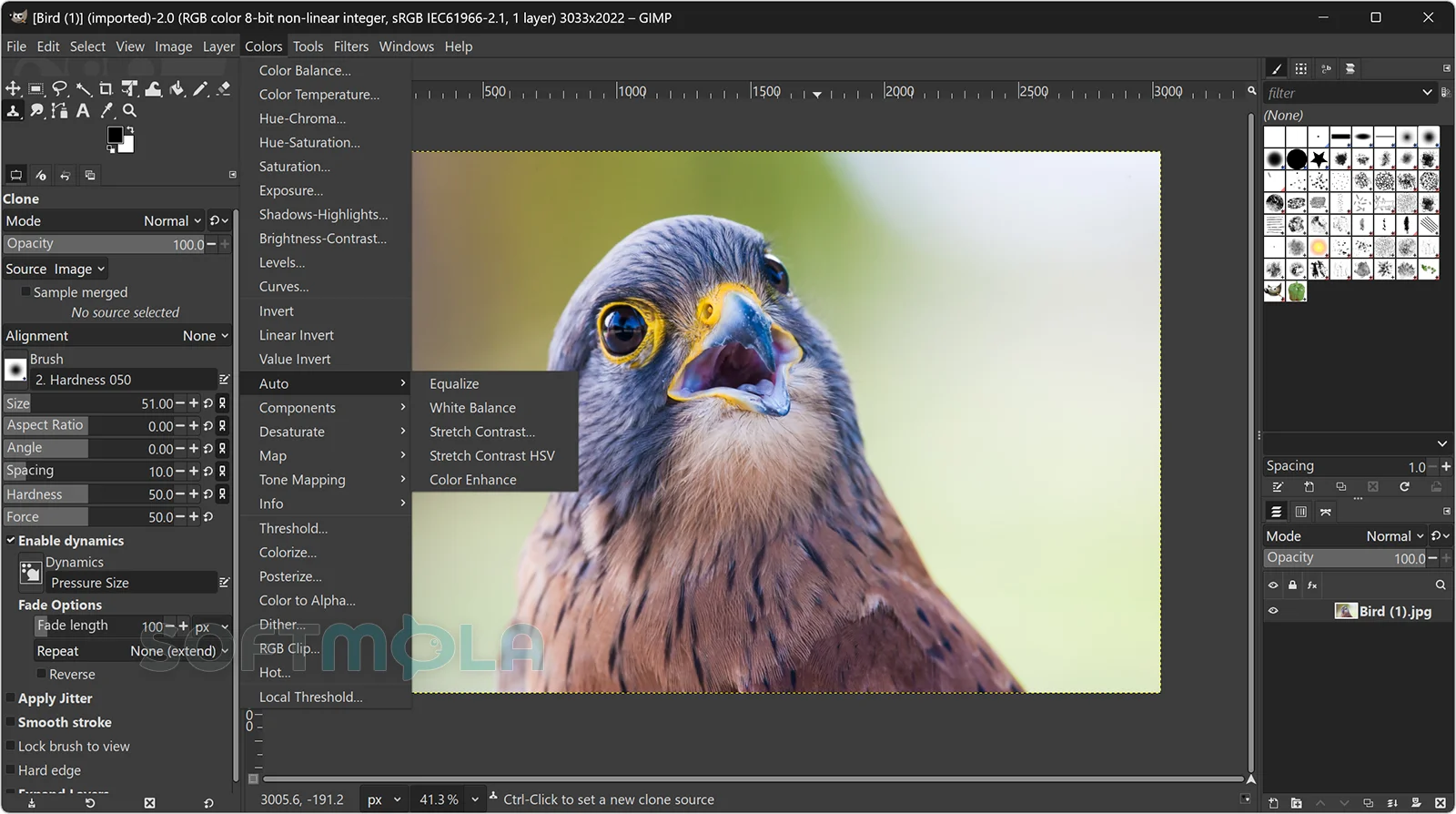
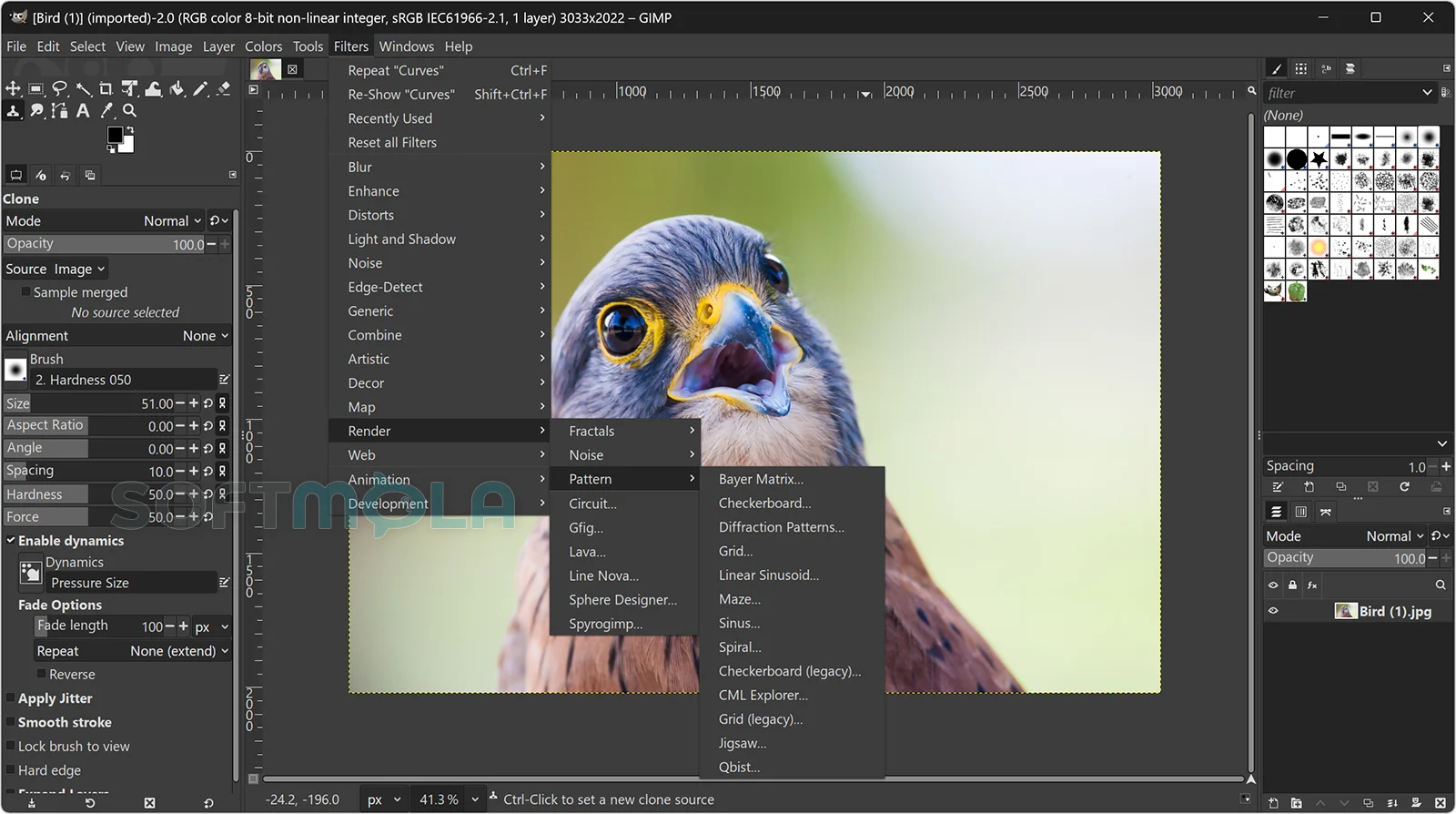
Table of Contents
GIMP is a free, open-source image editor for Windows that handles photo correction, retouching, compositing, digital painting, and graphics preparation without a subscription. Its toolset is broad enough for photographers, illustrators, content creators, students, and small teams that need serious raster editing but do not require a tightly integrated commercial design ecosystem.
The current stable release is GIMP 3.2.4, available as an official 64-bit Windows installer for x86-64 and ARM64 PCs. Windows 10 remains supported through the traditional .exe installer, while the Microsoft Store package now requires Windows 11 or Windows Server 2022 because of a packaging change designed to preserve user settings and add-ons during upgrades.
GIMP for Windows is most useful when control, file ownership, and cost matter more than cloud collaboration. It runs locally, does not require a subscription, and provides a deep set of editing tools that can grow with the user. The trade-off is a steeper learning curve and a workflow that can feel less streamlined than premium editors built around large commercial creative suites.
GIMP Review
GIMP has long been known as a capable alternative to paid raster editors, but the 3.2 generation is more than a maintenance update to an old desktop program. The current release builds on the major architectural changes introduced in GIMP 3.0 and adds a more modern approach to editable layers, effects, text, and external assets. It remains community-developed free software under the GNU General Public License, with no paid tier that locks away core editing functions.
The interface is practical rather than immediately elegant. Most work happens in a single-window layout with the toolbox, canvas, and dockable panels for layers, brushes, tool settings, history, paths, and channels. Experienced image editors will recognize the overall logic, but new users may need time to understand GIMP-specific concepts and menu locations. The application offers extensive customization, yet that flexibility can also make the workspace feel dense until panels and shortcuts are arranged around a regular workflow.
For everyday photo editing, the software covers the essentials well. Users can crop, straighten, resize, correct exposure and color, remove distractions, sharpen details, and combine multiple images with layers and masks. Selection tools support both quick jobs and careful cutouts, while cloning, healing, perspective correction, and transform controls handle common repair and composition tasks. GIMP is especially strong for web graphics, thumbnails, simple marketing assets, texture work, and image preparation where precise pixel-level control matters.
The biggest improvement in GIMP 3.2 is its expanding non-destructive workflow. Filters can remain editable instead of permanently changing pixels, and they can be stacked on layers, channels, or pass-through layer groups. The release also introduces editable vector layers and link layers. A vector layer keeps paths, fills, and strokes adjustable, while a link layer references an external image and can update when that source changes. These additions reduce the need to duplicate layers simply to preserve an earlier state, although the workflow still requires users to understand when an element must be rasterized for destructive editing.
Performance depends heavily on image dimensions, layer count, filters, and available memory. GIMP uses disk-backed memory management and can work with large documents, but complex compositions and demanding effects can still feel slower than lightweight photo apps. It is not primarily designed as a fast one-click enhancer, nor does it center its experience on automated AI editing. Users who prefer manual control will see that as a strength; those expecting automatic subject replacement, generative expansion, or cloud-based collaboration may find the experience less convenient.
File compatibility is broad. GIMP works with common formats such as JPEG, PNG, GIF, TIFF, PDF, PSD, DDS, OpenEXR, and its native XCF project format. GIMP 3.2 also improves Photoshop-related import support, adds PSB export, supports more layer styles, and can import selected Photoshop filter presets and patterns. Compatibility is still not the same as full fidelity: complex documents created in another editor may open with differences in effects, text, linked assets, or layout. For reliable ongoing work, XCF remains the safest project format, with a separate export used for delivery.
Privacy is a notable advantage for users who prefer local software. The GIMP project states that the application does not collect or transmit personal data and includes no advertisements or trackers. Official desktop packages may check a static file for updates over HTTPS no more than once a week. Users should still review image metadata before publishing, and third-party stores or unofficial packages may follow different data practices. Obtaining the program from an official distribution channel is therefore more important than choosing a similarly named package from an unrelated source.
GIMP is relevant in 2026 because it offers unusually deep editing capability without a recurring fee, account dependency, or forced cloud storage. It suits independent creators, education, occasional professional work, open-source environments, and anyone who wants a powerful local editor. A commercial alternative may be more appropriate for studios that depend on exact Adobe document interchange, polished team collaboration, specialized prepress workflows, or extensive generative AI features.
Key Features of GIMP
Layer-Based Editing and Masks
Layers let users build a composition from separate images, text, paint, and effects rather than editing everything on one flat canvas. Layer groups keep complex files organized, while opacity settings and blending modes control how elements interact. This structure is useful for photo composites, product graphics, banners, and any project that may need revisions later.
Layer masks hide or reveal parts of a layer without deleting its pixels. They are central to clean cutouts, selective color correction, gradual blends, and reversible retouching. GIMP also provides channels and selection-to-mask workflows for more precise control when a simple erase tool would be too destructive.
Non-Destructive Filters and Editable Layers
GIMP can apply supported filters as editable layer effects, allowing users to reopen settings and refine the result later. Effects can also be stacked on a pass-through layer group to influence multiple layers below, creating a workflow similar to adjustment layers in other editors. The Vibrance filter is designed to increase selected color intensity while reducing the risk of pushing skin tones too far.
Vector layers preserve editable paths, fills, strokes, and transformations. Link layers keep a connection to an external source file, which is valuable when a logo, illustration, or other shared asset changes during production. These layers must be rasterized before direct pixel painting, but the rasterization can be reverted when users need to return to the editable source.
Photo Retouching and Precision Selections
GIMP includes cloning and healing tools for removing marks, dust, small objects, and skin imperfections. Perspective tools, transform controls, curves, levels, shadows and highlights, and color-balance adjustments support both corrective and creative editing. Users can also work with alpha transparency and detailed color controls when a project needs more flexibility than basic consumer software offers.
Its selection system includes rectangular, elliptical, freehand, fuzzy, color-based, path-based, and foreground-oriented methods. Selections can be expanded, softened, saved to channels, converted into masks, or combined in different ways. This depth is valuable for difficult edges, though it takes more practice than the automatic cutout tools in simpler applications.
Painting, Brushes, and Tablet Support
GIMP provides pencils, paintbrushes, airbrushes, ink tools, smudging, erasing, cloning, and customizable brush dynamics. The MyPaint brush engine expands the range of natural-media behavior, and GIMP 3.2 adds more brushes along with improved handling of canvas rotation, zoom, pressure, and supported stylus rotation.
This makes the program useful for digital sketching, texture painting, pixel art, and paint-over work as well as photography. Dedicated illustration software may offer a smoother drawing-first experience, but GIMP is attractive when painting needs to sit inside a broader image-compositing workflow.
Broad Format Support and RAW Integration
The application imports and exports a wide range of standard, professional, web, game-texture, and archival formats. Recent additions include APNG support, JPEG 2000 export, PSB export, improved PSD layer-style handling, BC7 DDS export, and mixed raster-vector export to SVG and PDF. These options help users move assets between photography, web, print, and game-development tools.
Camera RAW files are handled through integrations with external processors rather than a fully self-contained RAW development module. GIMP supports workflows involving darktable, RawTherapee, and ART, after which the processed image opens for detailed editing. This is flexible, but photographers wanting one unified catalog-and-editing environment may prefer a dedicated RAW application.
Color Management and Print Preparation
GIMP supports ICC profiles, profile assignment and conversion, display color management, soft proofing, rendering intents, and black-point compensation. Soft proofing simulates how an image may appear in a target output color space and can mark colors that fall outside the printable gamut. GIMP 3.2 also shows total ink coverage in its CMYK color selector, which can help when preparing work for a printer with ink limits.
These tools make GIMP more capable than basic image editors, but they do not turn it into a complete publishing or prepress suite. Printing is handled by the operating system’s print engine, and professional production still requires correct profiles, communication with the print provider, and careful output checks.
Plug-Ins, Scripting, and Customization
GIMP can be extended with plug-ins, scripts, brushes, patterns, palettes, and custom shortcuts. Its procedural database and scripting support allow repetitive edits to be automated, while plug-ins can add filters, file formats, and specialized workflows. GIMP 3.2 also includes a GEGL Filter Browser that helps developers inspect available filters and their parameters.
Extensibility is one of the program’s strongest long-term advantages, but compatibility should be checked when moving from older releases. The transition to the GIMP 3 architecture changed the plug-in platform, so an older add-on may need an updated build or replacement before it works correctly. The version 3 application programming interface is intended to remain stable across the major release series, which should make current extensions easier to maintain.
GIMP is a strong choice for Windows users who want substantial photo editing, compositing, painting, and export control without a subscription. Its interface and advanced workflows require patience, and it is not the most seamless option for cloud teams, AI-led editing, or exact interchange with commercial design suites. For local creative work, education, independent production, and users willing to learn a deep toolset, GIMP remains one of the most capable free image editors available.
How to Download and Install GIMP on Windows
GIMP for Windows is officially distributed as a universal .exe installer and through Microsoft Store. The direct installer supports 64-bit Windows 10 and Windows 11 on x86-64 and ARM64 hardware. The Store edition is limited to Windows 11 or Windows Server 2022 and later.
How to Download GIMP
Select the Download for Windows button on this page.
Continue to the verified GIMP download source.
Choose the current stable Windows release rather than a development or nightly build.
Select the direct Windows installer. The current universal package supports both x86-64 and ARM64 devices, so a separate architecture-specific installer is not normally required.
Save the
.exefile to an accessible location, such as the Downloads folder.Wait until the download is complete before opening the installer.
For additional verification, compare the file’s SHA-256 checksum with the value published on the official GIMP download page.
How to Install GIMP with the Windows Installer
Open the downloaded GIMP
.exeinstaller.Approve the Windows User Account Control request if Windows displays one. Check that the installer came from the verified source before granting permission.
Select the installation scope if the setup offers a choice between installing for the current user and installing system-wide.
Review the installation location and other available setup options. Customization options may be more limited when upgrading an existing installation than during a clean installation.
Start the installation and allow the setup program to copy the required files.
Complete the setup and open GIMP from the Start menu or the shortcut created during installation.
Allow GIMP to create its local configuration folders during the first launch. No product key or GIMP account activation is required.
How to Install GIMP from Microsoft Store
The Microsoft Store option provides automatic application updates, but the current package requires Windows 11 or Windows Server 2022. Windows 10 users should follow the .exe installer method instead.
Select the Microsoft Store option from the verified GIMP download source.
Open the official GIMP product page in Microsoft Store. Following the link provided by the GIMP project helps avoid unrelated applications using a similar name.
Choose Get or Install, depending on the label displayed by Microsoft Store.
Wait for Windows to download and install the application.
Open GIMP from Microsoft Store or the Windows Start menu.
Let the application create or migrate its local settings folder during the first launch.
Getting Started with GIMP
Open an existing image or create a new canvas using the dimensions required for the project.
Save editable work in GIMP’s XCF format. XCF preserves layers, masks, paths, editable filters, and other project information that may be lost in a flattened image format.
Use Export when creating a final JPEG, PNG, TIFF, PDF, or other delivery file. Keep the XCF project as the editable master copy.
Review export settings and image metadata before publishing or sharing a file. Photographs may contain camera, location, copyright, or editing information that should not always be distributed.
Install third-party brushes, scripts, or plug-ins only from sources you trust, and confirm that they are compatible with the current GIMP 3 release.
GIMP Pros & Cons
- Free and open - source: GIMP has no subscription fee, and its license permits personal, educational, and commercial use.
- Deep image - editing toolkit: Layers, masks, selections, color controls, painting tools, filters, and retouching features support projects ranging from quick corrections to complex compositions.
- Improved non - destructive workflow: Editable filter effects, vector layers, and externally linked image layers make it easier to revise work without permanently changing the original pixels.
- Local, account - free workflow: The desktop editor can be used without a GIMP subscription or product activation. The GIMP project also states that the official software contains no advertisements or trackers.
- Strong customization and extension options: Users can adapt the workspace, shortcuts, brushes, scripts, and plug-ins to suit photography, illustration, design, or automated image-processing tasks.
- Official support for modern Windows hardware: One universal Windows installer covers x86-64 and ARM64 systems, while the Microsoft Store package provides automatic application updates on supported Windows versions.
- A dense interface for first - time users: Important controls are distributed across tool options, dockable panels, menus, and dialogs. Users coming from simple photo apps may need time to build an efficient workspace.
- Adobe file compatibility is not exact: GIMP can work with PSD files, but advanced Photoshop effects, text settings, linked objects, and other application-specific features may not transfer perfectly.
- Limited cloud and team collaboration: GIMP is primarily a local desktop editor. It does not provide the integrated cloud review, shared libraries, and collaborative production tools found in some commercial ecosystems.
- Fewer built - in generative AI tools: The application emphasizes manual editing and user control rather than automatic image generation, object replacement, or prompt-based expansion.
- No support for 32 - bit Windows: Current GIMP 3.2 Windows builds require a 64-bit x86 or ARM system. Windows versions older than Windows 10 are also no longer supported.
- Some older plug - ins require updates: The move to GIMP 3 introduced a revised plug-in platform, so extensions written for older releases may need a compatible version or replacement.
Frequently Asked Questions
What is GIMP?
GIMP, or GNU Image Manipulation Program, is a free and open-source raster image editor. It is designed for tasks such as photo retouching, image composition, digital painting, graphics creation, and conversion between image formats. It is available for Windows, macOS, Linux, and several other operating systems.
Is GIMP free to use?
Yes. GIMP is free software distributed under the GNU General Public License. There is no premium edition, required subscription, or time-limited trial for the core desktop application. It may also be used for commercial work, including editing photographs or producing graphics for clients and businesses. Third parties are legally allowed to redistribute or even sell GIMP under its license, but paying for an unofficial package does not provide an official premium version.
Does GIMP work on Windows 10 and Windows 11?
Yes, but the distribution method matters. Windows 10 users must install GIMP through the official .exe installer. Windows 11 users can use either that installer or the official Microsoft Store package. Current releases require a 64-bit x86-64 or ARM64 system and no longer support 32-bit Windows. The Store package requires Windows 11 or at least Windows Server 2022 because it uses a newer MSIX capability to preserve GIMP settings and add-ons during updates.
Is GIMP safe to download?
The official GIMP installer is distributed directly by the project, but no software download should be described as risk-free. Use the download button on Softmola, the official GIMP download page, or the official Microsoft Store listing rather than an unrelated mirror or similarly named Store app. The GIMP download page publishes a SHA-256 checksum for the Windows installer, allowing advanced users to verify that the downloaded file matches the official release. The project also warns that it cannot vouch for modified third-party packages.
Does GIMP require an account or subscription?
No GIMP account, paid subscription, or license activation is required to use the standard desktop editor. Images, settings, brushes, and most working data are stored locally on the PC. GIMP can therefore be used without signing into an online creative platform. Using the Microsoft Store distribution may still involve the normal account and service policies applied by Microsoft to Store applications.
Does GIMP work without an internet connection?
Yes. Once installed, GIMP’s main editing, painting, saving, and exporting tools work locally without a continuous internet connection. Internet access may be used for online documentation, downloading updates or plug-ins, opening remote files, or checking whether a newer release is available. The official Windows installer can perform a limited update check through HTTPS no more than once a week. The project states that this check requests a static file and is not used to transmit personal information.
Can GIMP replace Adobe Photoshop?
GIMP can replace Photoshop for many photo-editing, web-graphics, illustration, texture, and compositing tasks, particularly when subscription cost and local control are priorities. It provides layers, masks, advanced selections, color correction, retouching tools, brushes, scripts, and broad format support. It is less suitable when a workflow depends on exact Photoshop document compatibility, Adobe cloud services, shared Creative Cloud libraries, specialized commercial plug-ins, or tightly integrated generative AI features.
Can GIMP open Photoshop PSD files?
Yes. GIMP can import and export PSD files, and recent releases have expanded support for Photoshop-related layer styles and other document elements. However, PSD is a complex application format rather than a universal interchange standard, so some effects, text properties, smart objects, linked assets, or adjustment behavior may change when a file is opened. For continued editing in GIMP, save a working copy in its native XCF format.