

Sandboxie Plus for Windows
Run untrusted programs, installers, and browser sessions inside isolated sandboxes that leave no permanent changes on your Windows system.
Software Information
Sandboxie Plus Screenshots
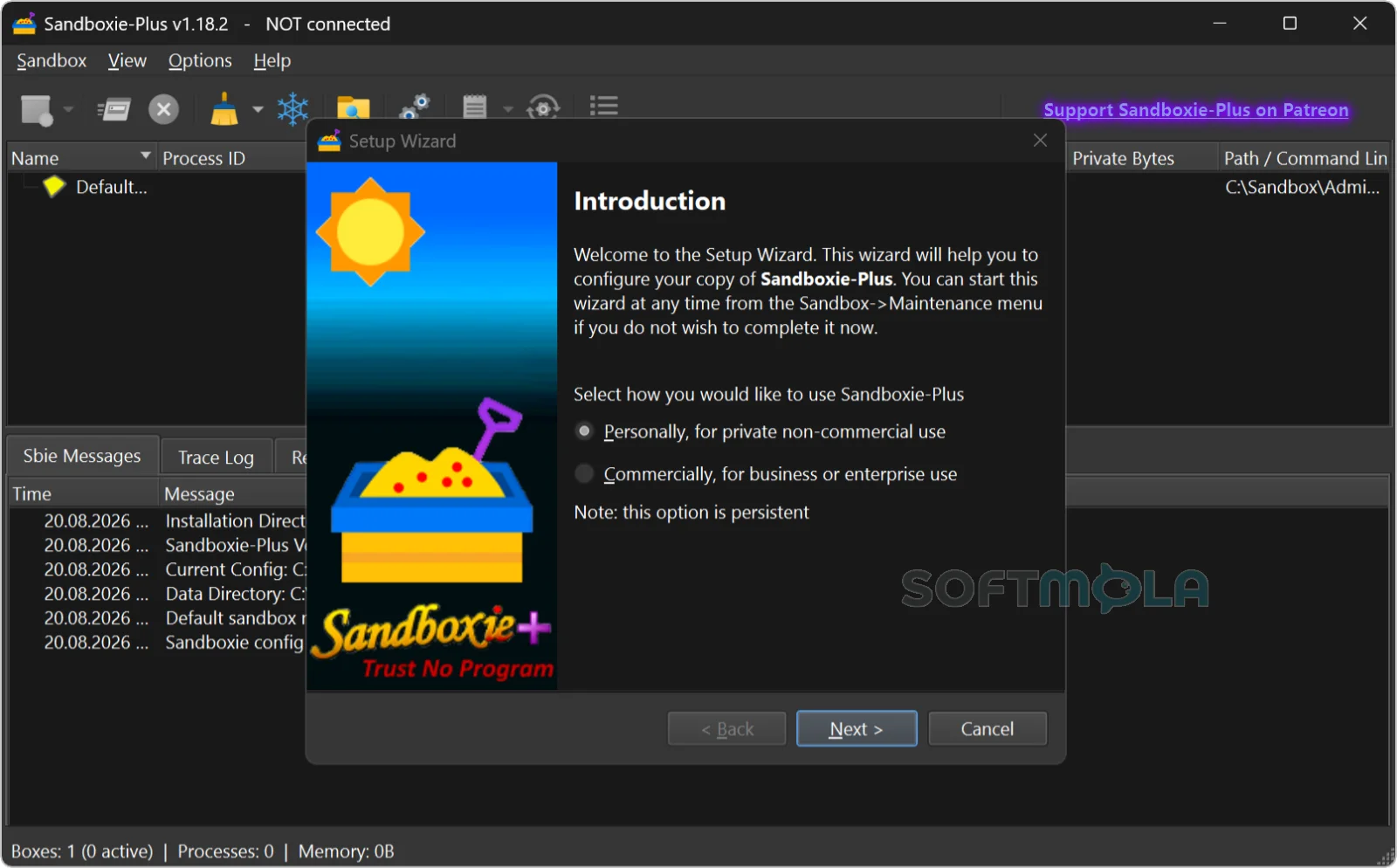
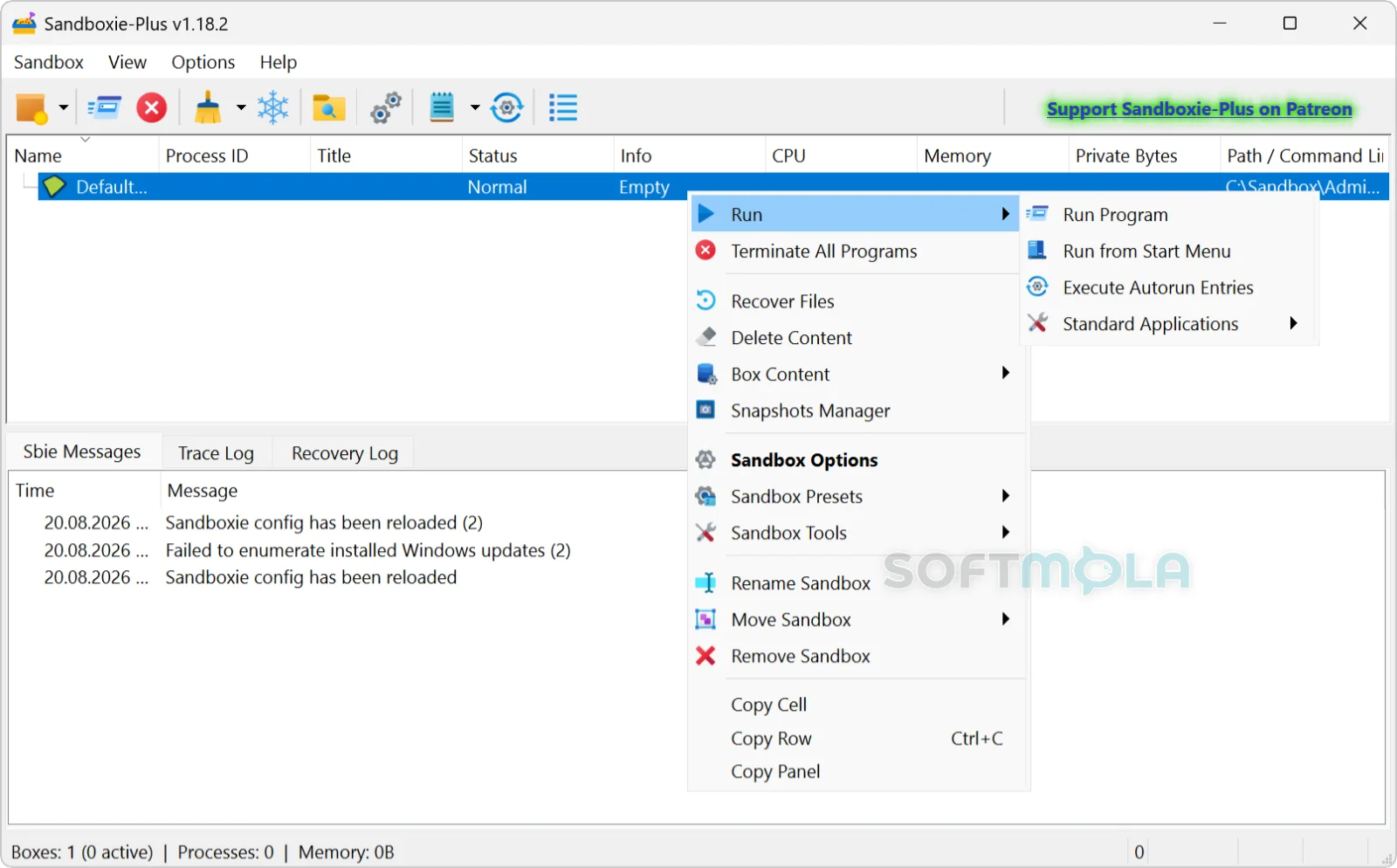
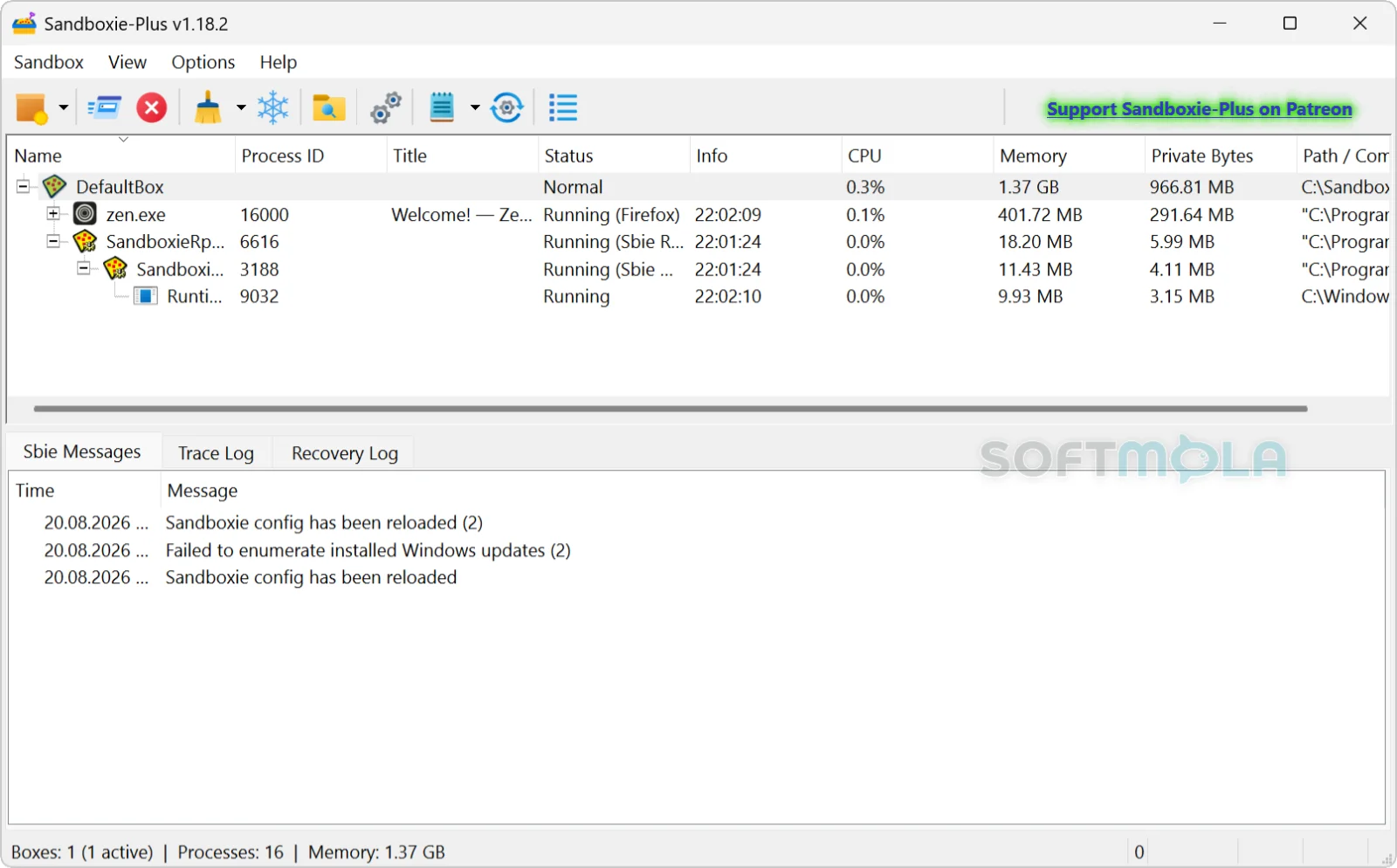
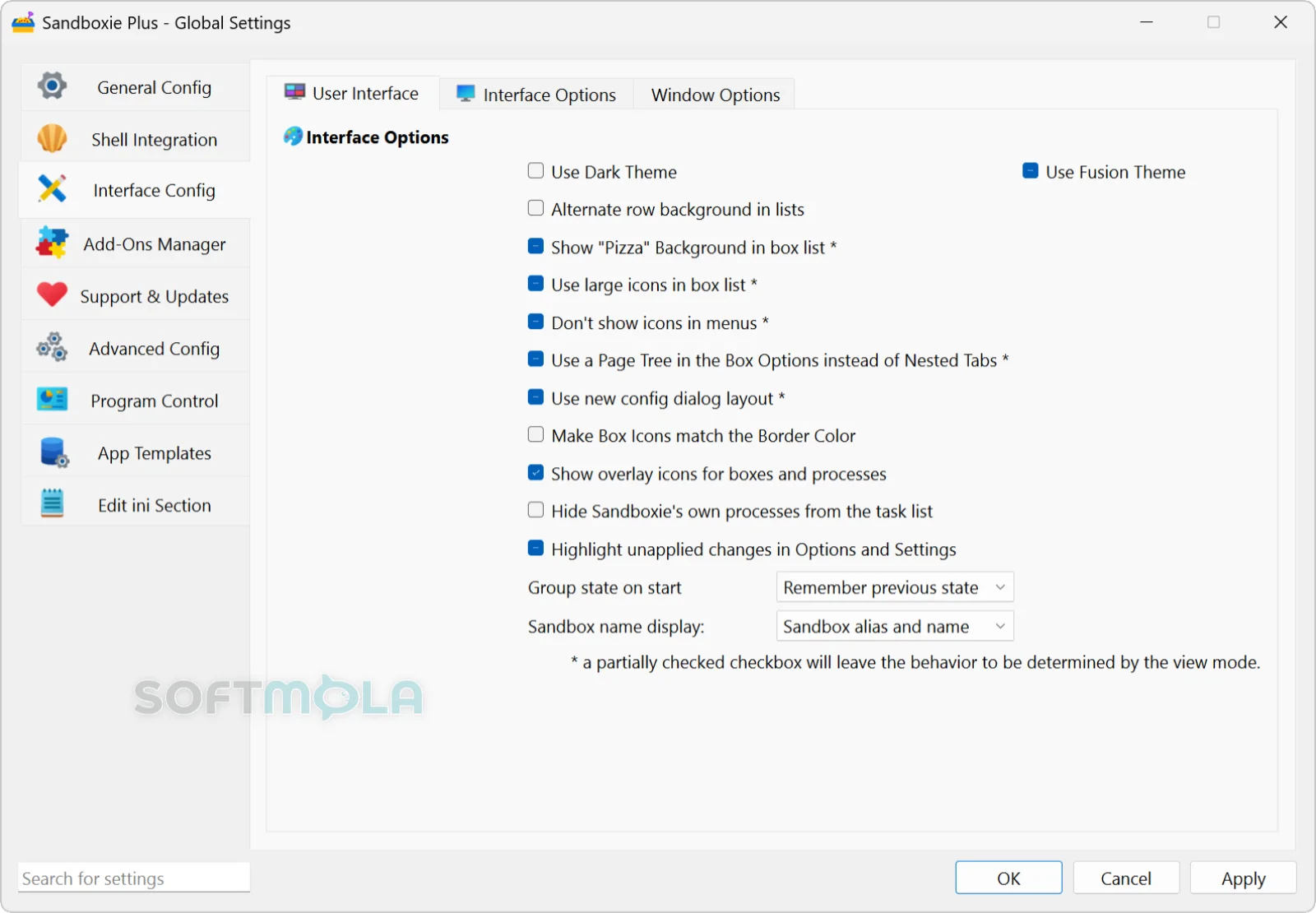
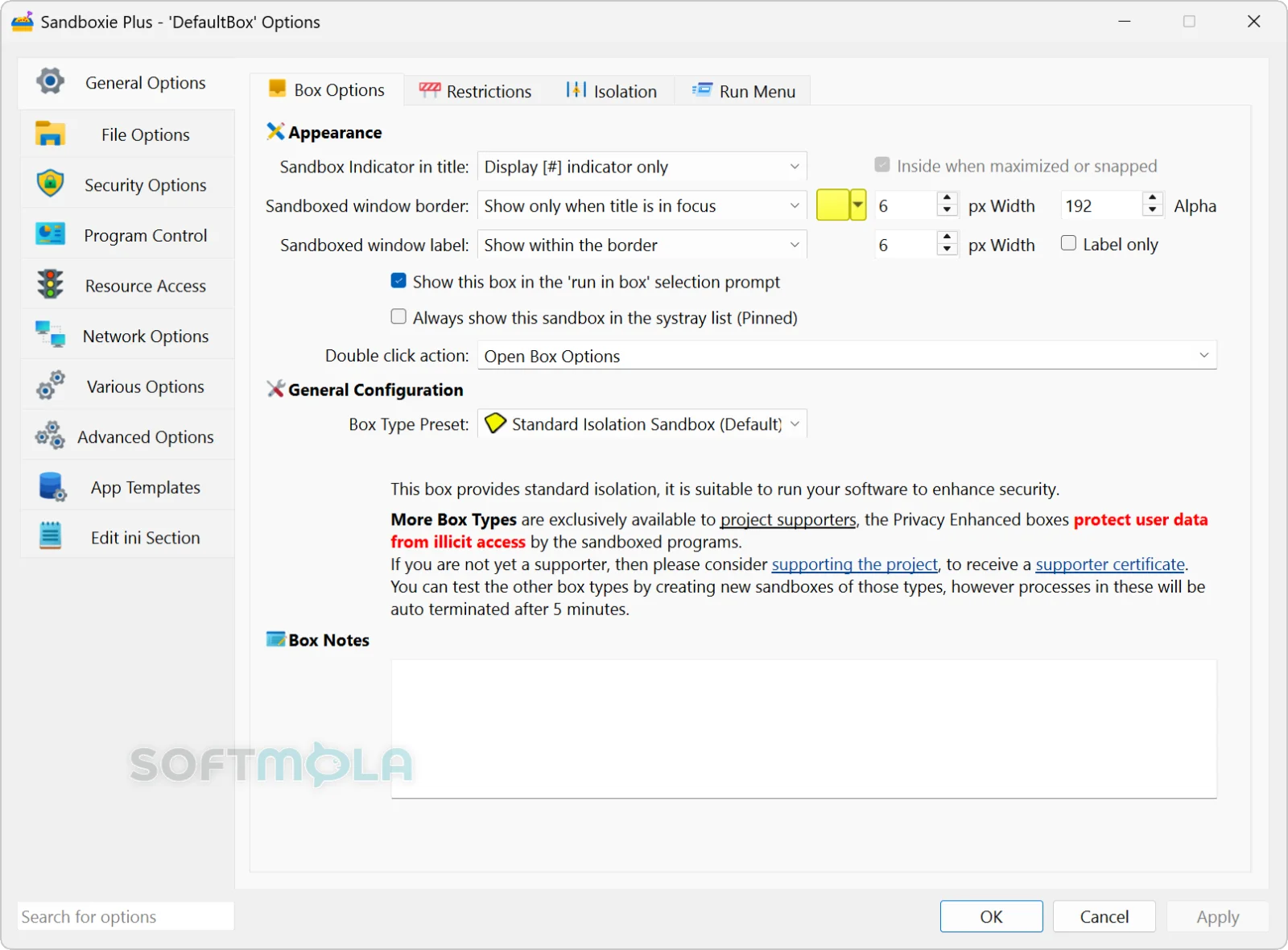
Table of Contents
Sandboxie Plus is a sandbox-based isolation tool for Windows that lets you run programs inside a contained environment, where changes to files and the registry are kept separate from your real system. It creates a secure operating environment in which applications can be run or installed without permanently modifying local and mapped drives or the Windows registry, which makes it useful for controlled testing of untrusted programs and for isolated web browsing.
The software is the actively developed branch of Sandboxie, the long-running Windows sandboxing utility. It has been maintained by David Xanatos since the project became open source; before that it was developed by Sophos, which acquired it from Invincea, which had acquired it from original author Ronen Tzur. The current project is a community fork that began after the source code release, rather than an official continuation of the earlier commercial product.
For Windows users, the practical appeal is simple: you get a reversible space to open a suspicious attachment, try unfamiliar software, or keep a browser session from touching the rest of the machine — without setting up a full virtual machine.
Sandboxie Plus Review
Sandboxie occupies an unusual position among Windows security tools. It doesn't scan for malware or block phishing sites, and it isn't a replacement for antivirus software. Instead, it changes where a program is allowed to write. Anything a sandboxed application creates or modifies goes into a container that you can inspect, keep, or delete entirely. That model has aged well, because it addresses a problem detection-based tools handle poorly: software that isn't malicious, but is unknown.
The Plus edition is where current development happens. Sandboxie is available in two editions, Plus and Classic, which share the same core components and therefore the same level of security and compatibility — the difference is which features are exposed in the user interface. Classic uses the older MFC-based interface that is no longer developed and lacks native support for newer options, so it isn't recommended for users who want current security controls. For most people evaluating the software today, Plus with its Qt-based SandMan interface is the version worth installing.
Day-to-day use is straightforward once the concept clicks. You right-click a program and run it sandboxed, or configure rules so certain applications always launch inside a box. Sandboxed windows are marked with a colored border so you can tell at a glance what's isolated. Beyond that surface, the configuration depth is considerable — per-box network rules, start and run restrictions, process limits, template-based compatibility fixes — and this is where the learning curve appears. Casual users can rely on defaults; anyone who wants tight control will spend time in the options dialogs or the INI file.
Compatibility is the recurring practical challenge, and the release notes show it plainly. Recent versions have dealt with Chromium browser profile handling, Electron application detection, UWP app support, and various application-specific quirks. Version 1.18.0, for example, focused heavily on Chromium-based browsers such as Chrome, Edge and Brave when using a host profile inside a sandbox, addressing setting resets caused by Chromium's Secure Preferences protection. This pace of fixes is a reasonable signal that the project is maintained, but it also tells you that sandboxing modern software is a moving target. Occasional breakage after Windows or browser updates is part of the experience.
Security posture deserves an honest framing. Sandboxie works through a kernel driver and user-mode hooks, not hardware virtualization, so it is not equivalent to running an untrusted program in a virtual machine. Sandbox escapes are possible in principle, and the project treats them as bugs to be fixed. The 1.17.3 release resolved several vulnerabilities reported by external researchers, including a local denial-of-service issue triggered from a sandboxed process and a bypass of the EditAdminOnly configuration protection, with users advised to update promptly. That transparency is a point in its favor, but it also underlines that isolation here is a strong barrier rather than an absolute one. Treating a sandbox as a safe place to deliberately execute known malware is a misuse of the tool.
The licensing model needs attention before you download. The core software is free for personal use, and the free tier covers the fundamentals: unlimited sandboxes, snapshots, and per-box network filtering. Several newer capabilities are reserved for users who buy a supporter certificate, and free users see a periodic support reminder. Some advanced options — sandbox encryption, proxy injection and DNS filtering — require an additional Advanced Feature Pack on top of a supporter certificate, and commercial or educational use requires a Business Certificate. That last point matters: the free tier is not licensed for workplace or classroom deployment.
Who benefits most? People who regularly install unfamiliar software, IT staff and support technicians, privacy-minded users who want a disposable browser environment, and anyone who wants a lightweight alternative to spinning up a VM for routine testing. Users who simply want protection from mainstream threats are better served by a good antivirus product, with Sandboxie as an optional extra layer rather than a substitute.
Key Features of Sandboxie Plus
Isolated Sandboxes for Programs and Installers
The foundation is file and registry virtualization. Programs running inside a box see a normal Windows environment, but their writes are redirected into the sandbox folder. You can create virtually unlimited sandboxes and run them alone or simultaneously, isolating programs from the host and from each other, with as many programs in a single box as you need. Deleting a box removes everything the software left behind, which is the cleanest way to trial an application without residue.
Forced Programs and Automatic Isolation
Rather than remembering to right-click every time, you can define rules so specific programs or folders always open sandboxed. This is the setting that turns Sandboxie from an occasional utility into a background habit — a browser, a PDF reader, or a download folder can be permanently confined without changing how you launch them.
Snapshots and File Recovery
Box snapshots are available in the free tier. A snapshot captures the state of a sandbox so you can roll back after an update or a configuration change goes wrong. Alongside it, the recovery system lets you pull genuinely wanted files — a downloaded document, a saved image — out of the sandbox and into your real folders before the box is cleared.
Per-Sandbox Network Firewall
Windows Filtering Platform support is also included in the free version. Each sandbox can have its own network rules, so you can allow one box full internet access while cutting another off entirely. For testing software of uncertain origin, blocking outbound traffic at the box level is often more useful than any content filter.
Privacy and Security Enhanced Box Modes
Privacy-oriented boxes apply a preset rule collection that protects locations potentially containing personal data, while security-enhanced boxes restrict syscall elevation and limit access to device endpoints to a filtered set. Both modes require a supporter certificate. They represent the two directions you can push a sandbox: shielding your data from the application, or shielding the system from the application.
Application Compartment Mode
This mode trades security for compatibility — Sandboxie's token-based isolation scheme is not used, and isolation is limited to the filesystem minifilter plus registry and object callbacks, which can greatly improve compatibility with certain applications. It is the pragmatic option for software that refuses to run under full isolation, and it is a supporter-certificate feature.
Encrypted Boxes and RAM Disk Storage
Encrypted box images mount the sandbox root from an AES-XTS encrypted image, and RAM disk support uses the ImDisk driver to hold box contents in memory, speeding up file access and discarding everything when the disk is unmounted. RAM disk integration comes with a supporter certificate, while encryption additionally requires the Advanced Feature Pack.
Sandboxie Plus remains one of the more capable ways to add containment to a Windows desktop, particularly for users who install and test software often enough that "undo" is worth engineering for. It runs on Windows 7 or higher, 64-bit. The free tier is generous enough for personal use, though the most interesting privacy and security modes sit behind a certificate, and business or educational environments need a paid license from the outset. If your main concern is everyday malware protection, a standard security suite is the better starting point — but if you want a reversible space to run things you don't fully trust, this is a mature and actively maintained option worth trying.
How to Download and Install Sandboxie Plus on Windows
Sandboxie Plus is distributed as a Windows installer executable, available from the download button on this page. There is no Microsoft Store listing. Most users need the standard 64-bit installer; a separate build is provided for ARM64 devices. No account, sign-in, or subscription is required to install and use the free version.
How to Download Sandboxie Plus
Select the download button on this page.
Continue to the verified download source.
Choose the ARM64 build only if your PC uses an ARM processor. Otherwise, use the standard 64-bit installer.
Save the installer to a folder you can find easily.
Wait for the download to finish before opening the file.
How to Install Sandboxie Plus
Close any programs you are actively working in, since the installer sets up a system driver and services.
Open the downloaded installer.
Approve the Windows User Account Control prompt. Administrator privileges are required because Sandboxie installs a kernel driver and services, and the software cannot function without them.
Select your interface language when prompted.
Read and accept the license agreement to continue.
Choose between a standard installation and extracting the files to a directory for portable use.
Remove any earlier Sandboxie or Sandboxie Classic installation if the installer detects one and prompts you, since those editions cannot run alongside Sandboxie Plus.
Decide whether you want a desktop shortcut, then complete the setup.
Open Sandboxie Plus from the Start menu or your desktop.
Before running the installer, confirm you obtained it from the official project source rather than a third-party mirror. Modified builds of security software carry real risk, and the project publishes its installers directly.
Getting Started with Sandboxie Plus
Work through the initial setup prompts, which cover interface preferences and how you want notifications handled.
Run a familiar program sandboxed first — right-click it and choose the Sandboxie option — to confirm the driver is working and to see the colored window border that marks sandboxed applications.
Set up forced program rules for anything you want isolated automatically, such as a browser or a downloads folder.
Review the recovery settings so files you deliberately save inside a sandbox can be moved out before the box is cleared.
Sandboxie Plus Pros & Cons
- Genuinely reversible testing environment: Anything a sandboxed program writes stays in its box, so deleting the box removes the software's traces from your file system and registry.
- Capable free tier: Unlimited sandboxes, box snapshots, and per-sandbox network filtering through the Windows Filtering Platform are all available without a certificate.
- Actively maintained and open source: The project publishes frequent releases with detailed changelogs, and the source code is public, so security fixes and compatibility work can be reviewed.
- Portable mode available: The installer can extract files to a folder instead of performing a standard installation, which suits USB drives or systems where you'd rather not install permanently.
- Fine - grained control for advanced users: Forced programs, process limits, start and run restrictions, and template-based compatibility fixes can all be configured per sandbox.
- Not a substitute for antivirus: Sandboxie contains programs but does not detect or remove malware, so it works alongside security software rather than replacing it.
- Isolation is not virtualization: The tool uses a kernel driver and user-mode hooks, not hardware virtualization, and sandbox escapes have been reported and patched, so it should not be treated as a safe place to run known malware.
- Key modes require payment: Privacy enhanced boxes, security enhanced boxes, App Compartment mode, RAM disk storage, and USB sandboxing all need a supporter certificate, with encryption and proxy injection requiring an additional Advanced Feature Pack.
- Free version shows a support reminder: Personal users on the free tier see a periodic prompt asking them to support the project.
- Compatibility maintenance is ongoing: Browser and Windows updates occasionally break sandboxed applications, and recent releases show regular fixes for Chromium, Electron, and UWP behavior.
Frequently Asked Questions
What is Sandboxie Plus?
Sandboxie Plus is a sandbox-based isolation tool for Windows. It creates contained environments where programs can run or install without permanently modifying your drives or the Windows registry. You can open a browser, an installer, or an unfamiliar application inside a box, inspect what it produced, keep any files you want, and then delete the entire box. It is the actively developed edition of Sandboxie, with a modern Qt-based interface called SandMan.
Who develops Sandboxie Plus?
Sandboxie Plus is maintained by David Xanatos as a community fork of Sandboxie. The original software was created by Ronen Tzur in 2004, then passed to Invincea and later Sophos, which released the source code in 2020. The current project began after that release and is not an official continuation of the earlier commercial product. Development happens publicly, with releases and source code published on GitHub.
Is Sandboxie Plus free?
Sandboxie Plus is free for personal use, and the free tier covers the core functionality: unlimited sandboxes, snapshots, and per-box network filtering. Free users see a periodic support reminder. Several features are reserved for supporters who buy a certificate, including privacy and security enhanced boxes, App Compartment mode, RAM disk storage, and USB sandboxing. Commercial and educational use requires a paid Business Certificate regardless of which features you use.
Can Sandboxie Plus replace my antivirus?
No. Sandboxie Plus does not scan files, detect malware signatures, or block malicious websites. It limits where a program can write, which is a different kind of protection. Most users run it alongside Windows Security or another antivirus product rather than instead of one. Sandboxing complements detection-based tools well, because it addresses software that is unknown rather than software already identified as harmful.
Is Sandboxie Plus safe to use?
Downloading from the official project site or its GitHub releases page gives you installers published by the developer, and the source code is open for review. That said, no sandbox provides absolute containment. Sandboxie works through a kernel driver rather than hardware virtualization, and the project has fixed vulnerabilities reported by external researchers, including issues addressed in version 1.17.3. Keep it updated, and avoid deliberately executing known malware inside a box.
Does Sandboxie Plus work on Windows 11?
Yes. The project lists Windows 7 or higher, 64-bit, as its requirement, which covers Windows 10 and Windows 11. Recent releases include a Windows 11 context menu option and ongoing compatibility work for modern applications. A separate installer is provided for ARM64 systems, though ARM64 support is offered on a trial basis for free users and fully unlocked with a certificate.
Do I need administrator rights to run it?
Yes. Sandboxie Plus installs a kernel driver and system services, and those require administrator privileges. This applies to portable mode as well: extracting the files to a folder avoids a traditional installation, but the driver and service still need to load, so the application will request elevation when started. There is no configuration that allows the sandboxing engine to run without administrative access.
Is there a portable version?
Yes, in a sense. The official installer includes an option to extract all files to a directory for portable use instead of installing normally. This keeps the program folder self-contained and is convenient for USB drives or for keeping Sandboxie off your system drive. Because the driver still needs to be loaded, portable mode is not fully independent of the host system and still requires administrator rights at launch.