

O&O ShutUp10 for Windows
Portable antispy tool that brings Windows 10 and Windows 11 privacy, telemetry, and Copilot settings into one guided interface.
Software Information
O&O ShutUp10 Screenshots
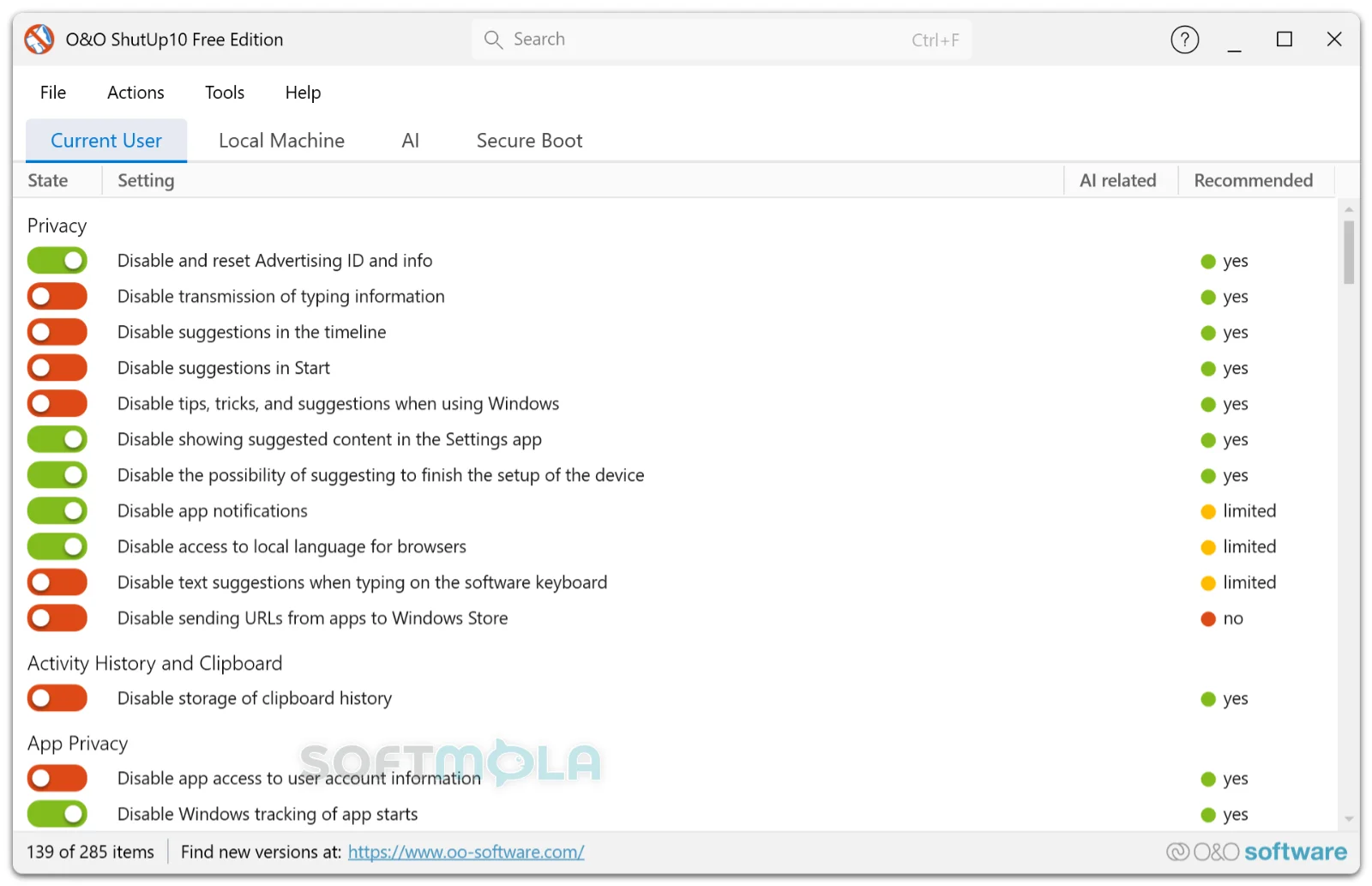
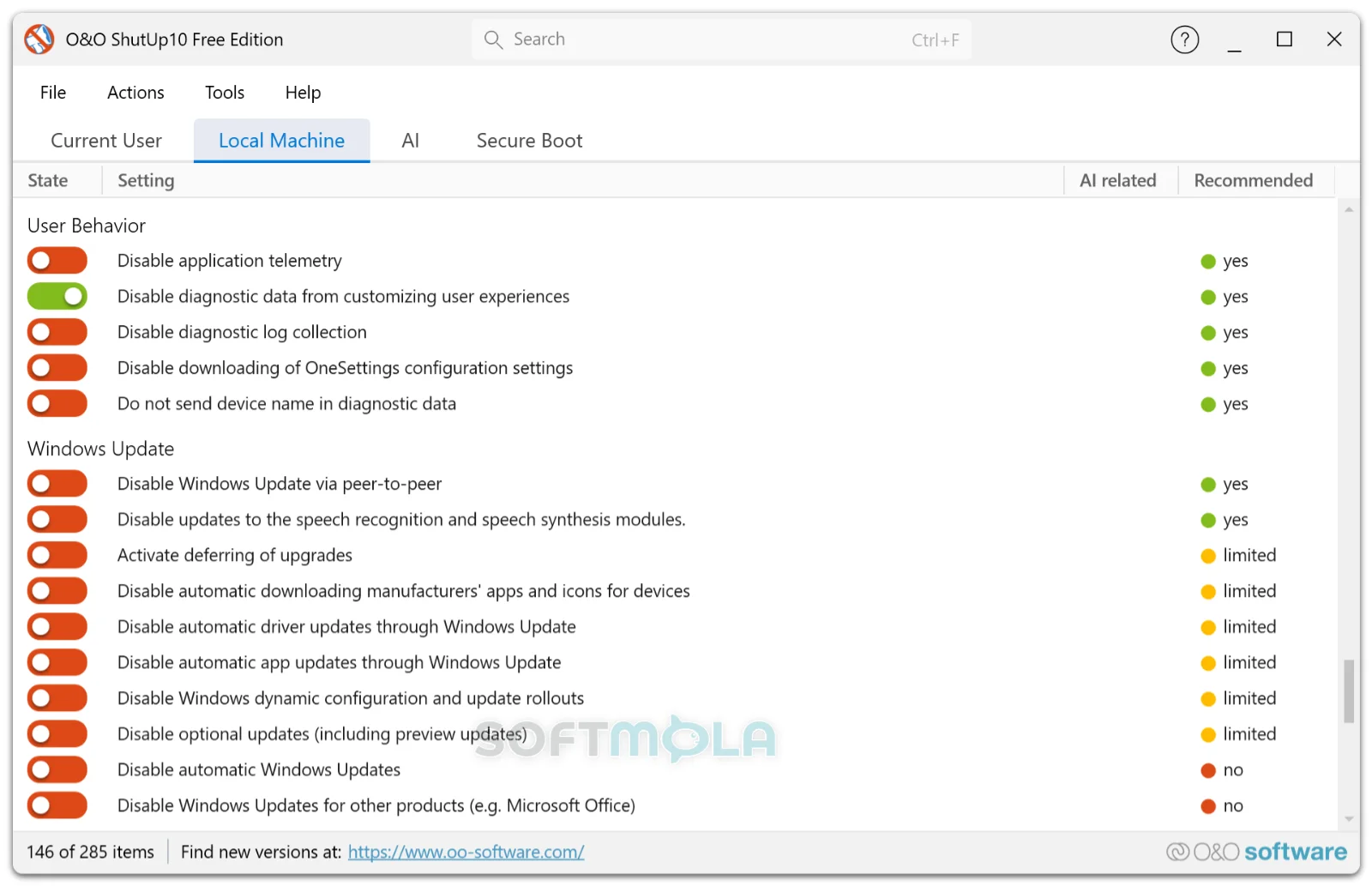
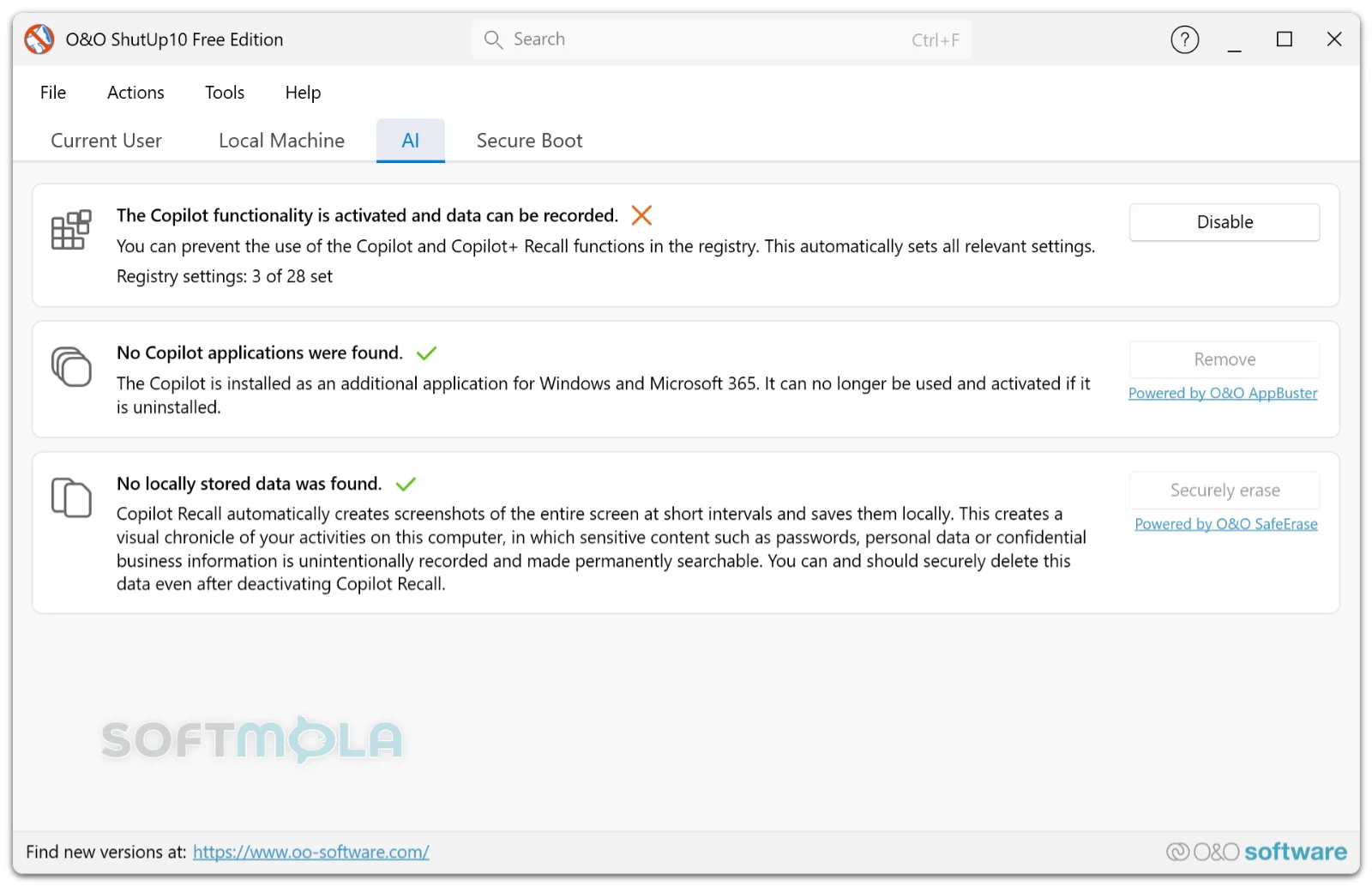
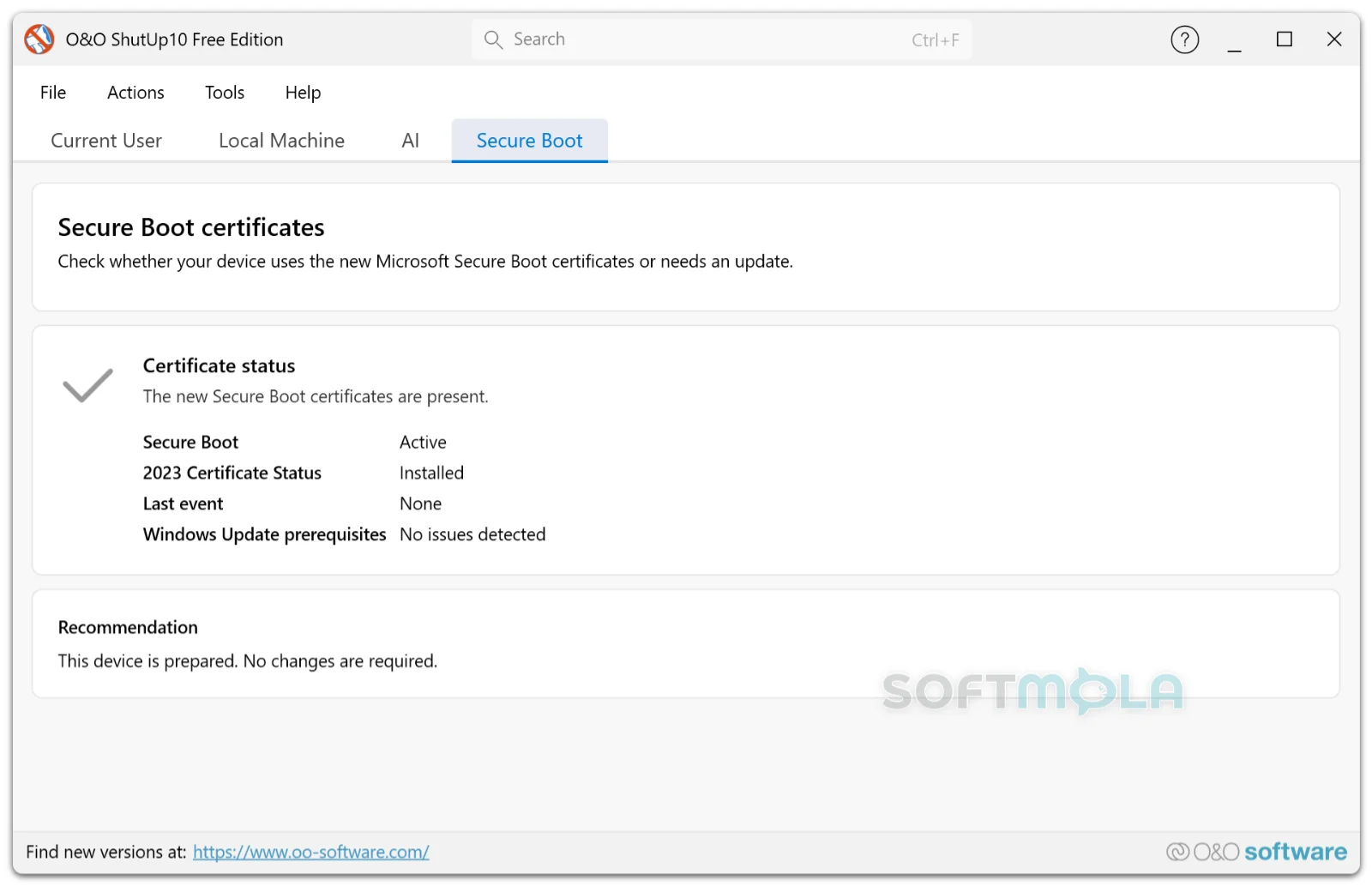
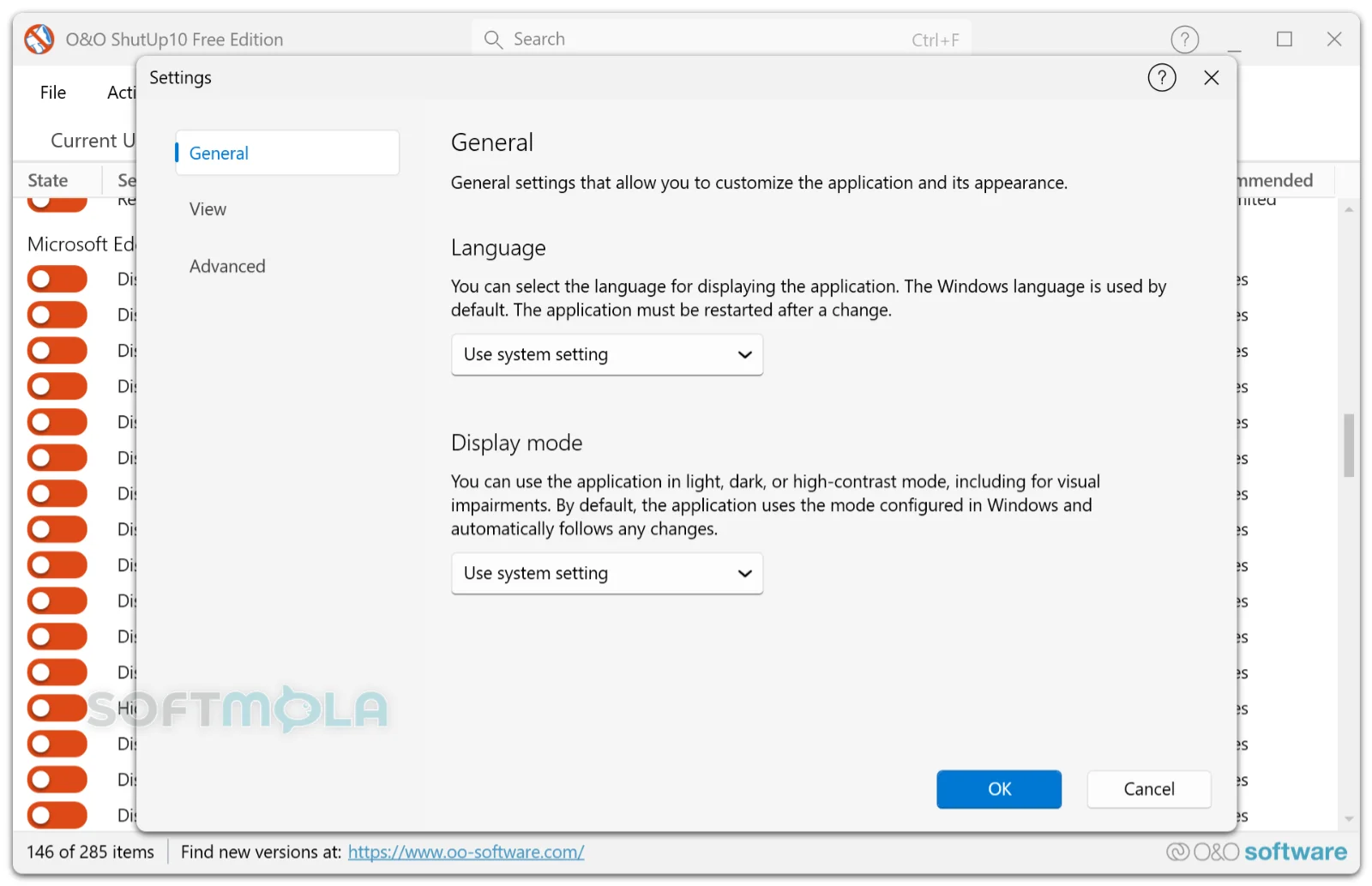
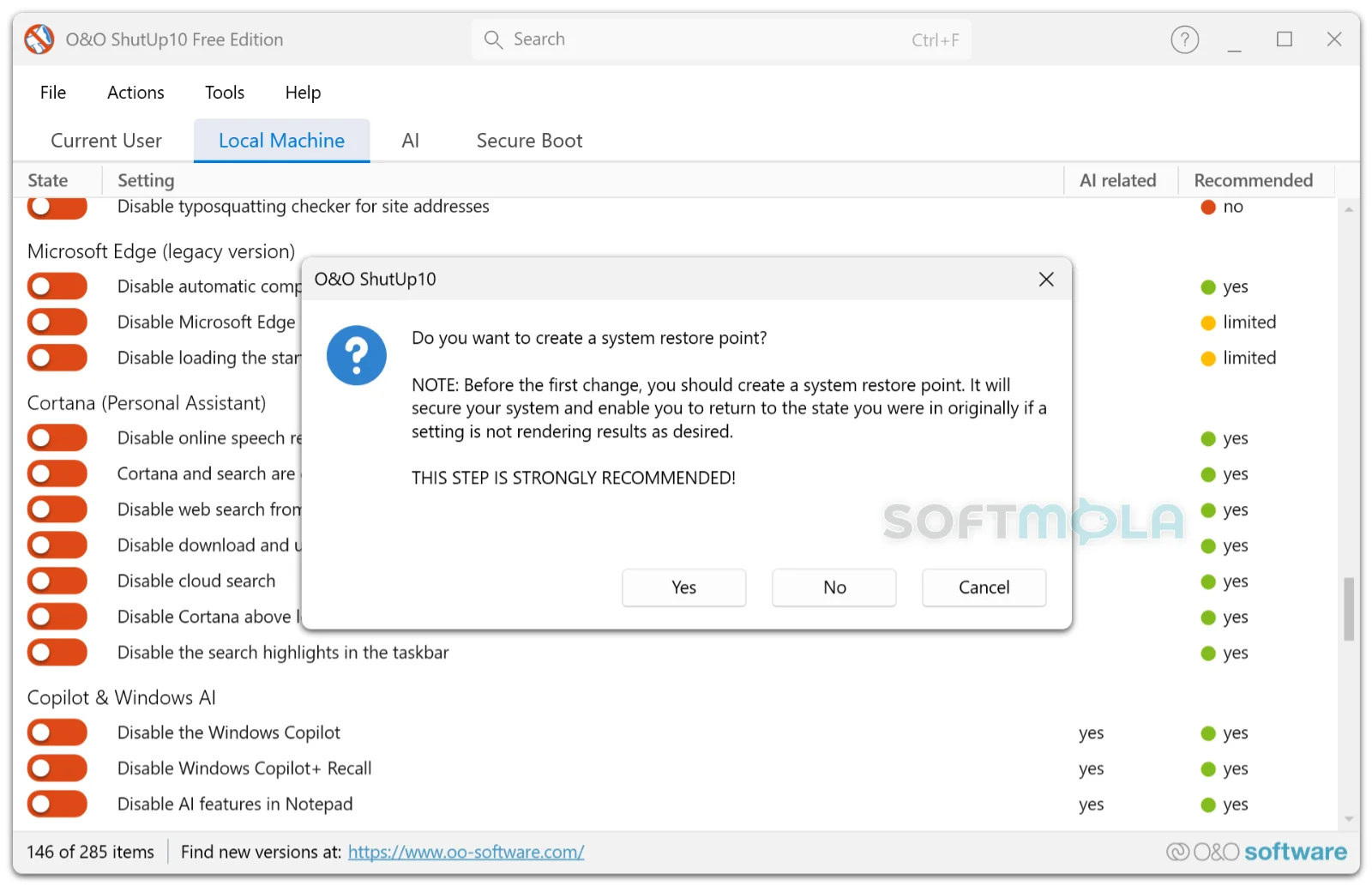
Table of Contents
Windows 10 and Windows 11 hide dozens of data-related switches across the Settings app, Group Policy, and the registry. Some control telemetry, some govern what apps may read, and some decide whether Windows suggests content or syncs your activity. O&O ShutUp10 for Windows exists to pull those scattered controls into a single list you can actually read and act on. Developed by the Berlin company O&O Software GmbH, this free antispy tool provides one interface for managing almost 300 privacy-related settings that are otherwise spread across the Windows Settings app, Group Policy, and the Windows Registry.
The tool has been around since the early days of Windows 10, and it still works the way people remember: a single file, no setup wizard, no account. The current release is build 3.3.1119, roughly 78 MB, multilingual, published on 4 August 2026, compatible with Windows 10 and Windows 11, and distributed as a portable application that requires no installation. Separate 64-bit, 32-bit, and ARM64 downloads are offered, the last for devices such as the Surface Pro X. Longtime users may know it as ShutUp10++; recent builds have returned to the plain O&O ShutUp10 name, now split into a free edition and a paid Premium edition.
It suits anyone who wants less Windows chatter without learning registry syntax: home users tidying a new laptop, privacy-minded people auditing an existing install, and technicians who want a portable checklist on a USB stick.
O&O ShutUp10 Review
The appeal here is scope combined with restraint. Instead of promising to "optimize" your PC, the program does one job: it exposes privacy, telemetry, app-permission, and security-related switches and lets you decide. On launch it scans your current settings and presents them as an organized list of toggles, grouped into a Current User tab for the logged-in account and a Local Machine tab for system-wide items such as telemetry, error reporting, and biometric features. Clicking a row expands a description explaining what changes and whether a reboot is needed, which is the difference between informed configuration and blind switch-flipping.
That explanatory layer matters more than the raw number of settings. Every option carries a recommendation level: recommended, meaning safe for most users; limited recommended, generally safe but potentially affecting certain features; and not recommended, which may break important Windows functionality. Most people will use the Actions menu, apply everything marked recommended in one pass, and stop there. Power users can go further, though the honest reading of "not recommended" is that turning off Windows Update behavior or Defender-related items trades real protection for marginal privacy gains.
Reversibility is the safety net. Changes are made through documented registry keys and group policy entries — the same mechanisms Windows and administrators already use — rather than by deleting system files or altering boot configuration, and every change can be undone. You can create a system restore point before applying anything, and undo all changes or reset to Windows defaults from the same menu. Changes are also recorded per session, so you can take back the last one or roll back through the history. That structure makes the tool comparatively low-risk to experiment with, though a restore point is still worth creating before a heavy pass.
Two practical caveats deserve attention. First, the download is far larger than veterans expect. The application now bundles all runtime dependencies into a single executable — roughly 76 MB against about 4 MB previously — so it runs reliably without relying on pre-installed frameworks; the functionality is unchanged, only the packaging. Second, and more importantly, this is a manual tool. Feature updates and some cumulative updates can quietly re-enable settings Microsoft considers part of the experience, which means re-running the program periodically is part of the routine rather than an occasional chore. O&O positions the paid Premium edition specifically around this problem: it monitors your chosen settings continuously and restores them automatically after Windows updates or system changes.
Permissions are the other friction point. Because it edits machine-level values, elevation is unavoidable for system-wide items. The free edition runs as a standard user for user-specific settings and offers a Restart as Admin option when machine-wide changes require elevation, so expect at least one UAC prompt during a full pass.
It is worth being clear about what this software is not. It is a privacy configuration utility, not antivirus, not a VPN, and not anonymity software. Disabling telemetry reduces what Windows reports about your device; it does nothing about tracking by websites, browsers, or the accounts you sign into. Independent lab certifications of the kind published for security suites do not exist for this category, so judgment rests on the vendor's transparency, the clarity of its documentation, and the fact that changes are visible and reversible. The application is not open source, which some privacy purists will weigh against it, though O&O publishes detailed documentation on what each setting touches.
For the right user, the value is straightforward: an hour of manual registry work compressed into a few minutes, with explanations attached. Users who prefer set-and-forget behavior, or who manage several machines, will find the free edition's manual model repetitive — that is precisely the gap Premium fills. Those who simply want fewer suggestions, less telemetry, and no Copilot on a personal PC will find the free version sufficient.
Key Features of O&O ShutUp10
Centralized Privacy Settings
Both editions expose the same set of nearly 300 settings, spanning telemetry and diagnostic data, location services, Cortana and search, app permissions, advertising and Explorer behavior, Windows Update behavior, and assorted security options. Consolidating them removes the main obstacle to Windows privacy work: knowing where the setting lives in the first place.
Recommendation Levels and Plain-Language Descriptions
Each toggle carries a guidance marker and an expandable explanation of its effect, including whether a restart is required. This is what makes the tool usable by non-specialists, and it also protects against overreach — the three-tier system flags which changes are genuinely safe and which are likely to break something you use.
Portable, Installation-Free Operation
The free edition runs as a standalone executable with no installation, no background services, and no leftover files, which makes it well suited to USB drives and one-off privacy audits. For technicians setting up multiple machines, that portability is the single most practical attribute. The free edition is free of charge for both personal and commercial use.
Restore Points and Undo History
Creating a restore point from inside the application before a bulk change takes seconds and provides a clean rollback path. Combined with per-session change history and a reset-to-defaults action, it means an aggressive configuration can be walked back without reinstalling Windows or hunting registry keys manually.
Copilot and Recall Controls
The AI tab addresses Microsoft's newer features in layers. It bundles the Copilot-related registry settings — disabling Windows Copilot, blocking Recall enablement, removing the taskbar button, and switching off AI features in Paint — then optionally uninstalls detected Copilot+ applications and securely erases data Recall has already stored in the local CoreAIPlatform.00 folder. The distinction between layers is important in practice: the settings layer is fully reversible, whereas app removal cannot be undone by the application and the secure deletion of Recall data is permanent. If your goal is simply to keep Copilot and Recall switched off, the settings layer alone is enough.
Profiles, Export, and Command-Line Support
Configurations can be saved as named profiles, reloaded after a reinstall or a major update, and exported to a file for use on another machine, with command-line parameters available for applying profiles through deployment scripts. Saving a profile before a feature update is the cheapest insurance against having to redo the work by hand afterwards.
Secure Boot Certificate Check
A Secure Boot tab reports whether the device is using current Microsoft Secure Boot certificates or needs an update, showing certificate status and a recommended action. It sits slightly outside the privacy remit, but it surfaces a firmware-level detail most users would never check otherwise.
Premium Edition for Automatic Enforcement
The Premium edition adds a background service that re-applies your chosen settings automatically after Windows updates or other changes, and it does not require end-user administrator rights because the service handles privileged operations. O&O sells it as a one-time purchase rather than a subscription, currently starting at $14.90 against a $19.90 list price, with a trial download and a 30-day money-back guarantee. Whether that is worthwhile depends on how much the reset-after-update cycle bothers you.
O&O ShutUp10 remains one of the most sensible ways to reduce what Windows shares without touching the registry directly, largely because it explains its own recommendations and makes changes easy to reverse. Home users, privacy-conscious individuals, and technicians who configure machines regularly will get the most out of the free edition, provided they accept that settings need rechecking after significant Windows updates and that a privacy utility does not replace antivirus or careful browsing habits. If you want that maintenance handled automatically, the Premium edition is the logical step up; if you simply want a clear look at what your PC is reporting and the ability to turn parts of it off, the free download is a reasonable place to start.
How to Download and Install O&O ShutUp10 on Windows
The free edition is distributed directly by O&O Software as a portable executable, so there is no setup wizard, no account, and no subscription involved. Use the download button on this page or the developer's official site — the file should come from one of those two sources rather than a mirror or repack. If you want the automatic enforcement features instead, the Premium edition is a separate paid download with its own installer.
How to Download O&O ShutUp10
Select the download button on this page to continue to the official source.
Choose the build that matches your PC: the 64-bit version suits most computers, with 32-bit and ARM64 alternatives offered for older systems and Windows-on-ARM devices such as the Surface Pro X.
Save the file to a folder you can find again, such as Downloads or a dedicated tools folder.
Wait for the download to finish before opening it. The file is around 76 MB because all runtime components are now bundled into the executable, so it is larger than older releases.
How to Run O&O ShutUp10
The free edition does not install anything, so there is nothing to uninstall afterwards.
Open the downloaded executable directly from the folder where you saved it.
Approve the Windows User Account Control prompt if it appears, and check that the publisher shown is O&O Software.
Let the program read your current configuration — it scans existing settings and displays them as a list of toggles on launch.
Use the Restart as Admin option when prompted if you want to change machine-wide settings, since system-level entries need elevated rights.
Keep the executable in a permanent folder if you plan to re-run it after Windows updates, or copy it to a USB drive for use on other machines.
Getting Started with O&O ShutUp10
Create a system restore point from within the application before applying anything, so you have a clean rollback path.
Read the recommendation level on each setting, then apply the recommended group first rather than switching everything off at once.
Open the AI tab if you want Copilot and Recall disabled, and stop at the settings layer unless you are certain about removing applications or erasing stored data permanently.
Save your configuration as a profile and export it, which makes it quick to reapply after a major Windows update or a reinstall.
Restart the PC if any applied setting indicates a reboot is needed before it takes effect.
O&O ShutUp10 Pros & Cons
- Wide setting coverage in one place: Both editions expose the same set of nearly 300 privacy-related settings, removing the need to hunt through Settings, Group Policy, and the registry separately.
- Guidance attached to every switch: Each option carries a recommendation level and a plain-language description, so you can tell the difference between a safe change and one that affects Windows functionality.
- No installation and no account: The free edition runs as a standalone executable with no background services and no leftover files, which makes it convenient for USB drives and one-off privacy audits.
- Changes are reversible: Settings are applied through documented registry keys and group policy entries and can be undone, with a system restore point and per-session undo history available before you commit.
- Free for personal and commercial use: The Free Edition carries no charge for either use case, and paid features are clearly separated into the Premium product rather than locked behind prompts.
- Settings need re - checking after Windows updates: Feature updates can re-enable options you switched off, so the free edition requires periodic re-runs — automatic restoration of settings is a Premium feature.
- Much larger download than older versions: All runtime dependencies are now bundled into the executable, taking it from roughly 4 MB to about 76 MB, which is noticeable on metered or slow connections.
- Elevation required for system - wide changes: Machine-wide settings need administrator rights, with a Restart as Admin option offered when elevation is required, so it is not usable in full on locked-down work devices.
- Not a security product: It reduces what Windows reports about your device but does nothing against malware, phishing, or web tracking, and it does not replace antivirus.
- Aggressive use can break functionality: Options flagged as not recommended touch areas such as Windows Update and Defender behavior, and applying them without understanding the consequences can leave a system less protected.
Frequently Asked Questions
What does O&O ShutUp10 actually do?
O&O ShutUp10 is a privacy configuration utility for Windows 10 and Windows 11. It gathers almost 300 privacy-related settings that are normally spread across the Windows Settings app, Group Policy, and the registry into a single interface, then lets you switch them off individually or in bulk. Typical targets include telemetry, advertising identifiers, activity history, location access, app permissions, and Copilot-related features.
Is O&O ShutUp10 free?
Yes. The Free Edition is free of charge for personal and commercial use and requires no installation. There is also a separate paid product, O&O ShutUp10 Premium, sold as a one-time purchase rather than a subscription, with a trial download and a 30-day money-back guarantee. The free version is not time-limited and covers the same set of privacy settings.
Is O&O ShutUp10 safe to use?
No software can be called risk-free, but the tool is well established and its behavior is transparent. It comes from O&O Software GmbH, a long-standing Berlin developer, and it modifies Windows through documented registry keys and group policy entries rather than deleting system files or altering boot configuration, with every change reversible. The real risk is user-driven: switching off options marked as not recommended can disable functionality you rely on. Download only from the official source, and create a restore point before a bulk change.
Does it work on Windows 11?
Yes. The current release is compatible with both Windows 10 and Windows 11, and separate builds are published for 64-bit, 32-bit, and ARM64 systems. Some settings are specific to a particular Windows version or build and will only appear when the tool detects them, so the list you see may differ slightly from another machine.
Can O&O ShutUp10 disable Copilot and Recall?
Yes. A dedicated AI tab disables Copilot-related registry settings, blocks Recall enablement, removes the Copilot taskbar button, switches off AI features in Paint, and can optionally uninstall detected Copilot+ applications and securely erase data Recall has already stored locally. Only the settings layer is reversible — application removal cannot be undone by the program, and the secure deletion of Recall data is permanent. If your goal is simply to keep both features off, applying the settings alone is enough.
Do the settings stay applied after a Windows update?
Not always. Microsoft can re-enable privacy-related options during feature updates and some cumulative updates, so the free edition works best as a task you repeat occasionally rather than a one-time fix. Saving a profile beforehand makes restoring your configuration quick. The Premium edition addresses this directly by monitoring your chosen settings and restoring them automatically after updates or system changes.
Does O&O ShutUp10 replace antivirus software?
No. It is a privacy tool, not a security suite. It does not scan for malware, block phishing pages, or provide real-time protection, and it should be used alongside Windows Security or another antivirus rather than instead of one. Reducing telemetry limits what your device reports to Microsoft; it has no effect on tracking by websites, browsers, or online accounts you sign into.
Can I undo changes if something stops working?
Yes. The program can create a system restore point before you apply anything, and changes are recorded per session so you can reverse the last one or roll back through the history. There is also an action to reset everything to Windows defaults. Individual toggles can be switched back at any time, which makes it practical to test a stricter configuration and retreat if a feature you use breaks.