

Kudu for Windows
Free, open-source Windows maintenance software for cleaning, updating, monitoring, and managing your PC from one place.
Software Information
Kudu Screenshots


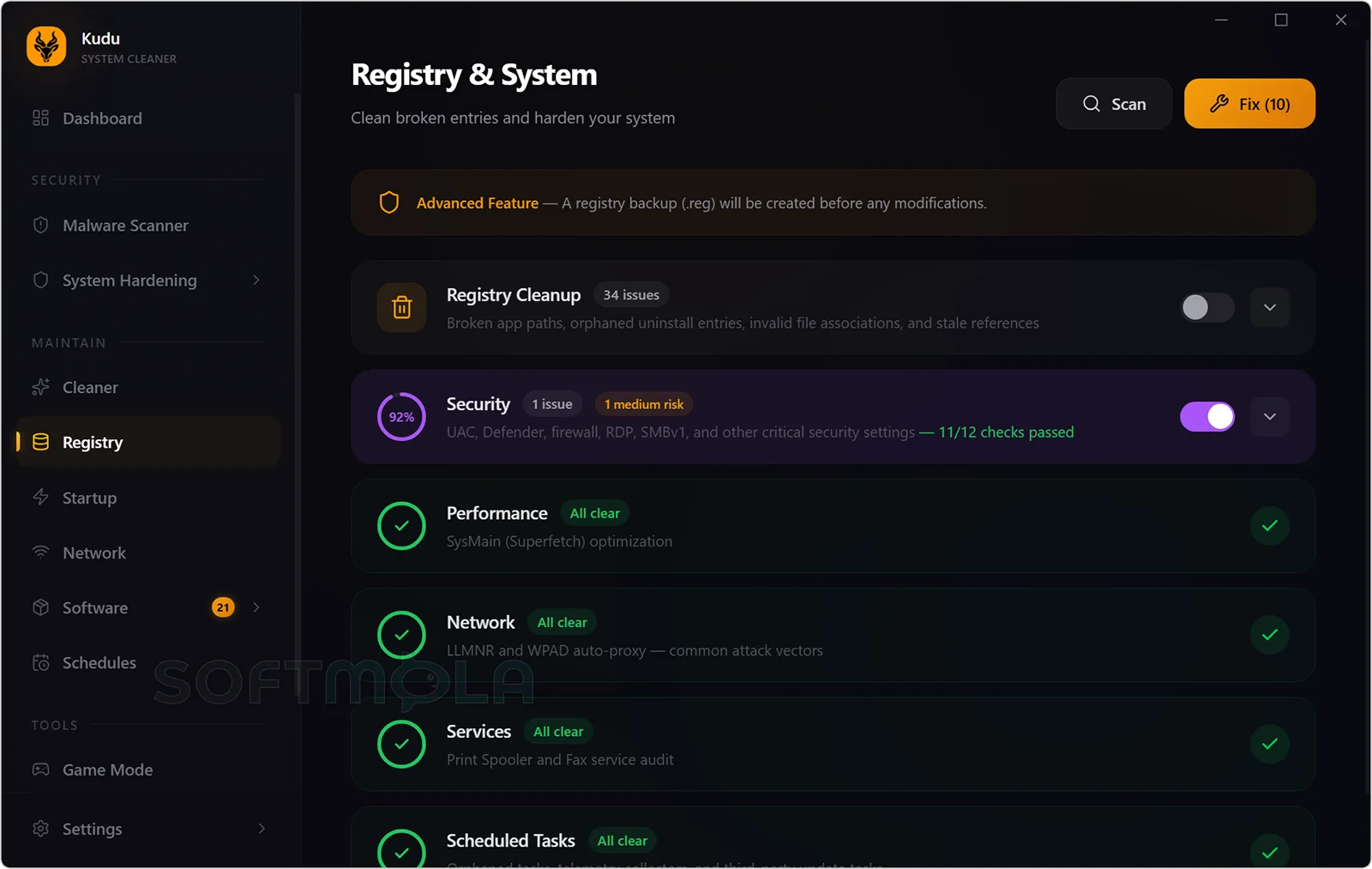

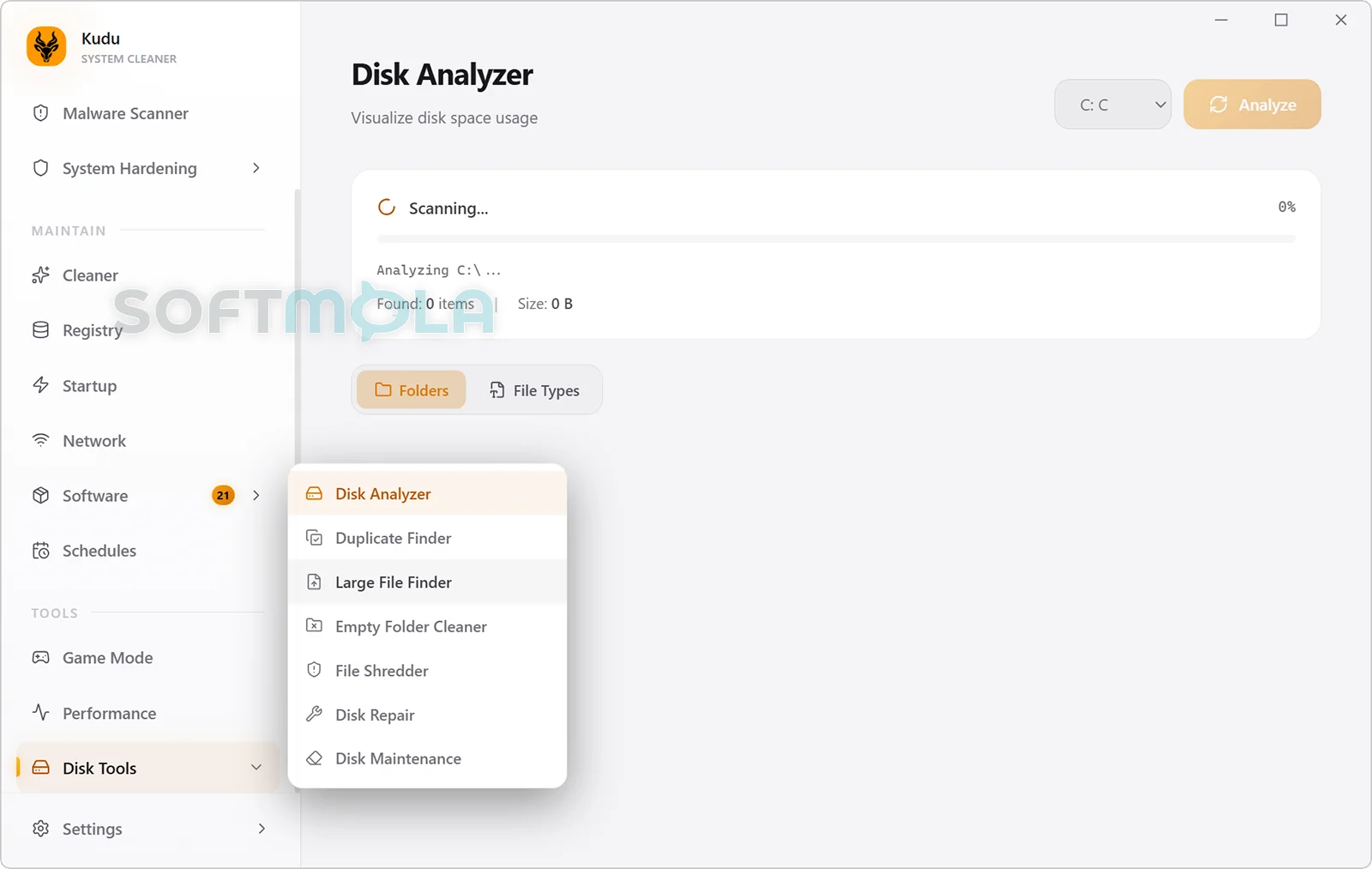
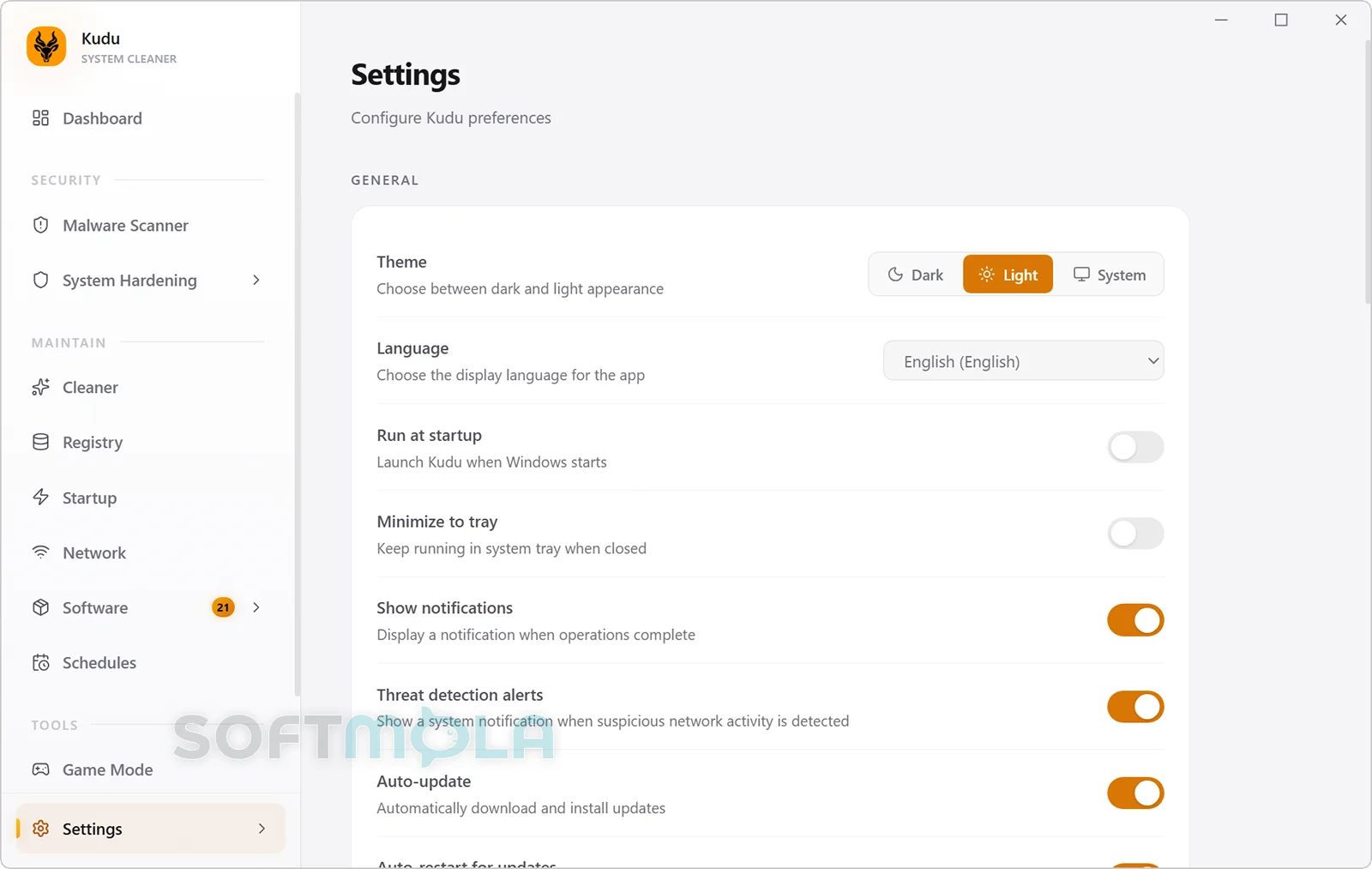
Table of Contents
Kudu for Windows is a free, open-source system maintenance suite that brings cleanup, software updating, privacy controls, performance monitoring, and basic security scanning into one application. It is designed for people who want more control over PC maintenance without installing several separate utilities or paying for a recurring desktop subscription.
The software is particularly useful for Windows users dealing with limited storage, unnecessary startup programs, outdated applications, leftover files, or privacy settings scattered across the operating system. Its broad toolset also appeals to power users and technicians, although most routine functions are presented through a relatively approachable graphical interface. Some system-level operations require administrator privileges because they modify services, drivers, registry entries, or protected Windows files.
Kudu is developed by Advent Development, Inc. and distributed under the MIT open-source license. The desktop application works locally without requiring an account, while an optional paid cloud service adds remote monitoring and fleet-management functions for IT teams.
Kudu Review
Kudu takes an unusually broad approach to Windows maintenance. Rather than concentrating on one task, it combines cleaners, a disk analyzer, an application updater, startup and service managers, Windows repair tools, privacy controls, a malware scanner, and hardware monitoring. This makes it more flexible than a basic junk-file remover, but it also means users need to decide which tools genuinely address a problem instead of applying every available adjustment automatically.
Its core cleaning workflow is sensible. Kudu scans first, presents the detected items, and waits for confirmation before deleting them. Results can be selected individually, which is preferable to an unexplained one-click optimization process. The cleaner covers Windows temporary files, crash dumps, update caches, browser caches, application data, gaming-platform leftovers, shader caches, and the Recycle Bin. It can also skip recently modified files and create a Windows restore point before system cleaning.
The browser cleaner is deliberately conservative. According to the documentation, it targets cache and code-cache data while leaving cookies, history, bookmarks, saved passwords, extensions, and active sessions untouched. That makes it useful for reclaiming space without forcing users to sign back into every website. The application cleaner follows a similar principle by focusing on disposable caches rather than projects, settings, or personal files.
Kudu’s interface has also received positive independent feedback. Softpedia’s review found that the large number of tools remained manageable and that the interface communicated system and storage information without becoming overwhelming. That matters because some utilities in the suite can make consequential changes. Clear descriptions, risk labels, previews, and rollback options reduce uncertainty, although they cannot eliminate the need for judgment.
The strongest practical tools are not necessarily the ones marketed as optimizers. The software updater can use Windows Package Manager and other supported package sources to identify outdated applications and install updates in bulk. The startup manager shows where programs are launched from, while the uninstaller can look for remaining files and registry entries after an application’s own removal process finishes. These functions address common maintenance problems and can save considerable time on PCs with many installed programs.
Its registry and service tools deserve a more cautious approach. Kudu previews registry findings, assigns risk levels, saves original values, and avoids modifying entries it classifies as critical. The service manager also uses safety classifications and blocks some changes involving essential dependencies. Even with those safeguards, routine users should avoid treating every detected item as an error that must be fixed. Removing a few obsolete references rarely produces a dramatic speed increase, while an incorrect system-level change can cause application or Windows problems.
The malware scanner is another feature that needs the right expectations. Kudu combines its own signatures and heuristic checks with Microsoft Defender integration, then lets users quarantine, delete, or ignore detected items. This can be useful as an additional on-demand check, especially when investigating suspicious files or unwanted software. However, the documented desktop feature is better understood as a supplementary scanner than a substitute for a fully tested real-time antivirus product. Users should continue to keep Windows Security or another established security platform active.
Privacy is handled more transparently than in many commercial maintenance utilities. The desktop application’s privacy policy states that maintenance operations run locally and that personal data, analytics, and crash reports are not transmitted by default. Connecting a device to Kudu Cloud is optional and changes the data flow: system-health metrics and report information are then sent to the service, while process-name sharing remains opt-in. This distinction is important for users deciding between purely local maintenance and remote management.
The open-source model offers additional visibility because the code and release history are publicly available. Windows binaries are code-signed, and the project publishes checksums and VirusTotal links with releases. Open source does not automatically guarantee flawless or secure software, particularly for an application that can run with elevated permissions, but it gives researchers and experienced users more opportunity to inspect its behaviour.
Kudu also appears to be under active development. Recent release notes document fixes involving registry parsing, driver detection, browser-cache reporting, firewall auditing, malware false positives, quarantine handling, and security advisories. Frequent updates are encouraging, but the nature of those fixes also shows why users should install current releases and review proposed changes before allowing a maintenance tool to alter the system.
Overall, Kudu is most suitable for users who want a single, transparent toolbox for maintaining Windows and are willing to review scan results. People who only need occasional storage cleanup may find Windows’ built-in Storage settings sufficient. Those seeking independently validated, continuous malware protection should use a dedicated antivirus solution instead. Kudu’s main value lies in combining practical maintenance tasks—not in promising an automatic cure for every performance or security issue.
Key Features of Kudu
System, Browser, and Application Cleaning
Kudu separates cleanup into several categories, including Windows system files, browser caches, application caches, gaming data, databases, and the Recycle Bin. This structure makes it easier to understand where recoverable storage is coming from instead of presenting one unexplained total.
The cleaner can target temporary files, logs, crash dumps, Windows Update data, Delivery Optimization files, thumbnail caches, and similar disposable content. Before deletion, users can inspect and deselect entries. Optional secure deletion and restore-point creation are available for situations where additional privacy or recovery protection is needed.
Software Updater and Program Uninstaller
The software updater checks installed applications through supported package-management sources, including winget, and compares installed versions with available releases. Users can update one application or process several updates together, which is helpful for reducing exposure to known software vulnerabilities and keeping frequently used programs current.
Kudu’s uninstaller begins with the program’s normal removal process and then scans for abandoned folders and registry references. This follow-up step is useful for software that leaves large caches or configuration remnants, although users should review the results when they may want to reinstall the application with their previous settings intact.
Startup, Service, and Bloatware Management
The startup manager brings together entries from Windows startup folders, registry locations, and scheduled tasks. It allows users to disable unnecessary launch items without immediately deleting them and can display their effect on boot performance. This is often a more practical route to a faster login than aggressive registry cleaning.
The debloater can remove selected preinstalled Windows or manufacturer applications, while the service manager categorizes background services according to potential risk. These tools provide convenient access to settings that would otherwise require PowerShell, Task Manager, Services, or several Windows menus. They should still be used selectively because disabling an unfamiliar service or removing a bundled component may affect hardware features, gaming functions, synchronization, or other Windows capabilities.
Malware Scanning and Quarantine
Kudu uses signature matching, heuristic analysis, and Microsoft Defender integration to examine files for suspicious indicators. Findings receive severity classifications, and detected files can be moved to quarantine, permanently deleted, or ignored. Quarantine retains information about the original location so a false positive can be restored.
The scanner adds useful context to a general maintenance suite, but it should be treated as an on-demand security utility. The product documentation does not position the local scanner as a replacement for the continuous behavioural, web, email, and exploit protection normally provided by a complete endpoint-security product.
Privacy Shield
Privacy Shield collects numerous Windows privacy and security settings into one dashboard. It covers areas such as diagnostic data, advertising identifiers, cloud search, location services, activity history, clipboard synchronization, app diagnostics, and typing data. Each setting can be changed separately, or users can apply a broader privacy-focused configuration.
This is convenient for users who do not want to search through several Windows Settings pages and policy locations. However, maximum restriction is not automatically the right configuration for everyone. Disabling cloud search, location access, clipboard synchronization, or diagnostic functions can reduce features that some users rely on, so individual review remains preferable to applying every change at once.
Performance, Process, and Disk Monitoring
The performance monitor displays live CPU, memory, storage, network, and uptime information. It also shows process-level resource consumption, helping users identify applications responsible for high processor or memory usage rather than assuming that accumulated junk is the cause of a slow PC.
Drive monitoring uses S.M.A.R.T. information to display available health indicators such as temperature, operating hours, general status, and estimated SSD life. A separate disk analyzer presents storage usage through an interactive treemap, making large folders and forgotten files easier to locate. These tools diagnose problems rather than automatically fixing them, which often leads to better maintenance decisions.
Windows Repair and Recovery Safeguards
Kudu provides a guided interface for native Windows repair utilities, including System File Checker, DISM, and CHKDSK. These tools can investigate corrupted protected files, repair the Windows component store, and examine file-system errors. Kudu does not replace their underlying repair mechanisms; it organizes them into a clearer workflow and explains when each stage may be useful.
Several safeguards help reduce risk. CHKDSK begins in read-only mode, write repairs require confirmation, registry changes can be backed up, and restore points can be created before cleaning. Administrator access is required for protected operations, so users should pay close attention whenever Windows displays an elevation prompt.
Kudu for Windows offers substantial value to users who want cleaning, updating, monitoring, privacy adjustment, and troubleshooting tools in one open-source package. Its local-first design and lack of desktop feature gating are notable strengths, while its breadth requires more care than a simple storage cleaner. It is a worthwhile option for informed home users, technicians, and power users who will review findings carefully, keep a dedicated antivirus enabled, and use registry or service changes only when there is a clear reason to do so.
How to Download and Install Kudu on Windows
Kudu is distributed as an x64 Windows EXE installer. The download button on this page should lead to a verified official release source. The local desktop application does not require an account or subscription, although Windows may request elevated permission during installation or when using protected maintenance tools.
How to Download Kudu
Select the Download Free Version button on this page.
Continue to the verified Kudu download or official release page.
Select the Windows EXE installer. The current Windows package is provided for x64 systems.
Save the installer in an accessible folder, such as Downloads.
Allow the download to finish before opening the file.
How to Install Kudu
Open the downloaded Kudu EXE installer.
Approve the Windows User Account Control request if it appears.
Review the installation location presented by the installer and change it only when necessary.
Complete the installation process.
Launch Kudu from the Start menu or its desktop shortcut.
Kudu installs per machine, and recent release notes indicate that its Windows installer uses elevation. Some tools may also request administrator access later because they modify protected system areas.
Getting Started with Kudu
Review the dashboard: The first screen provides a summary of system status and access to common maintenance actions.
Choose Cleaner: Open the cleaner and scan the available system, browser, application, gaming, and Recycle Bin categories.
Inspect every result: Deselect anything you do not understand or do not want removed.
Clean the selected items: Kudu waits for confirmation before deleting the chosen files.
Use administrator mode selectively: Relaunch with elevated permission only when a tool such as system cleaning, service management, registry repair, driver removal, or privacy configuration requires it.
Kudu checks for application updates when it launches and can download available updates in the background. The update is applied after the application restarts, and automatic update checks can be disabled in its settings.
Kudu Pros & Cons
- Free and open source: The desktop application is distributed under the MIT license without feature gates, advertising, or a required account.
- Broad maintenance toolkit: Kudu combines file cleaning, startup management, software updating, disk analysis, privacy controls, performance monitoring, and security scanning in one application.
- Local - first operation: Desktop maintenance runs locally by default, and personal data, analytics, and crash reports are not transmitted unless cloud features are enabled.
- Review - before-cleaning workflow: Scan results can be inspected and deselected before Kudu removes files, reducing the risk of an unexplained one-click cleanup.
- Optional remote management: Users and IT teams can connect devices to Kudu Cloud when they need centralized monitoring, remote commands, or scheduled fleet maintenance.
- System tools require careful decisions: Registry cleaning, service management, driver removal, privacy changes, and debloating can affect Windows behaviour when used without a clear reason.
- Some functions need administrator access: Protected operations cannot work fully with standard user permissions.
- Windows support is limited to x64: The current documentation lists an x64 EXE installer and does not provide separate native packages for 32-bit Windows or Windows on ARM.
- Not a complete antivirus replacement: Kudu provides scan-based malware detection and Microsoft Defender integration, but its documentation does not describe a full real-time endpoint protection platform.
Frequently Asked Questions
What is Kudu?
Kudu is an open-source system maintenance application for Windows, macOS, and Linux. Its Windows tools cover tasks such as removing disposable files, managing startup entries, updating installed applications, analyzing disk use, reviewing privacy settings, monitoring hardware, and scanning for suspicious files.
Is Kudu free?
Yes. The Kudu desktop application is free and released under the MIT open-source license. An account is not required for its local maintenance tools. Kudu Cloud is a separate optional service for remotely monitoring and managing connected computers.
Do I need a Kudu account?
No account is required to install or use the desktop application locally. You only need an account when connecting the computer to Kudu Cloud for remote monitoring, centralized reports, cloud-based commands, or fleet-management features.
Can Kudu replace Windows Security?
Kudu should not be treated as a replacement for Windows Security. Its malware tool combines signature checks, heuristic analysis, and Microsoft Defender integration for scanning and remediation. Keep Microsoft Defender or another established real-time security product active for continuous protection.
Can Kudu work without an internet connection?
Its main desktop maintenance tools can work offline. An internet connection is still needed for activities that depend on online services, such as downloading application updates, checking for new Kudu releases, or connecting the computer to Kudu Cloud.
Does Kudu collect personal data?
The desktop application does not collect or transmit personal data by default, according to Kudu’s privacy policy. Enabling Kudu Cloud sends system-health and report information to the service. Cloud documentation also describes remote monitoring of metrics and process information, so users should review the cloud settings before linking a device.
Is Kudu safe to download?
Kudu should be downloaded only through its official product page or verified GitHub release. The project publishes its source code publicly, and current GitHub releases include VirusTotal links for the distributed files. These measures improve transparency, but they are not an absolute security guarantee. Always verify that the file comes from the correct publisher and release page.
Does Kudu support 32-bit Windows or Windows on ARM?
Kudu’s current installation documentation lists only an x64 Windows installer. It does not list a separate 32-bit package or a native ARM version for Windows. Users with ARM-based devices should not assume compatibility through emulation unless the developer documents or confirms it.