

CCleaner for Windows
A Windows maintenance utility that clears junk files, browser traces, and startup clutter from one dashboard.
Software Information
CCleaner Screenshots
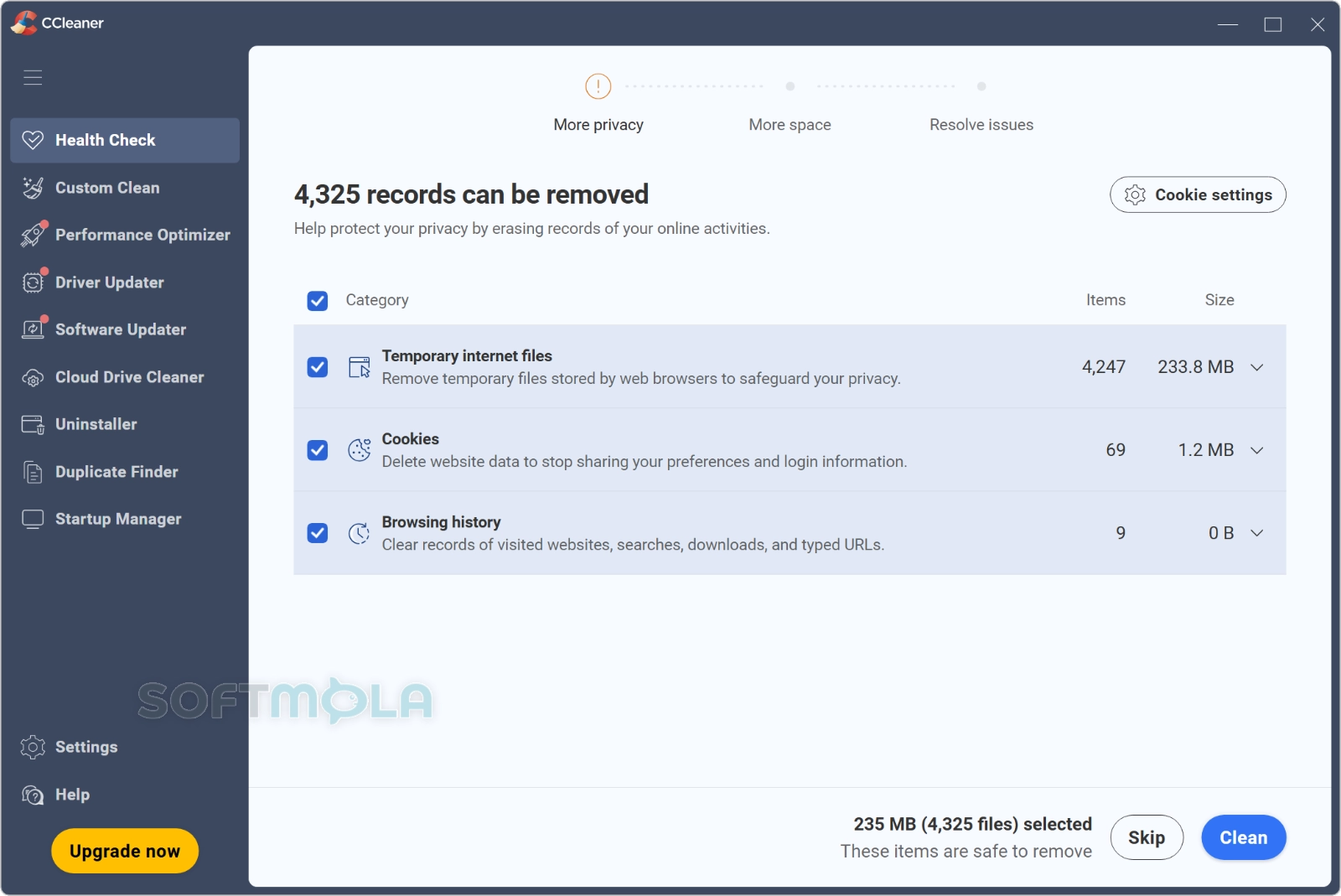
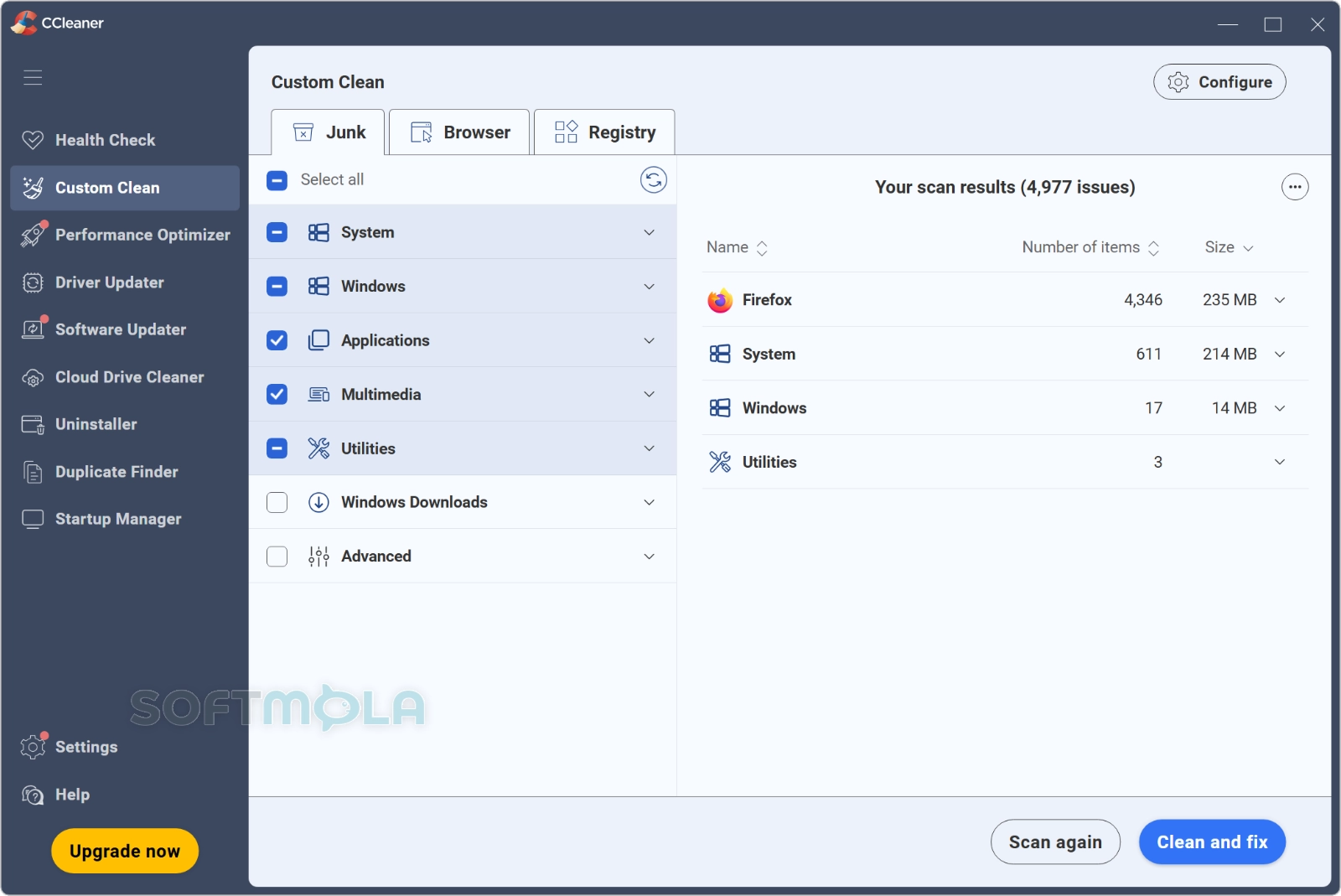
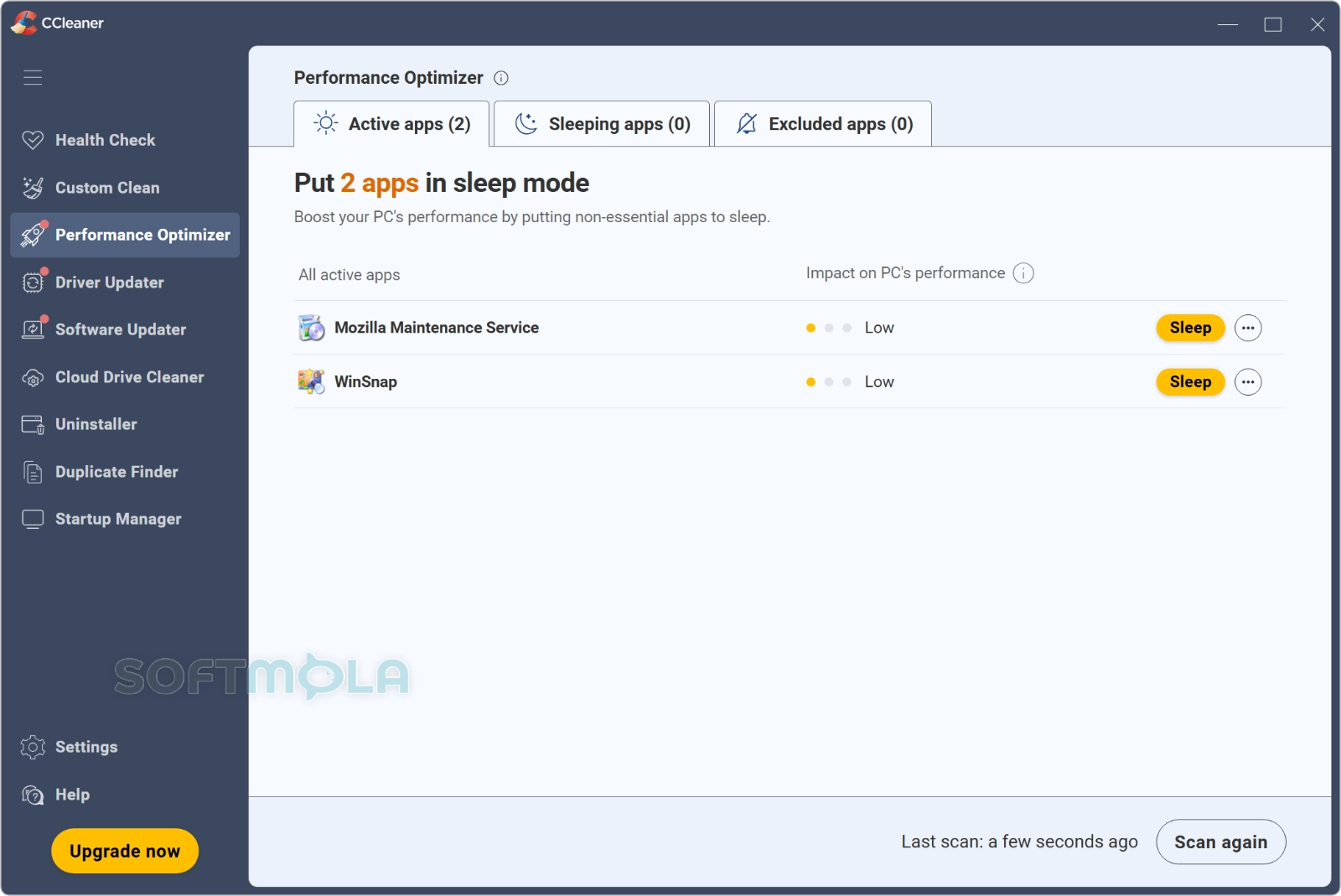
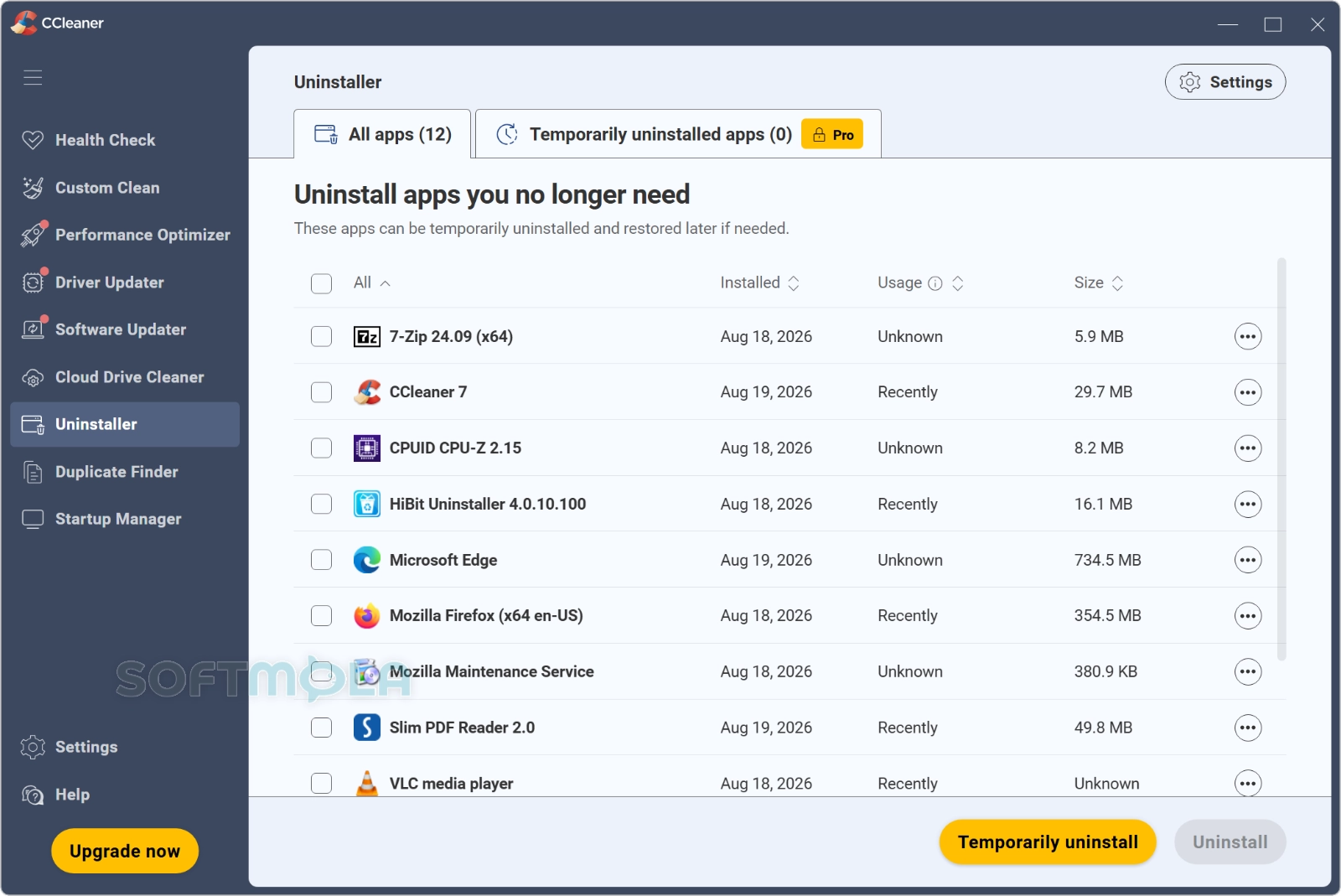
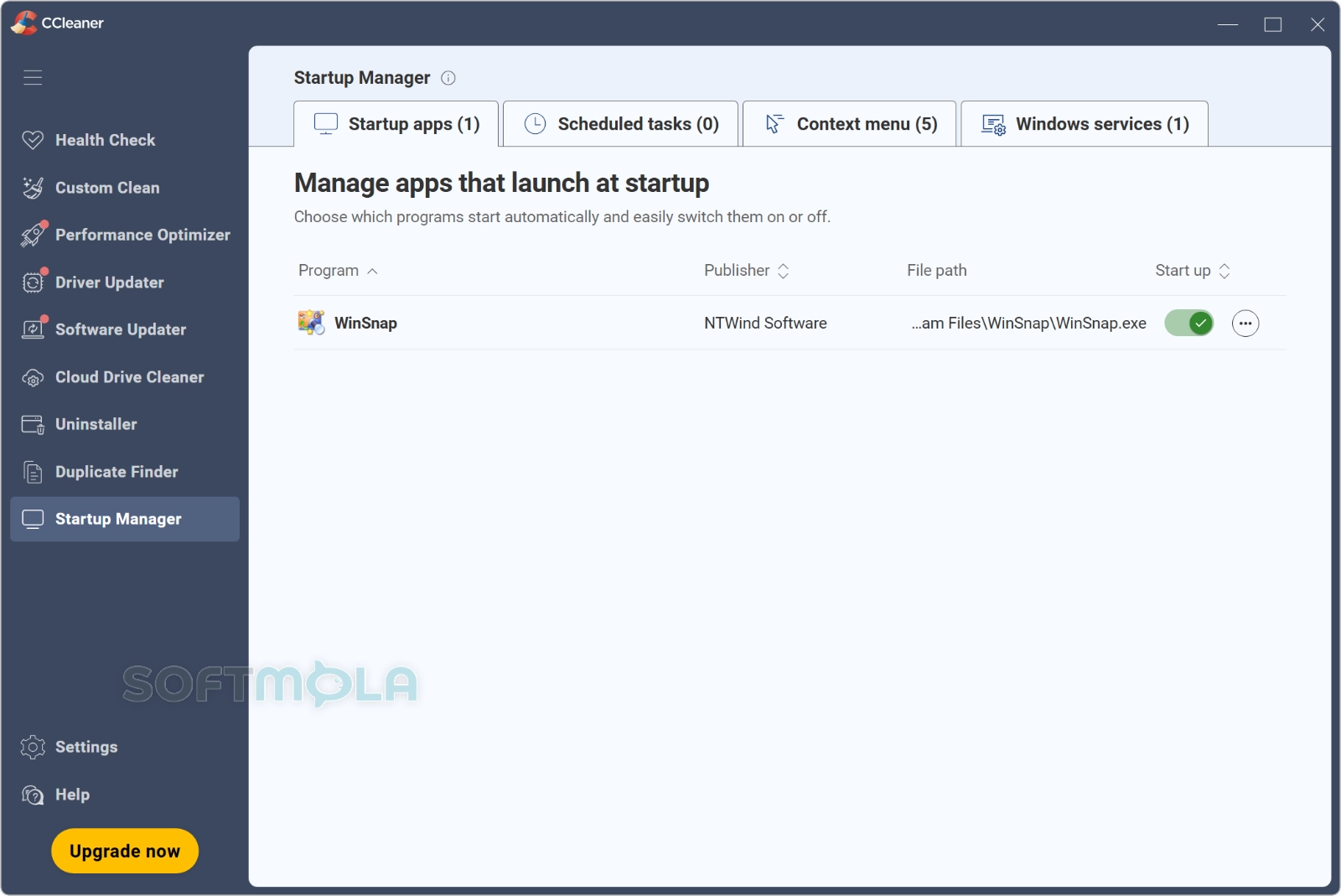
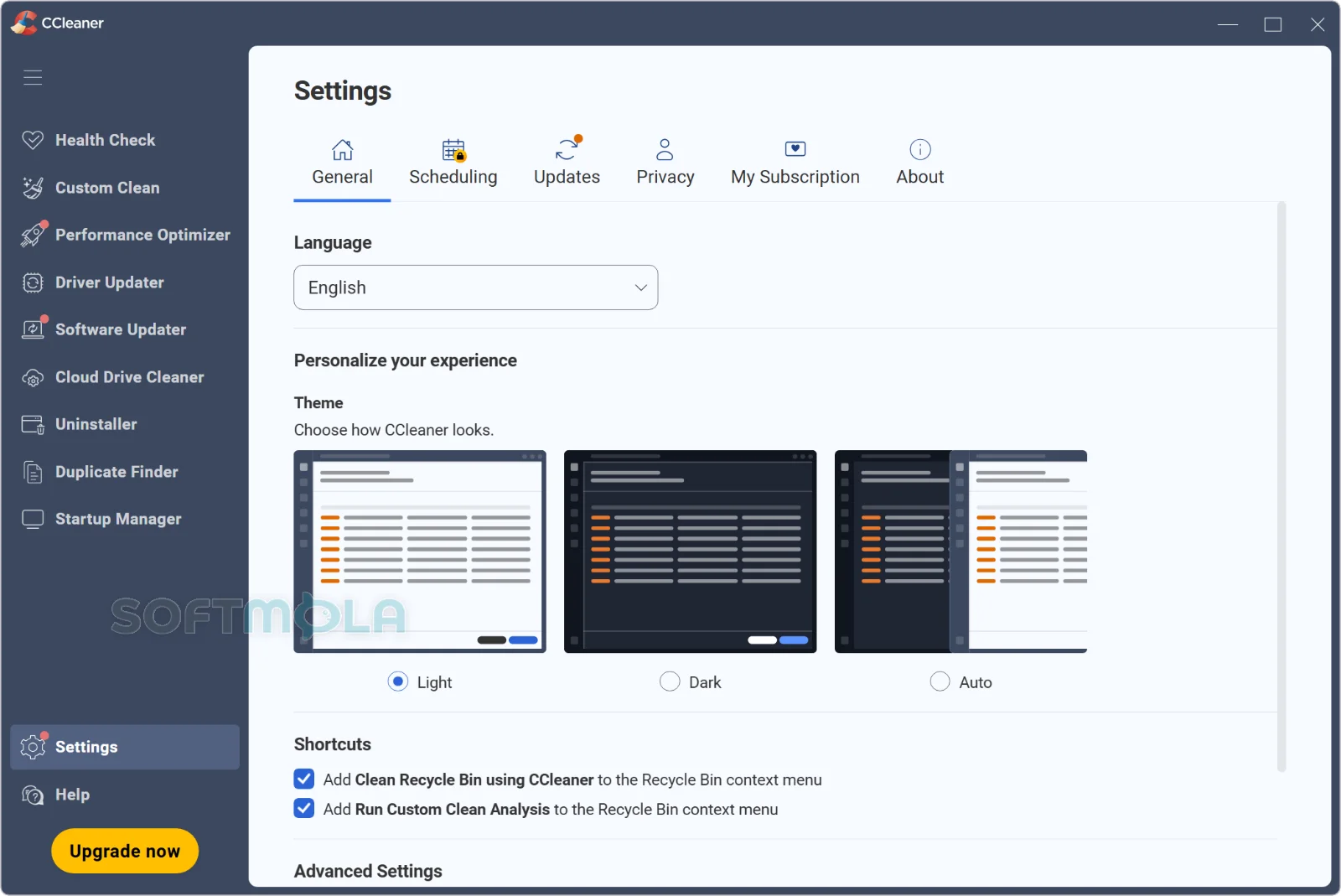
Table of Contents
CCleaner for Windows is a maintenance utility that clears out temporary files, browser traces, and other leftovers that pile up on a PC through ordinary use. Piriform launched it in 2004, and it now sits in the portfolio of Gen Digital, the company formed when Avast and NortonLifeLock combined. The current release available from the official builds page is CCleaner Free v7.10.1464, alongside an offline installer, a portable ZIP package, and a separate "sunset" build kept around for Windows 7 machines.
The appeal is straightforward. Windows has cleanup tools of its own, but they sit in different corners of the operating system and each handles a narrow slice of the job. CCleaner pulls disk cleanup, browser data removal, startup management, and program uninstallation into a single window, then shows you what it found before anything gets deleted. That combination of visibility and convenience is why the tool has stayed popular for two decades, long after many rivals disappeared.
It suits people who tidy up their own machine occasionally rather than those looking for a deep repair tool. CCleaner supports Windows 8, 8.1, 10, and 11 in both 32-bit and 64-bit forms, including Windows on ARM, while excluding S mode, IoT, Starter, and RT editions. The free edition covers the core cleaning work; paid tiers add automation and extra utilities.
CCleaner Review
Most of what people actually want from CCleaner lives in two screens. Health Check runs a broad scan and presents a short list of recommended fixes, which is the easier path for someone who just wants the machine tidied. Custom Clean is the older and more interesting mode: it breaks cleanup into checkboxes covering Windows components, browsers, and installed applications, so you can decide exactly which caches, logs, and history entries go and which stay. Both modes show results before deletion, and that preview step matters more than it sounds. Cleaners that silently wipe things are the ones that cause regret.
The interface has been refreshed over the years but stays recognisable, and setup is quick. On a system that has never been cleaned, the space recovered can be meaningful — browser caches, Windows update leftovers, and application temp folders add up. On a well-maintained machine running recent Windows with Storage Sense enabled, the gains are smaller. That distinction is worth keeping in mind, because a cleaner cannot manufacture free space that isn't being wasted in the first place.
Where the product invites more caution is the performance narrative. Piriform markets the Performance Optimizer with claims of up to 34% more speed and 30% more battery life, but those are vendor figures tied to specific conditions, not an independent benchmark of what any given PC will experience. Freeing disk space and trimming startup entries can help a cluttered system feel more responsive; they will not transform hardware that is simply old or short on RAM. Treating CCleaner as a tidying tool rather than a speed upgrade sets expectations correctly.
The registry cleaner deserves its own note. It has been part of CCleaner since the beginning and remains one of its best-known features, yet Microsoft's published support policy states plainly that it does not support registry cleaning utilities, warning that serious issues can result from incorrect modification and that instability may require reinstalling the operating system. CCleaner does offer to back up entries before removing them, which is the right design, but the honest assessment is that modern Windows does not need routine registry maintenance and the risk-to-benefit ratio is poor. Using the rest of the tool while leaving that module alone is a reasonable approach.
Trust questions also come up around this product, and they have real history behind them. In 2017, attackers compromised the build process and distributed a malicious version of CCleaner to millions of machines before Cisco Talos identified it and Piriform pushed a clean release. Separately, the FTC brought a case against Avast in 2024 over the sale of users' browsing data through its Jumpshot subsidiary, resulting in a $16.5 million payment and a ban on selling web browsing data for advertising purposes. Neither event describes the software as it ships today, and Jumpshot was shut down in 2020, but both are fair context for a utility whose selling points include privacy cleanup. Reviewing CCleaner's own privacy and data-sharing settings after installation is sensible, as is downloading only from the official site — third-party mirrors and "cracked" builds of this particular product are a well-known malware vector.
On editions, the free version handles junk file removal, browser cleaning, the registry module, startup control, and uninstallation, which covers what most home users need. Professional and Professional Plus add Cloud Drive Cleaner, Performance Optimizer, Driver Updater, Software Updater, automatic browser clearing on close, and scheduled cleaning, with Professional Plus also bundling Recuva for file recovery and Speccy for hardware information. List pricing on the official store sits at $44.95 per year for Professional, with Professional Plus listed at $64.95 and frequently discounted — promotional pricing changes often, so the figure you see may differ. The free build also nudges you toward upgrading, which some users find intrusive.
The fair summary is that CCleaner remains competent at its core job and unusually approachable for beginners. The paid tiers buy convenience and automation rather than a categorically better cleaning engine.
Key Features of CCleaner
Health Check and Custom Clean
These two modes serve different users. Health Check is a guided scan that groups findings into privacy, space, speed, and security categories and applies fixes with minimal decision-making. Custom Clean exposes the underlying checkboxes, letting you exclude things you want to keep — saved logins, for instance, or the cache of a browser you use constantly. Anyone who cares about what gets removed should start in Custom Clean and adjust the defaults once, rather than accepting them each session.
Browser and Privacy Cleanup
CCleaner removes cookies, cached files, browsing history, download records, and session data across major browsers, including ones that don't clean up thoroughly after themselves. This is genuinely useful on shared or family machines, and it can resolve stubborn page-loading errors caused by stale cache. The trade-off is practical: clearing cookies signs you out of sites. Adding your frequently used domains to the cookie exclusion list keeps convenience intact while still clearing everything else.
Startup and Scheduled Tasks Management
The Tools section lists programs that launch with Windows, along with scheduled tasks and browser add-ons, and lets you disable them individually. Slow boot times are more often caused by too many startup entries than by disk clutter, so this is arguably the most impactful screen in the whole application. Disabling rather than deleting is the safer habit, since it's reversible if something you needed stops working.
Software Uninstaller and Duplicate Finder
CCleaner's uninstaller often catches applications that Windows Settings displays inconsistently, and it can rename or delete stubborn entries. The duplicate file finder scans selected drives for identical files by name, size, and date — helpful for photo and download folders, though it requires judgement before deleting anything it flags.
Registry Cleaner
The registry module scans for orphaned entries left behind by uninstalled software and offers to remove them, with a backup prompt beforehand. It is included in the free edition. Given Microsoft's stated position on registry cleaning utilities, this is the one feature worth approaching conservatively, particularly on a system that is otherwise stable.
Software Updater and Driver Updater
Available in the paid tiers, these scan for outdated applications and drivers and handle updating from within CCleaner. Keeping software patched is legitimate security hygiene, since unpatched applications are a common entry point for attacks. Driver updating is a different matter — driver packages sourced from a third-party tool can occasionally conflict with hardware, so manufacturer downloads remain the more predictable route for GPUs and other critical components.
Cloud Drive Cleaner
A newer paid addition, Cloud Drive Cleaner scans Microsoft OneDrive and Google Drive for duplicates and large or old files, showing how much space could be recovered before you commit. For anyone brushing against a cloud storage quota, it addresses a problem that local cleanup tools cannot touch.
Portable and Offline Builds
Piriform publishes a portable ZIP version and a full offline installer alongside the standard online installer. The portable build runs without installing anything, which suits technicians working across multiple machines or users who prefer not to leave background services and scheduled tasks behind on a system.
CCleaner earns its place as a straightforward maintenance tool rather than a performance miracle. If you want one window that shows what's taking up space, what launches at boot, and what browser data is lingering — and you want to review that list before anything disappears — the free edition covers it well and remains the sensible starting point. The paid tiers are worth considering only if scheduled cleaning, application updating, or cloud storage cleanup genuinely fit how you work. Users on modern Windows who already manage cleanup through built-in tools will find less to gain, and anyone drawn in by the registry module specifically should weigh Microsoft's guidance before relying on it. Download it from the official site, spend a few minutes adjusting the defaults and privacy settings, and it can stay useful for years.
How to Download and Install CCleaner on Windows
CCleaner for Windows is distributed as a standard EXE installer from Piriform's official site, with an offline installer and portable ZIP available on the same builds page for advanced users. The app is also published on Microsoft Store. No account is needed to download or run the free edition, and no payment is required unless you choose a Professional or Professional Plus subscription.
How to Download CCleaner
Select the download button on this page.
Continue to the verified download source.
Choose the standard installer for a normal setup, or the portable package if you prefer to run CCleaner without installing it.
Save the file to a folder you can find again, such as Downloads.
Wait for the download to finish before opening the file.
How to Install CCleaner
Open the downloaded installer.
Approve the Windows User Account Control prompt if it appears, and check that the publisher name is shown correctly before continuing.
Review the installation options and any optional extras presented on the setup screens, deselecting anything you do not want.
Complete the setup, then follow the on-screen steps to open CCleaner when installation finishes.
Enter your license key if you purchased Professional or Professional Plus.
Getting Started with CCleaner
Open Options and review the privacy and data-sharing settings before your first cleanup.
Run Custom Clean in analyze mode first, so you can see exactly what would be removed.
Add sites you stay signed in to under cookie exclusions, so routine cleaning does not log you out.
Check the Startup tab under Tools and disable programs you do not need at boot, rather than deleting the entries.
CCleaner Pros & Cons
- Everything in one dashboard: Disk cleanup, browser data removal, startup control, and program uninstallation sit in a single window instead of scattered across Windows menus.
- You see results before deleting: Both Health Check and Custom Clean present findings for review, which reduces the chance of losing something you wanted to keep.
- Genuinely capable free edition: Junk file cleanup, browser cleaning, the startup manager, and the uninstaller are all available without paying.
- Granular control in Custom Clean: Checkboxes for individual Windows components, browsers, and applications let you exclude cookies or caches you rely on.
- Multiple build options: Piriform publishes an offline installer and a portable ZIP alongside the standard online installer, plus a separate sunset build for Windows 7 machines.
- Low learning curve: The layout has stayed consistent for years, and the guided Health Check mode works for people who don't want to make individual decisions.
- Registry cleaning carries real risk: Microsoft's published support policy states it does not support registry cleaning utilities and warns that incorrect modification can cause instability requiring an OS reinstall.
- Performance claims are vendor figures: The advertised speed and battery improvements come from Piriform, not independent benchmarking, and results on a healthy PC are usually modest.
- Upgrade prompts in the free version: The free build regularly surfaces Professional features, which some users find intrusive.
- Diminishing returns on maintained systems: If Windows Storage Sense is already running and you clean up regularly, CCleaner will find comparatively little to remove.
- Trust history worth knowing: The 2017 supply-chain compromise and the FTC's 2024 action against former parent company Avast over browsing data sales are both part of the product's background, even though neither describes the current release.
Frequently Asked Questions
Is CCleaner free?
Yes, CCleaner has a genuinely free edition for Windows that handles junk file removal, browser cleanup, startup management, and program uninstallation. Piriform also sells Professional and Professional Plus subscriptions, which add automation, Driver Updater, Software Updater, Performance Optimizer, and Cloud Drive Cleaner. Professional Plus additionally bundles Recuva for file recovery and Speccy for hardware information. The free version is not time-limited, though it does display prompts to upgrade.
Is CCleaner safe to download?
CCleaner is a legitimate product from Piriform, now published under Gen Digital, and the current builds are distributed from the official site and Microsoft Store. No software can be called risk-free, and this particular product has a history worth noting: attackers compromised the build process in 2017 and distributed a malicious version before it was caught. Downloading only from the official source and avoiding cracked or repackaged builds matters more here than with most utilities.
Does CCleaner work on Windows 11?
Yes. Piriform lists compatibility with Windows 11, 10, 8.1, and 8 in both 32-bit and 64-bit forms, including Windows on ARM. S mode, Mixed Reality, Mobile, IoT, Starter, and RT editions are excluded. Windows 7 users are directed to a separate sunset build that Piriform maintains for that platform rather than the current release.
Should I use the registry cleaner?
Approach it cautiously. Microsoft does not support registry cleaning utilities and warns that incorrect changes can cause serious instability. Modern Windows does not require routine registry maintenance, and the practical benefit of removing orphaned entries is minimal. CCleaner does offer to save a backup before applying changes, which is the right safeguard, but the rest of the tool delivers most of the value without touching this module.
Will CCleaner speed up my PC?
Sometimes, but not dramatically. The most meaningful gain usually comes from disabling unnecessary startup programs, which can shorten boot times. Clearing junk files frees disk space, and that helps when a drive is nearly full. What CCleaner cannot do is compensate for limited RAM, an aging processor, or a mechanical hard drive. Treat it as maintenance rather than a hardware upgrade.
Do I need an account to use CCleaner?
The free edition does not require you to create an account before cleaning. Paid tiers are subscription-based, so activating Professional or Professional Plus involves entering a license key or signing in with the account used at purchase. Any feature tied to a subscription, such as scheduled cleaning or the updaters, remains locked until the license is applied.
Does CCleaner replace antivirus software?
No. CCleaner is a maintenance and privacy cleanup utility, not a malware scanner, and it has no real-time protection component. It runs alongside Windows Security or a third-party antivirus without conflict. If you suspect an infection, use a dedicated security product; if you want to reclaim disk space and clear browser traces, that is what CCleaner is built for.
Is a portable version of CCleaner available?
Yes. Piriform publishes a portable ZIP package on its official builds page alongside the standard and offline installers. The portable build runs without a traditional installation, which suits technicians moving between machines and users who prefer not to leave background services or scheduled tasks on a system. Advanced builds like this one are intended for individual use, not redistribution.