

XnView MP for Windows
A versatile Windows image viewer, organizer, and batch converter with broad format support.
Software Information
Recommended: 64-bit Available: 32-bit
XnView MP Screenshots
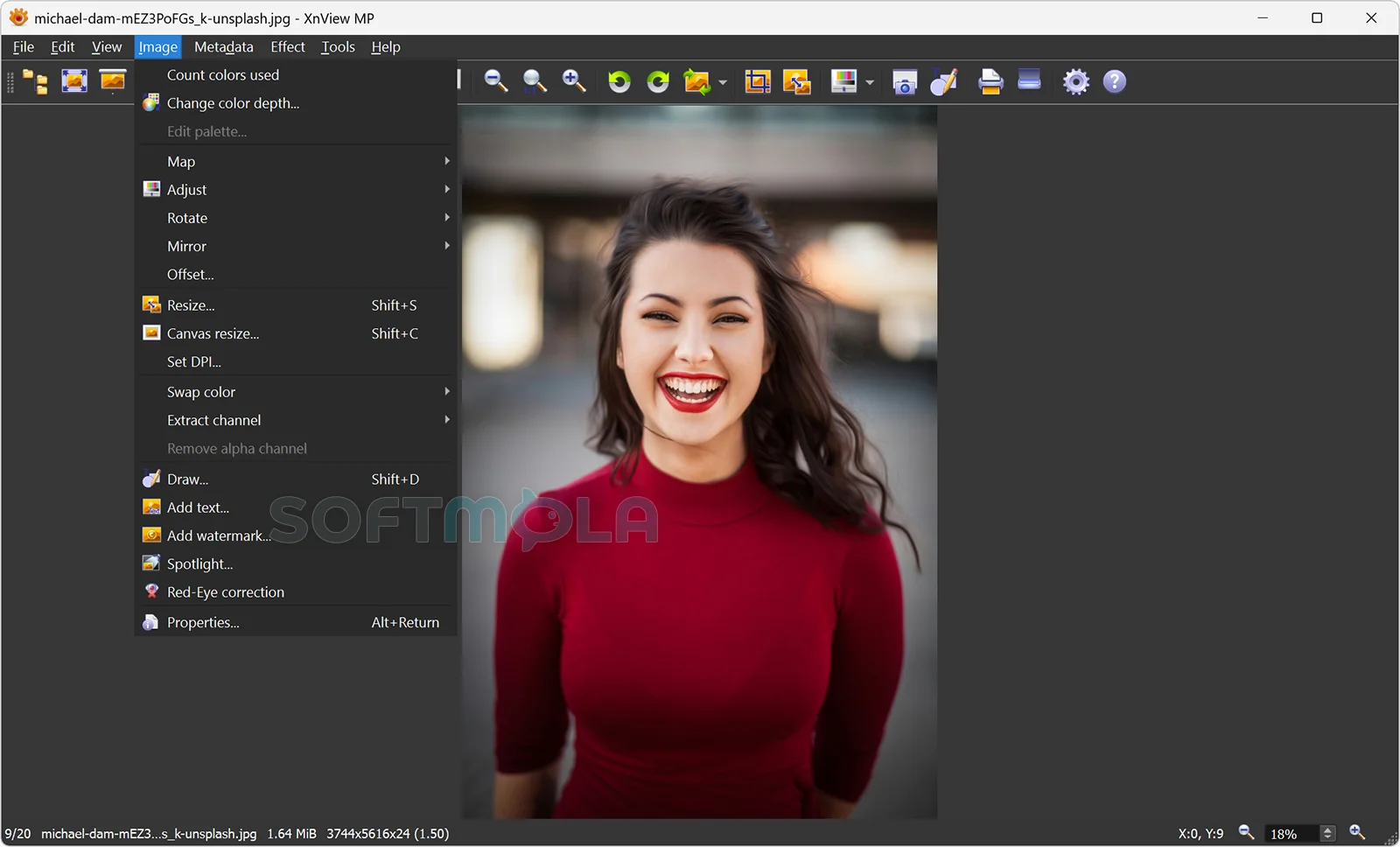
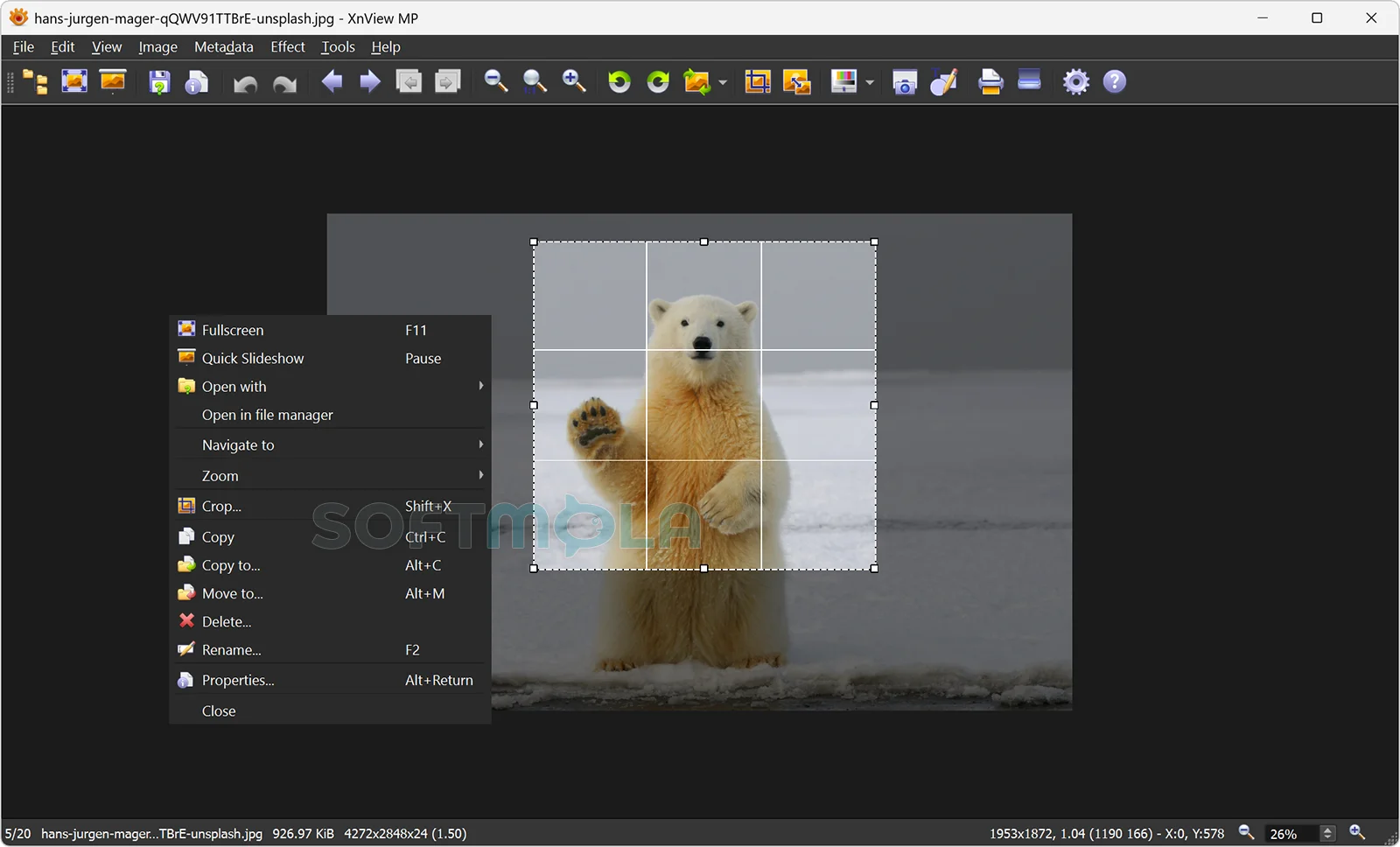
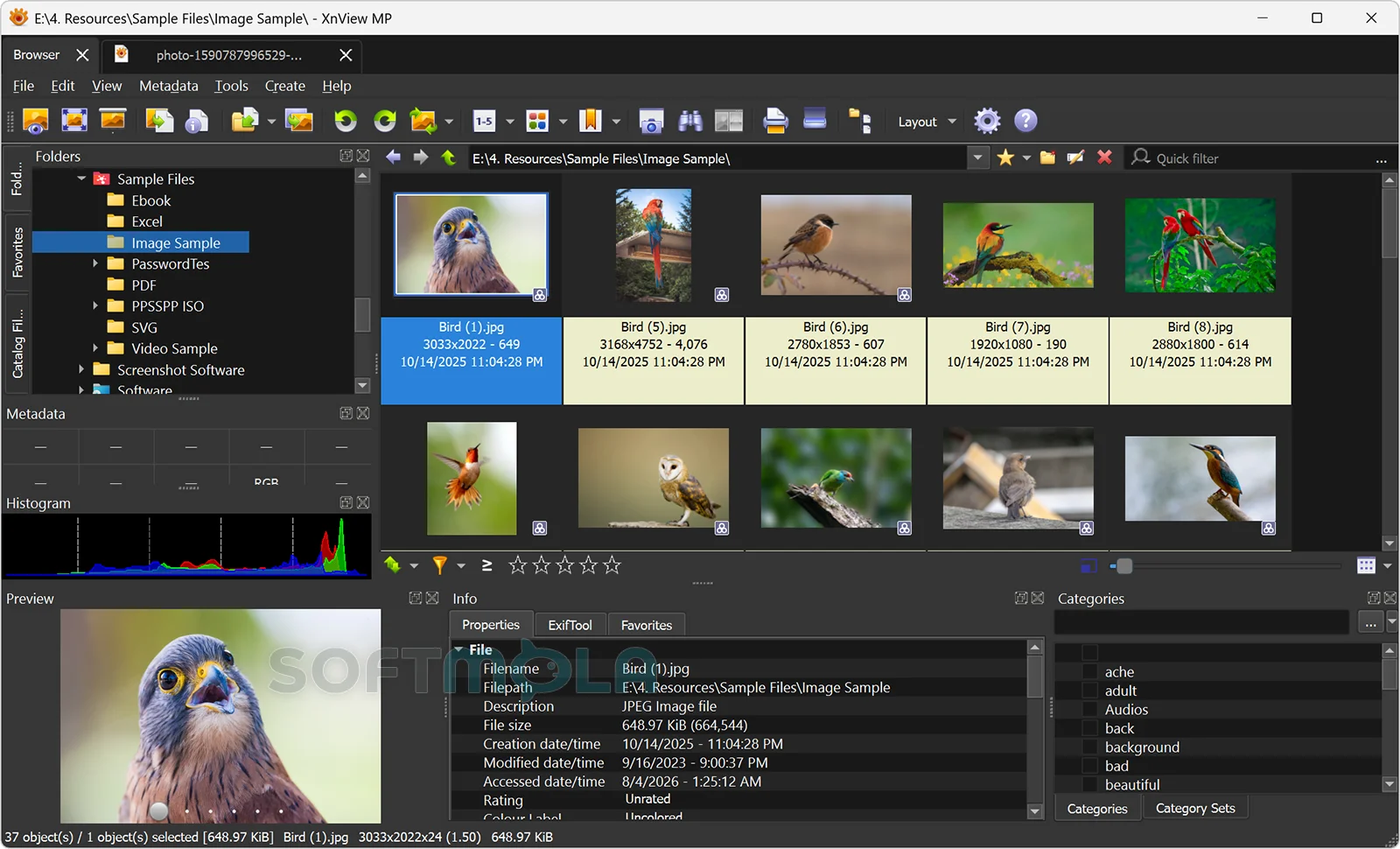
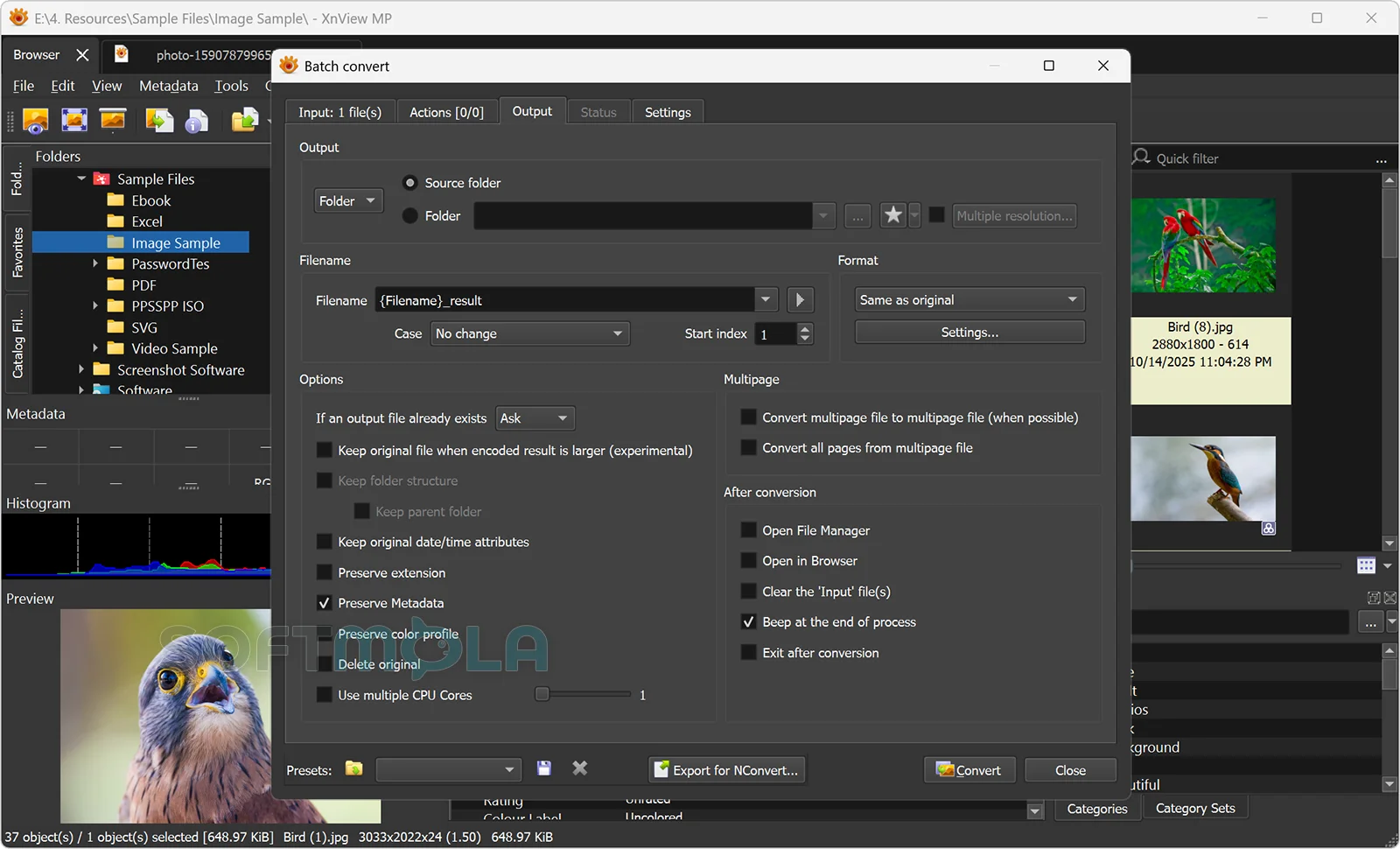
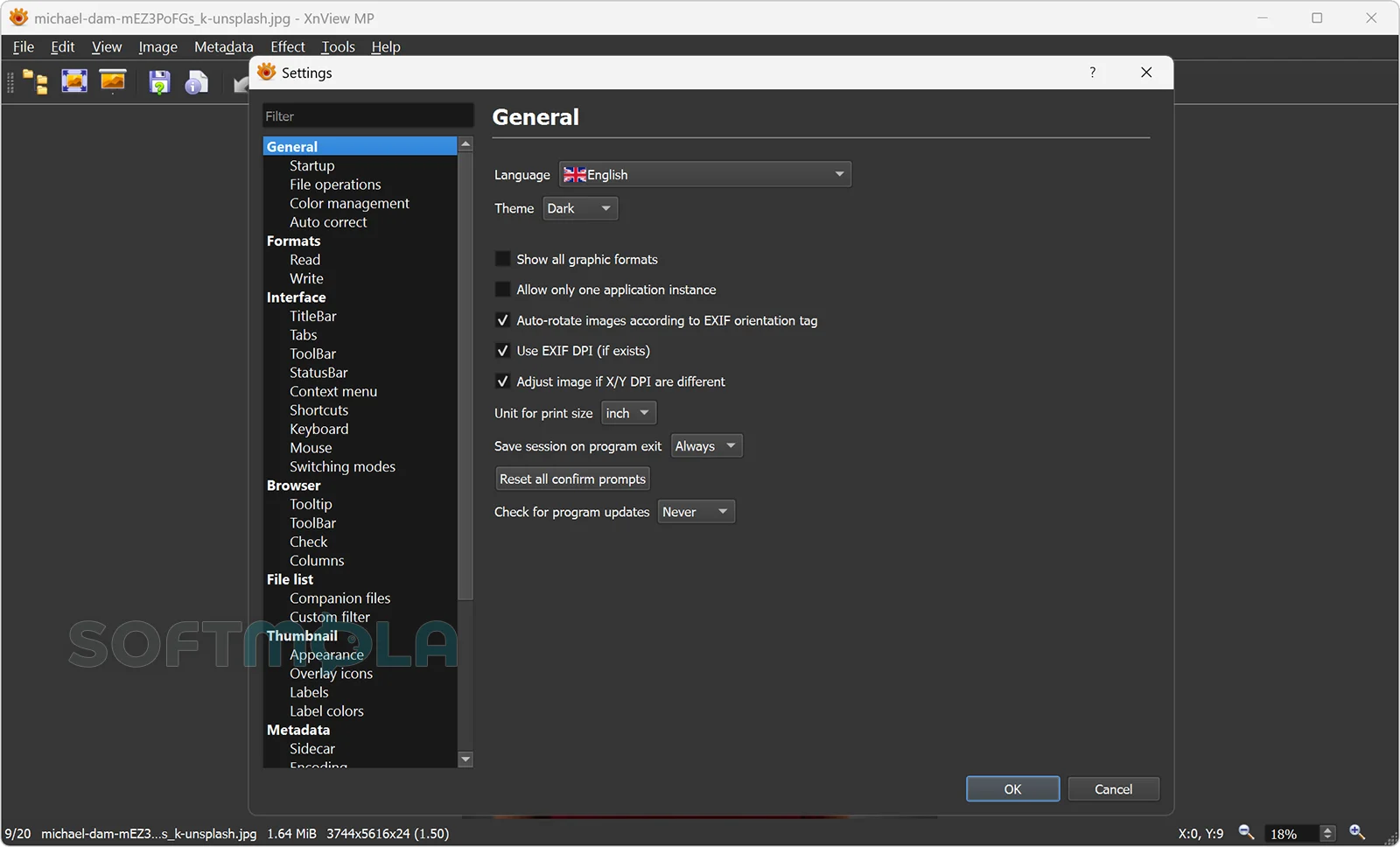
Table of Contents
XnView MP is a versatile image viewer, photo organizer, and batch converter for Windows. It is designed for people who regularly work with large folders, camera files, screenshots, scanned documents, or graphics stored in several formats. Instead of opening each image in a separate editor, users can browse, inspect, categorize, rename, convert, and make basic corrections from one application.
The software is particularly useful for photographers, designers, content teams, archivists, and home users whose needs have outgrown the standard Windows Photos app. XnView MP can read more than 500 image formats, including modern formats such as AVIF, HEIC, JPEG XL, WebP, and many camera RAW types. It is free for private, educational, public-service, and nonprofit use, while commercial use within a company requires a paid license.
XnView MP Review
XnView MP occupies a practical middle ground between a simple photo viewer and a full creative suite. Its main browser resembles a desktop file manager, with a folder tree, thumbnail area, preview panel, and sections for image properties and metadata. Opening a picture places it in a separate tab, allowing several files to remain accessible without filling the Windows taskbar with individual windows. This layout is efficient when reviewing a shoot, sorting downloaded assets, or comparing several versions of the same graphic.
Format support is one of the strongest reasons to use XnView MP for Windows. Alongside familiar files such as JPEG, PNG, GIF, BMP, and TIFF, it can display PSD, OpenEXR, JPEG 2000, HEIC, AVIF, JPEG XL, and many RAW formats produced by Canon, Nikon, Sony, Fujifilm, Panasonic, Olympus, and other camera systems. The official documentation says it reads more than 500 formats and writes to around 70. That range makes it valuable when Windows lacks a suitable thumbnail handler or when a folder contains images from several applications and devices. Some document and vector formats, including certain PDF, PostScript, EPS, and AI files, may require a compatible Ghostscript installation.
Its organizational tools go well beyond folder browsing. Users can apply ratings, color labels, categories, and hierarchical keywords, then search the catalog using dates, camera information, descriptive metadata, or other properties. XnView MP works with EXIF, IPTC, and XMP information, including XMP sidecar files used by applications such as Adobe Lightroom Classic and Bridge. This makes it suitable for selecting, tagging, or correcting metadata without forcing an existing photo library into a cloud-based service. Lightroom development adjustments are not reproduced, however, because XnView MP is an organizer and viewer rather than a RAW development engine.
Batch processing is another major strength. A group of images can be resized, converted, renamed, rotated, adjusted, or exported with consistent settings in one operation. This is useful for preparing product photographs, reducing images for a website, standardizing filenames, or turning a mixed folder into a common archive format. The batch interface provides considerable control, although its number of options may initially feel dense. Testing a small selection before processing an important collection is sensible because format conversion, compression, and metadata settings can change image quality or remove information.
The included editing tools are best understood as practical utilities rather than replacements for Photoshop, Affinity Photo, or a dedicated RAW editor. XnView MP can crop, resize, rotate, adjust brightness and color, apply filters, capture the screen, and perform several lossless JPEG transformations. These functions are enough for quick corrections and routine file preparation. They are not intended for layered compositions, detailed masking, advanced retouching, or nondestructive professional color grading.
The interface reflects the program’s depth. It is customizable and information-rich, but it can look more technical than minimalist Windows viewers. New users may need time to understand the difference between the file browser, catalog, categories, metadata editors, and batch tools. People who only need to double-click a JPEG and move to the next picture may prefer a lighter viewer. Those who routinely manage hundreds or thousands of files are more likely to appreciate the additional controls.
XnView MP remains actively maintained. The official download page currently lists version 1.11.5 for 64-bit Windows and supports Windows 7, 8, 10, and 11 through an installer or portable ZIP archive. An older build remains available for 32-bit systems. Recent development has included expanded metadata columns, catalog improvements, updated format libraries, and fixes for search and batch-renaming issues.
From a security and privacy perspective, XnView MP is not a protection tool, but its distribution and metadata controls are relevant. XnSoft states that official downloads contain no advertising, bundled applications, adware, or spyware, and the download page publishes SHA-256 checksums for verifying packages. Obtaining the installer from the official source remains preferable to using unofficial repackaged downloads. The ability to inspect or clean EXIF, IPTC, XMP, embedded thumbnails, and GPS-related metadata can also help prevent unintended information from remaining in images before they are shared.
Key Features of XnView MP
Broad Image and RAW Format Support
XnView MP can open an unusually wide range of graphics and photography formats. Its coverage includes common web images, animated and multipage files, professional graphics formats, newer codecs such as AVIF and JPEG XL, and RAW files from many digital cameras. This reduces the need to install a separate viewer or Windows codec for every unfamiliar extension.
The application can also export to dozens of formats, although readable and writable formats are not identical. It is therefore useful both as a viewer for uncommon files and as a conversion bridge when another program requires JPEG, PNG, TIFF, WebP, or another standard format.
Thumbnail Browser and Tabbed Viewer
The browser combines folder navigation, thumbnails, previews, histograms, properties, and metadata in one workspace. Users can move through a directory while keeping the selected image and its technical details visible. Multiple pictures can be opened in tabs for closer inspection without losing the current folder position.
This workflow is more efficient than opening every image in a general-purpose editor. It is especially helpful when choosing the strongest photos from a large set, checking image dimensions, or identifying files produced with specific camera settings.
Cataloging, Ratings, and Metadata Management
XnView MP includes a local catalog that can index chosen folders and store thumbnails, ratings, labels, categories, and searchable metadata. Images can belong to several categories without being copied into new directories, helping users build flexible collections while retaining their existing folder structure.
Its support for EXIF, IPTC, and XMP is useful for adding captions, copyright information, keywords, ratings, and other descriptive details. Hierarchical keywords and XMP sidecars can improve compatibility with established photography workflows, although users should configure metadata-writing preferences carefully before applying changes to a large archive.
Batch Conversion and Batch Renaming
The batch converter applies repeated actions to multiple files. Users can change formats, resize images, adjust color, rotate pictures, add text or watermarks, and control output settings without editing files individually. Actions can be combined to create a repeatable preparation process.
Batch renaming can use patterns and metadata such as capture dates, making it easier to replace inconsistent camera filenames with an organized naming system. Because the tools can affect many files at once, creating backups or sending results to a separate output folder is advisable for valuable collections.
Practical Image Editing
For everyday adjustments, XnView MP provides cropping, resizing, rotation, brightness and contrast controls, levels, curves, color balance, sharpening, noise reduction, and other filters. Changes can be previewed before saving and many actions can also be included in batch jobs.
JPEG files receive additional lossless transformation options. Compatible rotations, flips, and crops can be performed without recompressing the complete picture, helping preserve quality during routine orientation or trimming tasks. These features are useful for quick preparation, but they do not replace the layered and nondestructive workflows of a professional image editor.
Image Comparison and Duplicate Detection
Users can compare up to four selected images with synchronized zooming and panning. This helps when checking nearly identical shots, reviewing before-and-after versions, or examining whether compression has affected fine detail.
The Find Similar tool can search using filenames, dates, dimensions, binary content, or visual similarity. Visual comparison can identify related images even when a file has been resized or recompressed, although automated results should still be reviewed before anything is deleted.
Portable Windows Edition
Alongside the standard Windows installer, XnView MP is available as an official ZIP archive that can run without a conventional installation. Settings can be stored beside the executable, making the portable edition suitable for a USB drive, a shared workstation, or a computer where the user wants to limit changes to the main Windows installation.
The portable package provides essentially the same core viewer, cataloging, and conversion tools. Users moving an existing setup should also account for the settings and catalog database, particularly when those files contain extensive categories or thumbnail indexes.
XnView MP is most compelling for Windows users who need more than a basic gallery but do not require a full editing suite. Its exceptional format coverage, capable batch tools, metadata support, and flexible browser can simplify demanding image-management work. The interface takes time to learn, and advanced retouching or RAW development still belongs in specialized software, but for browsing, organizing, converting, and preparing large collections, XnView MP remains a relevant and well-supported desktop utility.
How to Download and Install XnView MP on Windows
XnView MP is distributed for Windows through an official 64-bit installer and a portable ZIP archive. Most users should choose the installer for standard integration with Windows. The ZIP package is better suited to portable use or systems where a traditional installation is not preferred.
How to Download XnView MP
Select the download button on this page.
Continue to the verified XnView MP download source.
Choose Setup Win 64bit for a standard Windows installation.
Choose Zip Win 64bit instead when you need the portable edition.
Save the selected file to an accessible folder and wait for the download to finish.
Users with a legacy 32-bit Windows system can find an older 32-bit installer and ZIP archive on the official page. These packages are not the latest XnView MP release and should only be selected when the computer cannot run 64-bit applications.
How to Install XnView MP
Open the downloaded 64-bit setup file.
Approve the Windows User Account Control prompt if it appears and the displayed publisher information matches the expected developer.
Review the license terms and the installation choices presented by the setup program.
Select the installation location or other available preferences when needed.
Complete the setup and open XnView MP from Windows.
Allow the program to build thumbnails as you begin browsing image folders.
A restart is not listed as a standard requirement on the official download page. Follow any specific message shown by the installer rather than restarting or changing Windows security settings unnecessarily.
How to Run the Portable Version
Download the official Zip Win 64bit package.
Extract the archive into a folder where you have permission to save settings and catalog data.
Move the extracted folder to its permanent location before creating a large catalog or customizing the application.
Open the XnView MP executable from the extracted folder.
During the first launch, choose whether settings should be stored beside the executable or in the standard Windows application-data location. Keeping them beside the executable is the more portable option.
Getting Started with XnView MP
Open a folder containing images and use the thumbnail browser to review its contents.
Add selected folders to the catalog through Tools > Catalog when you want faster searches, stored thumbnails, ratings, labels, and metadata filtering.
To use XnView MP as the default viewer, open Tools > Options > Integration > File associations, select the required formats, and confirm the choice in Windows Default Apps settings when requested.
Before applying batch conversion, metadata cleaning, or renaming to an important collection, test the settings on copied files or send the results to a separate output folder.
XnView MP Pros & Cons
- Extensive format compatibility: XnView MP reads more than 500 formats, including JPEG, PNG, WebP, AVIF, HEIC, JPEG XL, PSD, OpenEXR, and many camera RAW files.
- Strong batch - processing tools: Multiple images can be converted, resized, renamed, rotated, adjusted, or prepared for a consistent output workflow.
- Useful photo - management features: Ratings, labels, categories, searchable metadata, and a built-in catalog help organize collections without moving every image into a new folder structure.
- Installer and portable editions: Windows users can choose a standard 64-bit setup package or an official ZIP version that runs without traditional installation.
- Free for many noncommercial users: Private users, educational institutions, public services, and nonprofit organizations can use the software without buying a license.
- The interface can feel crowded: Numerous panels, metadata tools, and processing options make it less immediately approachable than a basic Windows image viewer.
- It is not a full creative editor: XnView MP lacks the layered editing, advanced masking, detailed retouching, and complete RAW development workflows found in dedicated photography and design software.
- The current release is focused on 64 - bit Windows: An official 32-bit download remains available, but it is an older version rather than the latest build.
- Some document formats need an extra component: Viewing PDF, PostScript, EPS, and AI files requires a compatible Ghostscript installation.
Frequently Asked Questions
What is XnView MP?
XnView MP is an image viewer, organizer, converter, and basic editor for Windows, macOS, and Linux. On Windows, it provides a file-browser-style workspace for previewing images, reviewing metadata, assigning ratings and categories, finding similar files, and processing multiple pictures in batches. It is the modern successor to the older Windows-only XnView Classic application.
Is XnView MP free?
XnView MP is free for private use, education, public services, and nonprofit organizations. Using it within a company requires a commercial license, even though the installer can be downloaded without payment. The commercial license grants the right to use the same application in a business setting rather than unlocking a separate feature tier.
Does XnView MP work on Windows 11 and Windows 10?
Yes. The official download page lists support for Windows 7, Windows 8, Windows 10, and Windows 11. The current Windows installer and ZIP archive are designed for 64-bit systems, which covers most modern Windows 10 and Windows 11 computers.
Is a portable version of XnView MP available?
Yes. XnView MP has an official portable ZIP archive that can run without a conventional installation. After extracting the archive, the application can store its settings beside the executable instead of in the Windows AppData folder. This is useful for USB drives, shared workstations, or users who prefer to keep the program and its configuration together.
Can XnView MP run on 32-bit Windows?
An older 32-bit edition remains available from the official download page, but it is not the current XnView MP release. Most users should select the latest 64-bit installer or portable archive. The legacy 32-bit package is mainly relevant to computers that cannot run 64-bit Windows applications.
Can XnView MP open RAW and HEIC images?
Yes. XnView MP can display many RAW formats from camera brands including Canon, Nikon, Sony, Fujifilm, Olympus, Panasonic, and Pentax. It also supports HEIC and HEIF images, commonly produced by iPhones, without requiring a separate codec in most cases. Very recent camera models may require an updated XnView MP release.
Can XnView MP replace Photoshop or Lightroom?
Not completely. XnView MP is well suited to browsing, cataloging, metadata work, batch conversion, and quick corrections, but it is not a layered graphics editor or a complete RAW development application. It can exchange ratings, keywords, and other XMP metadata with software such as Lightroom, but Lightroom-specific exposure adjustments, masks, and development settings are not reproduced.
What is the difference between XnView MP and XnView Classic?
XnView MP is the newer, actively developed version designed for modern Windows systems, with a tabbed interface, improved performance, stronger metadata support, and availability on Windows, macOS, and Linux. XnView Classic is an older Windows-only application that may appeal to users who prefer its lighter, more traditional interface. For most new users, XnView MP is the more suitable choice because it receives current updates and supports newer image formats.