

FreeCAD for Windows
Open-source parametric 3D modeling software for designing, engineering, and creating precise digital models.
Software Information
FreeCAD Screenshots
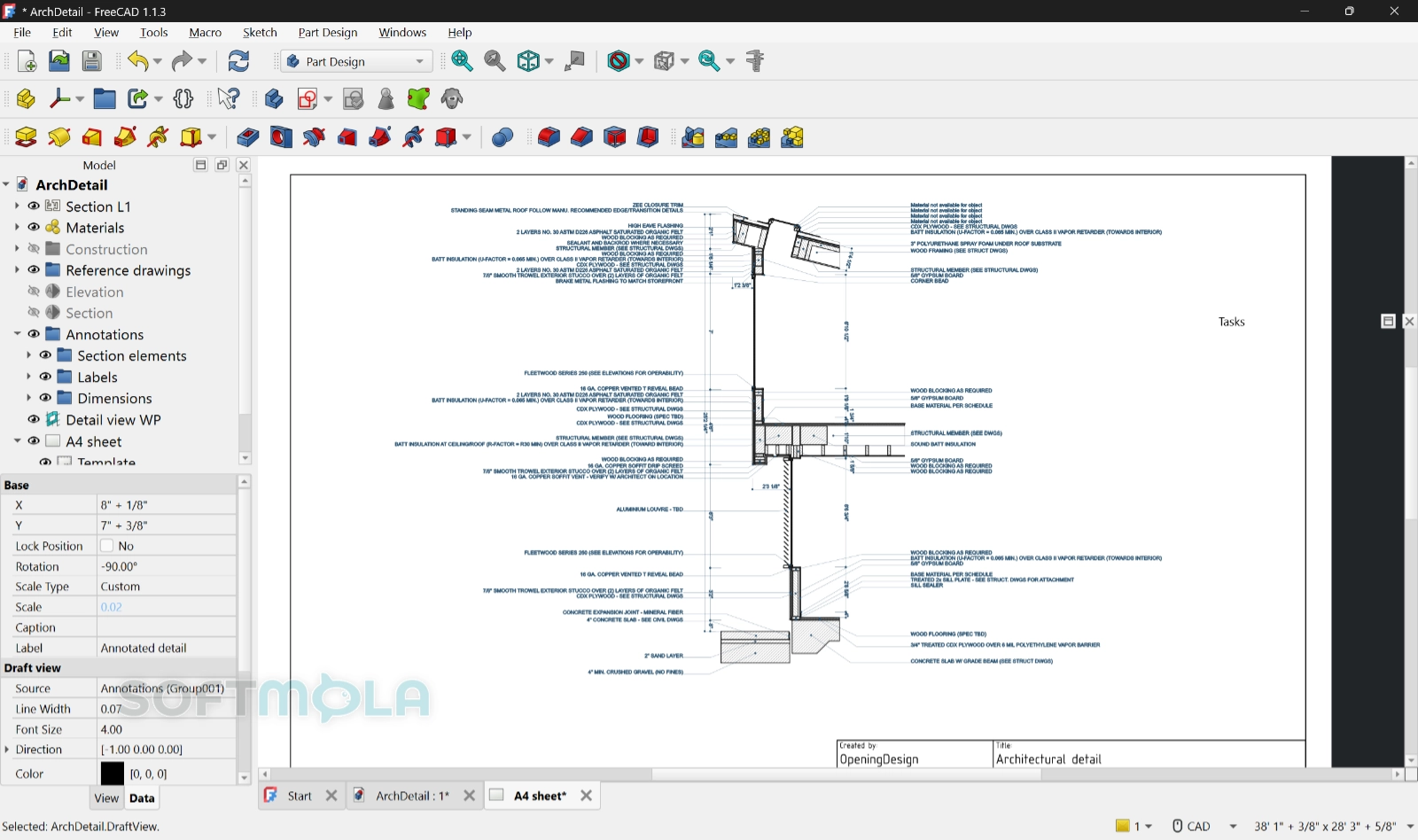
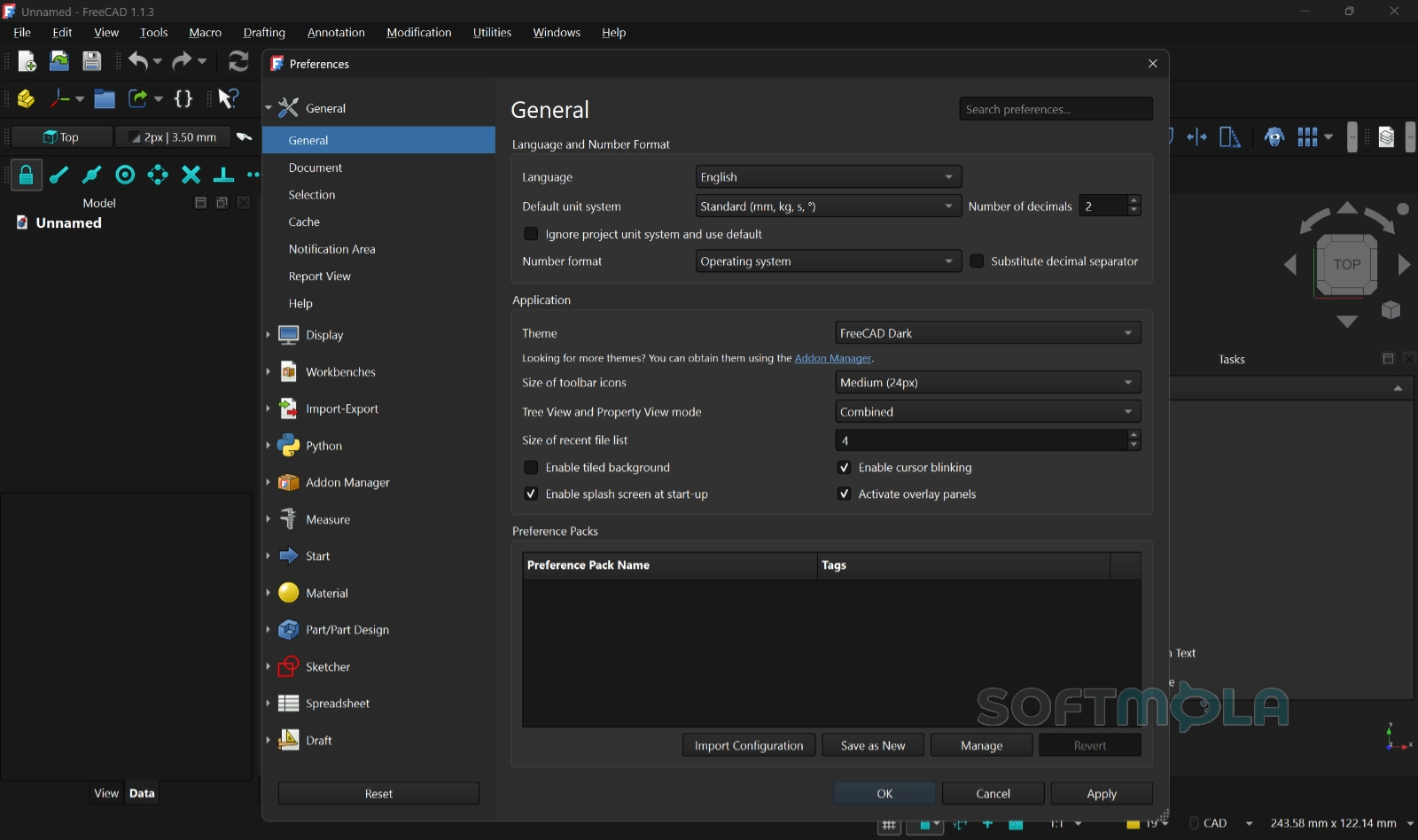
Table of Contents
FreeCAD is an open-source parametric 3D modeler used to design real objects: a printed bracket, a machine part, a piece of furniture, or an entire building. Instead of drawing fixed shapes, you define a model through dimensions and constraints that stay editable, so changing one number updates everything that depends on it. For anyone who needs capable CAD without a subscription, FreeCAD for Windows brings sketching, solid modeling, assemblies, technical drawings, simulation, and CNC toolpaths together in a single application.
The software is built by a volunteer community and backed by the FreeCAD Project Association, a non-profit registered in Belgium that manages donations, sponsorship, and development grants. It is released under the LGPL, which means it is genuinely free to download and use. There is no account to create, no trial clock, and no locked features behind a paid tier. Your files stay on your own machine in open formats, so nothing becomes inaccessible if you stop using the program.
That matters more now than it did a few years ago. Version 1.0, released in late 2024, was the first build the project considered stable enough for production work after more than two decades of development. Version 1.1 arrived in March 2026 and refined most of what 1.0 had opened up, with 1.1.3 following as a maintenance update in July 2026. FreeCAD has moved from an interesting open-source experiment to a practical choice for engineers, product designers, makers, and students who would otherwise need a commercial license.
FreeCAD Review
The first thing to understand about FreeCAD is that it is organized into workbenches rather than a single unified toolset. Sketcher handles constrained 2D geometry, Part Design turns those sketches into solids, Assembly joins parts together, TechDraw produces drawings, and separate workbenches cover architecture, mesh repair, machining, and analysis. Switching workbenches changes the toolbars and menus available to you. This is efficient once the logic clicks, but it is also the single biggest reason newcomers get stuck: they go looking for a tool that exists, just not in the workbench they happen to be in. Anyone coming from a tool-based program like AutoCAD should expect a genuine adjustment period rather than an afternoon of exploration.
Modeling itself follows the familiar parametric pattern. You draw a profile, constrain it until it is fully defined, then pad, pocket, revolve, or loft it into a solid and layer on features like fillets, chamfers, and hole patterns. The model tree keeps that history intact, so you can go back to an early sketch, change a dimension, and let the downstream features recompute. Version 1.1 made this loop noticeably more pleasant with transparent previews in Part Design and interactive draggers on tools such as Fillet and Chamfer, which lets you judge a change visually before committing to it.
The most consequential change of the 1.x era is the work on the topological naming problem, a long-running weakness where internal names for faces and edges could shift after an edit, breaking any feature that referenced them. FreeCAD 1.0 introduced a mitigation algorithm contributed by the community, and the project has been extending it since. It is worth being precise here: the maintainers describe the issue as mitigated rather than eliminated, with the fix initially covering Sketcher and Part Design and further work continuing in later releases. In practice, editing early features is far less risky than it used to be, but disciplined modeling — anchoring sketches to datum planes rather than to model faces where possible — still pays off. That advice is not unique to FreeCAD; models can be built brittle in any parametric CAD package.
Assemblies are the other area transformed by 1.0. Earlier versions pushed users toward third-party add-ons to combine parts, which worked but was inconsistent. The built-in Assembly workbench uses an open-source solver and supports joints such as revolute and cylindrical, making it possible to model mechanisms with actual movement rather than static arrangements. Version 1.1 continued to build on it. It is capable enough for the multi-part projects most individual users and small teams take on, though it remains younger and less battle-tested than assembly tooling in long-established commercial suites.
Interoperability is a mixed picture worth checking against your own workflow. FreeCAD reads and writes STEP, IGES, STL, DXF, SVG, OBJ, IFC, and DAE, which covers most exchange scenarios in mechanical design, 3D printing, and BIM. DWG is the exception: because the format is proprietary and closed, FreeCAD relies on an external converter such as the ODA File Converter or LibreDWG, which you install and point to in preferences. If your collaborators send DWG files routinely, that is an extra step to plan for.
Performance depends heavily on model complexity and your hardware, and the honest answer is that large assemblies and heavy recomputes will ask something of your system. On Windows, the project lists Windows 10 as the minimum supported version, with 64-bit builds. The interface received substantial cleanup during the 1.0 and 1.1 cycles, including a reorganized preferences window, better selection tools, and improved lighting in the 3D view, so it no longer feels like the visually dated application it once was.
The realistic assessment is that FreeCAD delivers a genuinely broad toolkit at no cost, with the trade-offs you would expect from a community-driven project of that scope: a steeper learning curve than polished commercial alternatives, occasional rough edges between workbenches, and documentation that is extensive but scattered across a wiki, forum threads, and community video tutorials. What you get in return is a complete design environment with no licensing fees, no vendor lock-in, and files you fully control.
Key Features of FreeCAD
Parametric Modeling with Sketcher and Part Design
Sketcher lets you draw 2D profiles and lock them down with geometric and dimensional constraints, so the shape holds its intent when values change. Part Design then converts those profiles into solids and applies the feature operations most mechanical work depends on. Because the whole history stays editable, revising a part late in a project is a matter of changing parameters rather than redrawing geometry.
Assembly Workbench
The Assembly workbench brings separate parts into one document and connects them with joints that define how components relate and move. Grounding a base component and adding revolute or cylindrical joints lets you check clearances and simulate motion before anything is manufactured. It handles the multi-part projects typical of hobby and small-team engineering well, and continues to receive active development.
TechDraw for Technical Drawings
TechDraw generates 2D production drawings from your 3D model, including projected views, sections, dimensions, and annotations. This is the step that turns a model into something a machine shop or fabricator can work from. Drawings stay linked to the model, though it remains good practice to add dimensions once the geometry is settled.
Broad File Format Support
STEP and IGES cover exchange with other CAD systems, STL and OBJ handle 3D printing and mesh workflows, DXF and SVG serve 2D and laser cutting, and IFC supports building information modeling. Working in open formats keeps your data portable. DWG is the one format that requires an external converter, which you configure once in the import and export preferences.
FEM Simulation
The FEM workbench provides finite element analysis for structural, thermal, and other physics problems, letting you apply materials, constraints, and loads to a model and study the results. Version 1.1 expanded this area with additional improvements and animation capability. It is a serious inclusion for software with no purchase price, though setting up meaningful analyses assumes you understand the underlying engineering.
CAM and Manufacturing Output
The CAM workbench generates CNC toolpaths and G-code from your models, covering common milling and drilling operations. Version 1.1 introduced a redesigned tool library system, which makes managing cutters and presets considerably more organized. Combined with STL export for 3D printing, it means a design can go from concept to machine instructions without leaving the application.
Python Scripting and the Addon Manager
Nearly everything in FreeCAD is accessible from Python, so repetitive tasks, parametric part families, and custom tools can be automated. The built-in Addon Manager installs community workbenches directly from within the program, extending FreeCAD into areas such as surface modeling, sheet metal, and specialist import formats. This extensibility is a large part of why the software covers so much ground.
FreeCAD makes the most sense for people who want full control of their design work: makers and 3D printing enthusiasts, mechanical and product designers working independently or in small teams, students learning parametric CAD, and engineers who prefer open formats and no recurring cost. It asks for patience in return, particularly during the first weeks of getting used to workbenches and constraint-based sketching, and specialized commercial packages will still be faster in their own niches. But the 1.x releases have closed the gap that used to make FreeCAD hard to recommend for real projects, and since there is nothing to buy and nothing to sign up for, evaluating it against your own workflow costs only the time you decide to give it.
How to Download and Install FreeCAD on Windows
FreeCAD is distributed directly by the project as a 64-bit Windows installer, with a portable package offered as an alternative for people who cannot or prefer not to install software. Both come from the same official source, and neither requires an account, a license key, or a payment step. Note that the project's own documentation currently advises against the Chocolatey package because that repository is not kept up to date.
How to Download FreeCAD
Select the download button on this page.
Continue to the verified official download source.
Choose the standard x86_64 installer for a normal installation, or the x86_64 portable (.7z) package if you want to run FreeCAD without installing it.
Save the file to a folder you can find easily, such as Downloads.
Wait for the download to finish completely before opening the file.
How to Install FreeCAD
Open the downloaded installer.
Approve the Windows User Account Control prompt if it appears.
Review and accept the license terms to continue.
Choose whether to install for all users or only for your account. This choice appears when the installer runs with administrator rights; without them, FreeCAD installs into your own user folder by default.
Confirm or change the installation location and the components to include. The defaults are suitable for most users.
Complete the setup and let the installer finish writing files.
Open FreeCAD from the Start menu. No activation or sign-in step follows.
How to Run the Portable Version
Download the official portable 7z package instead of the installer.
Extract the archive with 7-Zip or another tool that handles the 7z format.
Move the extracted folder to where you want to keep it, such as a permanent folder on your drive or an external disk.
Open the FreeCAD executable inside that folder to start the application.
Keep the folder in place once you begin working, since the portable version stores its settings alongside the application rather than in a system location.
Getting Started with FreeCAD
Open the preferences and set your preferred unit system before starting a project, so dimensions display the way you expect from the beginning.
Choose a workbench for the task at hand. Part Design suits mechanical parts, Draft and Sketcher handle 2D geometry, and BIM covers architectural work.
Open the Addon Manager if you need community workbenches, which install from within the program and become available after a restart.
If you work with DWG files, install an external converter and set its path under Edit → Preferences → Import/Export → DWG before your first import.
FreeCAD Pros & Cons
- Free and open source with no strings attached: There is no account, no trial period, and no paid tier holding back features, so every tool in the application is available from the first launch.
- A complete toolkit in one program: Parametric modeling, assemblies, technical drawings, FEM analysis, and CAM toolpaths sit inside the same application, which removes the need to buy separate packages for each stage.
- Far more stable model editing than earlier versions: The topological naming work introduced in 1.0 and extended since means going back to change an early sketch is much less likely to break the features built on top of it.
- Open file formats and full data ownership: Support for STEP, IGES, STL, DXF, SVG, OBJ, and IFC keeps projects portable, and files stay on your own machine rather than in a vendor's cloud.
- Extensible through Python and the Addon Manager: Community workbenches install from inside the program, and almost every operation can be scripted, which suits repetitive work and parametric part families.
- The workbench structure takes real adjustment: Tools are grouped into separate workbenches rather than one global toolset, and newcomers often assume a feature is missing when they are simply in the wrong workbench.
- Topological naming is mitigated, not eliminated: The project describes the fix as ongoing, so complex models still benefit from disciplined practices such as anchoring sketches to datum planes instead of model faces.
- DWG requires an external converter: Because the format is proprietary, FreeCAD depends on a separate tool such as the ODA File Converter or LibreDWG, which you install and configure yourself.
- Assembly and some specialist workbenches are younger than commercial equivalents: They handle typical individual and small-team projects, but they have had less time to mature than the assembly tooling in long-established paid suites.
- Documentation is thorough but scattered: Answers are spread across the official wiki, forum threads, and community video tutorials rather than a single structured learning path.
Frequently Asked Questions
Is FreeCAD really free?
Yes. FreeCAD is released under the LGPL, which makes it free to download, use, modify, and share, including for commercial work. There is no paid edition, no subscription, and no feature locked behind an upgrade. The project is funded by donations and sponsorship managed by the FreeCAD Project Association, a non-profit organization, not by selling licenses.
Does FreeCAD work on Windows 11?
Yes. The project lists Windows 10 as the minimum supported version, so both Windows 10 and Windows 11 are covered. Official Windows builds are 64-bit only, which means there is no 32-bit installer to choose between and no separate ARM package on the download page. Performance on any supported version depends mainly on your hardware and the complexity of your models.
Do I need an account to use FreeCAD?
No. FreeCAD does not require registration, sign-in, or activation. You can install it and start modeling immediately, and your files are saved locally in the FCStd format rather than to a cloud service. An internet connection is only needed for tasks such as downloading updates or installing community workbenches through the Addon Manager.
Is there a portable version of FreeCAD?
Yes. Alongside the standard Windows installer, the project publishes a portable 7z package for 64-bit Windows. You extract it and run the application directly, which is useful on machines where you cannot install software or when you want to carry FreeCAD on an external drive. It behaves the same as the installed version, but it does not create Start menu shortcuts or file associations.
Can FreeCAD open DWG files?
Only with help. DWG is a proprietary format, so FreeCAD passes the file through an external converter such as the ODA File Converter or LibreDWG, translating it to DXF behind the scenes. You install the converter separately and point FreeCAD to it in the import and export preferences. DXF, STEP, and IGES files work without any additional setup, so asking collaborators for one of those formats avoids the extra step entirely.
Is FreeCAD suitable for beginners?
It is suitable for beginners who are prepared to learn deliberately. Constraint-based sketching and the workbench layout are unfamiliar to most newcomers, and the first weeks involve more tutorial time than experimentation. Beginners who work through the official getting-started material or a structured video series usually get productive results, while those expecting to figure it out by clicking around tend to struggle.
Does FreeCAD work without an internet connection?
Yes. Modeling, assemblies, drawings, simulation, and CAM all run entirely offline once the software is installed, since nothing depends on a cloud service or license check. You only need to be online to download updates or to install additional workbenches through the Addon Manager. Documentation is hosted online, so keeping reference material available offline is worth planning for if you work without a connection.