

AdwCleaner for Windows
Free Windows tool for removing adware, browser hijackers, and unwanted programs.
Software Information
AdwCleaner Screenshots
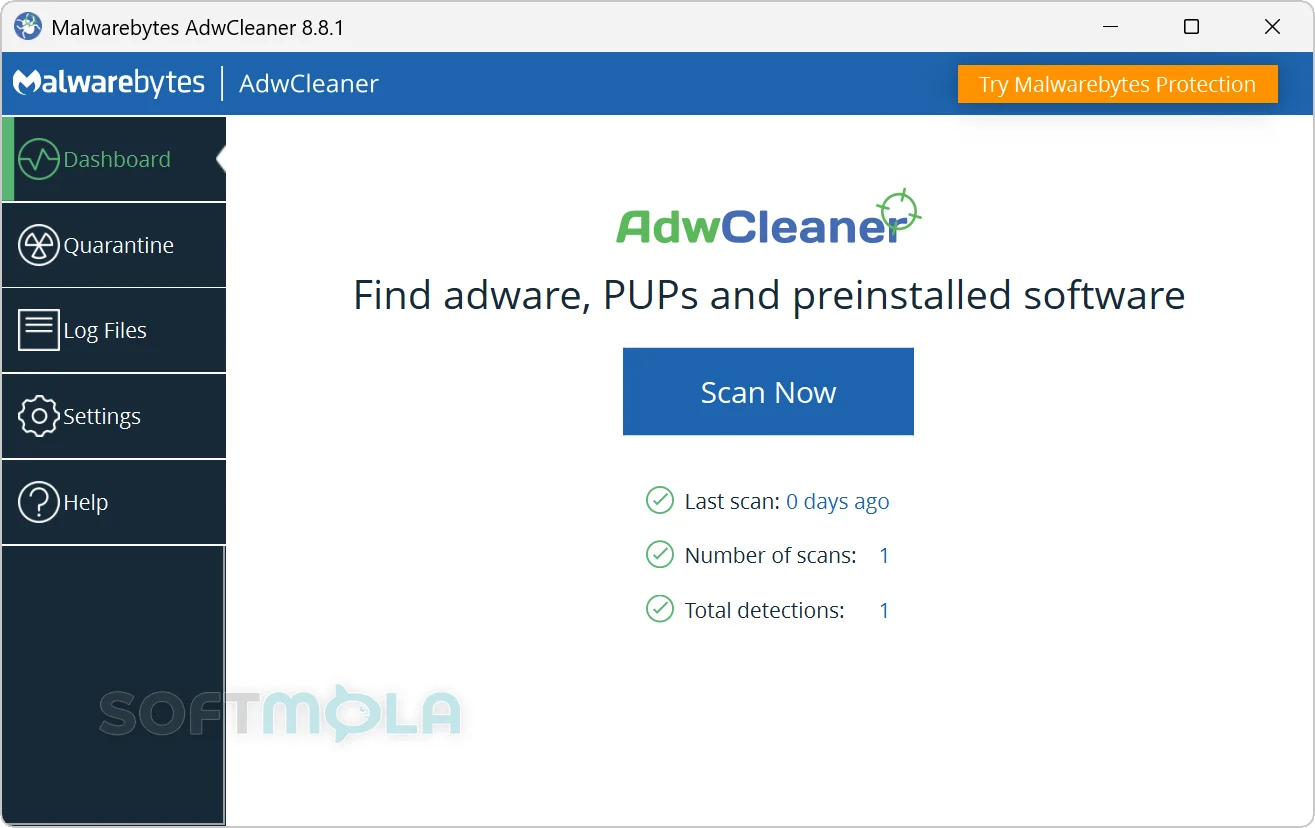
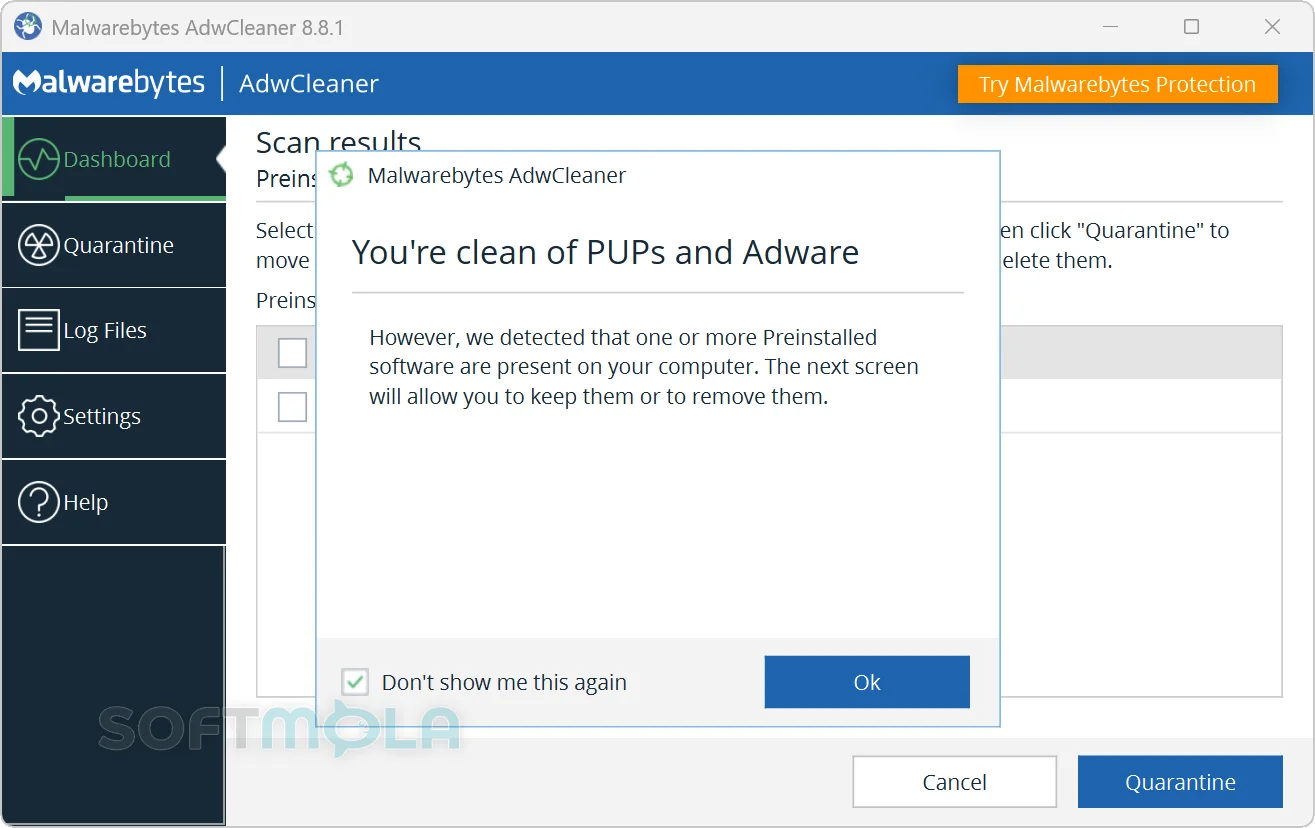
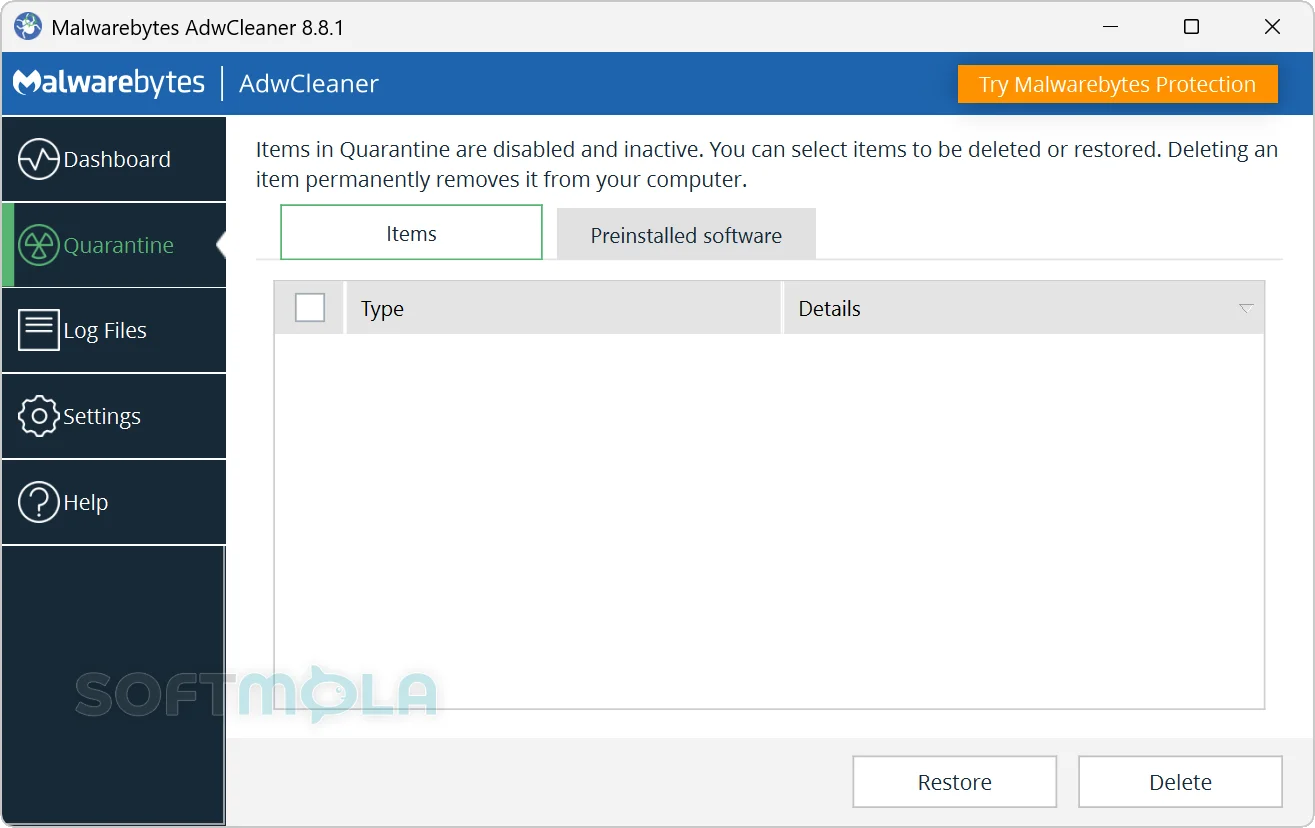
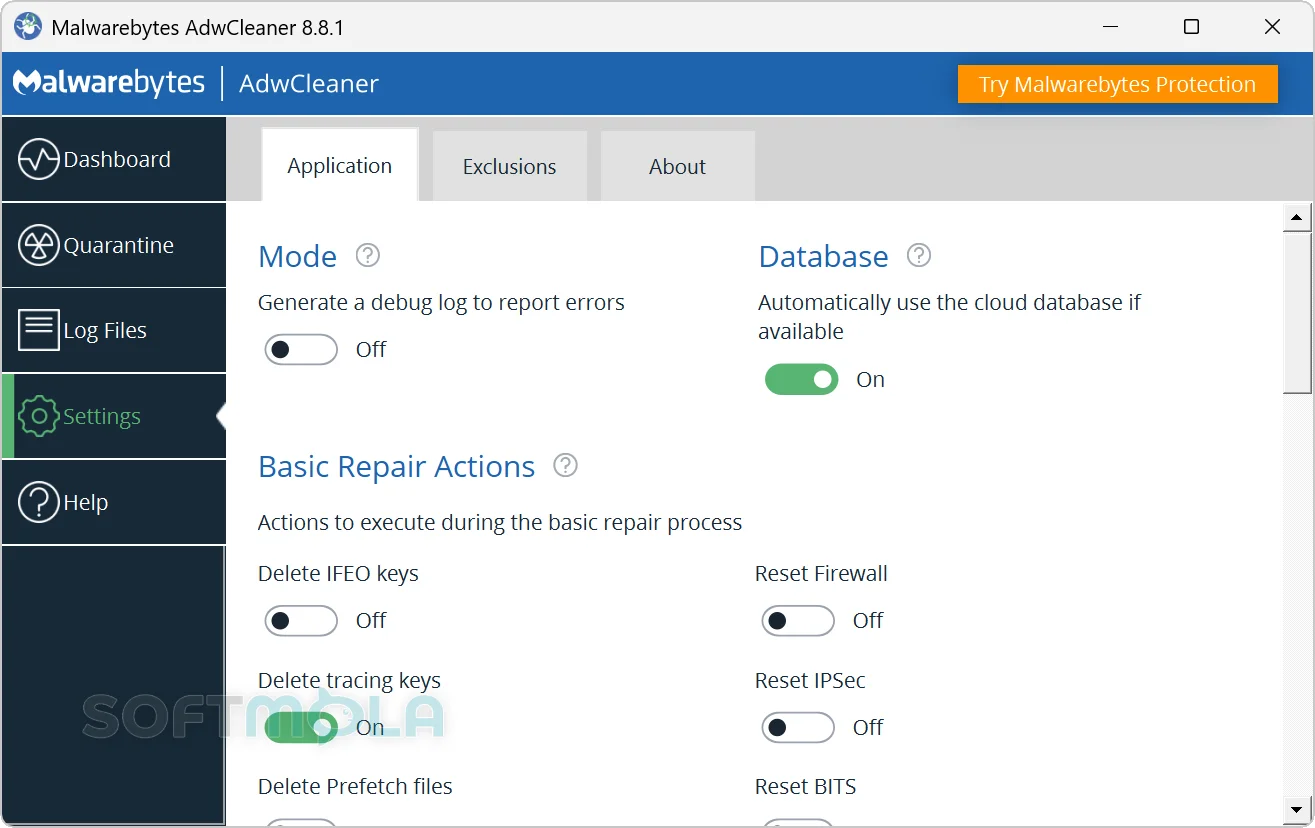
Table of Contents
AdwCleaner for Windows is a free malware removal utility designed to find and clean adware, browser hijackers, potentially unwanted programs, and unwanted software that may arrive bundled with other downloads. Developed by Malwarebytes, it focuses on the irritating software that can change browser settings, display excessive advertising, install toolbars, or leave a PC feeling cluttered and difficult to control.
Unlike a conventional antivirus, AdwCleaner does not run continuously in the background or attempt to prevent every type of cyberattack. It is an on-demand cleanup tool: you open it when a Windows computer shows suspicious browser behaviour, unexpected applications, intrusive pop-ups, or other signs of unwanted software. Its narrow focus, simple interface, and portable executable make it particularly useful for home users, support technicians, and anyone seeking a second-opinion scanner alongside their existing security software.
AdwCleaner Review
AdwCleaner remains relevant because potentially unwanted programs occupy an awkward space between clearly malicious software and applications that users knowingly choose to install. A bundled utility may not behave like a destructive virus, yet it can still change a browser’s search provider, add unwanted extensions, display advertising, interfere with network settings, or create persistent startup entries. General antivirus products may identify some of these items, but their handling of lower-risk software varies. AdwCleaner gives users a dedicated way to investigate and remove this type of clutter.
The program follows a straightforward scan-and-clean workflow. After opening the executable and accepting the licence agreement, users can start a scan from the uncluttered dashboard. Results are presented for review rather than removed without explanation. Detected adware, potentially unwanted programs, and eligible preinstalled applications can be selected before they are moved into quarantine. Some cleaning operations require Windows to restart so that locked files or active processes can be handled properly.
This approach makes AdwCleaner accessible to less technical users, but it still requires judgment. Potentially unwanted software is not always objectively harmful. A browser extension, manufacturer utility, or bundled program may be unwanted by one person and useful to another. Reviewing the detection list before cleaning is therefore important, especially when the scan includes software that came preinstalled with a computer. The program’s quarantine system reduces the risk of an irreversible mistake because detected items can be restored unless they have been permanently deleted.
Another advantage is that AdwCleaner does not need to become a permanent part of the system. It runs from a downloaded executable and creates working folders for settings, logs, and quarantined files. This makes it practical for occasional troubleshooting and for technicians who need a focused cleanup utility without deploying another full security suite. A built-in removal option can later delete the application files and quarantine data from the PC.
Performance demands are modest, and the tool is intended to complete targeted scans rather than consume resources continuously. Its current documentation lists support for modern Windows systems, although Malwarebytes’ published support pages contain some inconsistencies around Windows 8.1. The company separately states that AdwCleaner 8.5 and later work only on Windows 10 and Windows 11, so users of older releases of Windows should not assume that the latest build is supported.
The product is still actively maintained. Malwarebytes lists AdwCleaner 8.8.1, released on May 13, 2026, as the active version at the time of writing. That release addressed a DLL sideloading security issue and improved compatibility with SetMe remote-control processes. Recent updates have also refreshed detection definitions and corrected scanning, quarantine, parsing, and process-handling problems. Continued maintenance matters for a remediation tool because both Windows behaviour and unwanted-software techniques change over time.
AdwCleaner’s main limitation is also central to understanding its purpose: it is not a replacement for real-time antivirus protection. It does not continuously monitor downloads, block phishing pages, provide ransomware defence, or stop malicious processes as they appear. It is most useful after a problem is suspected or as a periodic second-opinion scan. Windows users still need an actively maintained security product, current operating-system updates, and sensible browsing habits for broader protection.
Some of its advanced repair controls also deserve caution. AdwCleaner can reset firewall rules, proxy settings, Winsock, TCP/IP configuration, browser policies, the Hosts file, and other parts of Windows. These functions may help repair changes left behind by unwanted software, but they can also remove legitimate custom settings. Malwarebytes explicitly advises users not to run the Basic Repair process unless directed by a support agent.
Privacy-conscious users should also review the application settings. AdwCleaner can connect to Malwarebytes services to retrieve database updates, and an optional usage-and-threat-statistics setting can send information such as detected items, usage frequency, and country-level data. The statistics option can be disabled, while online database checks are enabled by default to keep detections current.
Overall, AdwCleaner succeeds by remaining specialised. It is easy to launch, easy to understand, and focused on a category of software that can be annoying without always looking like a traditional malware infection. Users seeking automatic, always-on protection will need a different product. For cleaning browser hijackers, bundled applications, adware, and other potentially unwanted programs, however, it remains a practical addition to a Windows troubleshooting toolkit.
Key Features of AdwCleaner
Adware and PUP Scanning
AdwCleaner scans Windows for adware and potentially unwanted programs, commonly shortened to PUPs. These may include bundled utilities, advertising components, intrusive software, or applications installed through unclear download offers.
The focused detection model is useful when a PC has unexplained pop-ups, unfamiliar programs, redirected searches, or browser settings that keep changing. Rather than positioning itself as a full antivirus scan, AdwCleaner concentrates on software and configuration changes associated with unwanted installations.
Browser Hijacker and Toolbar Cleanup
Unwanted browser extensions, toolbars, altered home pages, and modified search settings can make a browser difficult to use. AdwCleaner includes remediation technology for browser-related components and has historically updated its modules to support changes in browsers such as Chrome and Firefox.
This capability is especially valuable when removing an application through Windows does not restore the browser to its previous state. Users should still inspect results carefully, since legitimate extensions and organisation-managed browser policies may resemble unwanted modifications.
Preinstalled Software Detection
AdwCleaner can identify certain applications that were installed by a PC manufacturer or included with the original system image. These programs are shown separately from conventional adware and PUP detections, helping users distinguish factory-installed software from items acquired later.
Removal is optional. Some preinstalled tools provide hardware controls, update functions, recovery services, or device-specific features, so they should not be deleted merely because the scanner lists them. The feature is most useful for identifying unnecessary trialware or promotional applications on a new or heavily customised Windows PC.
Reviewable Scan Results
The program displays detected items before cleaning, allowing users to choose what should be quarantined. This review stage is important because PUP classifications can involve context and personal preference rather than a simple safe-or-malicious decision.
AdwCleaner also supports reporting suspected false positives from the results screen. That gives users a way to flag a legitimate file or application that may have been classified incorrectly, while allowing Malwarebytes’ researchers to examine the detection.
Quarantine and Restoration
When selected items are cleaned, they are placed into quarantine and modified so they cannot remain active in their original locations. The quarantine interface separates ordinary detections from preinstalled software and allows individual items to be restored or permanently deleted.
This safety net is one of AdwCleaner’s most important practical features. Restoring an item can help when cleaning removes a required component or affects a legitimate application. Permanent deletion should generally wait until the computer has been used long enough to confirm that everything still works as expected.
Logs and Scan History
AdwCleaner creates text-based logs containing scan and cleanup details. These records can help experienced users and support technicians see what was detected, which actions were taken, and whether a restart or further investigation is necessary.
The interface also shows basic scan history and detection totals. Although these records do not replace a full security investigation, they are useful when troubleshooting a recurring browser problem or sharing information with a technical support professional.
Configurable Exclusions
Users can exclude selected items from future scans when they are confident that a detection is legitimate or intentionally installed. Exclusions help prevent repeated alerts for software that the user has reviewed and chosen to keep.
They should be used selectively. Excluding an item without understanding it can allow genuinely unwanted software to remain undetected during later scans. For uncertain results, quarantine and further investigation are safer than immediately creating a permanent exception.
Command-Line Controls
AdwCleaner provides command-line options for scanning, cleaning, including preinstalled applications, changing the working directory, avoiding an automatic reboot, and removing the program’s files. This gives technicians and advanced users more flexibility than the graphical interface alone.
The command-line mode can support repeatable troubleshooting workflows, but it does not turn AdwCleaner into a fully managed endpoint-security platform. It is still a specialised remediation utility, and automated cleaning should be used carefully because the user may not have an opportunity to review every detection first.
AdwCleaner is best suited to Windows users who need a quick, focused way to investigate adware, unwanted browser changes, bundled programs, or unnecessary preinstalled software. Its free availability, reviewable results, quarantine controls, and continued development make it a useful second-opinion cleaner. Its lack of real-time protection is an important boundary, but within that boundary, AdwCleaner remains a sensible tool to keep available for occasional PC cleanup and troubleshooting.
How to Download and Install AdwCleaner on Windows
AdwCleaner is distributed as a portable Windows executable rather than a conventional installed application. Download it through the verified button on this page or Malwarebytes’ official distribution channel. A subscription and traditional setup wizard are not required, but Windows administrator approval may be requested when the program opens.
How to Download and Run AdwCleaner
Select the Download Free Version button on this page.
Continue to the verified AdwCleaner download source.
Save the executable in an accessible location, such as the Downloads folder.
Wait until the download is complete before opening the file.
Double-click the downloaded AdwCleaner executable.
Approve the Windows User Account Control request if it appears.
Read the End User Licence Agreement and select I AGREE to open the application.
Because AdwCleaner is portable, there is no separate installation wizard, component selection screen, or activation process. Keep the executable in a known folder if you plan to use it again, or remove it through AdwCleaner’s own removal controls when it is no longer needed.
Getting Started with AdwCleaner
Close unnecessary applications. Save open documents before scanning because the cleaning process may close running programs or require Windows to restart.
Check for definition updates. Allow AdwCleaner to retrieve current detection information when an internet connection is available.
Start a scan. Open the dashboard and begin an on-demand scan of the Windows device.
Review every detection. Check the listed adware, potentially unwanted programs, and preinstalled applications before selecting items for removal.
Clean selected items. Allow AdwCleaner to quarantine the chosen detections, then approve a restart if one is required to complete the process.
AdwCleaner Pros & Cons
- Free to use: AdwCleaner is available as a free cleanup utility without requiring a paid subscription.
- Focused unwanted - software removal: It targets adware, browser hijackers, potentially unwanted programs, and eligible preinstalled applications rather than trying to duplicate every function of a full security suite.
- No traditional installation: The downloaded executable can be opened directly, making the tool convenient for occasional scans and technical troubleshooting.
- Reviewable results: Users can inspect detected items before allowing the program to clean them, which is important when a potentially unwanted application may have been installed intentionally.
- Quarantine and restoration controls: Removed items can be isolated and restored when a legitimate program or setting is affected.
- Actively maintained: Malwarebytes continued releasing and supporting AdwCleaner in 2026, with version 8.8.1 listed as active in the official product lifecycle documentation.
- No real - time protection: AdwCleaner scans on demand and does not continuously block malware, phishing, ransomware, or unwanted downloads.
- Cannot replace an antivirus: It is a specialised remediation tool rather than complete Windows security software.
- Detections require judgment: Some potentially unwanted or preinstalled programs may be useful, so users should review the scan results instead of removing everything automatically.
- Cleaning may require a restart: Windows may need to reboot when active processes or locked items cannot be removed immediately. AdwCleaner asks for confirmation before restarting by default.
- Advanced repair options can reset legitimate settings: Network, browser, firewall, proxy, or other system repairs should not be used without understanding what they change.
Frequently Asked Questions
What is AdwCleaner?
AdwCleaner is a free Windows malware-removal utility developed by Malwarebytes. It scans for adware, browser hijackers, potentially unwanted programs, and certain preinstalled applications that users may not want. Its purpose is to clean an existing problem rather than provide continuous protection against future attacks.
Is AdwCleaner free?
Yes. Malwarebytes currently offers AdwCleaner as a free utility. Users do not need to purchase a subscription to run its scans or clean detected items. It is separate from Malwarebytes’ paid security plans, which provide broader features such as ongoing threat monitoring and real-time protection.
Does AdwCleaner work on Windows 11 and Windows 10?
Yes. Malwarebytes states that AdwCleaner versions 8.5 and later are designed for Windows 10 and Windows 11. Although one official system-requirements page also lists Windows 8.1, Malwarebytes’ separate compatibility guidance says current versions after 8.5 only work on Windows 10 and 11. Users of an older operating system should not assume that the latest release will run correctly.
Does AdwCleaner need to be installed?
No traditional installation is required. AdwCleaner is supplied as an executable file that can be opened after downloading. Windows may display a User Account Control prompt, after which users must accept the licence agreement before accessing the program. It may still create local folders for logs, settings, and quarantined items while it is being used.
Does AdwCleaner include real-time protection?
No. AdwCleaner only scans when the user opens it and starts a scan. It does not monitor the PC continuously, inspect every new download, or provide permanent web and ransomware protection. It works best as a second-opinion cleaner alongside Windows Security or another actively maintained antivirus.
Can AdwCleaner replace Windows Security?
No. AdwCleaner should not replace Windows Security or another real-time antivirus product. Its narrow role is to detect and remove adware, potentially unwanted programs, browser hijackers, and related system changes after they are already present. Windows Security provides broader continuous protection against malware and other threats.
Can I use AdwCleaner with another antivirus?
In general, AdwCleaner is suitable for use as an on-demand scanner alongside an existing antivirus because it does not install a second real-time protection engine. Users should still save their work and close unnecessary applications before cleaning, as AdwCleaner may stop processes or request a restart to complete remediation.
Do I need a Malwarebytes account to use AdwCleaner?
The standard AdwCleaner download and launch instructions do not require users to create or sign in to a Malwarebytes account. The program can be opened, accepted under its licence agreement, and used for scanning directly. This differs from some subscription-based Malwarebytes products that require activation or account management.